Advanced Domain Manager
The Advanced Domain Manager in FlyWP provides a robust interface for managing domain configurations associated with a WordPress site. This feature supports the assignment of primary domains, HTTP redirects, domain aliases, and wildcard subdomain handling, streamlining complex domain setups in a production environment.
Overview
Section titled “Overview”FlyWP’s domain management utility facilitates:
- Mapping multiple domains to a single WordPress instance.
- Configuring redirection logic for SEO and usability.
- Assigning domain aliases for alternate access points.
- Enabling wildcard subdomain resolution for dynamic or multisite architectures.
Adding a New Domain
Section titled “Adding a New Domain”To associate a new domain with your WordPress site, follow these steps:
-
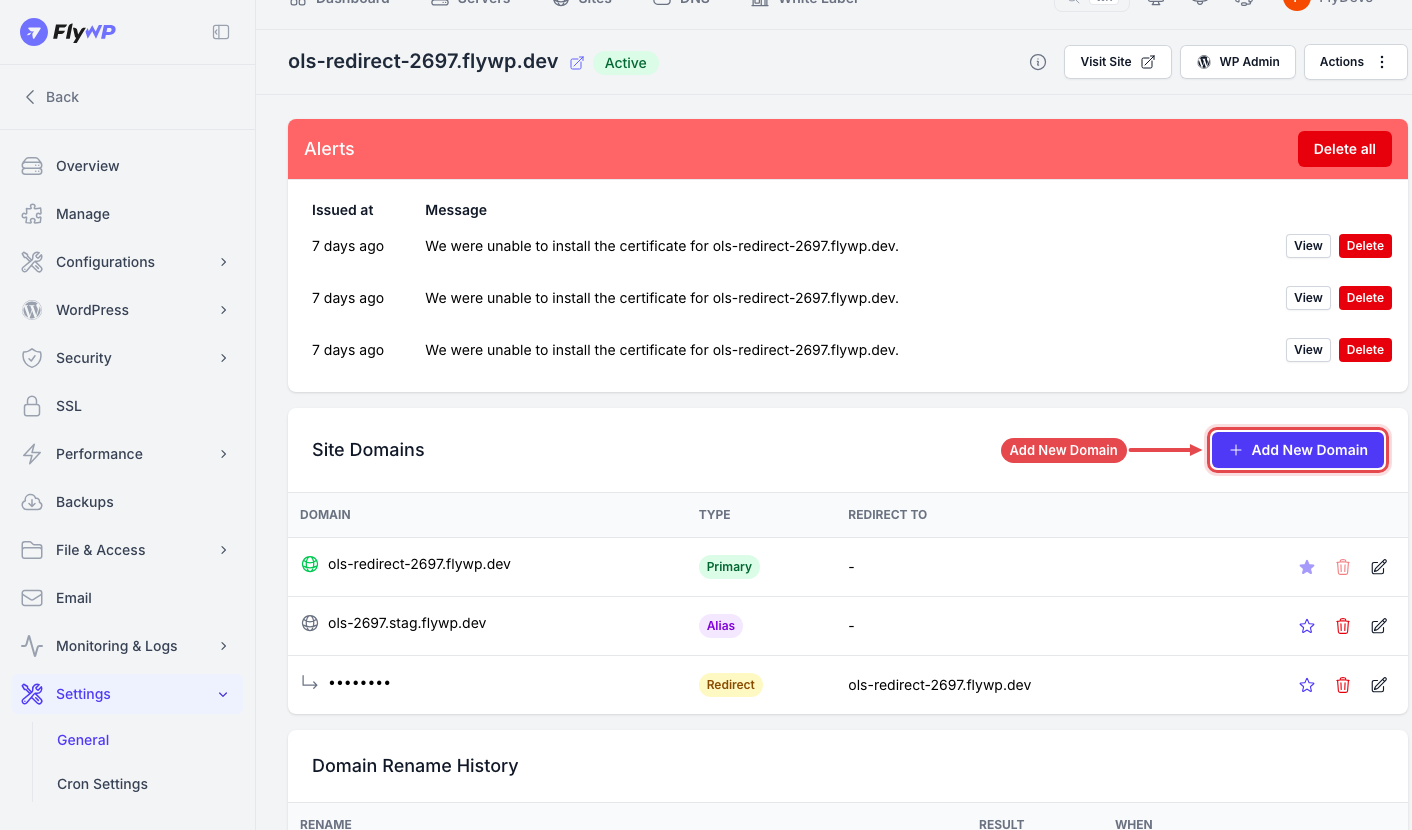
In your site dashboard, navigate to Settings → General.
-
Locate the Site Domains card and select Add New Domain.
-
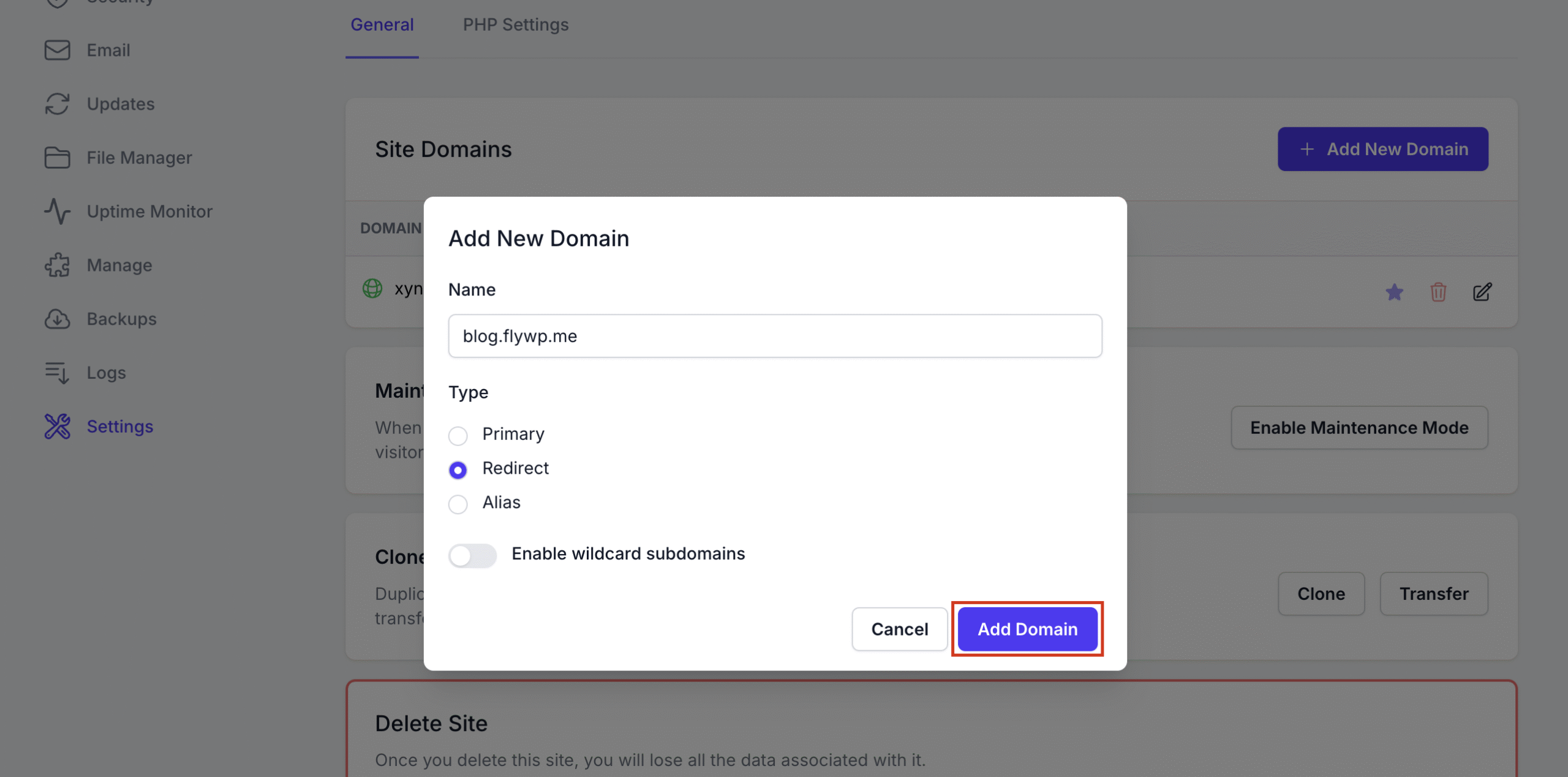
Within the domain creation modal, specify the following:
- Name: The fully qualified domain name (FQDN), e.g.,
example.com. - Type: The operational role of the domain:
- Primary – The canonical domain for the site.
- Redirect – Non-canonical domain that performs an HTTP 301 or 302 redirect to the primary domain.
- Alias – Additional domain that resolves directly to the site without redirection.
- Enable wildcard subdomains (optional): Enable this to allow
*.example.comto resolve to the site. - Add DNS record on Cloudflare (optional): If a connected Cloudflare account is selected, FlyWP will automatically manage the DNS record.
- Name: The fully qualified domain name (FQDN), e.g.,
-
Click Add Domain.
DNS configuration (e.g., A or CNAME records) should be updated at your domain registrar to point to the server’s IP address prior to domain validation.
Managing Domains
Section titled “Managing Domains”Domains added to a site are displayed under the Site Domains section, with metadata including:
- Domain: The FQDN assigned.
- Type: Role classification (Primary, Redirect, Alias).
- Redirect To: Target domain for redirect configurations.
Setting the Primary Domain
Section titled “Setting the Primary Domain”To designate a domain as the primary:
-
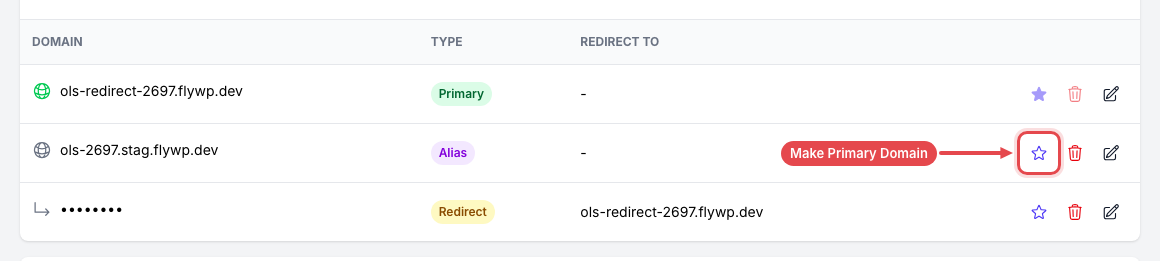
Hover over the star icon associated with the desired domain.
-
Click Make Primary Domain.
-
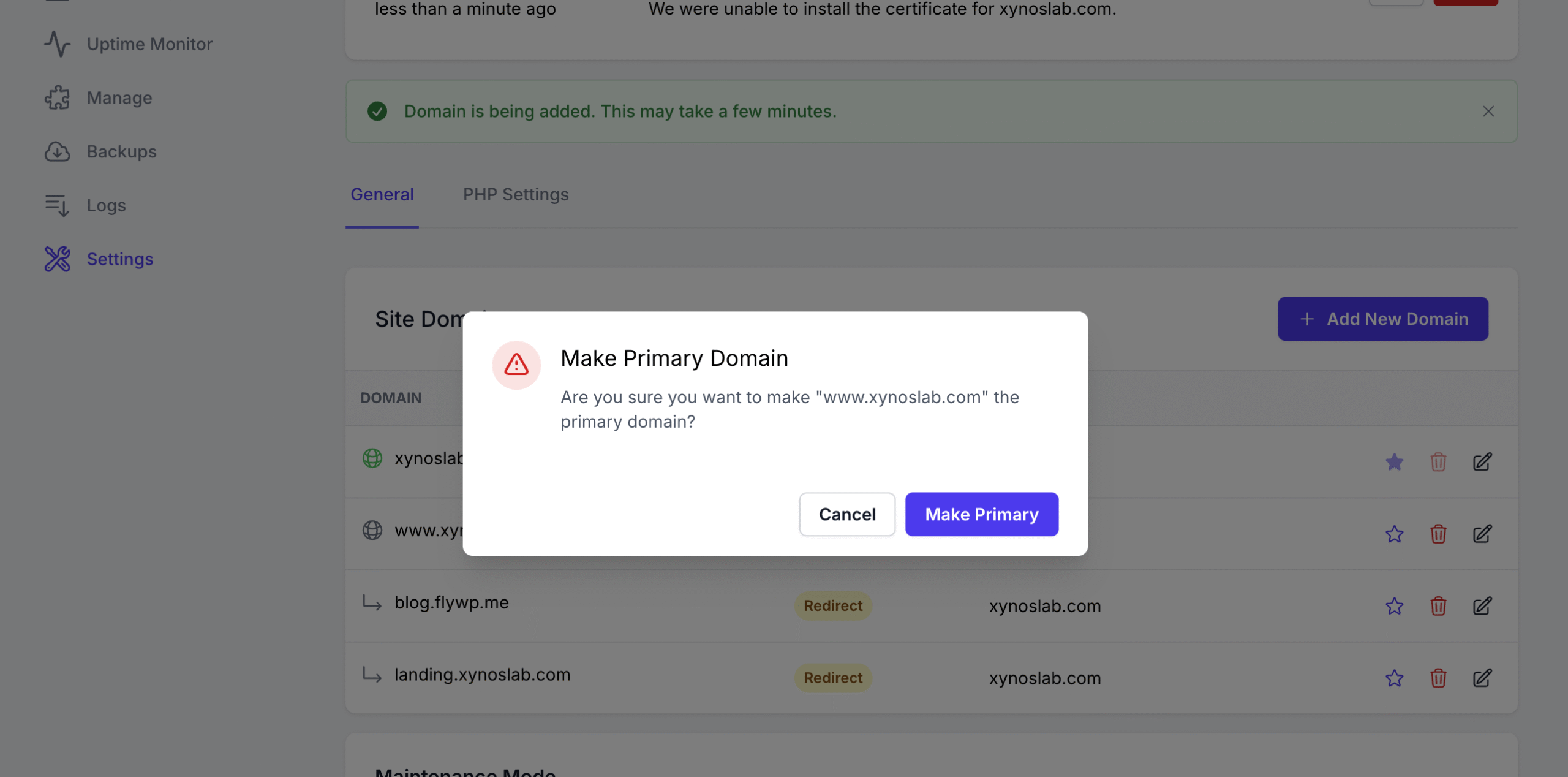
In the confirmation dialog, click Make Primary. This action updates the canonical domain and internal site URLs.
Editing an Existing Domain
Section titled “Editing an Existing Domain”-
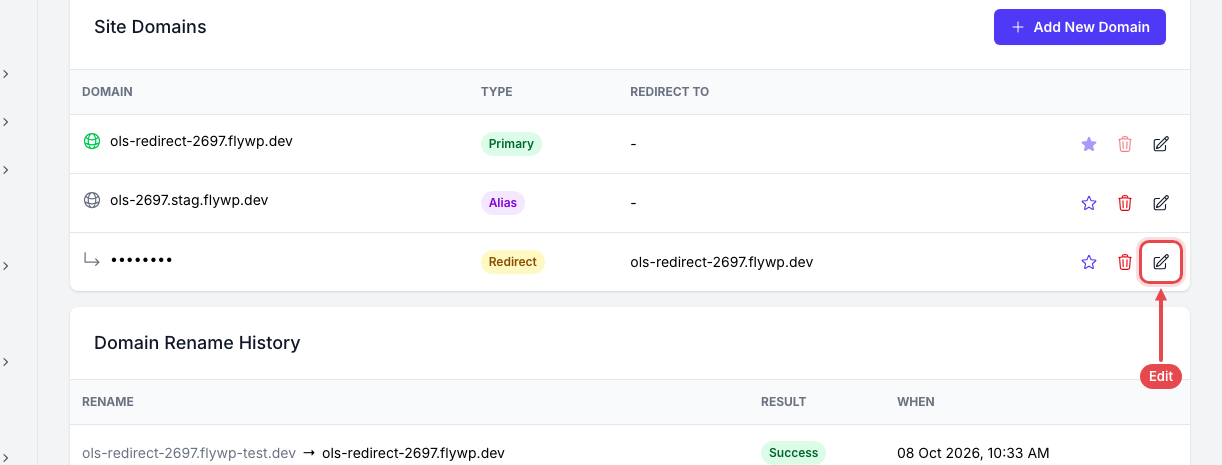
Click the edit (pencil) icon beside the domain entry.
-
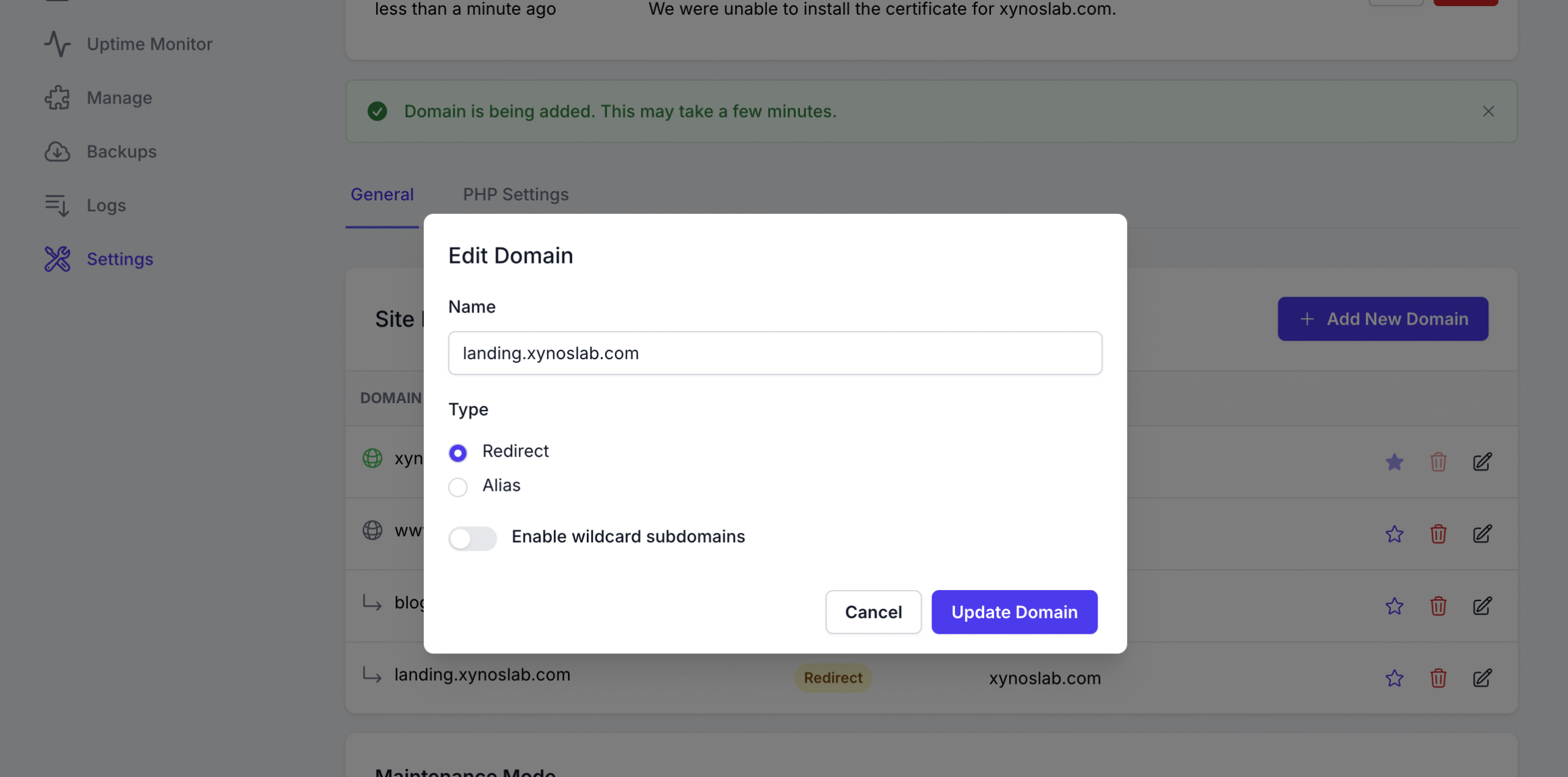
Modify domain attributes (e.g., type, wildcard setting).
-
Click Update Domain to apply changes.
Removing a Domain
Section titled “Removing a Domain”To delete a domain association:
-
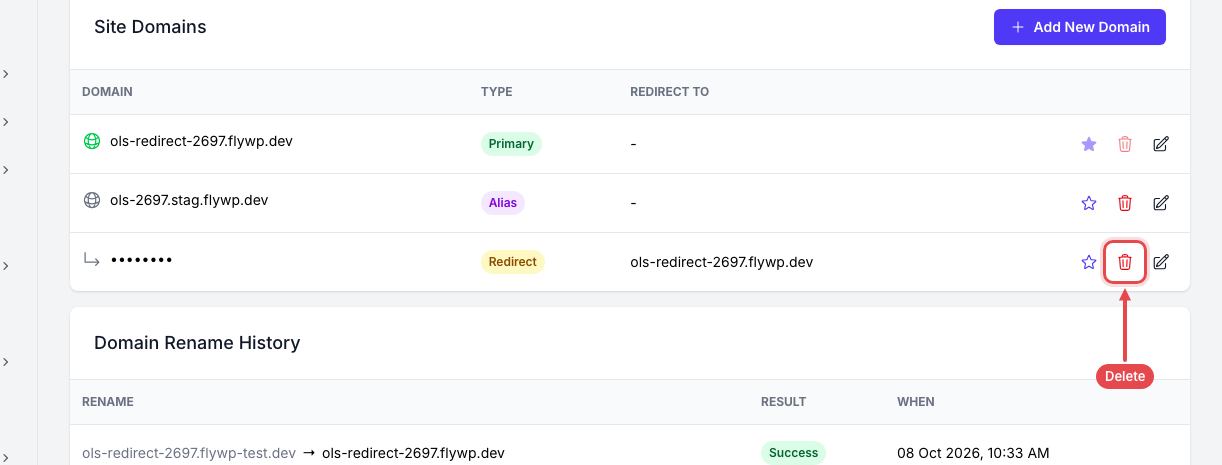
Click the delete (trash) icon next to the domain.
-
Confirm the deletion prompt.
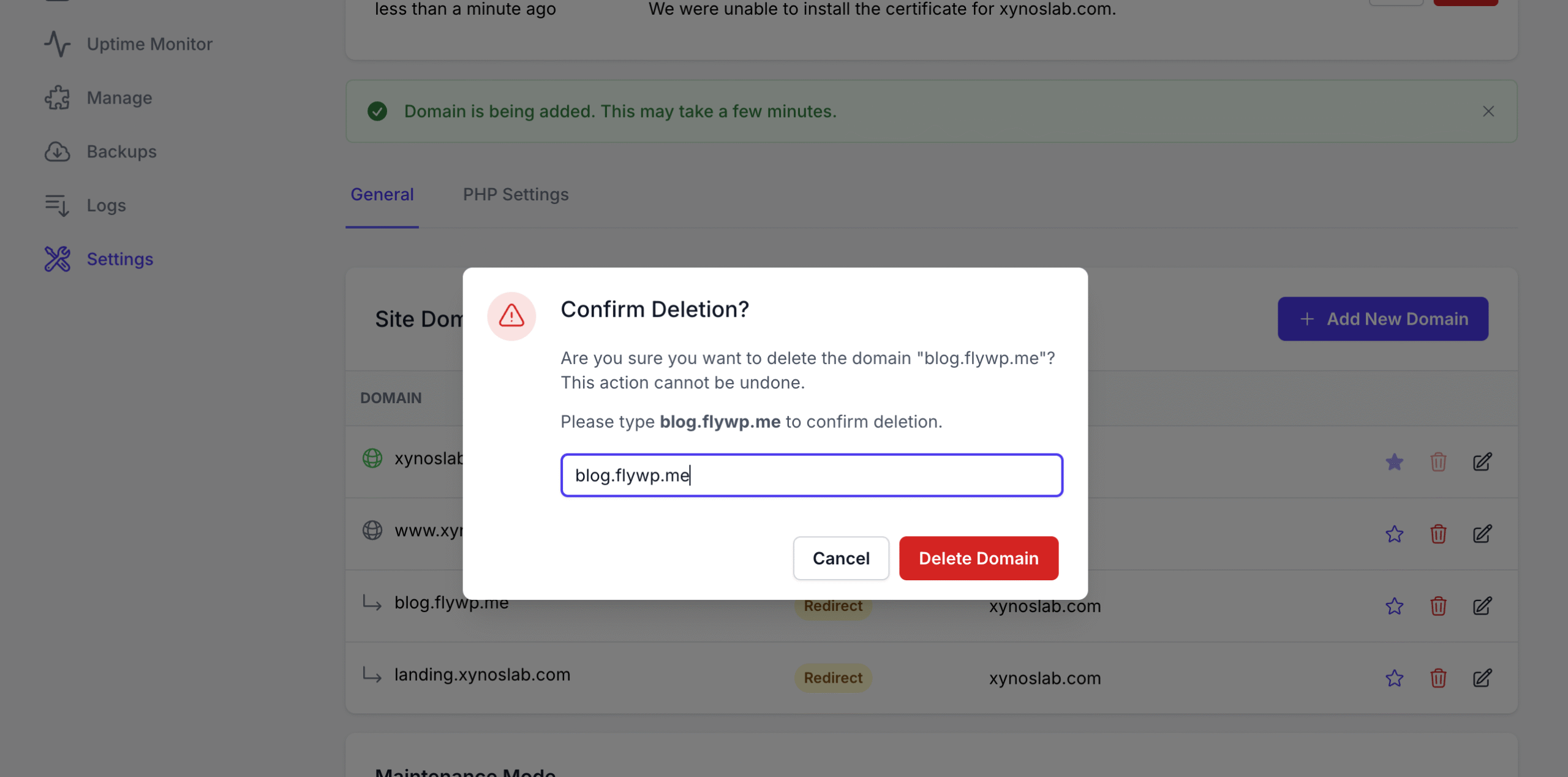
Once removed, the domain will cease to resolve to the site, and any inbound traffic will be rejected or unresolved at the DNS or web server layer.
Wildcard Subdomain Support
Section titled “Wildcard Subdomain Support”Enabling Wildcard Subdomain functionality allows any subdomain under a base domain (e.g., *.example.com) to resolve to the application without explicitly defining each subdomain.
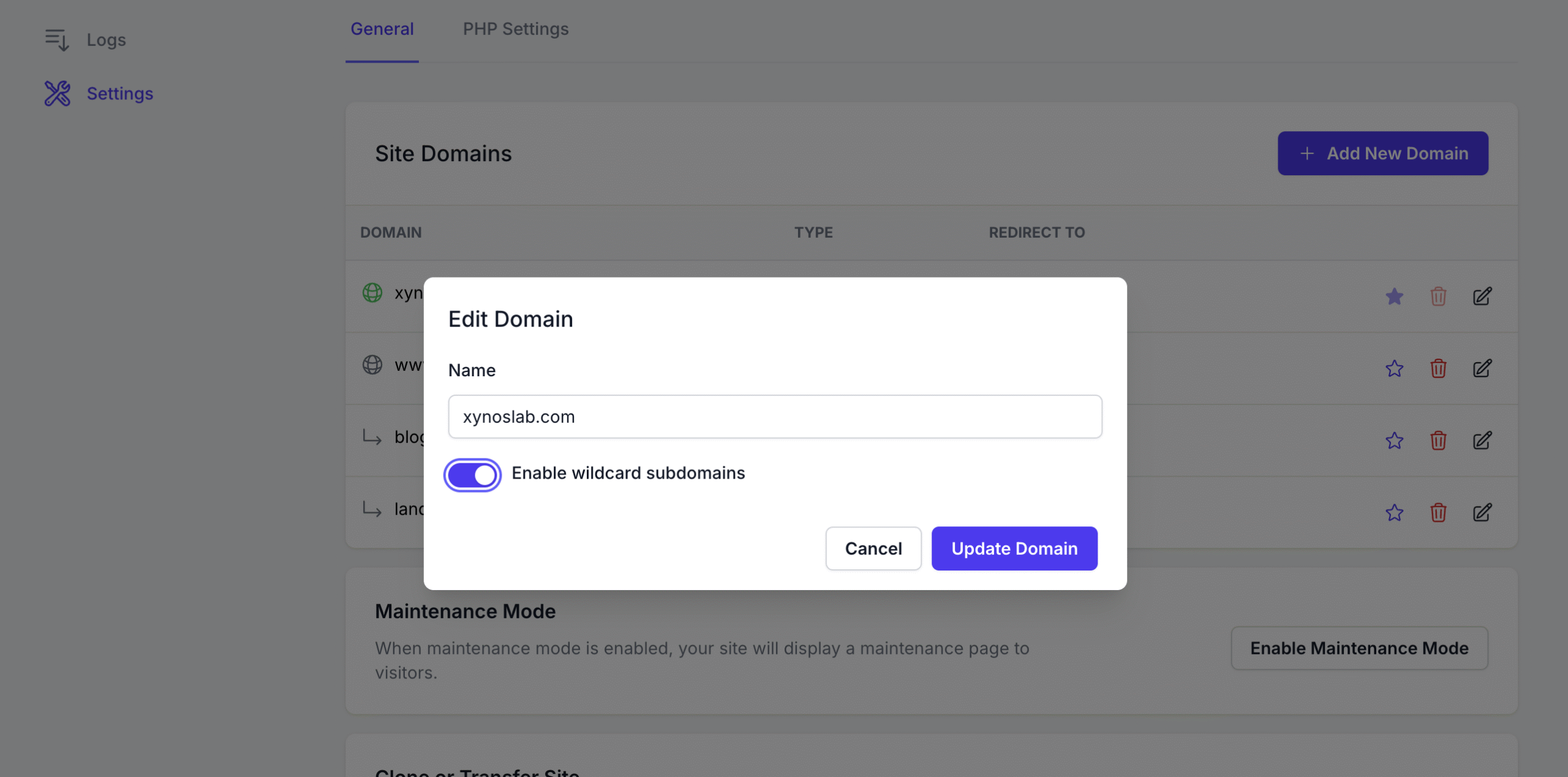
Use Cases Include:
Section titled “Use Cases Include:”- Subdomain-based multi-tenancy.
- SEO-friendly campaign URLs.
- Dynamic routing for user-specific or instance-specific deployments.
DNS wildcard A or CNAME records must also be configured accordingly (e.g., *.example.com → server IP).
Example Scenarios
Section titled “Example Scenarios”| Scenario | Configuration |
|---|---|
| Migrate from oldsite.com to newsite.com | Set newsite.com as Primary, configure oldsite.com as Redirect |
| Access site from multiple branded domains | Configure additional domains as Aliases |
| Host user instances on subdomains (e.g., user1.example.com) | Enable Wildcard Subdomains on example.com |
Important Notes
Section titled “Important Notes”- DNS propagation delays may affect initial domain resolution.
- SSL certificates: when a domain becomes the primary domain, FlyWP issues a Let’s Encrypt certificate for it only if the site was set up with HTTPS (Let’s Encrypt). Alias and other extra domains need SSL activated separately from the site’s SSL page.
- Changing the primary domain may temporarily disrupt SEO indexing or analytics unless 301 redirects are configured properly.
Still stuck? How can we help?
View as Markdown