Page Caching
Introduction to Page Caching
Section titled “Introduction to Page Caching”Page caching is a technique used to store rendered web pages temporarily. By caching, subsequent requests can be served faster as the system can return the stored output directly instead of processing the request again. FlyWP provides a simplified approach to manage page caching for your WordPress site, ensuring optimal performance and swift page load times.
For FastCGI cache specific information, visit FastCGI Cache.
Table of Contents
Section titled “Table of Contents”- Introduction to Page Caching
- Configuring Page Caching via FlyWP Dashboard
- Managing Page Caching via FlyWP Helper Plugin
Configuring Page Caching via FlyWP Dashboard
Section titled “Configuring Page Caching via FlyWP Dashboard”To set up page caching directly from the FlyWP dashboard:

- Accessing Page Caching Settings:
- Navigate to the specific site you wish to configure.
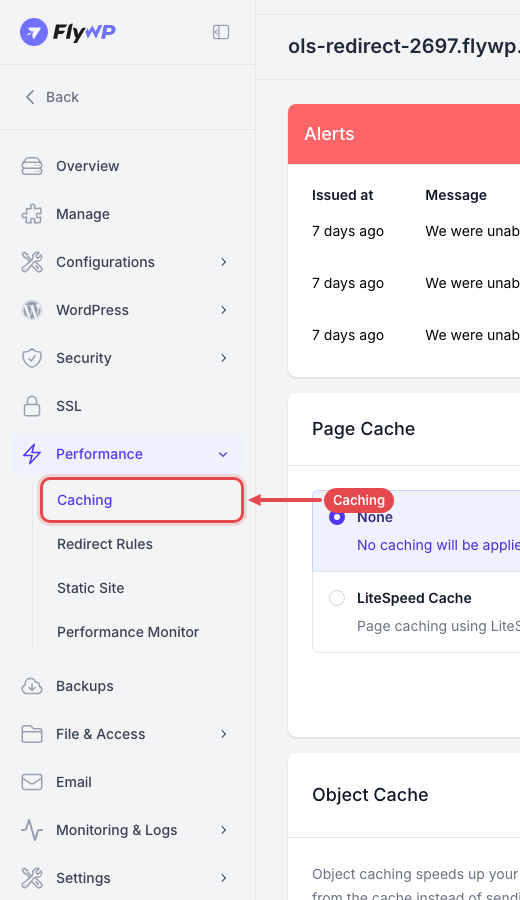
- In the left sidebar under Performance, select Caching.
- Choosing Your Cache Setting:
- None: No caching is applied. The server processes every request dynamically.
- FastCGI Cache (Nginx sites): Enables high-performance page caching powered by Nginx FastCGI.
- LiteSpeed Cache (OpenLiteSpeed sites): Enables native LiteSpeed page caching.
- Clearing the Cache:
- If you’ve enabled FastCGI Cache, you’ll see a Clear Cache button on the Page Cache card.
- Clicking this immediately purges the cache, which is useful when recent updates aren't showing.
- Object Cache (Redis):
- On the same page, the Object Cache card lets you toggle Redis object caching on or off and clear object cache data independently.
Managing Page Caching via FlyWP Helper Plugin
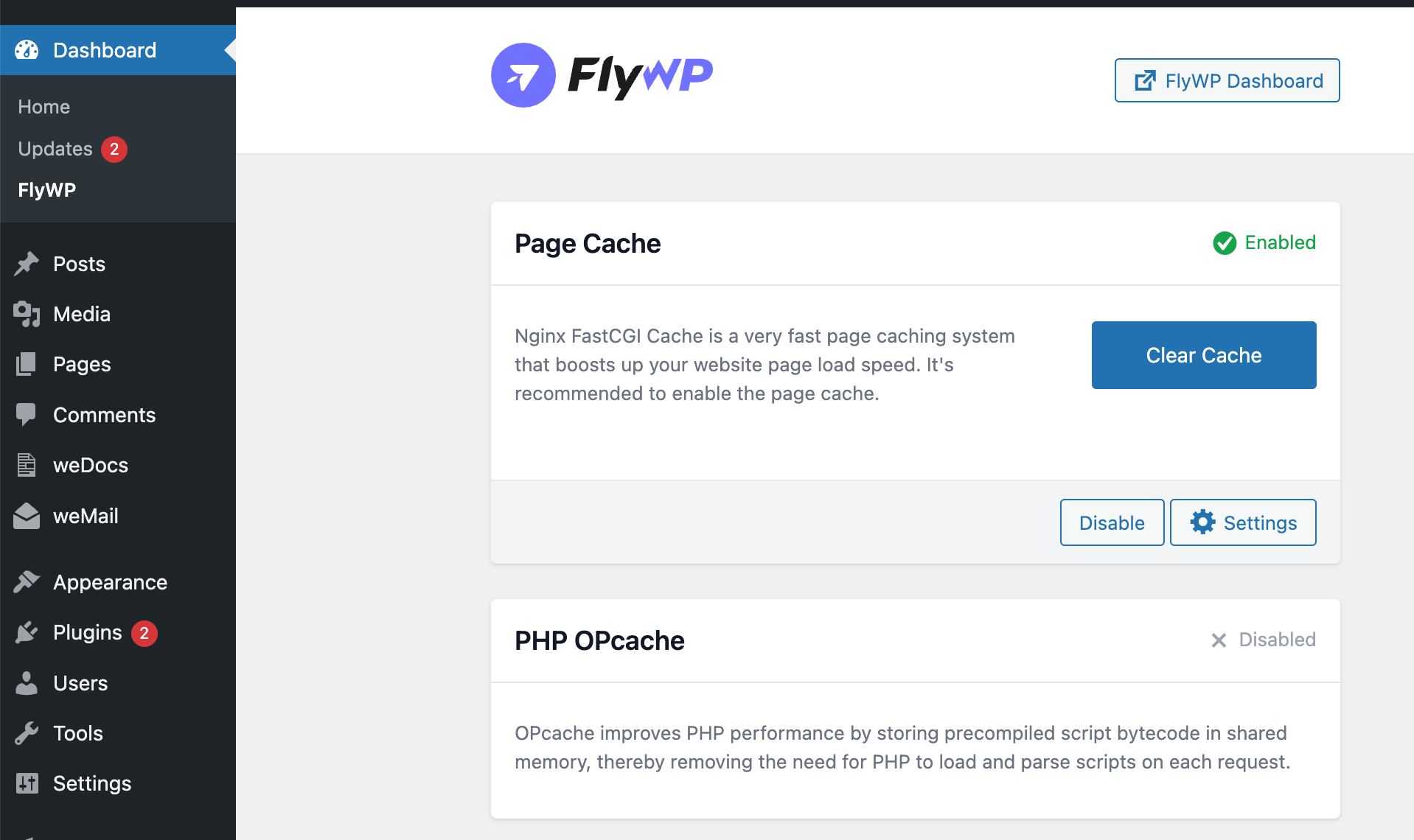
Section titled “Managing Page Caching via FlyWP Helper Plugin”FlyWP provides a WordPress plugin called “FlyWP Helper” to manage site settings directly from your WordPress dashboard. Here’s how you can manage your page caching settings using this plugin:
- Accessing the Plugin:
- From your WordPress dashboard, navigate to the installed plugins.
- Find and click on the “FlyWP Helper” plugin.
- Toggling Page Caching:
- Within the plugin interface, you’ll see options similar to the FlyWP dashboard for caching:
- None: Ensure no caching is applied.
- FastCGI Cache: Enable Nginx FastCGI Cache for faster page loads.
- Clearing the Cache from WordPress:
- Just like in the FlyWP dashboard, the “FlyWP Helper” plugin also provides a “Clear Cache” button if FastCGI Cache is enabled.
- Use this button to swiftly clear the cache after making updates or changes to your site’s content.
With FlyWP’s straightforward page caching configurations, both on its platform and via its WordPress plugin, managing your site’s performance has never been easier. Remember, while caching accelerates page load times, it’s crucial to clear the cache after making significant changes to ensure your visitors see the most updated content.
Still stuck? How can we help?
View as Markdown