WP Config
The WP Config Manager in FlyWP allows you to manage crucial WordPress configurations without directly editing the wp-config.php file. This user-friendly interface offers settings that help in debugging, optimization, and securing your WordPress site.
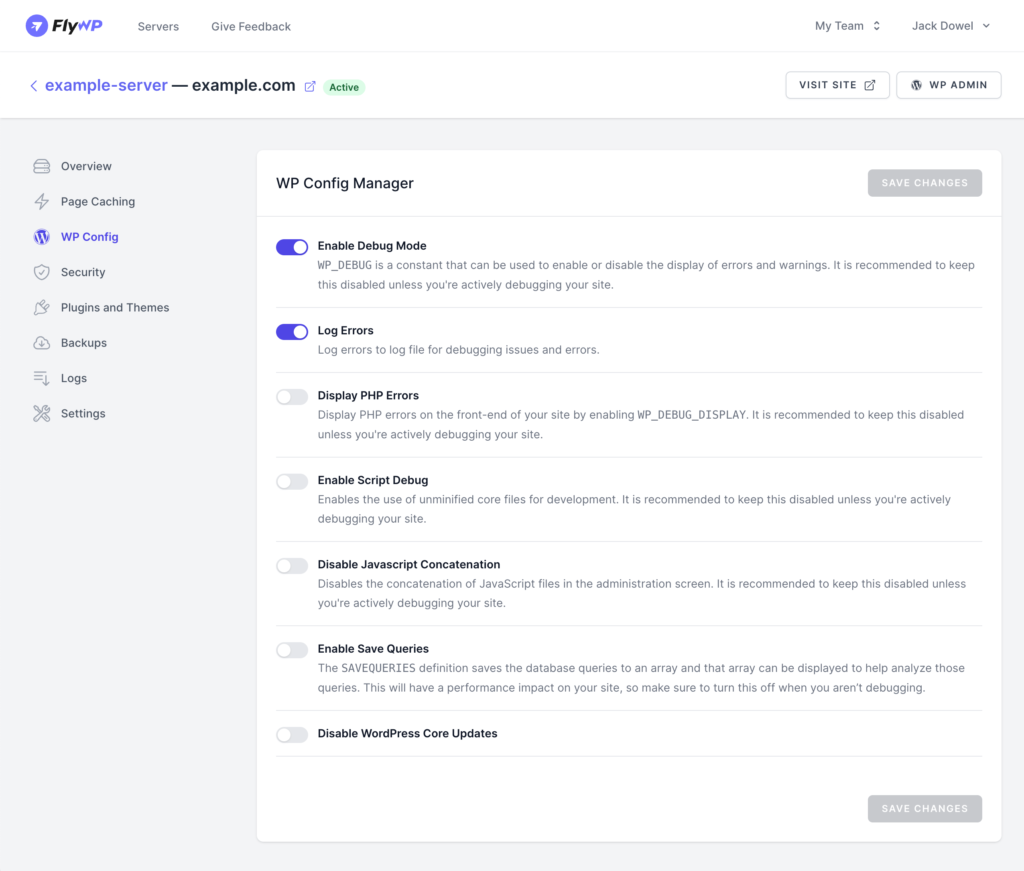
Accessing the WP Config Manager
- From the FlyWP dashboard, navigate to your desired site.
- On the left sidebar, click on the “WP Config” option.
Configuration Options
Section titled “Configuration Options”Enable Debug Mode
Section titled “Enable Debug Mode”- Purpose:
WP_DEBUGis a constant enabling the display of errors and warnings. - Recommendation: It’s advised to keep this off unless you’re in the process of debugging to avoid showing potential vulnerabilities or issues to visitors.
Log Errors
Section titled “Log Errors”- Purpose: Activates logging of errors to a file, which can be crucial for identifying issues without showing them on the front end.
- Recommendation: Useful when debugging, especially in production environments where you don’t want to display errors directly on the site.
Display PHP Errors
Section titled “Display PHP Errors”- Purpose: Displays PHP errors directly on the front-end of your site by enabling
WP_DEBUG_DISPLAY. - Recommendation: Generally recommended to keep this off unless you’re debugging in a secure environment. Displaying errors can provide hints about the server setup or codebase to malicious users.
Enable Script Debug
Section titled “Enable Script Debug”- Purpose: Allows the use of unminified core files for development.
- Recommendation: Useful for developers when diagnosing JavaScript or CSS issues. Keep off in a live environment to ensure site performance and security.
Disable JavaScript Concatenation
Section titled “Disable JavaScript Concatenation”- Purpose: Turns off the concatenation of JavaScript files in the WordPress admin screen.
- Recommendation: In some cases, concatenation can cause issues or conflicts. You might need to turn this off during debugging or if experiencing backend issues.
Enable Save Queries
Section titled “Enable Save Queries”- Purpose: The
SAVEQUERIESdefinition logs database queries, useful for analyzing those queries and their impact. - Recommendation: This can affect site performance. It’s beneficial during specific debugging sessions but should be turned off when not in use.
Disable WordPress Core Updates
Section titled “Disable WordPress Core Updates”- Purpose: Stops automatic updates of the WordPress core.
- Recommendation: While it’s usually a good practice to have the latest WordPress version for security and feature updates, there might be situations (e.g., compatibility checks) where you want to pause updates temporarily.
Saving Changes
Section titled “Saving Changes”After adjusting your desired settings:
- Click the “SAVE CHANGES” button located at the bottom of the WP Config Manager page.
- Your changes will be applied immediately, ensuring your site reflects the new configurations.
Still stuck? How can we help?