Configure Environment, Compose File and Resources
The Configurations section in your app's menu includes three pages: Environment, Compose file and Resources. Changes made on any of these pages don't take effect until you deploy them.
Environment
Section titled “Environment”The Environment page lists variables for each service along with their respective Value fields.
- Open your app and navigate to Configurations → Environment.
- Update an existing value or add a new variable.
- Click Apply the changes.
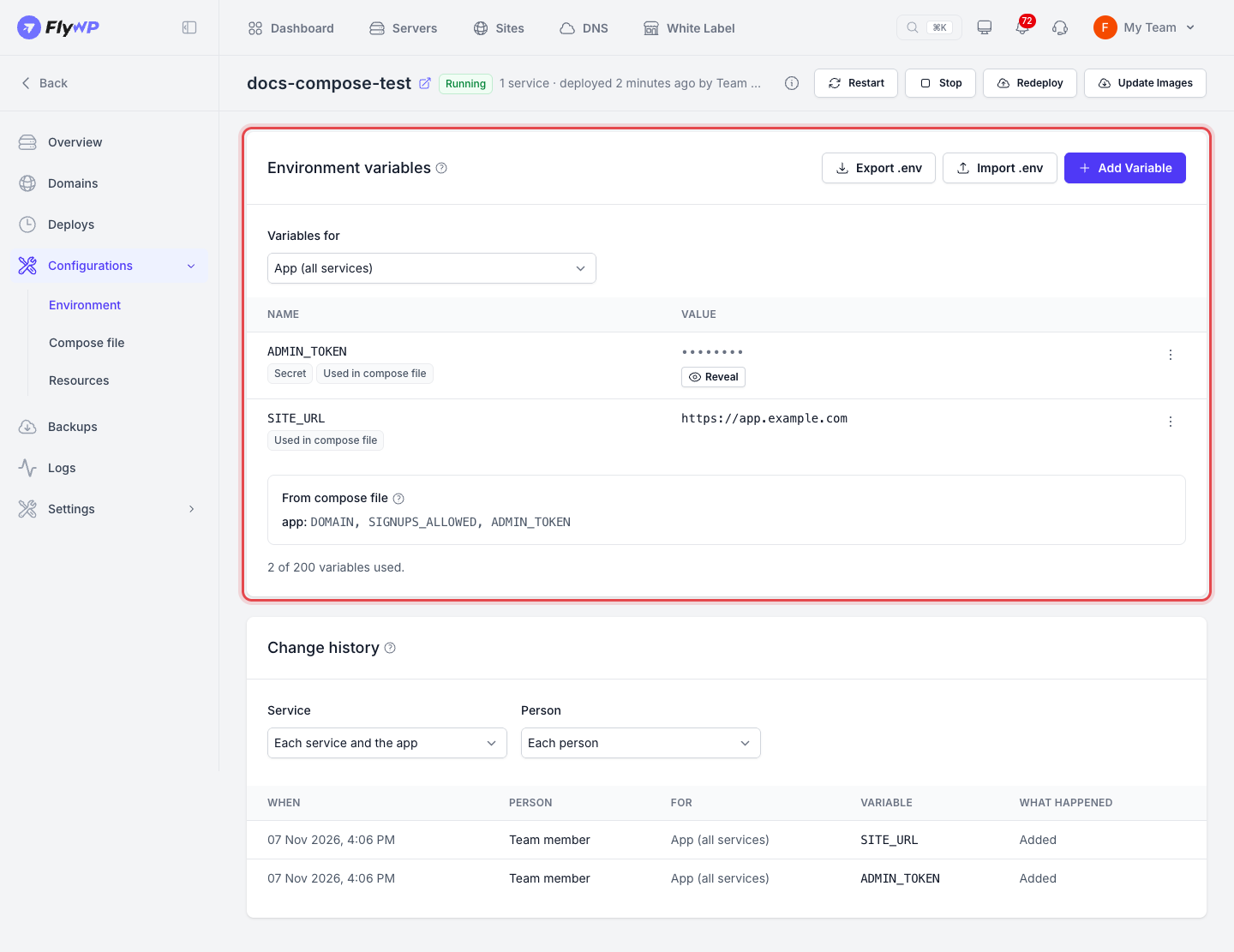
Turn on Secret for any variable to hide its value on screen. Click Reveal whenever you need to view it. Secret values are never shown in version comparisons.
The page also alerts you to:
- Used in your compose file but not set: Variables referenced in your Compose file that don't have assigned values yet.
- Unused variables of a service: Variables defined here that aren't referenced by any service.
Use Undo the change of to discard an edit before applying it. Click Remove to delete a variable.
To configure multiple variables quickly, click Import .env. Paste the contents of your .env file and review the parsed keys and values before applying them. To save a copy of your variables, use the export options on the same page.
Compose file
Section titled “Compose file”The Compose file page displays your currently deployed configuration alongside an editor for your next changes.
- Open your app and navigate to Configurations → Compose file.
- Edit the file in the editor.
- Click Check File. FlyWP also checks the file as you type and highlights any issues by line and service name.
- Click Deploy once your file passes validation.
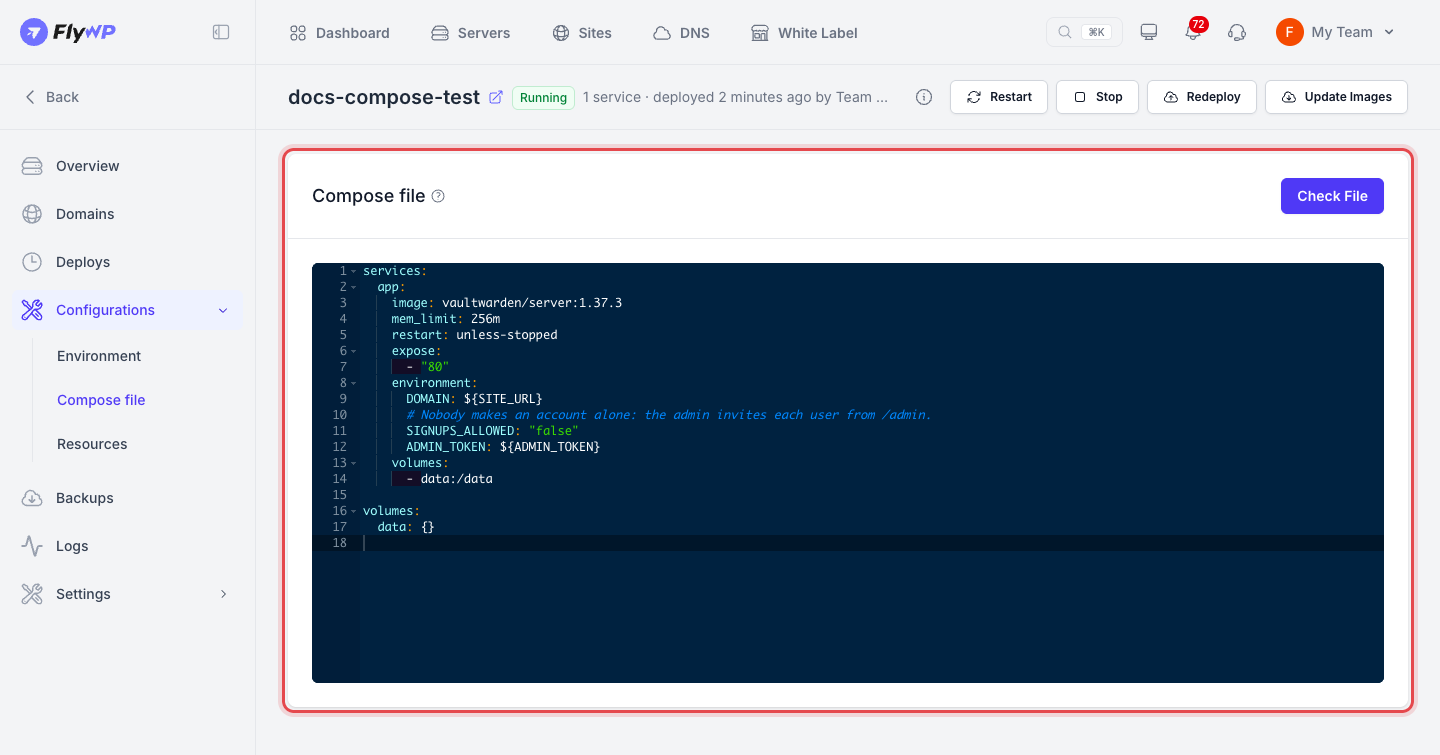
Nothing changes on your server until you trigger a deploy, and FlyWP won't let you deploy a file that fails validation. For a breakdown of validation requirements, see Compose file rules.
If you created your app from a GitHub repository, this page displays the connected repository, branch, and Compose file path. FlyWP pulls the file directly from this branch on every deploy.
Resources
Section titled “Resources”The Resources page allows you to customize CPU and memory limits for each service.
- Open your app and navigate to Configurations → Resources.
- Adjust CPU (cores), Memory (MB) or Processes for any service.
- Click Save Limits.
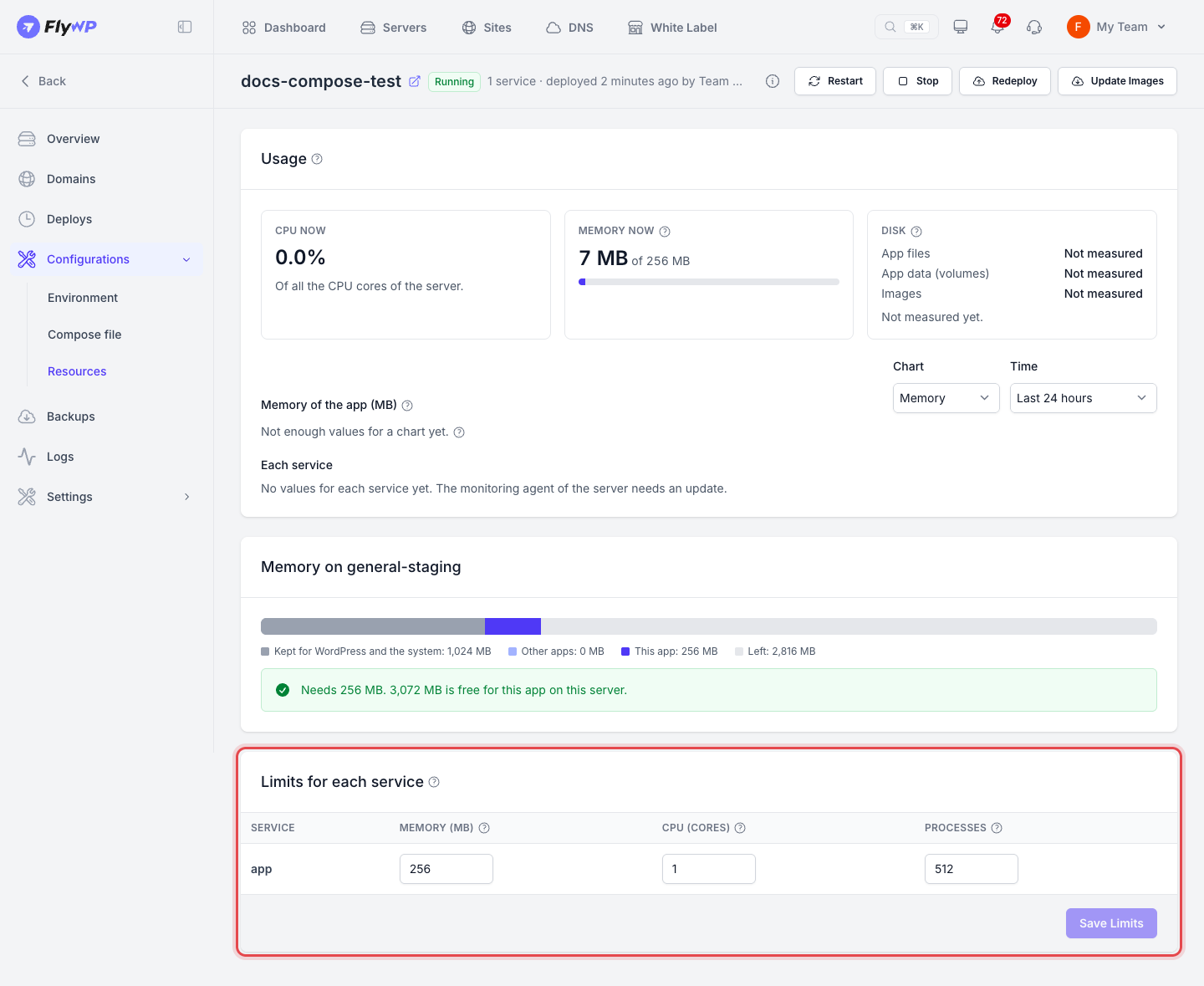
FlyWP overrides any limits defined inside your Compose file with these settings. Updates saved here take effect during your next deploy.
Still stuck? How can we help?
View as Markdown