Team Activity Log
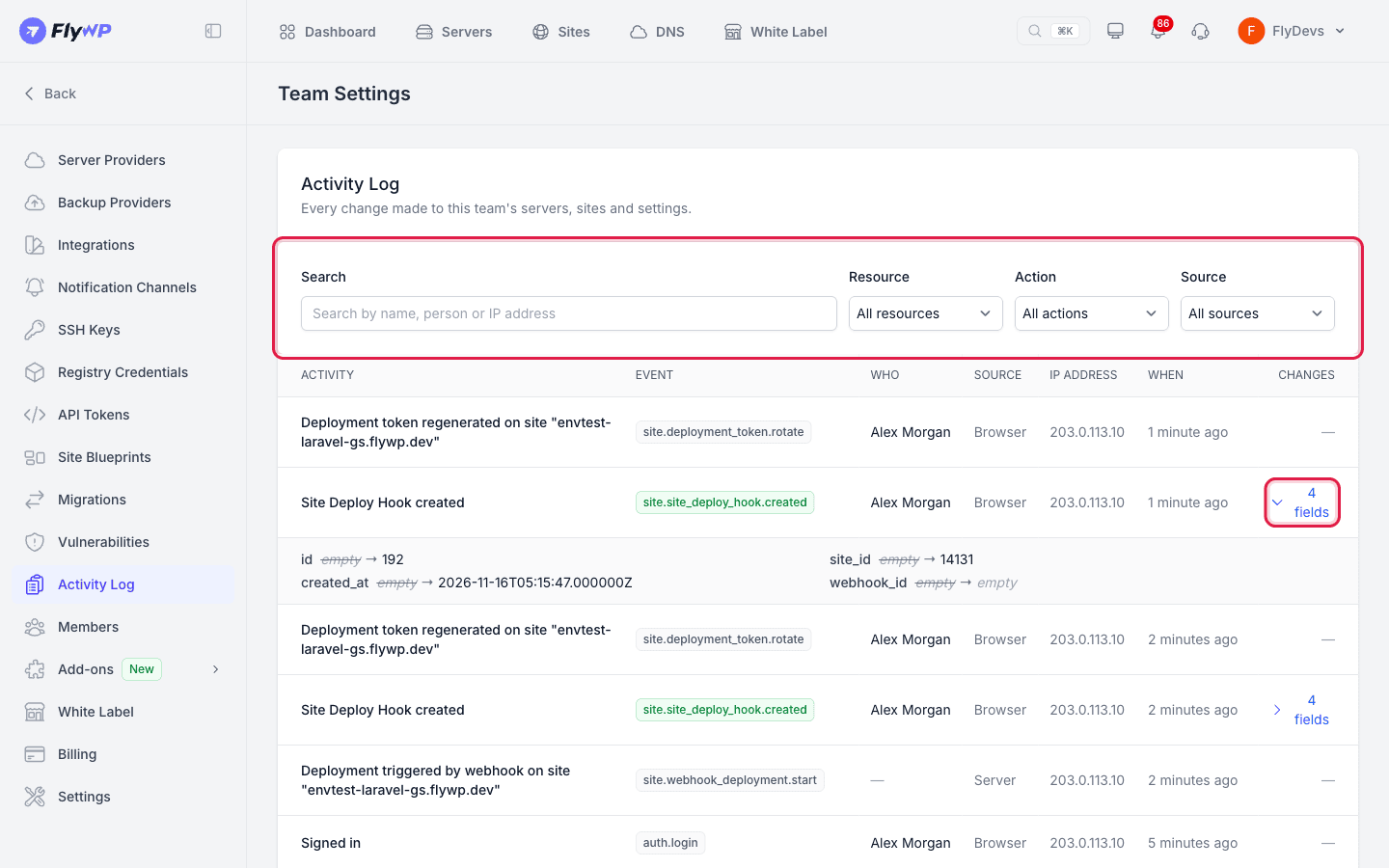
The Activity Log lists the changes made to your team's servers, sites, and settings. Each entry shows what changed, who or what made the change, where it came from, and when. For many changes you can also open the old and new values.
Use it to check who changed a setting, track down a configuration problem, or review what FlyWP Support did during a session.
Who can see the Activity Log
Section titled “Who can see the Activity Log”The Activity Log is visible to the team owner and to members who have Team Admin turned on. Other members do not see the Activity Log item in Team Settings. To change a member's access, see Resource-Specific Roles.
The log is available on every plan. Entries are kept for 90 days and then removed automatically.
Open the Activity Log
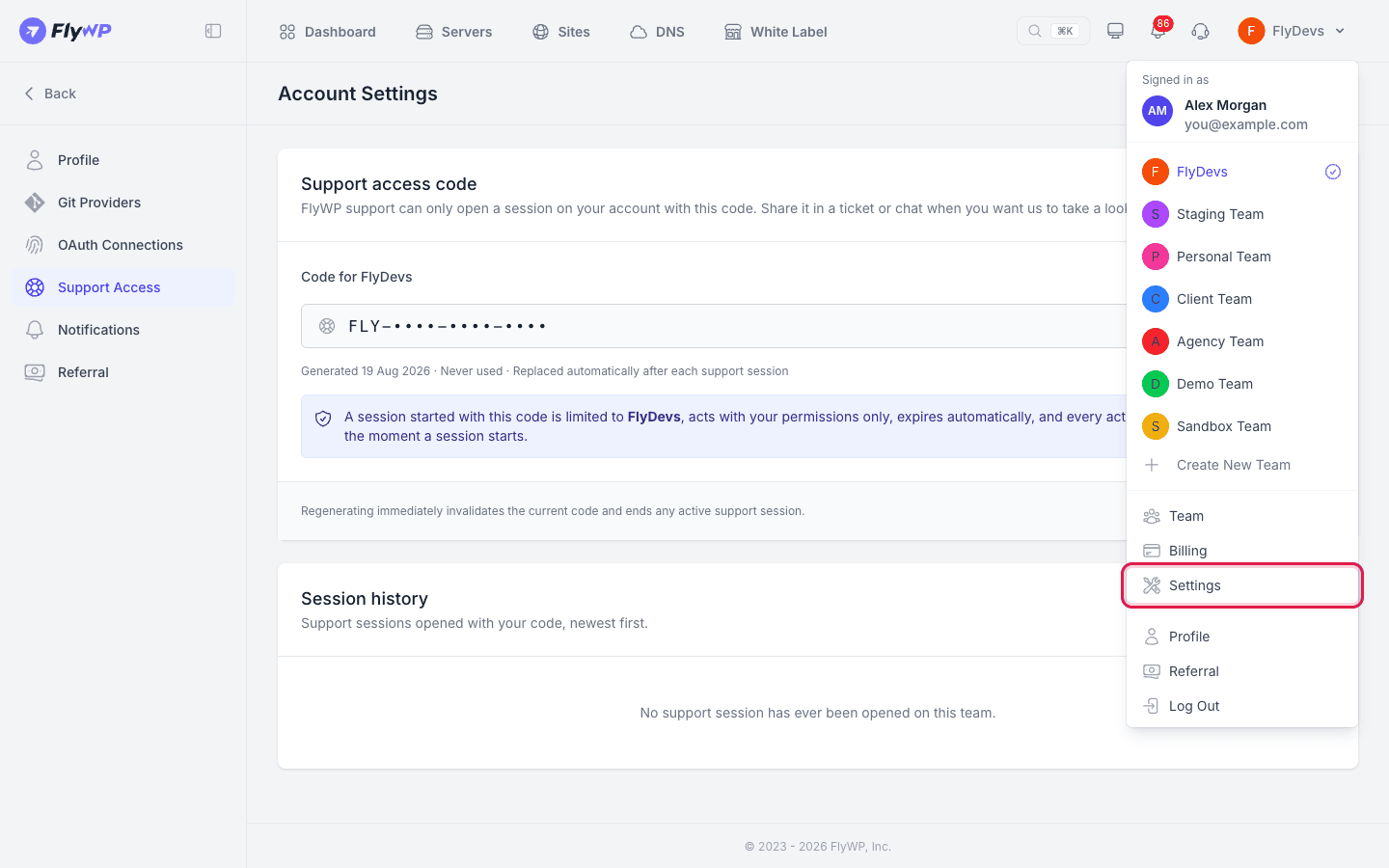
Section titled “Open the Activity Log”- Click your team name in the top bar and choose Settings from the menu.
- In the Team Settings sidebar, click Activity Log.
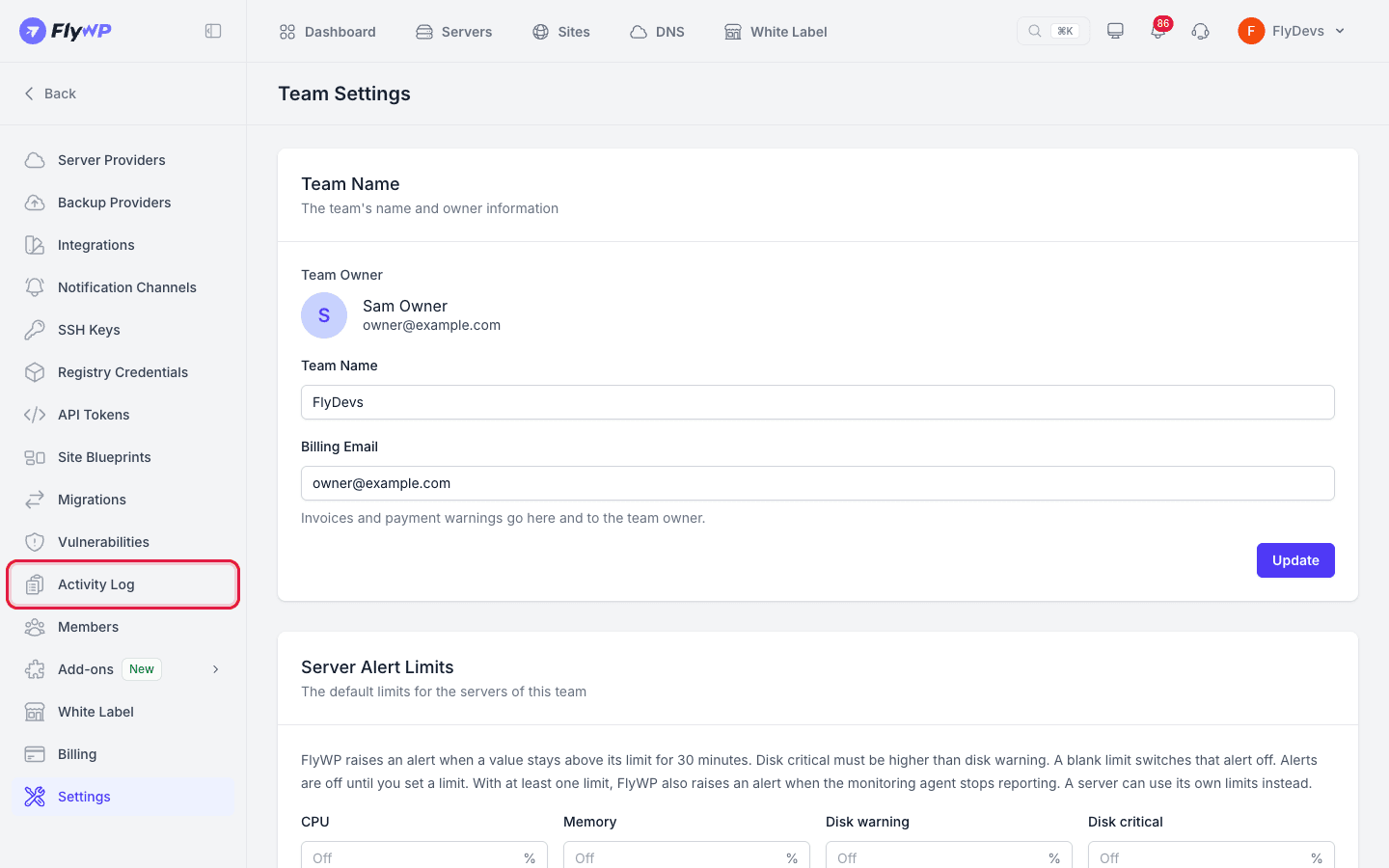
The newest entries are at the top. The log shows 25 entries per page.
Read an entry
Section titled “Read an entry”| Column | What it shows |
|---|---|
| Activity | A short description that names the resource, such as Containers restarted on site "example.com". Work done by FlyWP Support during a support session carries a FlyWP Support badge. |
| Event | The type of event, written as the resource followed by what happened, such as site.updated or server.nginx.restart. |
| Who | The team member who made the change. A dash means a machine made it with no person involved. |
| Source | Where the change came from (see below). |
| IP address | The IP address the change came from. |
| When | How long ago it happened. Entries older than 30 days show the full date and time. |
| Changes | The number of fields that changed. Click it to see the old and new values. |
Sources
Section titled “Sources”- Browser: a change made in the FlyWP dashboard.
- API: a change made through the FlyWP API with an API token.
- Server: a report or callback sent by your server, the FlyWP agent on it, or a webhook from a connected service.
- System: a scheduled task or internal maintenance job.
See what changed
Section titled “See what changed”- Click the [X] field(s) link in the Changes column. The old value is crossed out, followed by an arrow and the new value.
- Click it again to close the details.
Only fields that actually changed are listed. A field with no value shows as empty. Entries for deleted items do not keep field details, and a settings form saved without any change creates no entry.
Filter and search
Section titled “Filter and search”Use the bar above the table to narrow the list. The filters combine, so you can search for a name and filter by source at the same time.
- Search: Type a resource name, a team member's name or email, or an IP address. The list updates after you stop typing.
- Resource: Show one kind of resource only, such as Server, Site, or Team. The list contains only resources your team has activity for.
- Action: Show one kind of action, such as Created, Updated, or Deleted. This list also contains only actions that appear in your log.
- Source: Show only Browser, API, Server, or System entries.
If nothing matches, the table shows No activity matches those filters.
What is recorded
Section titled “What is recorded”- Servers: creating and deleting servers, settings changes, restarts of server services (MySQL, Nginx, Redis, the cron scheduler), firewall rules, cron jobs, daemons, databases and database users, and server SSH keys.
- Sites: creating and deleting sites; setting changes; domains; SSL certificates being added or removed; redirect rules; deployment scripts; backup settings; PHP, Nginx, and container restarts; and plugin and core updates.
- Files: files created, edited, moved, or deleted in the File Manager, with the file path.
- Team: member invitations, members joining or being removed, changes to a member's access, API tokens being created or revoked, and changes to integrations and credentials.
- Sign-ins: sign-ins, sign-outs, and failed sign-in attempts.
- Support sessions: when a support session starts and when it ends, with how it ended.
Requests that fail or are refused are not recorded, because nothing changed.
What is not recorded
Section titled “What is not recorded”- Secrets: Values in fields such as passwords, tokens, keys, and secrets are never stored in the log. Commands you type into a cron job or deployment script are logged as entered, so do not put passwords in those commands.
- File contents: The log shows that
wp-config.phpor an Nginx configuration changed, but never the full text of the file. - Routine activity: Background data such as CPU and uptime readings is not part of your log, and neither is switching between your teams.
Related guides
Section titled “Related guides”Still stuck? How can we help?
View as Markdown