Custom Backup Provider
FlyWP’s built-in backup providers cover the most popular S3-compatible storage services, but if you use one that isn’t listed by name, you can connect it directly using its S3-compatible credentials.
Which providers this works with
Section titled “Which providers this works with”Any storage service with an S3-compatible API works, including Amazon S3, Wasabi, Backblaze B2, MinIO, CloudBerry Backup, and MSP360. If you specifically want Wasabi, Amazon S3, Google Drive, Cloudflare R2, DigitalOcean Spaces, or pCloud, those already have their own dedicated provider options — the Custom provider is for anything else that speaks the S3 API.
Adding a custom provider
Section titled “Adding a custom provider”Backup providers are configured once per team, then made available to every site on that team.
- Click your profile avatar (top right) → Settings.
- In the Team Settings sidebar, click Backup Providers.
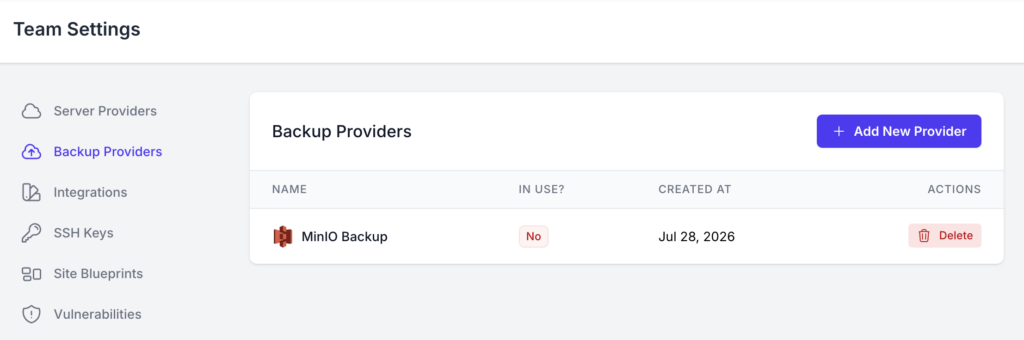
- Click Add New Provider.
- Choose Custom (S3 Compatible) from the provider list.
- Fill in:
- Name — a label to help you identify this provider later (e.g. “My Backblaze Backup”).
- Region — the storage region, e.g.
us-east-1. - Endpoint URL — your provider’s S3-compatible endpoint, e.g.
https://s3.us-east-1.example.com. Do not include the bucket name in this URL. - Access Key ID and Secret Access Key — from your storage provider’s account.
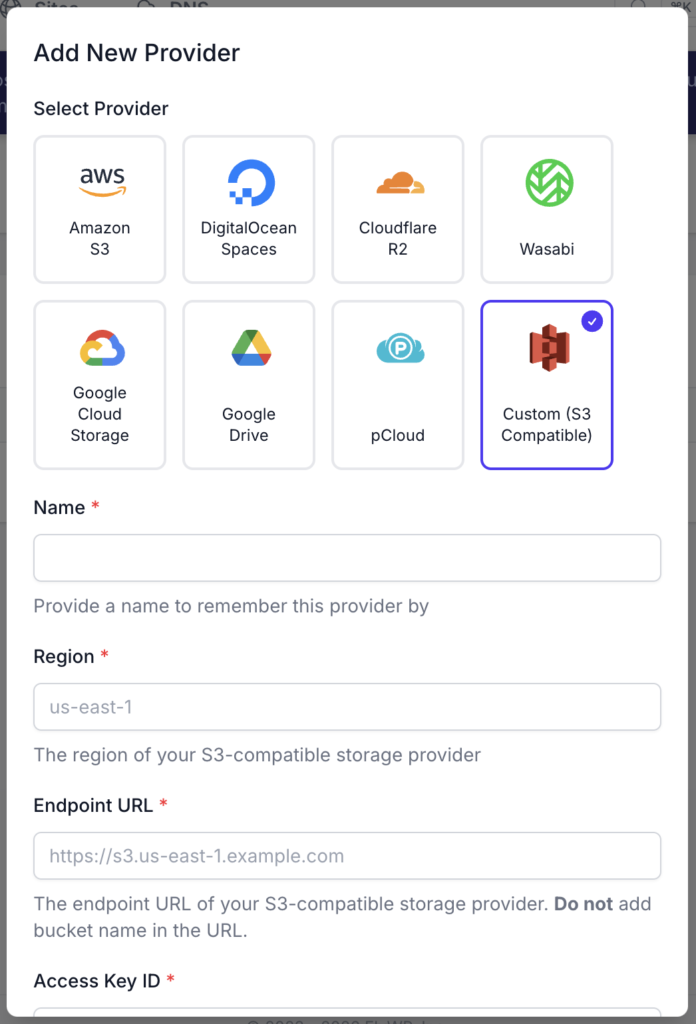
- Click Save.
Using the provider on a site
Section titled “Using the provider on a site”Once a custom provider is added at the team level, select it for any site:
- Go to the site, then Backups.
- Choose your custom provider from the provider dropdown.
- Set your backup schedule, retention, and any paths to exclude, then save.
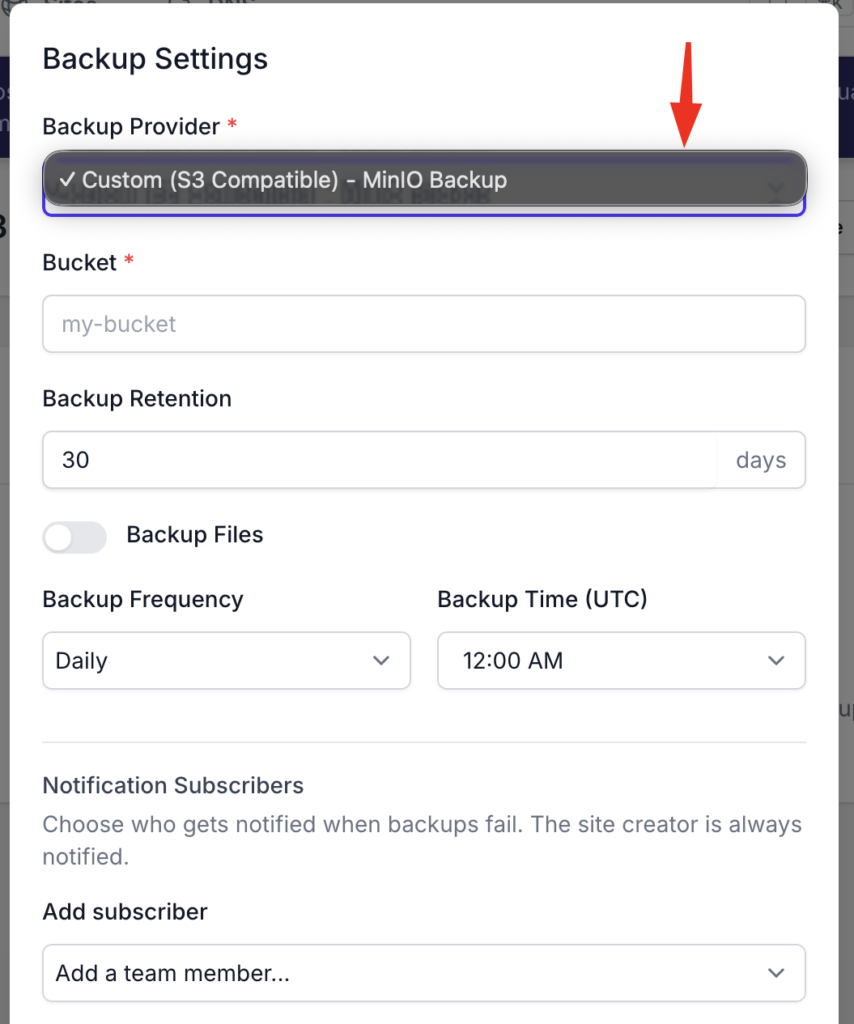
If a team has no backup providers configured yet, the site’s Backups page will prompt you to add one first, linking you back to Team Settings → Backup Providers.
Next Steps
Section titled “Next Steps”Still stuck? How can we help?