Team Members
When you bring developers, sysadmins, or clients into a project, each person needs only the access their role requires, no more. FlyWP lets you invite people by email and then decide, for each person, whether they're a Team Admin or get specific roles on specific servers, sites, or DNS zones.
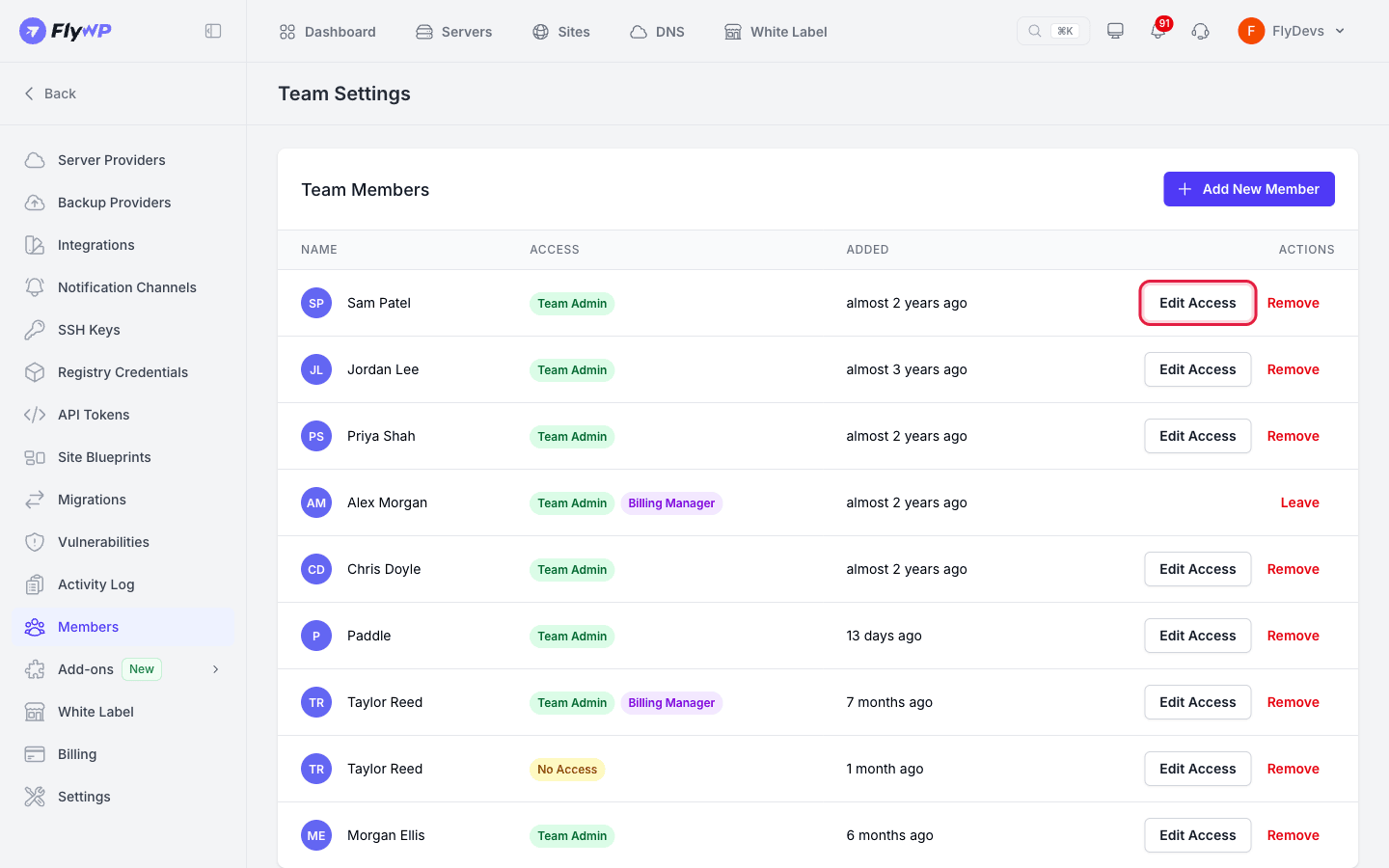
Inviting a Team Member
Section titled “Inviting a Team Member”- Navigate to Team Settings > Members.
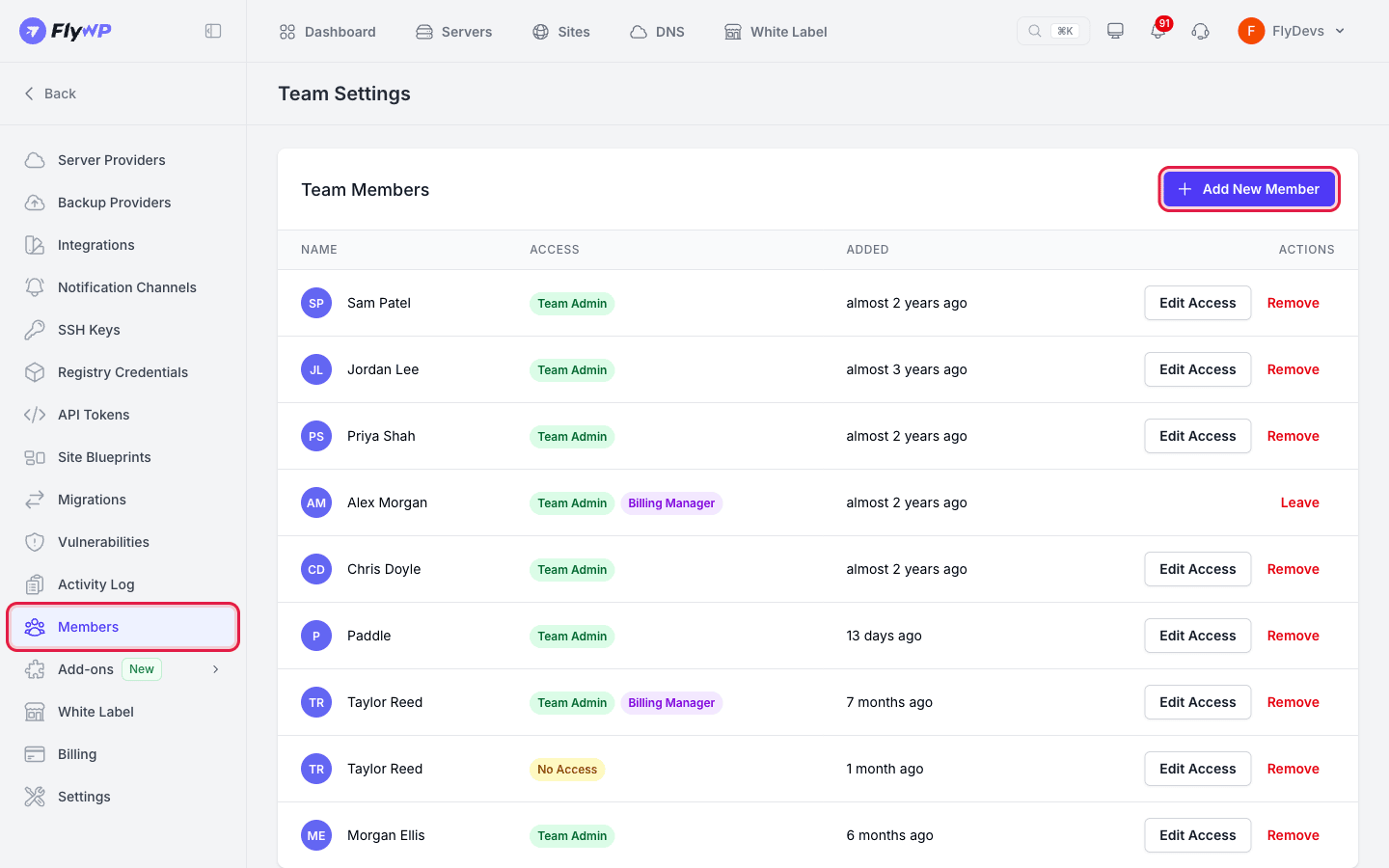
- Click Add New Member.
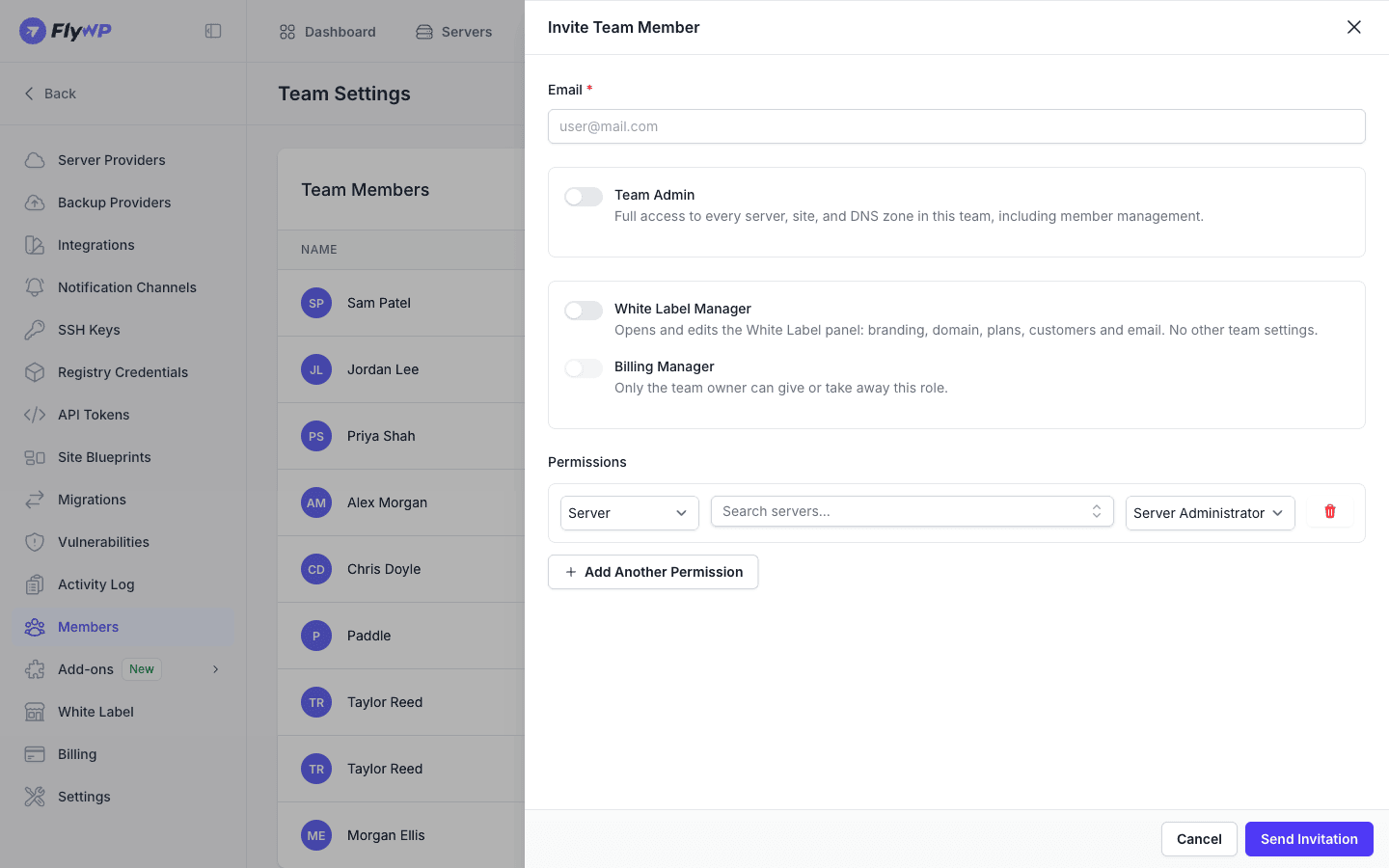
- In the Invite Team Member drawer, enter the person's Email.
- Choose their access (see below): turn on Team Admin, or add the permissions they need for specific servers, sites, or DNS zones.
- Click Send Invitation.
FlyWP sends an invitation email with an acceptance link. Pending invitations appear in the members list until they're accepted or cancelled.
If you leave every permission empty and Team Admin off, FlyWP warns you that the member won't have access to anything.
How Access Works
Section titled “How Access Works”Access has two parts: a Team Admin switch and a list of permissions, one row per resource.
Team Admin
Section titled “Team Admin”A Team Admin has broad access to the whole team. Granular permissions are ignored while Team Admin is on, so use it for trusted team leads or co-managers.
| Area | Access |
|---|---|
| Team | Manage team settings and members |
| Servers | Create, update, and delete any server |
| Server services | SSH keys, cron jobs, firewall rules, supervisor, daemons, database, status |
| Sites | Create, update, and delete any site |
| DNS | Full DNS access across all connected domains |
| White Label | Manage the team's White Label panel |
A Team Admin can't access billing or delete the team. Only the team owner can do those.
Permissions per resource
Section titled “Permissions per resource”When Team Admin is off, you add one row per resource and pick a role for it. For each row you choose a specific server, site, or DNS zone, or the wildcard (All servers, All sites, All zones).
| Resource | Roles |
|---|---|
| Server | Server Administrator or Viewer |
| Site | Site Administrator or Viewer |
| DNS | DNS Manager |
Server Administrator
Section titled “Server Administrator”Manages the servers you choose and the sites on them.
| Area | Access |
|---|---|
| Assigned servers | View and update server configuration |
| Server services | SSH keys, cron jobs, firewall rules, supervisor, daemons, database, status |
| Sites on assigned servers | Create, update, and delete sites |
| Team settings | No access |
| DNS | No access |
Use this role for a sysadmin or DevOps engineer who owns infrastructure but should not touch team billing or DNS.
Site Administrator
Section titled “Site Administrator”Manages the sites you choose, with no access to server-level configuration.
| Area | Access |
|---|---|
| Assigned sites | View, update, and delete |
| Create new sites | Not included |
| Server configuration | No access |
| Team settings | No access |
| DNS | No access |
Use this role for a developer or client who only needs to manage their own WordPress site.
Viewer
Section titled “Viewer”Read-only access to the servers or sites you choose. A Viewer can see them but can't change anything.
DNS Manager
Section titled “DNS Manager”Manages DNS records for the zones you choose.
Team-wide switches
Section titled “Team-wide switches”Two more switches appear in the drawer for roles that apply to the whole team:
- White Label Manager can manage the team's White Label panel.
- Billing Manager can manage billing. Only the team owner can turn this on.
Updating a Member's Access
Section titled “Updating a Member's Access”- Click Edit Access next to the member in the list.
- Change the Team Admin switch or the permission rows.
- Click Save Changes.
Removing a Member
Section titled “Removing a Member”See Remove a Team Member for the full process.
Related Pages
Section titled “Related Pages”Still stuck? How can we help?
View as Markdown