Notifications
FlyWP sends alerts about your servers, sites, backups, and team to the bell in the app, and some of them to your email. Use the Notifications page to read and filter your team's alert history, and Notifications in your account settings to choose what you receive by email.
Notifications page
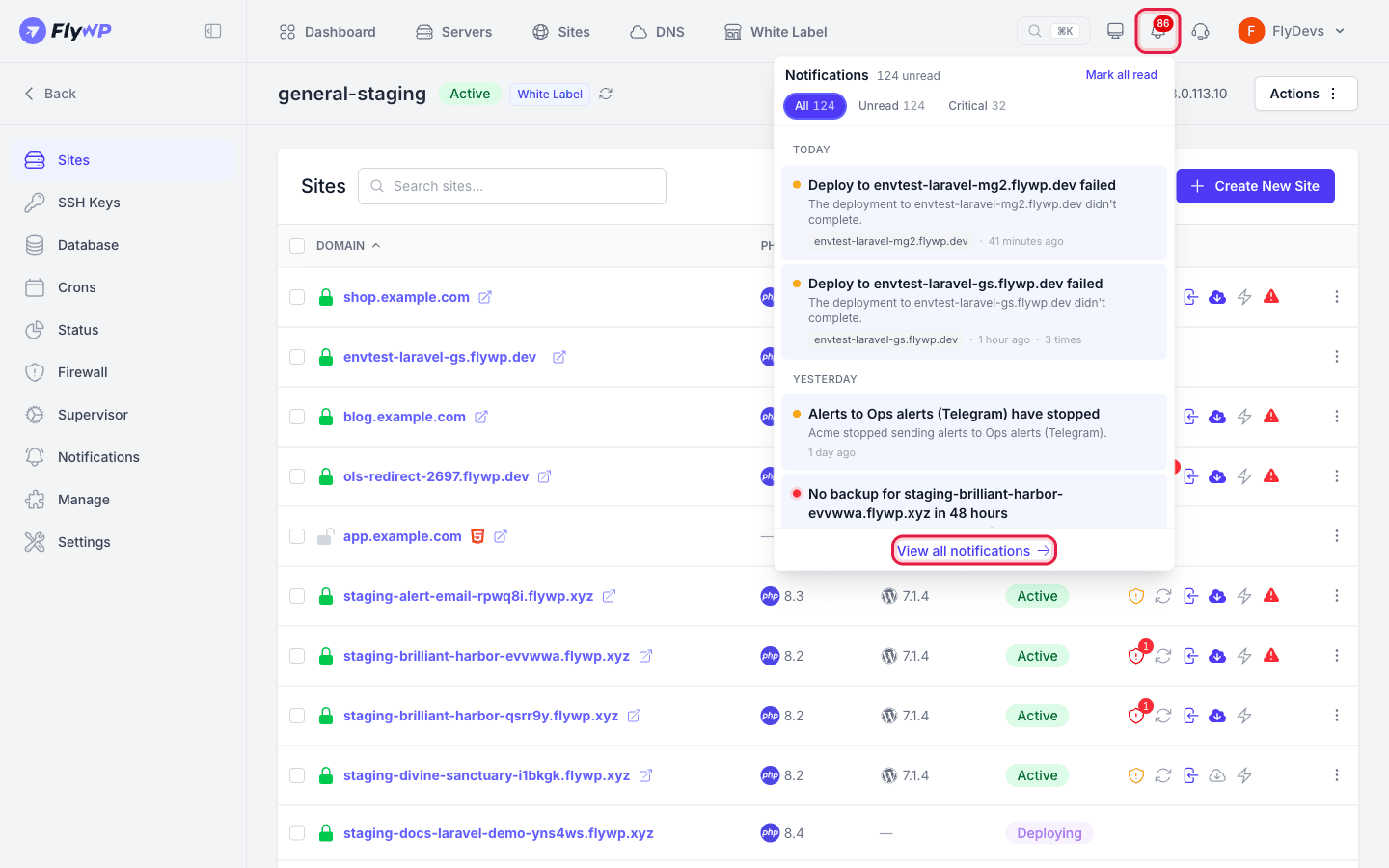
Section titled “Notifications page”Click the bell in the header, then click View all notifications to open the Notifications page and see the alert history for your team. The bell shows only the 20 most recent alerts. Use the All, Unread, and Critical buttons at the top of the panel to narrow that short list.
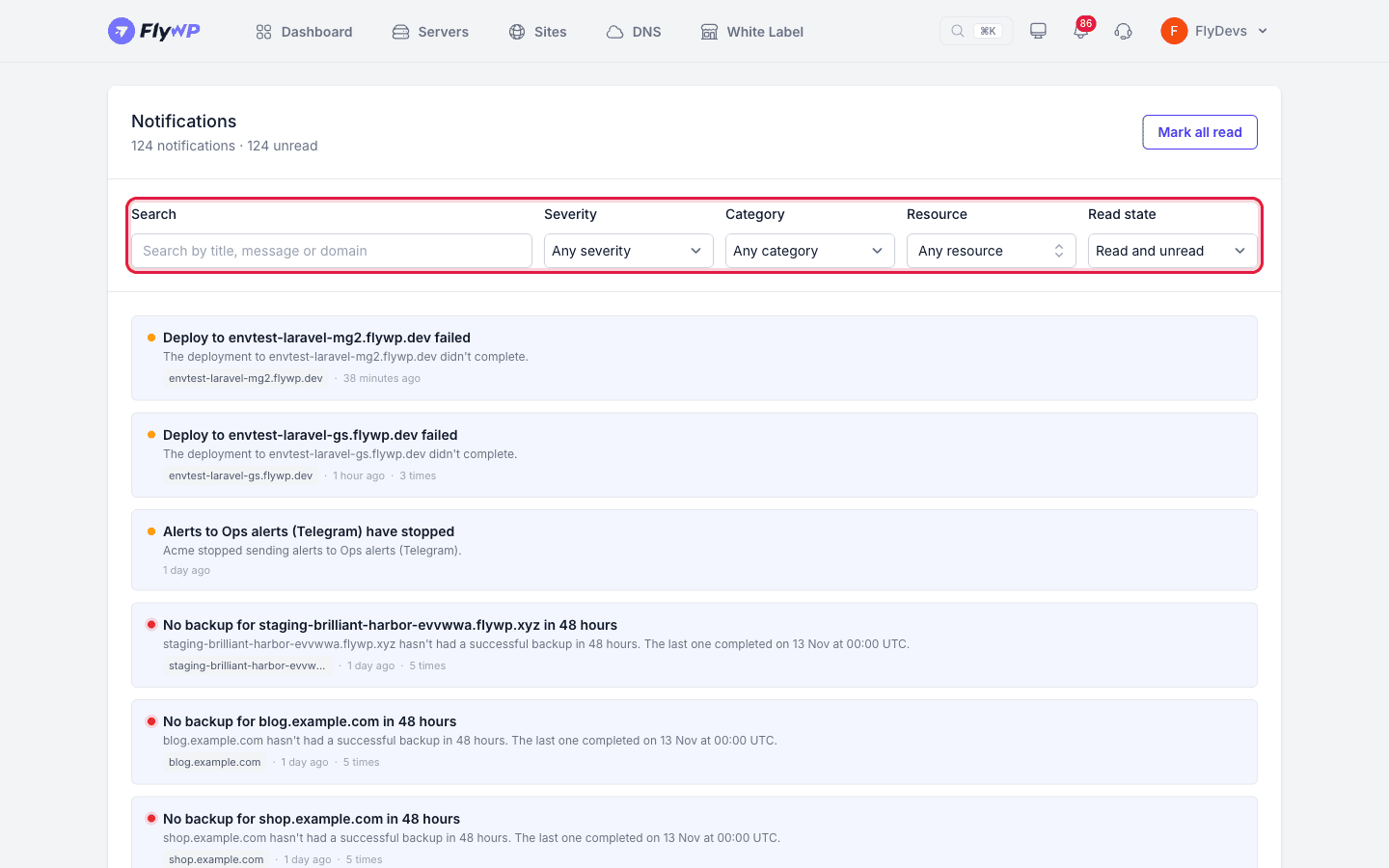
Use the filters at the top of the page:
| Filter | What it does |
|---|---|
| Search | Finds alerts by title, message, or domain. Placeholder: "Search by title, message or domain". |
| Severity | Shows alerts of one severity: Critical, Warning, or Info. |
| Category | Shows alerts of one category. |
| Resource | Shows alerts for one server or site. Placeholder: "Any resource". |
| Read state | Shows Unread or Read alerts. The default is Read and unread. |
The list shows 25 alerts per page, newest first. Changing a filter returns the list to its first page. The filters stay in the page address, so you can bookmark or share a filtered view.
FlyWP keeps notifications for 90 days; older alerts are removed.
To mark everything as read, click Mark all read. The button appears only when you have unread alerts. The bell has the same button.
If nothing matches your filters, the page says No notifications match the current filter selection. If there are no alerts at all, it says No notifications yet.
Email preferences
Section titled “Email preferences”- Click your team name in the top bar and select Profile. This opens Account Settings.
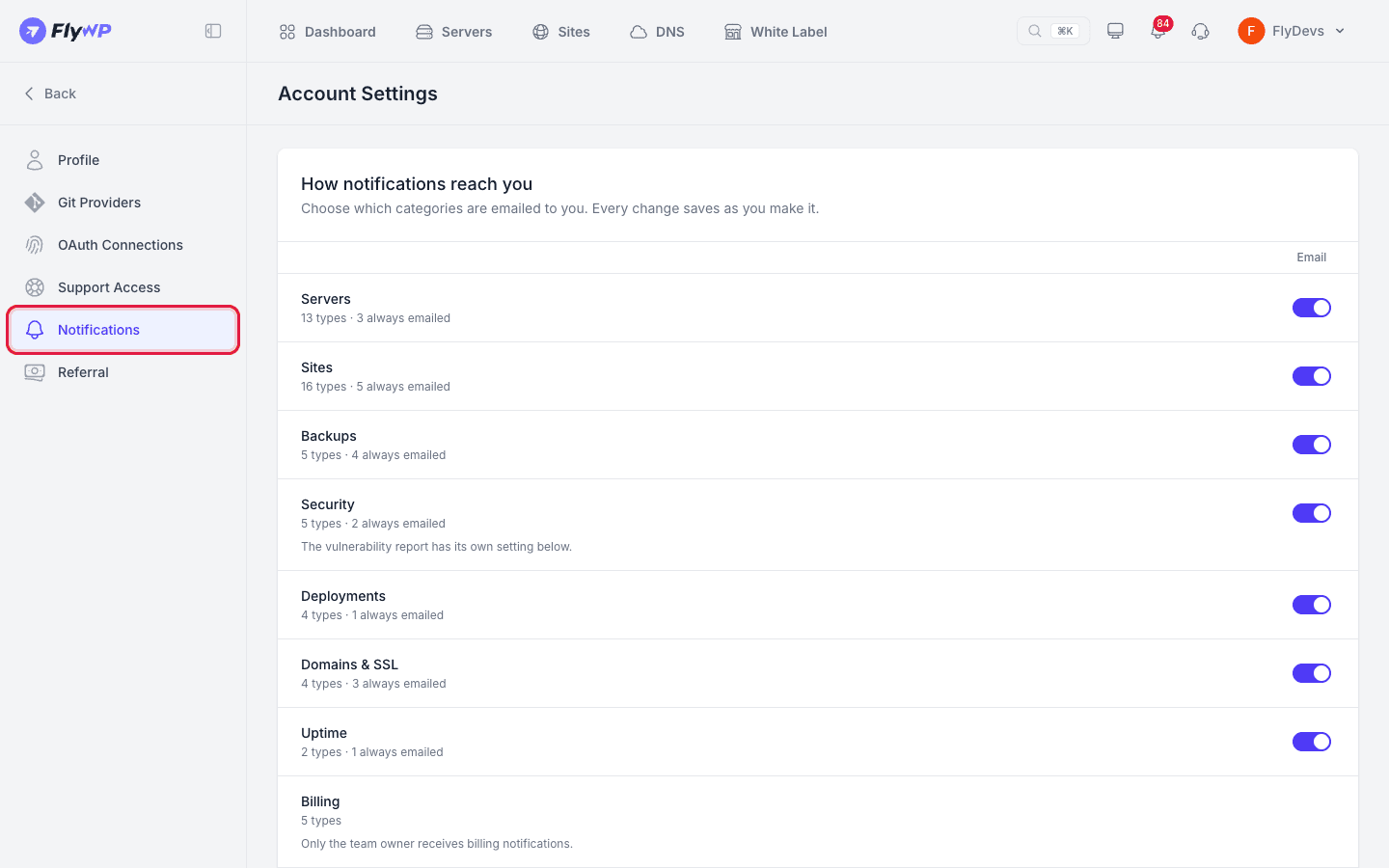
- In the sidebar, click Notifications.
These choices are yours alone, and other team members choose their own. They are saved for the team you are in now. If you belong to more than one team, switch teams and check this page for each one.
How notifications reach you
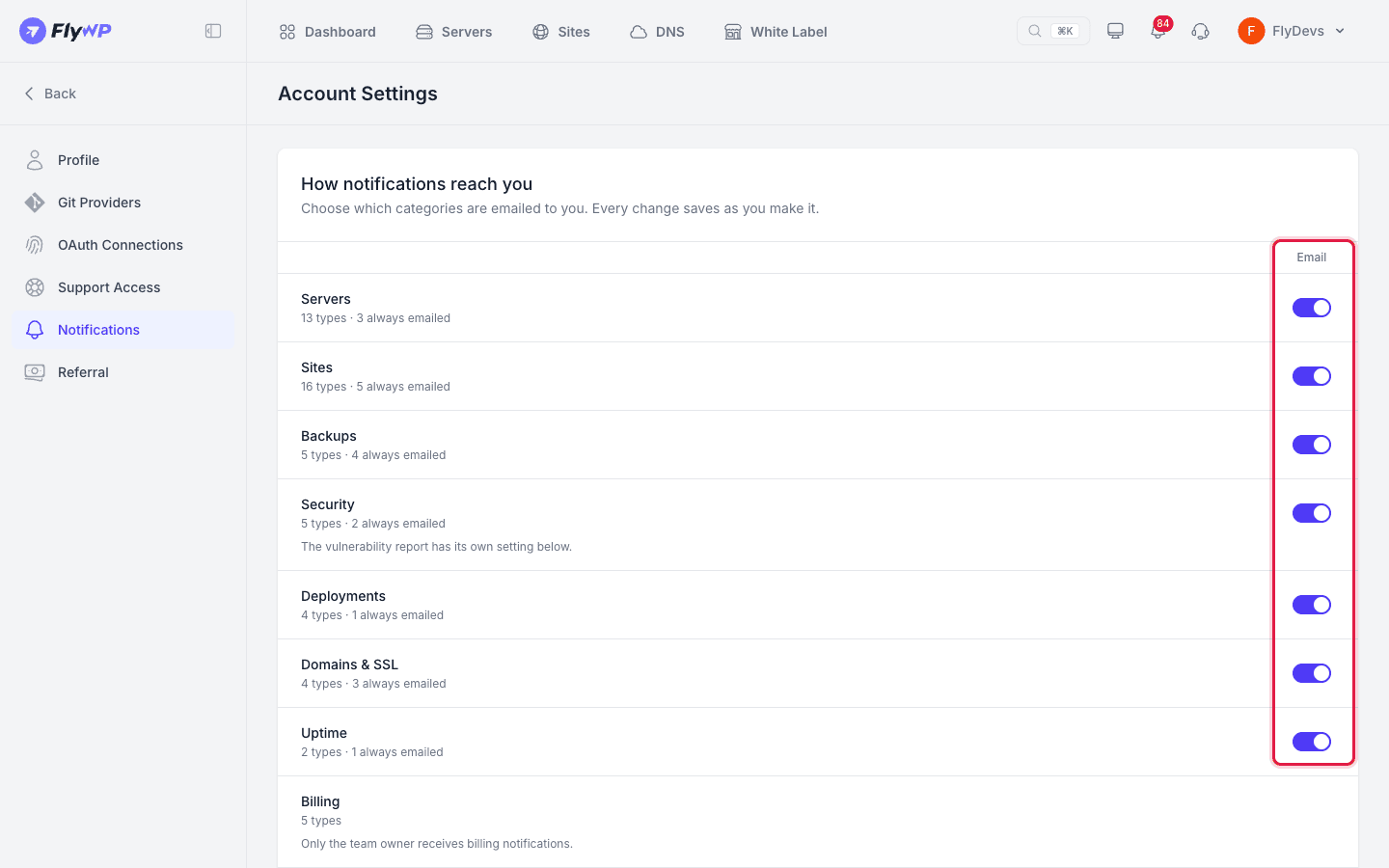
Section titled “How notifications reach you”This section lists each alert category with an Email switch. Turn a switch on to receive that category by email. All switches start on. Each change saves as you make it, with no Save button.
Every alert still reaches the bell, regardless of what you choose here. Under each category name, a line such as "N always emailed" shows how many of its alerts are emailed even when the switch is off. Critical alerts are always emailed. A few minor alerts, such as a finished deploy, appear in the bell only and are not sent by email.
The categories are Servers, Sites, Backups, Security, Deployments, Domains & SSL, Uptime, Billing, and Team. Only the team owner receives Billing notifications.
Click Some alerts always reach you to see the alerts that are sent regardless of your switches, with the reason for each.
If your role covers DNS only, this section says that notifications about servers and sites go to the people who have access to them. You still receive account security alerts.
Security emails
Section titled “Security emails”The weekly FlySecurity report lists vulnerabilities found across your WordPress sites. Under Send me, choose one option, then click Save:
- All findings
- Critical & high only
- Off
The report is sent on Monday mornings. Actively exploited and critical findings are sent the same day. On sites without FlySecurity Pro, a critical finding also has its own alert. Choosing Off stops the security email, and the findings stay in the bell. Scanning keeps running regardless of your choice, and every finding stays visible in the app. This setting belongs to your account and applies across all teams, not to one team.
Notification Channels
Section titled “Notification Channels”To send alerts to a shared Slack channel or Telegram group, see Notification Channels. Channels are set by the team owner or admins and are not changed here.
Still stuck? How can we help?
View as Markdown