Change PHP Version in FlyWP Site
This guide explains how to update the PHP version for a site in FlyWP.
Navigate to Site Settings
Section titled “Navigate to Site Settings”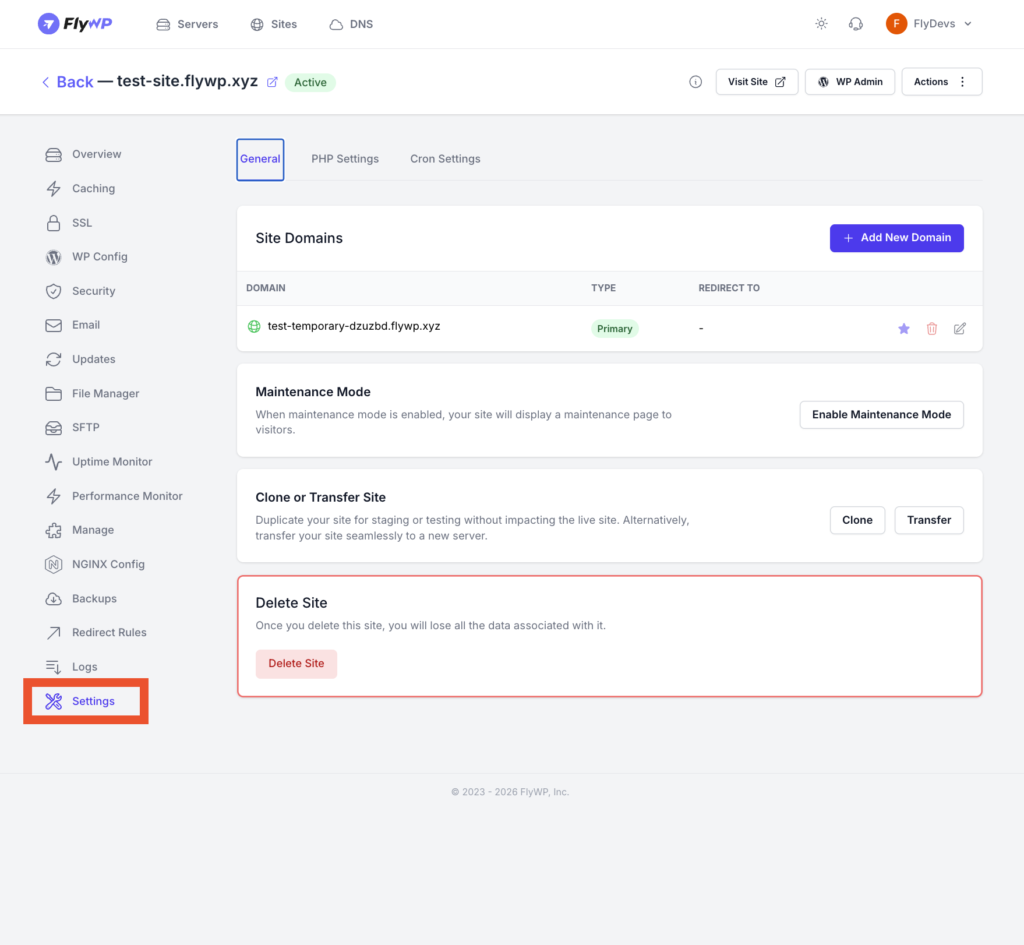
- Log in to your FlyWP dashboard
- Go to Sites
- Select the target site
- Click on Settings from the left sidebar
- Open the PHP Settings tab
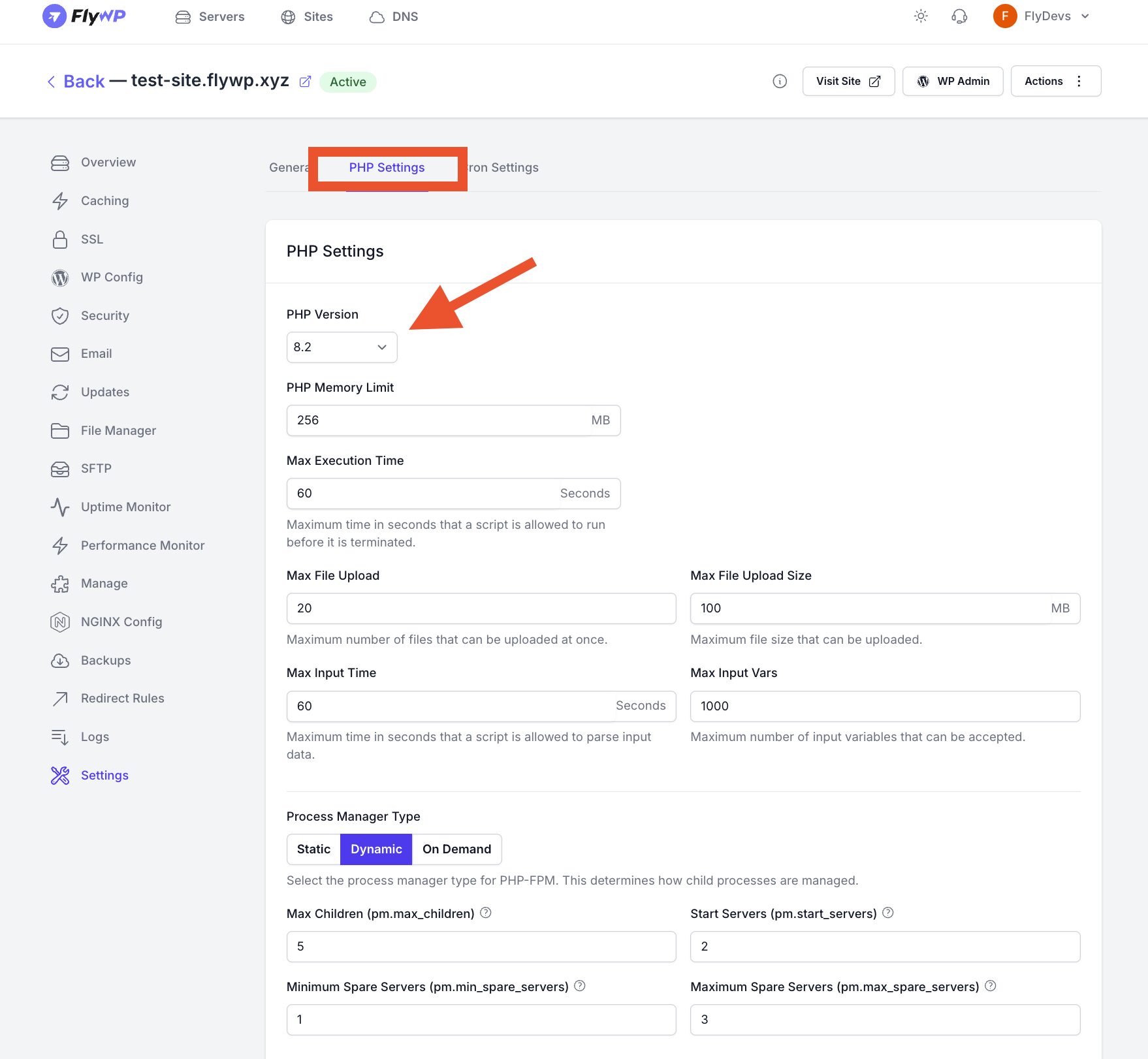
Change PHP Version
Section titled “Change PHP Version”- Locate the PHP Version dropdown
- Select the desired version (e.g., 8.1, 8.2, etc.) and click on Save.
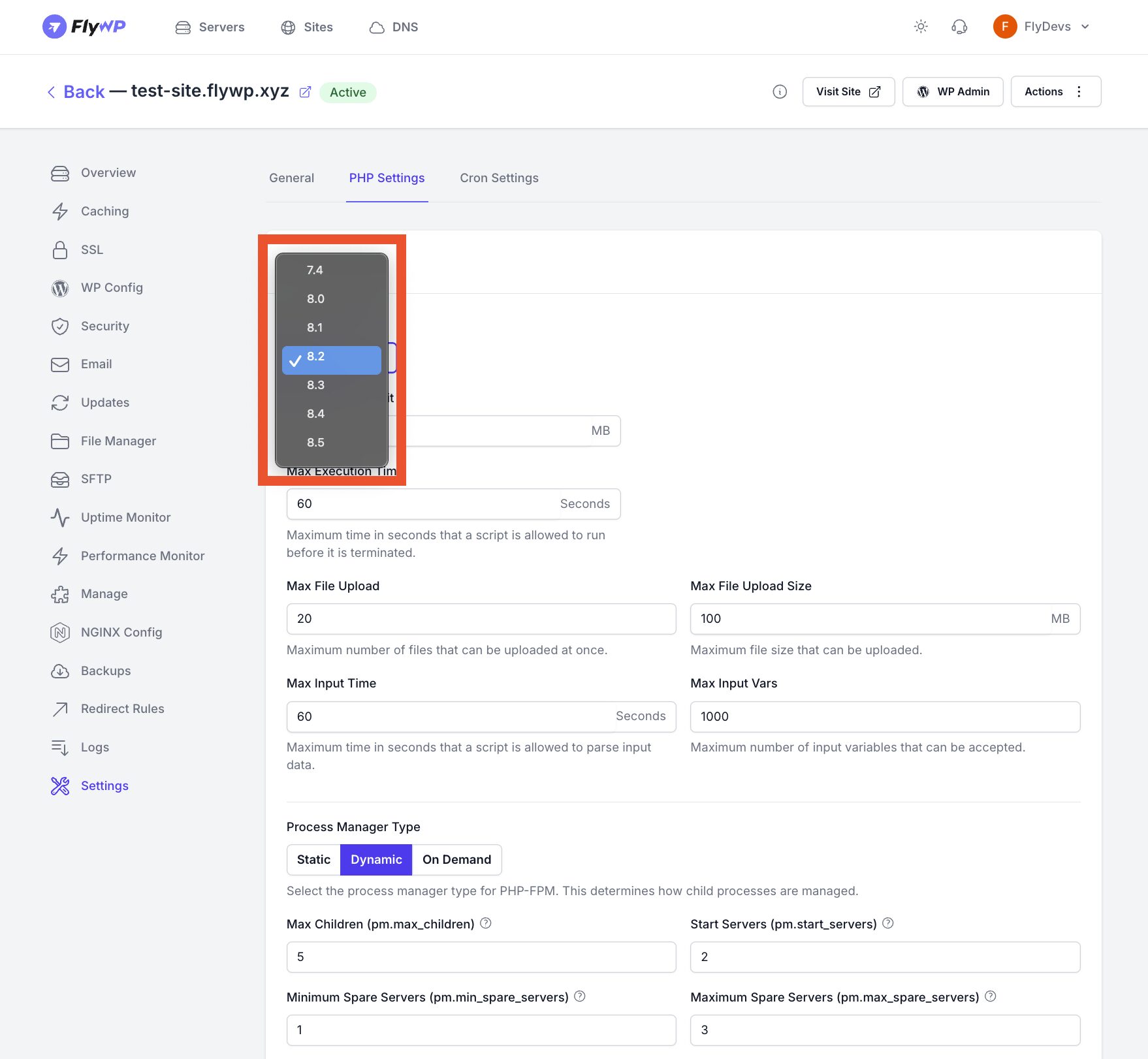
FlyWP will automatically reconfigure PHP-FPM for the selected version.
Important Considerations
Section titled “Important Considerations”Compatibility
Section titled “Compatibility”- Ensure your application (e.g., WordPress, plugins, themes) supports the selected PHP version
- Upgrading to PHP 8.x can break outdated plugins
Performance
Section titled “Performance”- Newer PHP versions (8.3/8.4) offer better performance and lower memory usage
- Recommended for production unless compatibility issues exist
Downgrade Risks
Section titled “Downgrade Risks”- Downgrading PHP may cause fatal errors if code uses newer features
- Always test before switching in production
Recommended Workflow (Production)
Section titled “Recommended Workflow (Production)”- Clone site to staging
- Change PHP version on staging
- Test critical functionality
- Apply the same change to production
Verification
Section titled “Verification”After switching:
- Check site loads correctly
- Review error logs (Logs tab in FlyWP)
- Verify WP Admin access
- Monitor performance
Troubleshooting
Section titled “Troubleshooting”- White screen / 500 error → check PHP error logs
- Plugin errors → disable incompatible plugins
- Composer apps → run dependency updates if needed
Best Practice
Section titled “Best Practice”- Use PHP 8.2 unless you have legacy constraints
- Keep PHP version aligned with your stack and framework requirements
- Periodically review and upgrade
Still stuck? How can we help?