Managing Services
When a WordPress site starts behaving oddly — slow page loads, database errors, or scheduled tasks not running — the problem often traces back to one of the core services on your server. The Manage tab gives you a single place to restart any of those services, open a browser-based terminal, and grab the credentials you need to connect directly from your own machine.
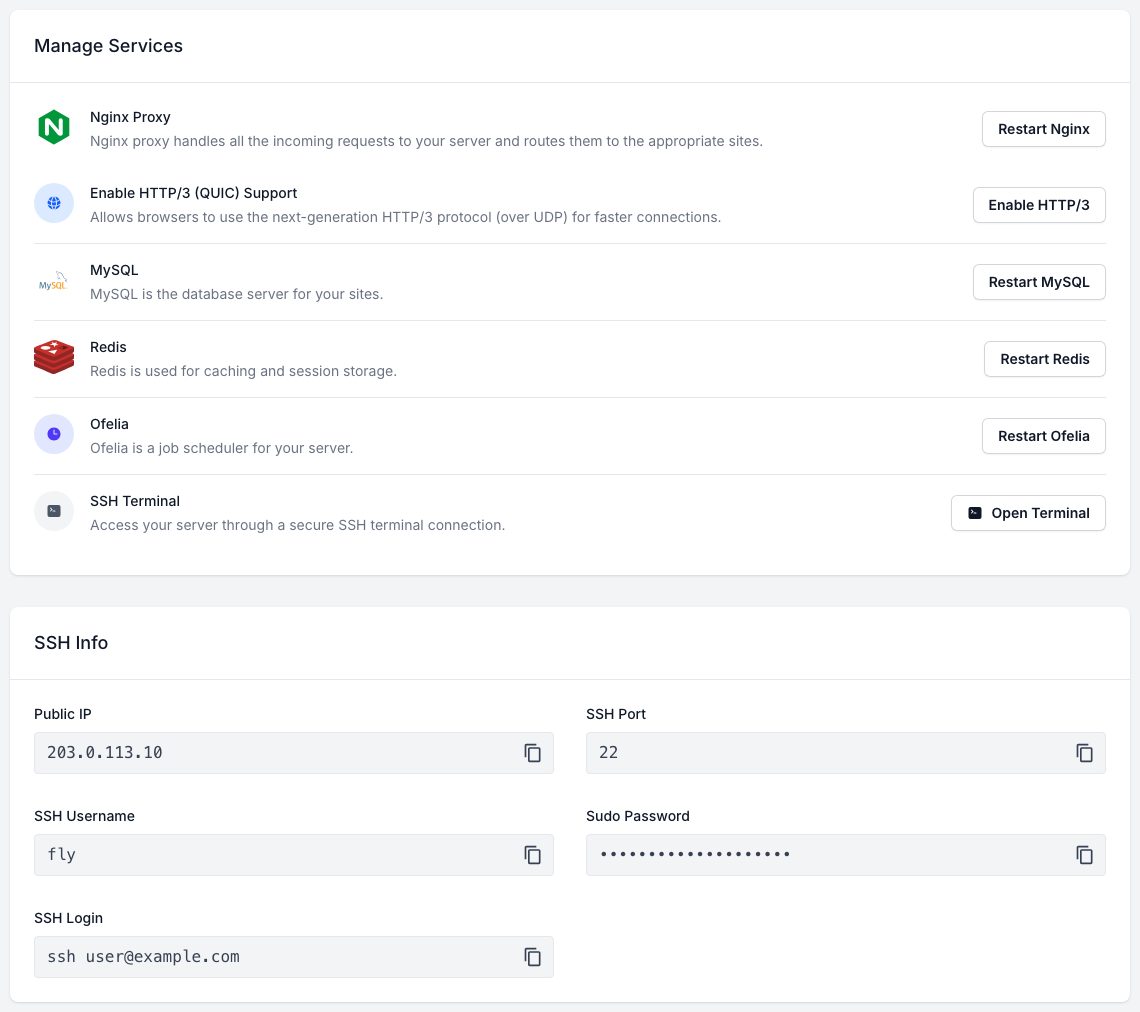
From here you can restart individual services without touching the others, troubleshoot on the fly through a secure SSH (Secure Shell — an encrypted connection to your server’s command line) terminal built right into the browser, and copy the connection details you need for deeper administrative work.
Server Services
Section titled “Server Services”FlyWP installs and manages these core services on every server:
| Service | What It Does | Default State |
|---|---|---|
| Nginx Proxy | A web server (pronounced “engine-ex”) that handles all incoming HTTP and HTTPS requests and routes them to the correct WordPress site | Running |
| MySQL | The database server that stores all WordPress content, settings, and user data | Running |
| Redis | An in-memory data store used for object caching (speeding up database queries by storing results in fast memory) and session storage (keeping users logged in) | Running |
| Ofelia | A Docker-based job scheduler that runs scheduled tasks inside your server’s containers — similar to a traditional cron job | Running |
| SSH Terminal | A browser-based terminal on your server. See SSH Terminal below | Opens on demand |
Each service row has its own restart button: Restart Nginx, Restart MySQL, Restart Redis, and Restart Ofelia. Clicking one restarts that service without affecting the others.
The Nginx Proxy row also has a separate Enable HTTP/3 row (the button changes to Disable HTTP/3 once HTTP/3 is on). See Enable HTTP/3 (QUIC) Support.
How to Restart a Service
Section titled “How to Restart a Service”Restart a service when it becomes unresponsive, after changing its configuration, or when support asks you to as part of troubleshooting.
-
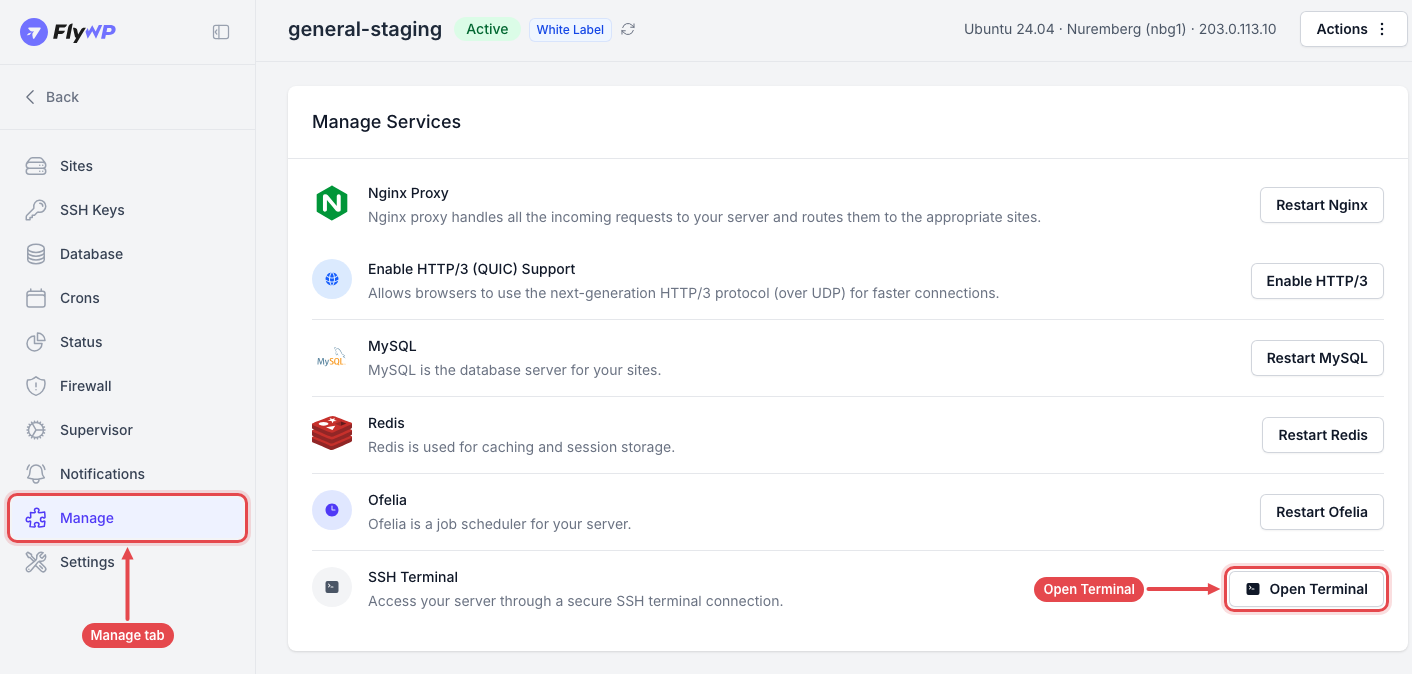
Navigate to your server’s detail page and click the Manage tab.
-
Find the service you want to restart.
-
Click its restart button (for example, Restart MySQL).
-
Wait a few seconds for the service to come back online.
Restarting Nginx Proxy causes a brief interruption (typically under 5 seconds) for all sites on the server. Restarting MySQL temporarily drops any active database queries. Plan restarts during low-traffic periods when possible.
SSH Terminal
Section titled “SSH Terminal”Click Open Terminal in the SSH Terminal row to open a secure, browser-based terminal session directly on your server. This is handy for quick troubleshooting (running a command, checking a log file, or inspecting disk usage) without leaving your browser or configuring a separate terminal application.
SSH Connection Info
Section titled “SSH Connection Info”The SSH Info section displays everything you need to connect from your local machine using your own terminal or SSH client:
| Field | Description |
|---|---|
| Public IP | The server’s public IP address (IPv4) — the address your terminal connects to |
| SSH Port | The port used for SSH connections (default: 22) |
| SSH Username | The default SSH user created by FlyWP — always fly |
| Sudo Password | The password required for sudo (administrator-level) commands, shown masked with a copy button |
| SSH Login Command | A ready-to-copy command (e.g., ssh fly@your-server-ip) you can paste directly into your terminal |
Restart the Whole Server
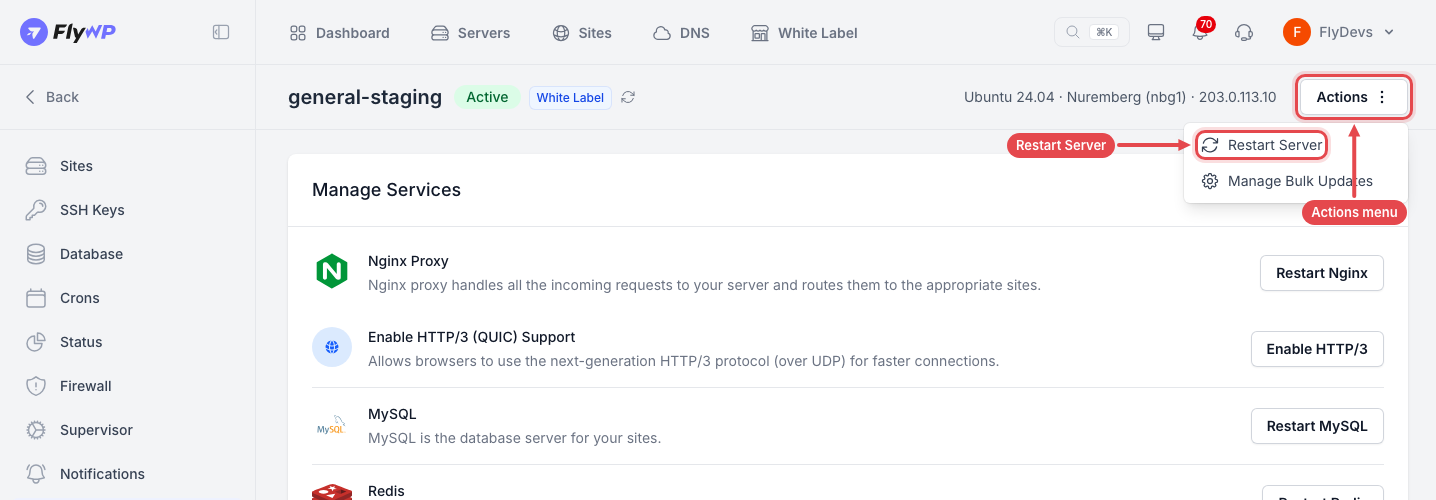
Section titled “Restart the Whole Server”To reboot the entire server, open the Actions menu at the top right of any server page and click Restart Server. The icon next to the server status lets you check whether FlyWP can still connect to the server.
Best Practices
Section titled “Best Practices”- Restart services one at a time so you can isolate any issues that arise.
- Use the SSH terminal for quick checks, but add your SSH key for regular access from your local machine.
- Save the sudo password in a secure password manager — you will need it for administrative commands on the server.
Related Pages
Section titled “Related Pages”Still stuck? How can we help?
View as Markdown