Cloudflare Origin Certificate
Auto SSL Provisioning with Cloudflare Origin Certificate (Connected Domains)
Section titled “Auto SSL Provisioning with Cloudflare Origin Certificate (Connected Domains)”This guide explains how to automatically provision SSL certificates using Cloudflare Origin CA for domains connected to your FlyWP server.
Overview
Section titled “Overview”Cloudflare Origin Certificates are designed to secure traffic between Cloudflare and your server, not between the visitor and Cloudflare. This means:
- Visitors connect securely to Cloudflare (Edge SSL)
- Cloudflare connects securely to your origin server (Origin SSL via FlyWP)
This setup is fast, automated, and avoids rate limits often encountered with Let’s Encrypt.
Requirements
Section titled “Requirements”Before proceeding, ensure:
- Your domain is added to Cloudflare (Follow this doc)
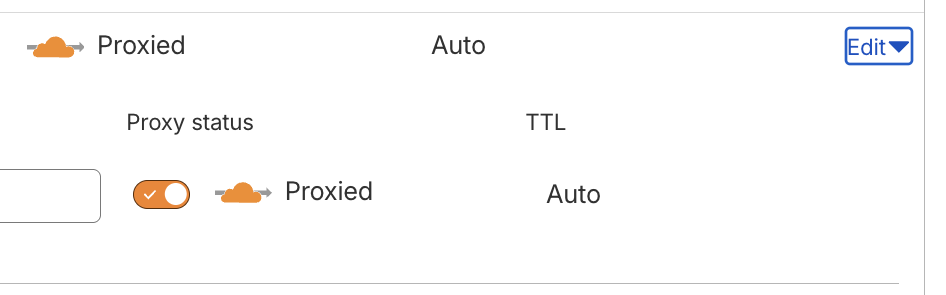
- DNS records are set to Proxied (orange cloud ☁️)
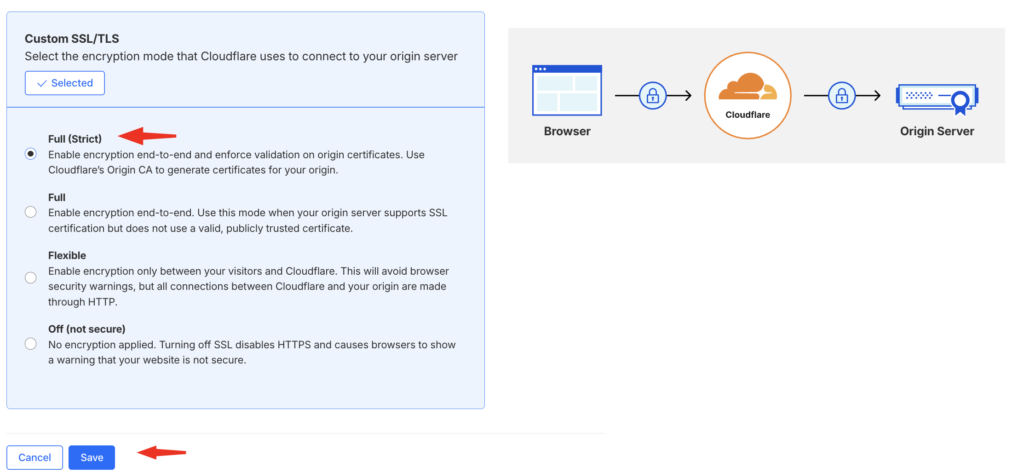
- SSL mode in Cloudflare is set to Full (strict)
- Your domain is already connected inside FlyWP through Cloudflare integration.
Step-by-Step Setup
Section titled “Step-by-Step Setup”- Go to your site in FlyWP Dashboard
- Navigate to SSL → Add New Certificate
- Select Cloudflare Origin CA
- Choose your connected Cloudflare account
- Click Generate & Install
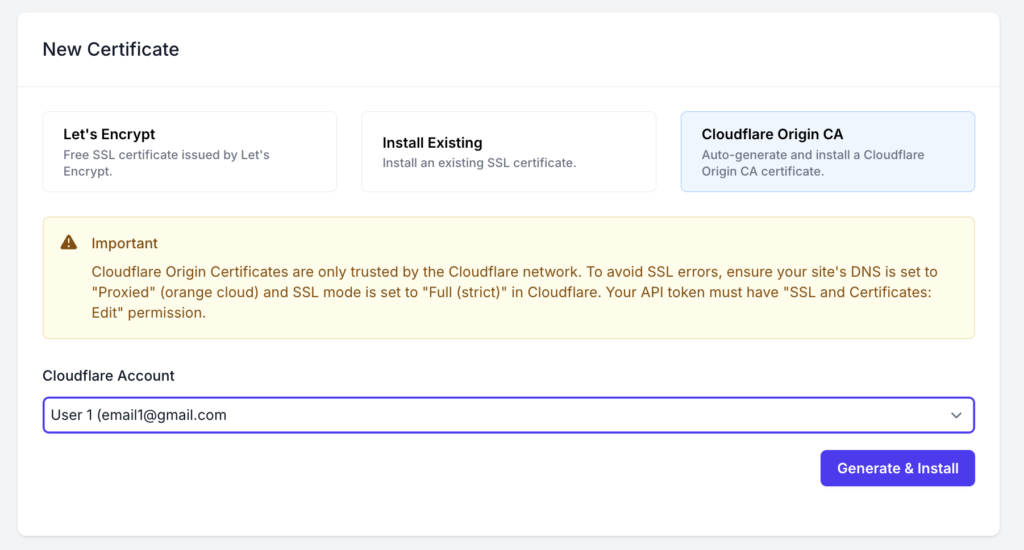
FlyWP will:
- Generate a Cloudflare Origin Certificate via API
- Install it on your server
- Configure your web server automatically
API Authentication Options
Section titled “API Authentication Options”Option 1 (Recommended): Global API Key
Section titled “Option 1 (Recommended): Global API Key”Why recommended:
- Simple setup
- No permission misconfiguration
- Works reliably with FlyWP automation
Steps:
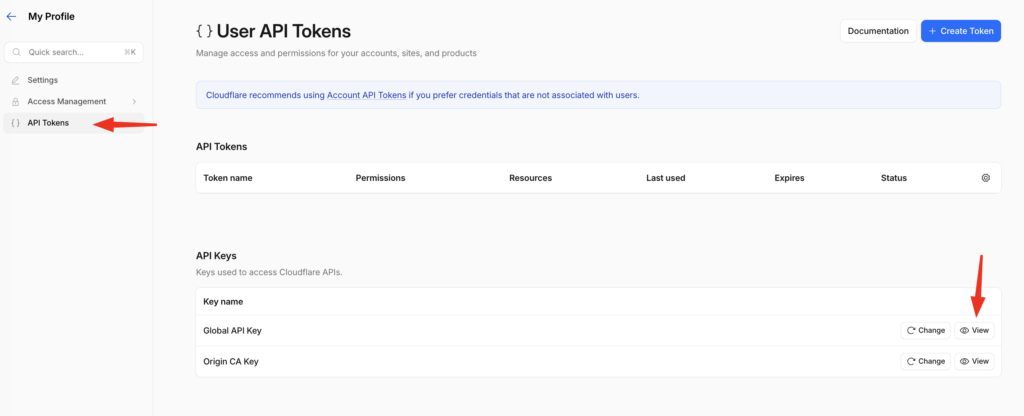
- Go to Cloudflare → Profile → API Tokens
- Copy Global API Key
- Use it when connecting Cloudflare account in FlyWP
Option 2: Granular API Token (Advanced)
Section titled “Option 2: Granular API Token (Advanced)”If you prefer tighter security, create a scoped token.
Required Permissions:
| Permission | Access |
|---|---|
| Zone: DNS | Edit |
| Zone: SSL and Certificates | Edit |
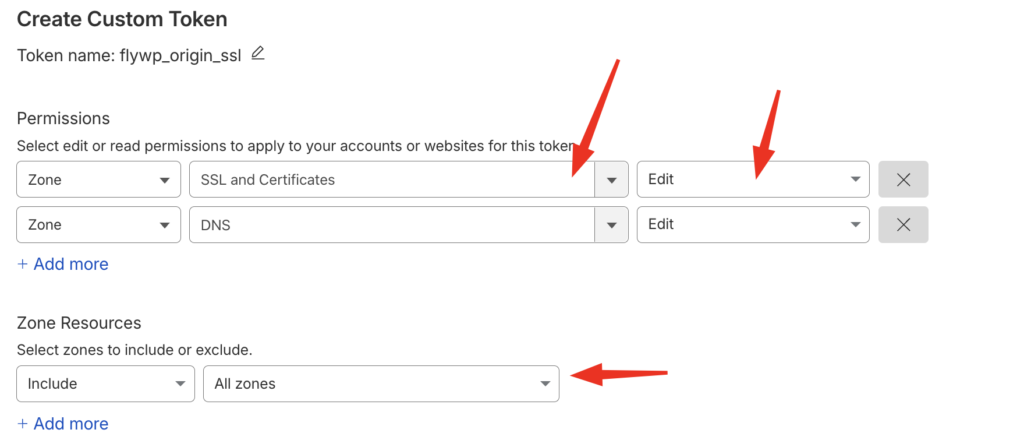
Zone Resources:
- Include the specific domain(s) you want to manage
⚠️ Missing any of these permissions will cause the following:
- Certificate generation failure
- Installation errors in FlyWP
Best Practices
Section titled “Best Practices”- Always use Full (strict) SSL mode
- Keep DNS records proxied
- Avoid mixing Cloudflare Origin SSL with Let’s Encrypt on the same domain
- Do not expose your origin IP publicly
Important Warning
Section titled “Important Warning”Cloudflare Origin Certificates are:
- ❌ NOT trusted by browsers directly
- ✅ Only trusted when traffic passes through Cloudflare
If you disable Cloudflare proxy (grey cloud), your site will show SSL errors.
Common Issues & Fixe
Section titled “Common Issues & Fixe”1. SSL Error: “Invalid Certificate” (525 / 526)
Section titled “1. SSL Error: “Invalid Certificate” (525 / 526)”Cause:
- SSL mode not set correctly
Fix:
- Go to Cloudflare → SSL/TLS (Click Here)
- Set mode to Full (strict)

2. Site Not Loading Over HTTPS
Section titled “2. Site Not Loading Over HTTPS”Cause:
- DNS not proxied through Cloudflare
Fix:
- Go to DNS settings (Click Here)
- Ensure records show orange cloud (Proxied)
3. API Permission Error
Section titled “3. API Permission Error”Cause:
- API token lacks required permissions
Fix:
- Visit Cloudflare API page
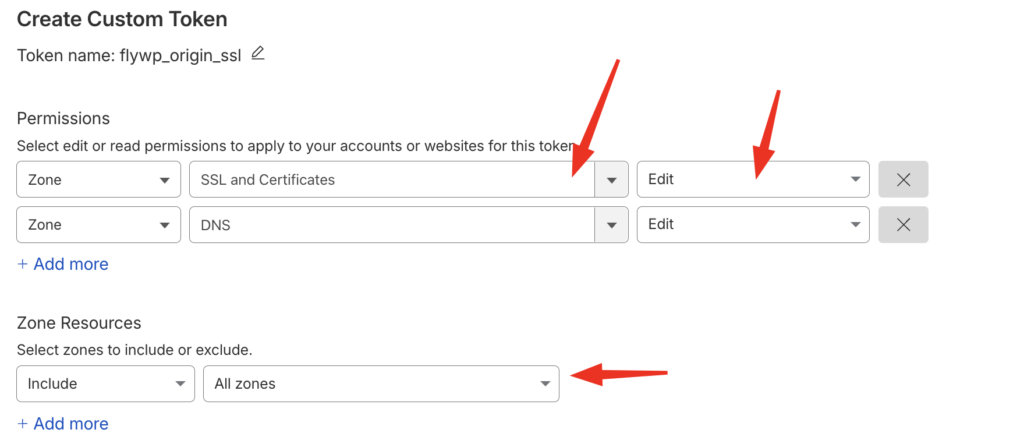
- Ensure token includes:
- Zone:
SSL and Certificates: Edit Zone:DNS : Edit- Zone Resources: All Zones (optional)
- Zone:
4. Mixed Content Warnings
Section titled “4. Mixed Content Warnings”Cause:
- Site still serving HTTP assets
Fix:
- Enable Automatic HTTPS Rewrites in Cloudflare
- Or fix URLs in your app/database
5. Direct IP Access Shows SSL Error
Section titled “5. Direct IP Access Shows SSL Error”Cause:
- Origin certificate is not publicly trusted
Fix:
- This is expected behavior
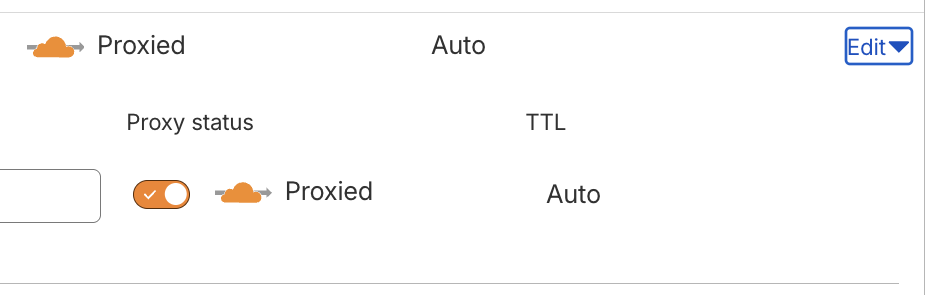
- Always access via your domain (through Cloudflare) by enabling Proxy Mode
When NOT to Use Cloudflare Origin Certificates
Section titled “When NOT to Use Cloudflare Origin Certificates”Avoid this method if:
- You need SSL without Cloudflare proxy
- You want direct server access via HTTPS
- You are using services that bypass Cloudflare
In those cases, use Let’s Encrypt instead.
Summary
Section titled “Summary”Cloudflare Origin SSL in FlyWP provides:
- ⚡ Fast provisioning
- 🔒 Strong encryption between Cloudflare and server
- 🚫 No rate limits
But it requires correct Cloudflare configuration to avoid errors.
Still stuck? How can we help?