Managing Domains in FlyWP
Quick Reference
Section titled “Quick Reference”| Domain Type | Serves Content? | Stored as Site URL | Typical Use Case |
|---|---|---|---|
| Primary | Yes | Database (WordPress sites) or ENV (1-Click Apps and other apps) | Your site’s main, canonical domain |
| Alias | Yes | Not stored as the site URL | Multisite setups, hosting on multiple domains |
| Redirect | No (forwards traffic) | Not stored as the site URL | www/non-www redirects, old domains, typo domains, legacy URLs |
Every FlyWP site, whether it’s a WordPress site, a 1-Click App, an Nginx site, a PHP site, or a Laravel site, comes with a Site Domains panel where you can add, organize, and manage the domains connected to that site. You’ll find this panel under Site Dashboard > Settings.
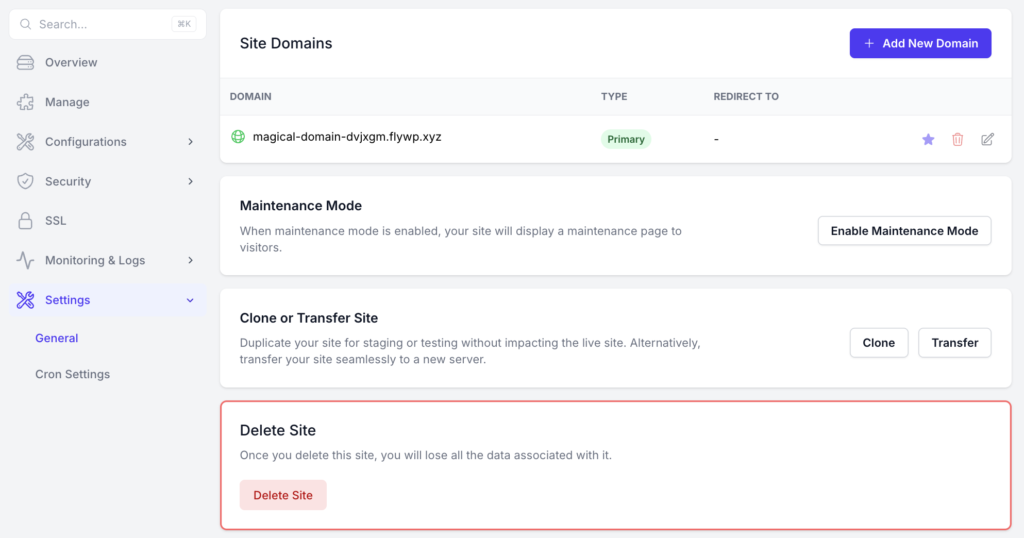
This guide explains the three domain types you’ll see in that panel, how they behave, and what to do after adding a new domain.
The Three Domain Types
Section titled “The Three Domain Types”When you add a domain to a site, you’ll assign it one of three types: Primary, Alias, or Redirect. Each one behaves differently, so it’s worth understanding the distinction before you start adding domains.
Primary
Section titled “Primary”The Primary domain is your site’s main URL. Where it’s stored depends on the type of site:
- WordPress sites: the Primary domain is stored in the site’s database.
- 1-Click Apps and other apps (Nginx, PHP, Laravel, etc.): the Primary domain is stored in the site’s environment variables (ENV).
There can only be one Primary domain per site at a time. If you need to change which domain is Primary, you can do this from the Site Domains panel — just keep in mind that this updates the URL your site references internally, so it’s a good idea to test the change carefully, especially on a live site.
An Alias domain serves your site’s content, just like the Primary domain does — but without changing the stored site URL (whether that’s the database or the ENV, depending on your site type). In other words, visitors can reach your site through the alias domain and see the exact same content as the Primary domain, side by side.
This is especially useful if you:
- Run a WordPress Multisite installation and need to serve different domains from the same install
- Want to host the same site on multiple domains (for example, regional domain variants or legacy domains you still want active)
Redirect
Section titled “Redirect”A Redirect domain doesn’t serve content on its own. Instead, any visitor who lands on a Redirect domain is automatically forwarded to your Primary domain. This is the type to use when you want an old domain, a typo variant, or a secondary domain to simply point traffic back to your main site.
A common example is www and non-www redirects. If your Primary domain is www.example.com, you can add example.com as a Redirect domain so visitors who type in the non-www version are automatically sent to the www version (or vice versa), keeping your traffic and SEO consolidated on a single, consistent domain.
Adding a New Domain
Section titled “Adding a New Domain”From your site’s Settings page, you can add a new domain at any time using the Add New Domain button in the top-right corner of the Site Domains panel. There’s currently no limit on the number of domains you can add to a site, so feel free to add as many Primary, Alias, or Redirect domains as your setup needs.
Don’t Forget: SSL Activation
Section titled “Don’t Forget: SSL Activation”Adding a domain to the Site Domains panel does not automatically issue an SSL certificate for it. After adding a new domain, you’ll need to manually activate SSL for that domain before it’s served securely over HTTPS.
If you skip this step, visitors reaching your new domain may see a browser security warning, so it’s worth making SSL activation part of your routine whenever you add a domain.
Need Help?
Section titled “Need Help?”If you run into any issues while adding domains or activating SSL, our support team is happy to help — just reach out and let us know what you’re seeing.
Still stuck? How can we help?