DNS Manager
We’ve added a new DNS Manager feature that allows you to manage your domain records directly from the FlyWP dashboard, no need to log in separately to your Cloudflare account.
Once you integrate your Cloudflare account with FlyWP, you’ll be able to view, add, edit, and delete DNS records right inside the FlyWP app.
Accessing DNS Manager
Section titled “Accessing DNS Manager”- Log in to your FlyWP account.
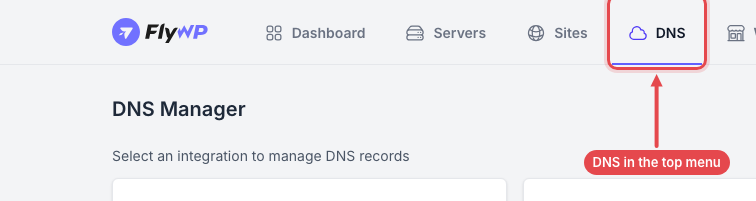
- Navigate to the top menu and click on DNS or go directly toapp.flywp.com/dns.
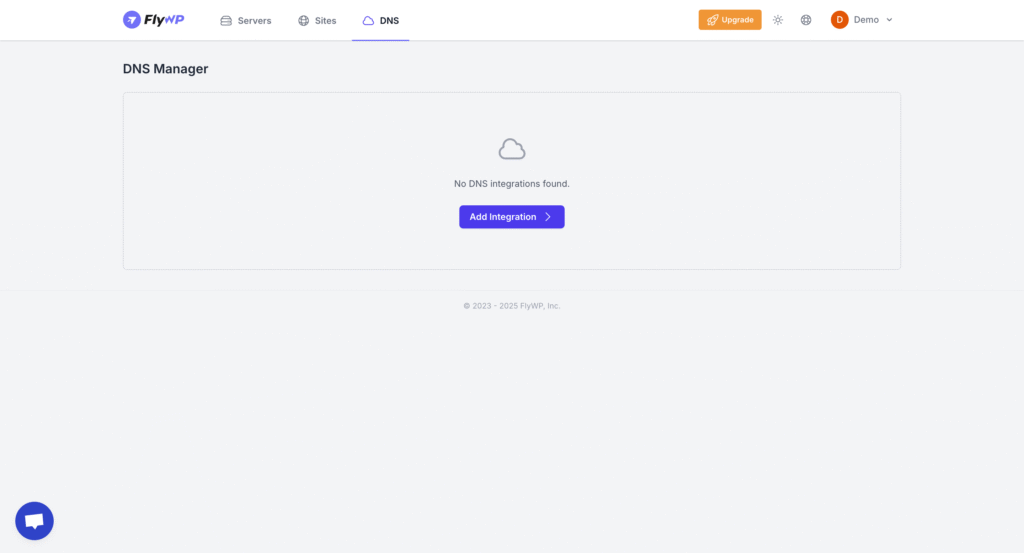
- You’ll see the DNS Manager page.
- If you haven’t yet integrated Cloudflare, click Add Integration to connect your Cloudflare account.
- (See our Cloudflare Integration Guide for step-by-step instructions.)
Viewing DNS Records
Section titled “Viewing DNS Records”Once your domain is integrated with Cloudflare, FlyWP will display all existing DNS records for that domain:
- Type (A, CNAME, MX, TXT, NS, etc.)
- Name (domain or subdomain)
- Value (IP address or target)
- TTL (time-to-live)
- Proxy Status (Proxied or DNS Only)
This makes it easy to audit your domain configuration without switching tools.
Adding a New Record
Section titled “Adding a New Record”-
Go to DNS Manager.
-
Click Add Record.
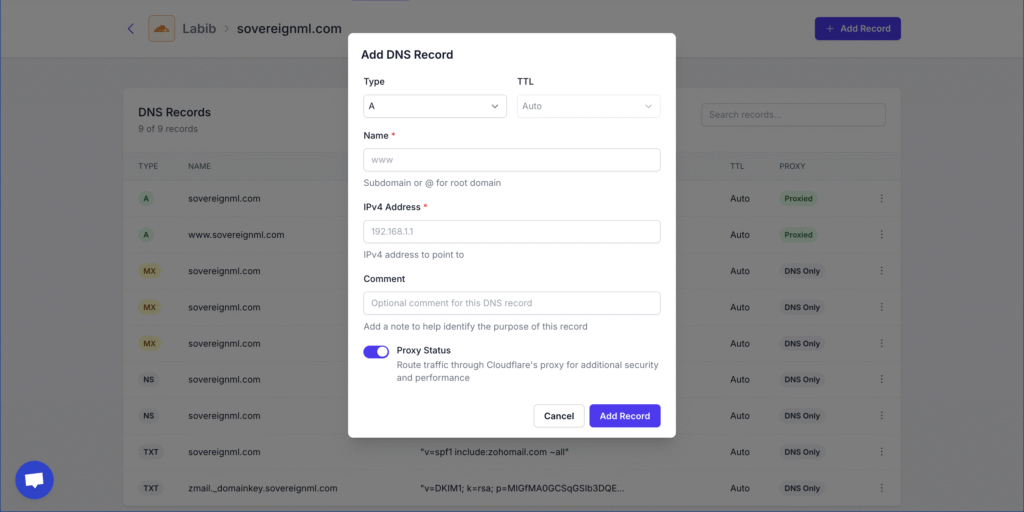
- Choose the record type: A, AAAA, CNAME, MX, or TXT. You can’t add other record types, such as NS, from FlyWP.
- Enter the required values:
- TTL → Set the time-to-live. Choose Auto or a preset from 1 minute to 1 day.
- Name → Enter the root domain (
@) or a subdomain (e.g.,www). - IPv4 Address → Provide the destination server’s IP address.
- Comment → (Optional) Add a note to help identify the purpose of this record.
- Proxy Status → Toggle Cloudflare proxy on or off for added security and performance.
- Click Add Record.
Editing a Record
Section titled “Editing a Record”-
Locate the record you want to update.
-
Click the menu (…) beside it and select Edit.
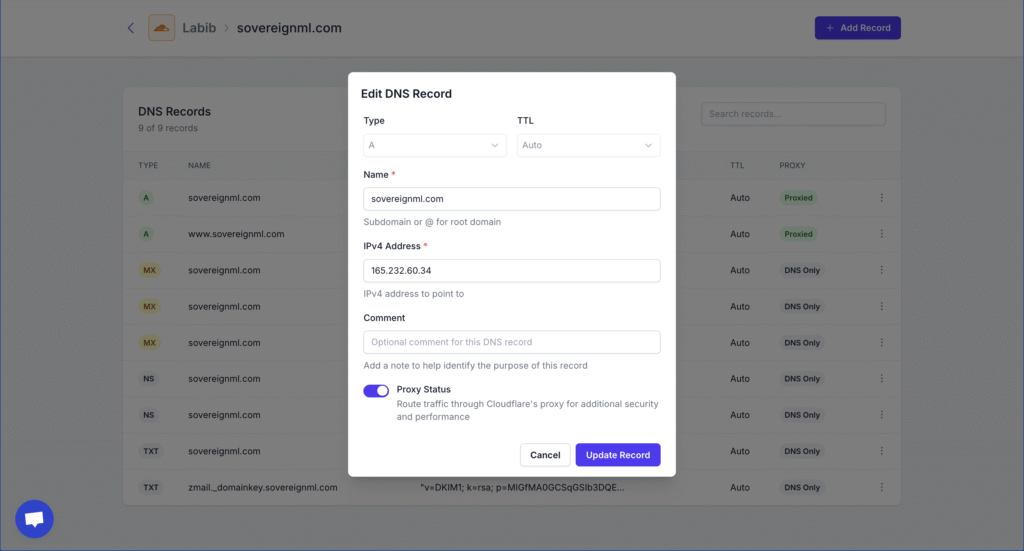
- Update the necessary fields (IP, proxy status, TTL, etc.).
- Click Update Record.
Deleting a Record
Section titled “Deleting a Record”- Locate the record you want to remove.
- Click the menu (…) beside it and select Delete.
- Confirm deletion.
Why Use DNS Manager in FlyWP?
Section titled “Why Use DNS Manager in FlyWP?”- Centralized Control – Manage servers, sites, and DNS records from one dashboard.
- Time-Saving – No need to log into Cloudflare separately.
- Full Flexibility – Add, edit, or delete records directly in FlyWP.
- Cloudflare Proxy Support – Toggle proxy status for security and performance without leaving FlyWP.
Who Can Change DNS Records
Section titled “Who Can Change DNS Records”Only a member who can manage DNS for the zone can add, edit, or delete its records. Team Administrators can. Other members need DNS access for the zone. A member without it gets a 403 on this page.
The same rule applies when you add a domain whose name already has a Cloudflare A record. See If the Name Already Has a Cloudflare A Record.
Next Steps
Section titled “Next Steps”- If you haven’t yet connected Cloudflare, start with our Cloudflare Integration Guide.
- Once integrated, head toapp.flywp.com/dns and try out the new DNS Manager today.
Still stuck? How can we help?
View as Markdown