Publish a Static Site
FlyWP can publish a static HTML copy of a WordPress site on another domain. The original WordPress site stays on its existing domain. You can serve the copy through Cloudflare Pages or Cloudflare Workers.
This walkthrough uses xynoslab.com as the demo WordPress site and static.xynoslab.com as the example static domain. Use your own site and a new hostname in your Cloudflare account.
Open Static Site
Section titled “Open Static Site”- Sign in to FlyWP.
- Open your Site Dashboard. For this example, go to Sites and select xynoslab.com.
- In the site sidebar, expand Performance.
- Select Static Site.
Access path: Site Dashboard → Performance → Static Site
The page displays four destinations. The steps below cover Cloudflare Pages and Cloudflare Workers.
Before you deploy
Section titled “Before you deploy”- Connect a Cloudflare account to your FlyWP team. Select Connect an account on the Static Site page, or go to Team Settings → Integrations → Cloudflare → Add Account.
- Choose a static domain that belongs to the selected Cloudflare account and has no existing DNS record. FlyWP checks the domain with Cloudflare before deployment; the check can take a minute.
- Use a separate hostname for the copy. In this example, WordPress remains on
xynoslab.com, and visitors would see the static copy atstatic.xynoslab.com. - Review any interactive features on your site. Forms, search, comments, logins, and WooCommerce do not work on the static copy.
Deploy with Cloudflare Pages
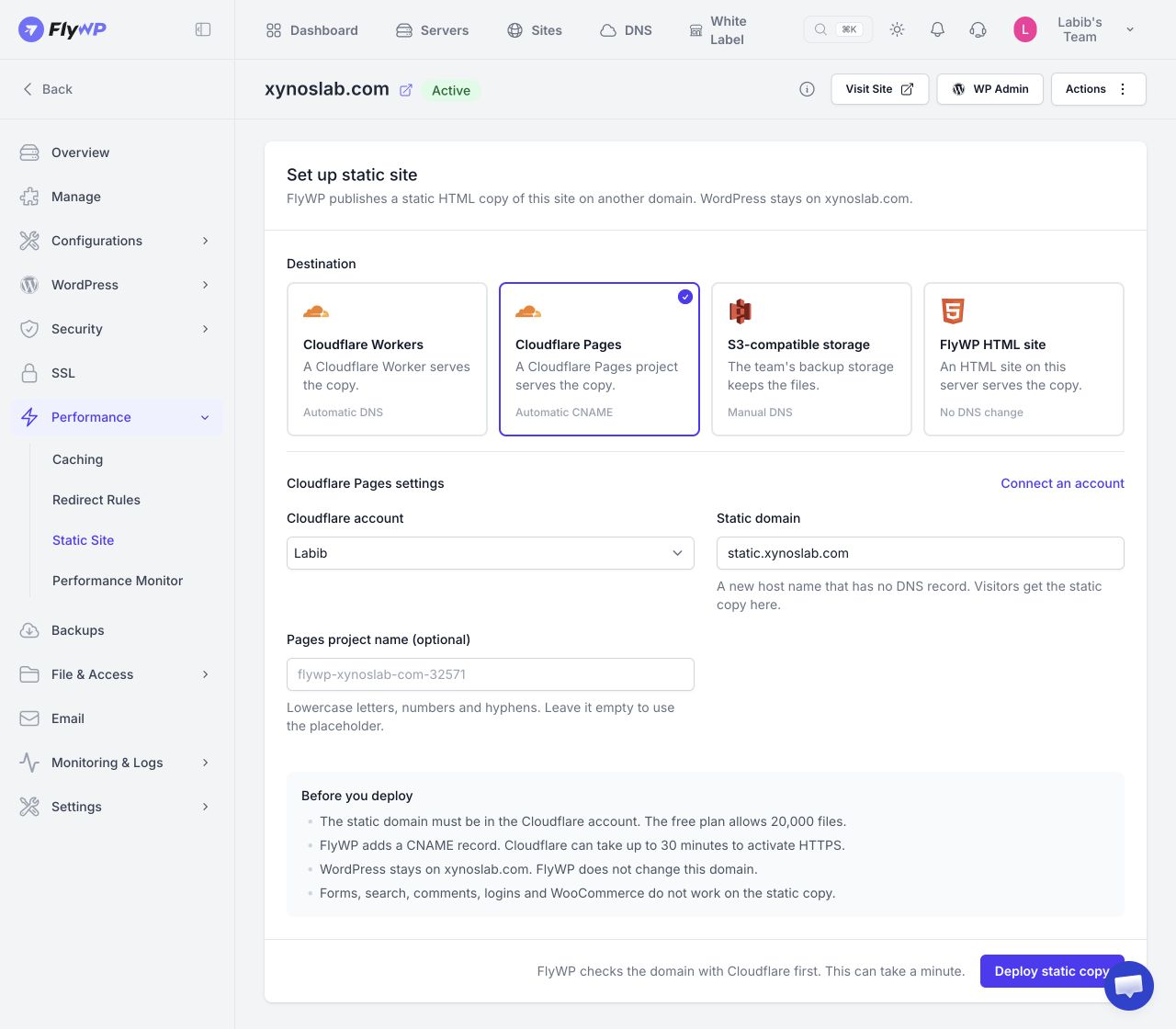
Section titled “Deploy with Cloudflare Pages”Cloudflare Pages serves the copy from a Pages project. FlyWP labels this destination Automatic CNAME.
- Under Destination, select Cloudflare Pages.
- Select the Cloudflare account containing your static domain.
- Enter the Static domain. The demo shows
static.xynoslab.com; enter your own new hostname. - Optionally enter a Pages project name. Use lowercase letters, numbers, and hyphens. If you leave it empty, FlyWP uses the name shown as the field's placeholder.
- Read the Before you deploy notice, then select Deploy static copy.
FlyWP says it adds a CNAME record. Cloudflare can take up to 30 minutes to activate HTTPS. The setup screen also notes that the Cloudflare Pages free plan allows 20,000 files.
Deploy with Cloudflare Workers
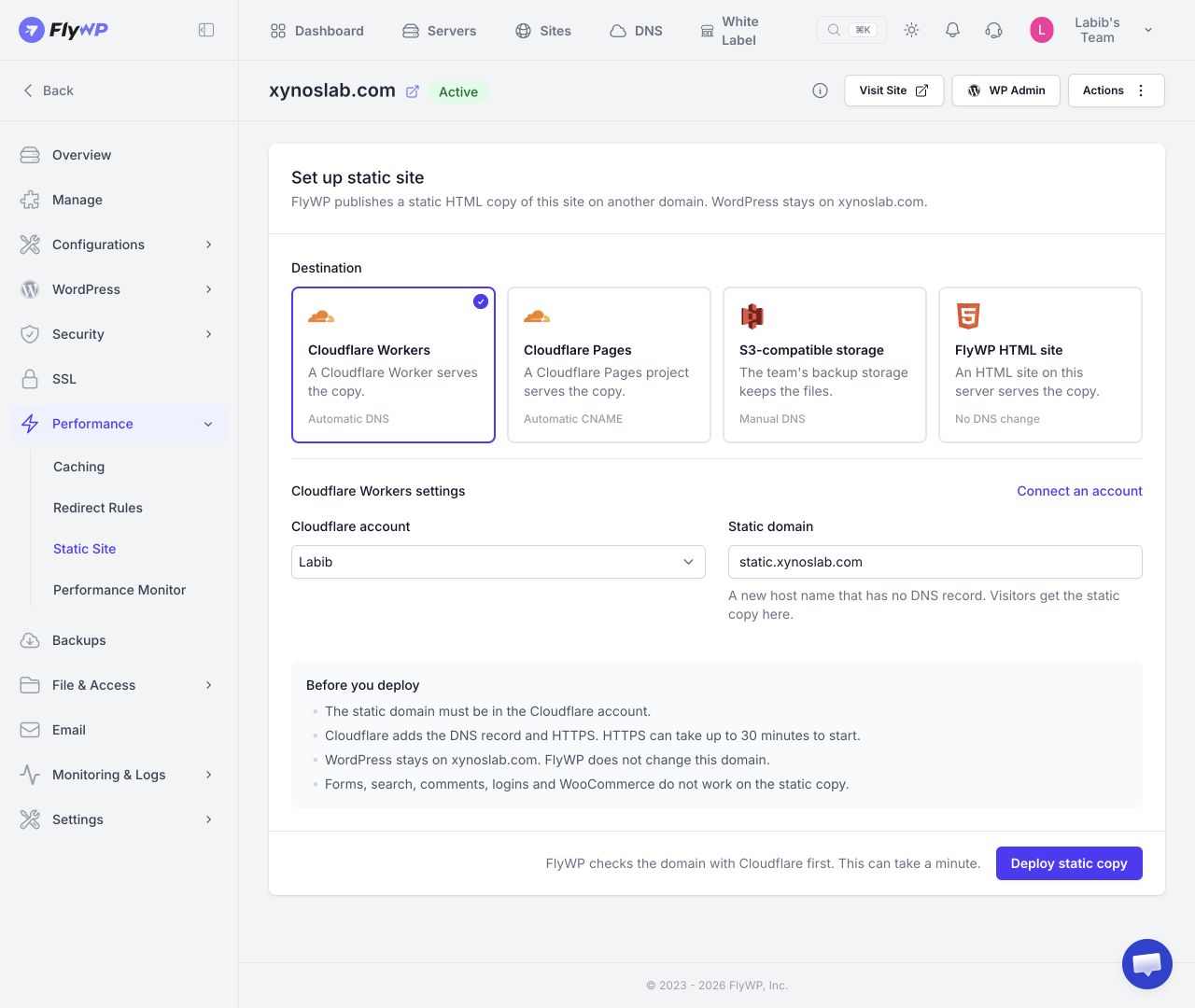
Section titled “Deploy with Cloudflare Workers”A Cloudflare Worker serves the copy. FlyWP labels this destination Automatic DNS.
- Under Destination, select Cloudflare Workers.
- Select the Cloudflare account containing your static domain.
- Enter a Static domain with no existing DNS record.
- Read the Before you deploy notice, then select Deploy static copy.
FlyWP says Cloudflare adds the DNS record and HTTPS. HTTPS can take up to 30 minutes to start.
Pages or Workers?
Section titled “Pages or Workers?”| Cloudflare Pages | Cloudflare Workers | |
|---|---|---|
| Serves the copy through | A Cloudflare Pages project | A Cloudflare Worker |
| DNS shown in FlyWP | Automatic CNAME | Automatic DNS |
| Setup fields | Cloudflare account, Static domain, optional Pages project name | Cloudflare account, Static domain |
| HTTPS timing | Can take up to 30 minutes to activate | Can take up to 30 minutes to start |
After deployment completes, open the static domain and check the home page, important pages, links, and images. Allow for the HTTPS activation time shown above. Continue editing WordPress on its original domain.
The screenshots show the setup page for the demo site. They do not show a completed deployment.
Frequently asked questions
Section titled “Frequently asked questions”Does this replace my WordPress site?
Section titled “Does this replace my WordPress site?”No. FlyWP says WordPress stays on its existing domain and that domain is not changed by this setup.
Can I reuse the WordPress domain for the static copy?
Section titled “Can I reuse the WordPress domain for the static copy?”The setup page asks for a new host name that has no DNS record. Use a separate hostname in the selected Cloudflare account.
Will my forms, search, comments, logins, or WooCommerce work?
Section titled “Will my forms, search, comments, logins, or WooCommerce work?”No. FlyWP lists these as unavailable on the static copy. Keep visitors on the WordPress site for functions that require them.
Where do I connect Cloudflare?
Section titled “Where do I connect Cloudflare?”Go to Team Settings → Integrations → Cloudflare → Add Account, or select Connect an account on the Static Site setup page.
Still stuck? How can we help?