Logs for Docker Compose Apps
The Logs page displays console output from your app's services. Check here to troubleshoot why a service stopped or why a request failed.
Read the logs
Section titled “Read the logs”- Open your app and go to Logs.
- Choose the service you want to inspect.
- Review recent lines. Turn on Live to follow new lines as they arrive.
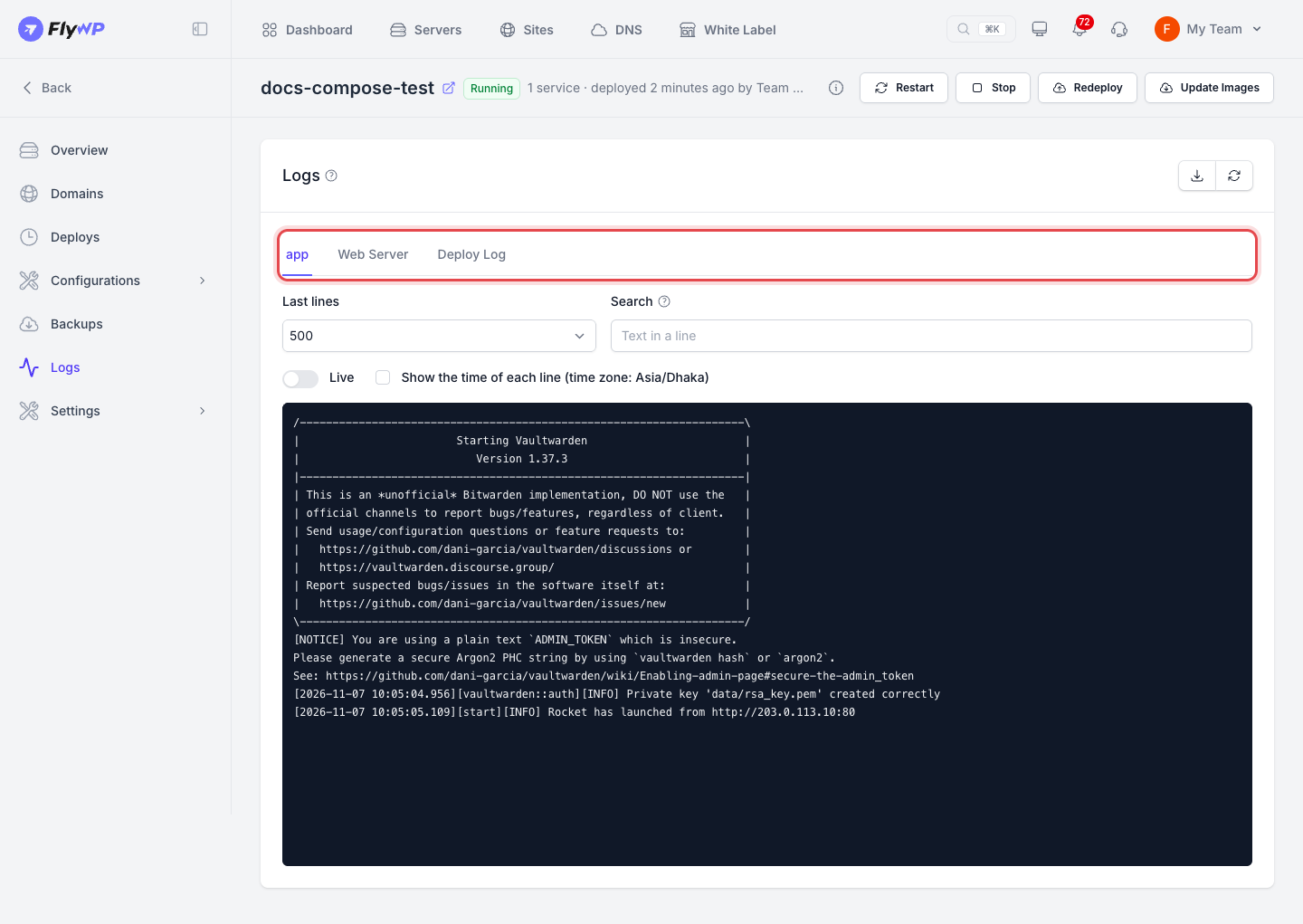
Use Search to find specific log lines. Click Refresh to reload the log output.
Each fetch retrieves recent log lines only. Earlier lines aren't shown, and lines may drop when the server is under heavy load. The page will notify you if this happens.
You can also view deployment output under the Deploy Log tab on the Logs page. It details each step of the last deploy, so it's the first place to look when a deploy fails.
Download a log file
Section titled “Download a log file”Use Download to save your service logs to a file.
- Click Download.
- Wait while FlyWP generates the file. The page displays its progress.
- Click the link to download the file when it is ready.
Starting a new download replaces any existing file.
When the logs cannot be read
Section titled “When the logs cannot be read”If FlyWP can't fetch logs, the page explains why in plain words. Common cases:
- The server is busy with a read of logs. Wait a moment and try again.
- Too many reads in one minute. Wait a minute, then refresh.
- The server did not answer. Check the server status on its page in FlyWP.
- FlyWP gave no logs for this app. The app has not started yet, or it has been stopped.
Still stuck? How can we help?
View as Markdown