Next.js, Nuxt & Astro Site Support Through Git
Deploy a JavaScript application from a Git repository to a FlyWP-managed server. Use this guide for the common setup, then follow the separate Next.js, Nuxt, or Astro guide for your application settings.
Before you begin
Section titled “Before you begin”You need a FlyWP account with access to an active server, a Git repository containing your application, and permission to deploy its selected branch. Put package.json at the repository root: the current wizard explicitly states that monorepos are unsupported. A web directory selects what is served; it does not make a nested workspace a supported application root.
Commit your source, framework configuration, and package manager lockfile. Keep credentials and local environment files out of Git. Test a production build locally before configuring the deployment.
FlyWP introduced this feature in v2026.52. Its release announcement lists Node.js 24, 22, and 20, with version resolution from engines.node. The wizard says that an unspecified version uses the latest LTS. Set an explicit compatible major when repeatability matters; a framework's own minimum version still applies. FlyWP feature announcement.
For example, merge this property into your existing package.json if your application supports Node.js 22:
{ "engines": { "node": "22.x" }}1. Connect your Git provider
Section titled “1. Connect your Git provider”Open FlyWP, then open Git Providers. You can also reach this page through Manage Git Providers in the site creation wizard.
Connect the provider holding your repository and complete its authorization flow. The current wizard displays GitHub, GitLab, and Bitbucket cards. A disconnected provider has a connection link; connect it before choosing its repository.
For GitHub, the wizard explains that public repositories are cloned directly. Private repositories receive a read-only SSH deploy key, which requires administrative access to the repository through the connected account. Organization access restrictions may also need to be resolved with the repository administrator.
2. Open the JavaScript site wizard
Section titled “2. Open the JavaScript site wizard”Use this access path:
Dashboard → New Site → Select Server → Continue → Node.js Next.js / Nuxt / Astro
The application card opens Create Next.js / Nuxt / Astro Site. Its steps are Domain → Configure Git → Installation → Summary.
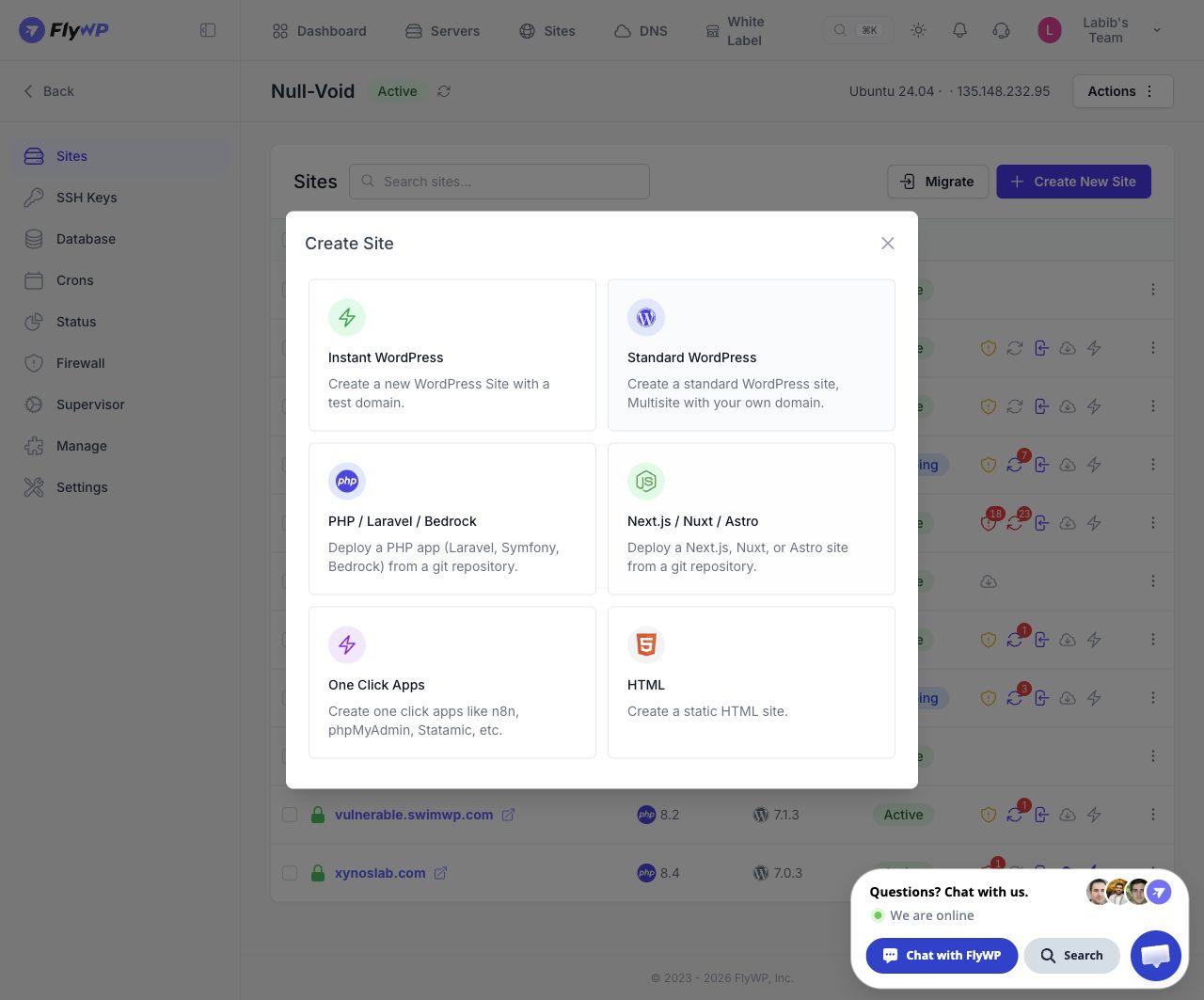
Select the JavaScript application card in the actual FlyWP app. Select the image to view the full screen.
3. Choose a domain
Section titled “3. Choose a domain”On Domain, choose one of these options:
- Enable Use flywp.xyz test domain to have FlyWP generate a testing subdomain.
- Enter your own hostname in Domain Name for a custom domain.
For a custom domain, Add DNS record on Cloudflare offers automatic DNS and certificate management through a connected Cloudflare integration. Enable HTTPS requests a Let's Encrypt certificate. If you manage DNS elsewhere, configure the hostname with that provider and ensure it resolves to the intended server before checking certificate issuance.
Click Next. Test domains are described in the wizard as being for testing purposes; use your own domain for a production launch.
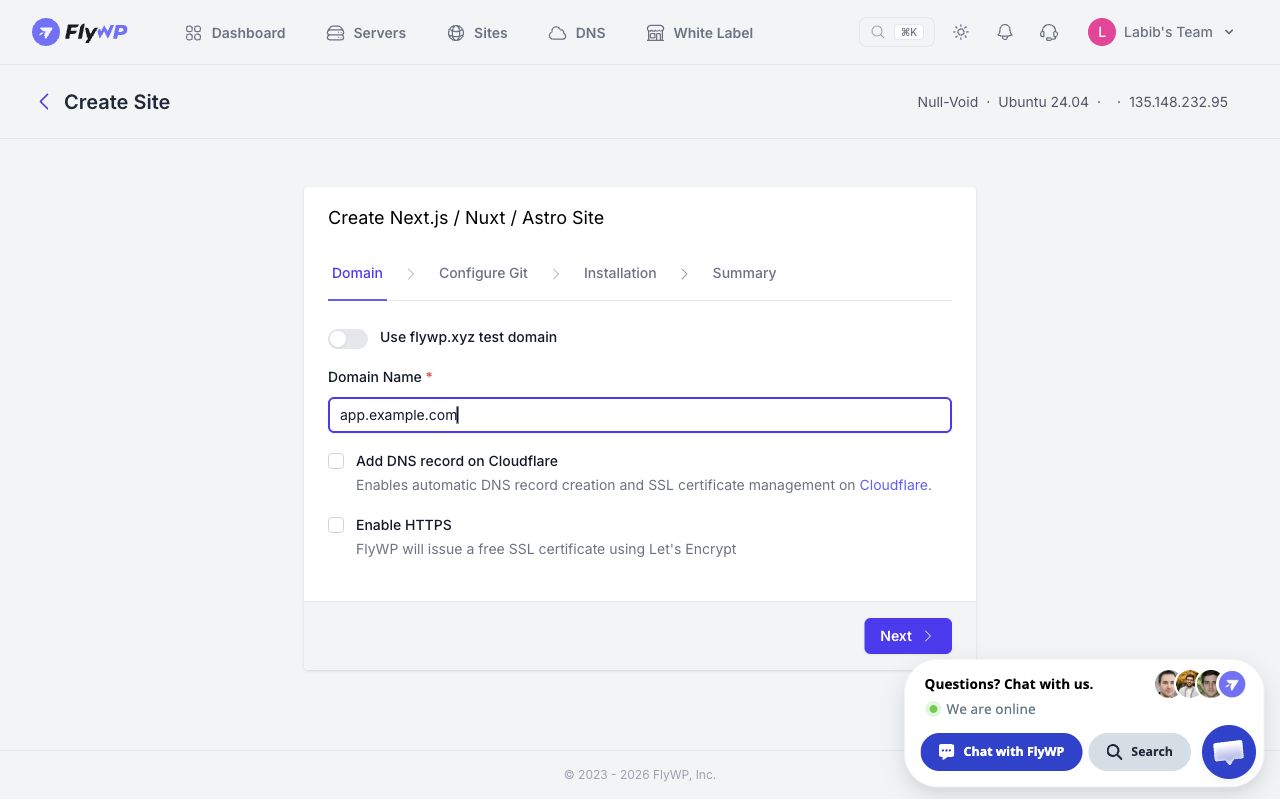
Custom-domain example. app.example.com is an illustrative value; no site was created. Select the image to view the full screen.
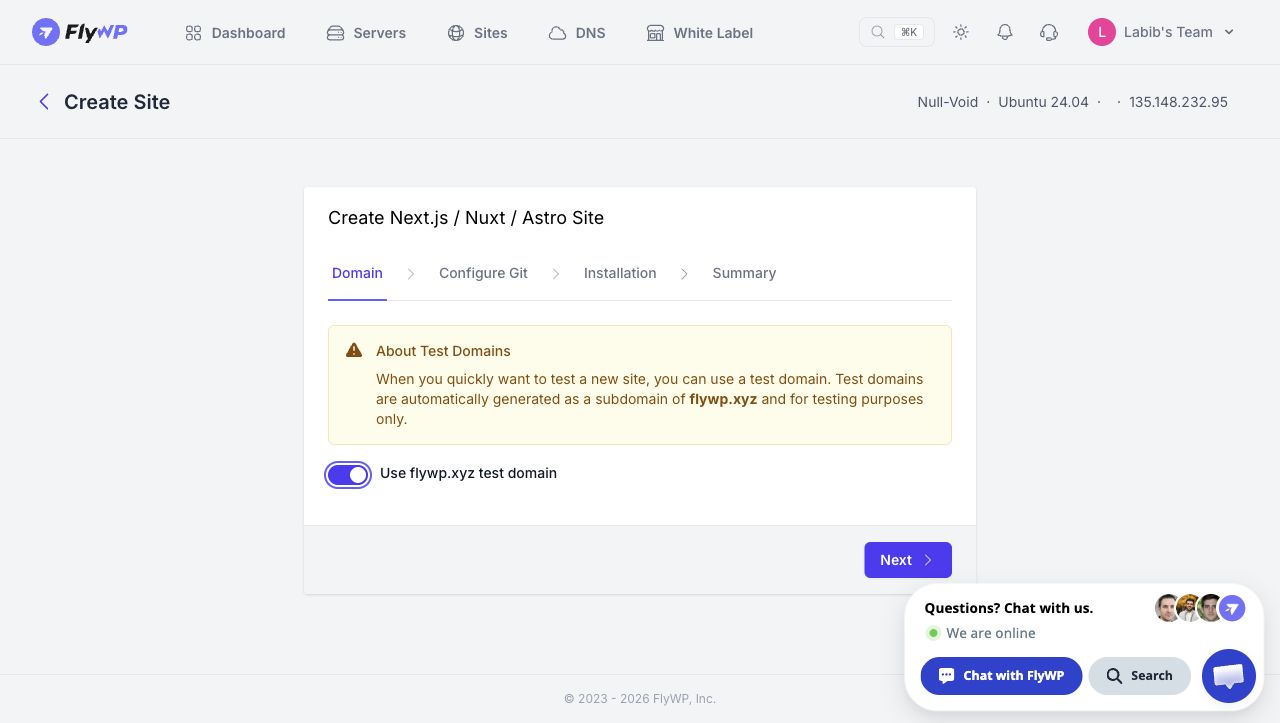
4. Configure the application and Git source
Section titled “4. Configure the application and Git source”On Configure Git, select Application Type, then choose a Runtime:
| Runtime | How the site runs | Use it when |
|---|---|---|
| Server | A Node process runs behind Nginx | Your application needs request-time rendering or server endpoints |
| Static | Nginx serves generated files without a Node application process | Your build produces a complete static website |
Static runtime does not execute SSR or API routes. Choosing Static does not automatically convert your application into a static export.
Choose npm, yarn, or pnpm under Package manager. The wizard says dependencies are installed during the build, before Build command runs. Use a build command matching the selected package manager, such as npm run build, yarn build, or pnpm run build. JavaScript sites do not offer a package manager value of None.
Enter Start command for Server runtime. This field is hidden for Static runtime. Set Web directory using the relevant framework guide; do not publish the repository root as a static site.
Select your Git provider and search for the Repository and Branch. For an unlisted public repository, type owner/repository and select Use public repository. Choose the branch you intend to release. Review commands and paths again after changing application type or runtime, because those selections can change defaults.
Enable Push to deploy if pushes to the selected branch should trigger deployments. Leave it disabled if you want to control release timing yourself.
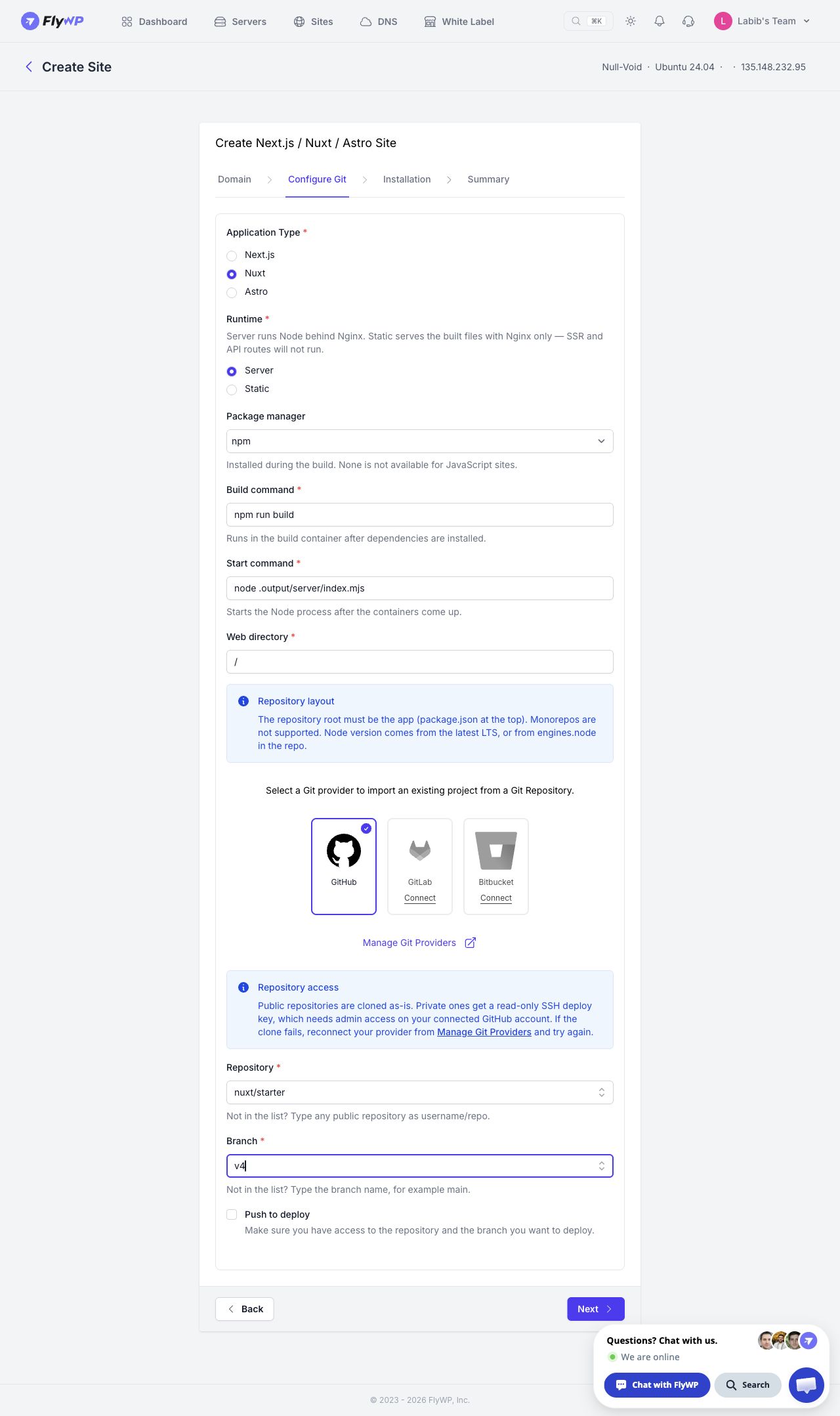
Git source selection example using the public nuxt/starter repository. Push to deploy is disabled in this example. Select the image to view the full screen.
5. Review and create the site
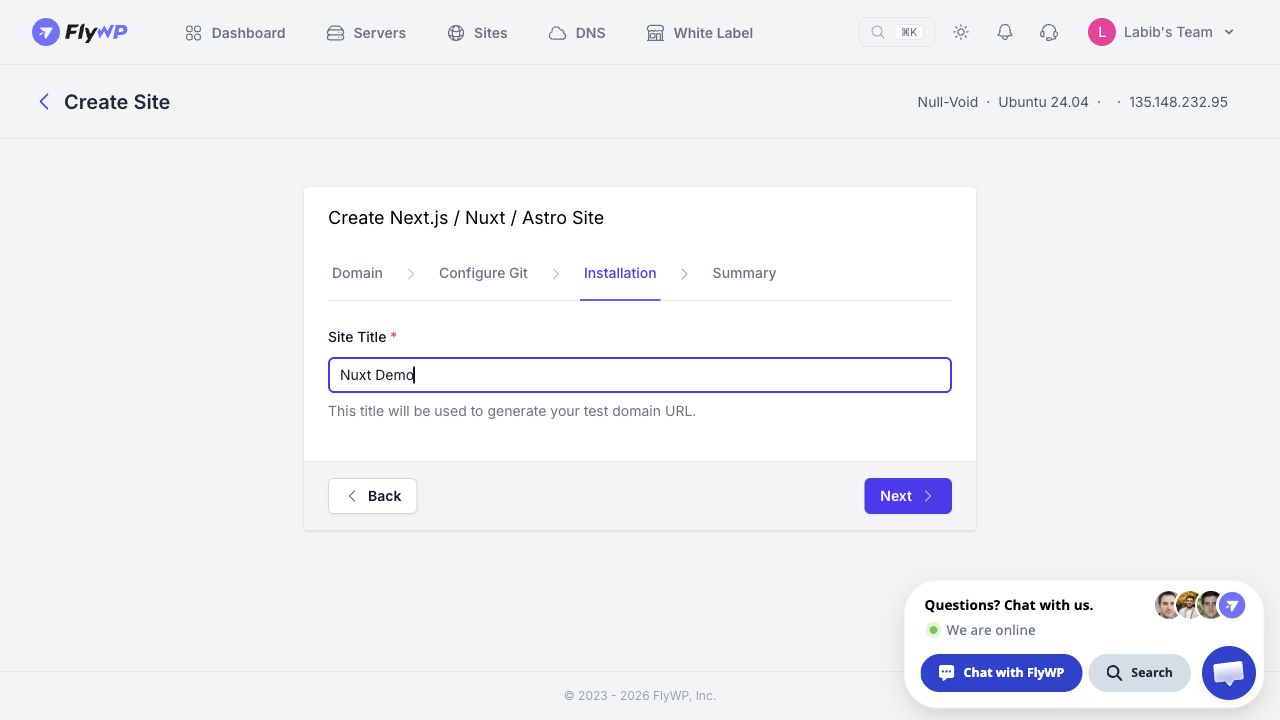
Section titled “5. Review and create the site”Click Next to reach Installation. In the inspected test-domain flow, this step requests Site Title, which is used to generate the test hostname. Complete the fields shown for your domain choice, then continue to Summary.
Review the domain, framework, runtime, package manager, commands, provider, repository, branch, web directory, deployment trigger, and SSL/DNS settings. Click Create Site when the configuration is correct.
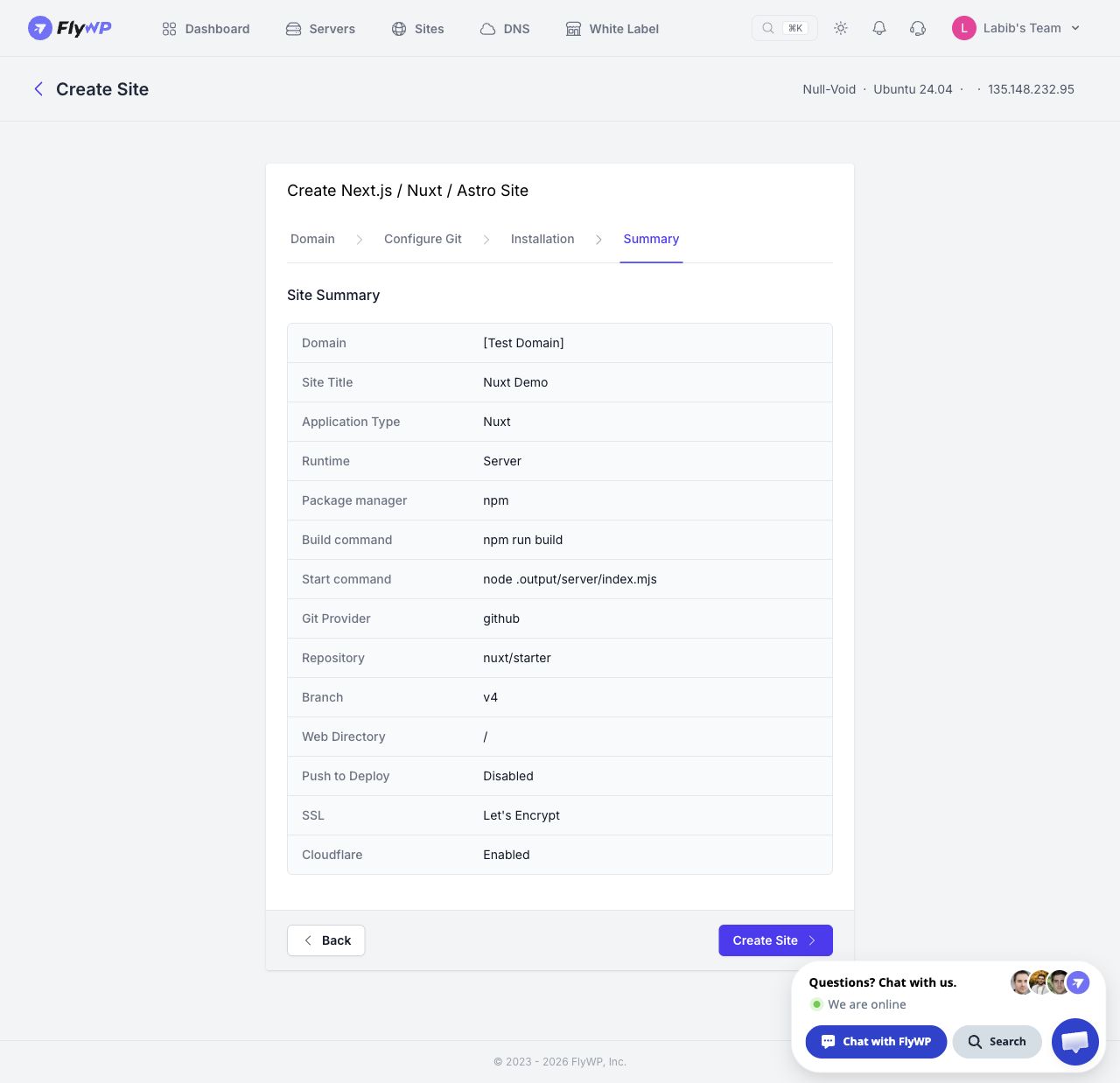
Review example for Nuxt Server. The Create Site button was not submitted. Select the image to view the full screen.
6. Verify the first deployment
Section titled “6. Verify the first deployment”After creation, review the site's deployment status and available logs. Check the deployed branch and build output before treating a successful build as a successful launch.
Open the site in a signed-out browser. Test the homepage, a nested URL opened directly, CSS and JavaScript loading, images, and any application-specific forms, authentication, or API calls. For Server runtime, check a request that actually exercises server code. For Static runtime, confirm every intended page exists in the generated output.
Configure application environment variables through the mechanism available for the site before a build or restart needs them. Public variables may be compiled into browser files; server credentials must remain private. The inspected creation flow contains no environment-variable field. The framework guides explain variable behavior, while the exact FlyWP injection mechanism needs confirmation for your deployed site.
Deploy updates and recover a release
Section titled “Deploy updates and recover a release”Commit changes and push to the configured branch. With Push to deploy enabled, check the resulting deployment and repeat the relevant browser tests. With it disabled, use the deployment control available on the created site; this guide does not assume an unverified button label.
FlyWP documents a git pull --ff-only update workflow. Avoid editing the deployed checkout or rewriting the release branch's history. If a release introduces a problem, revert the offending change in your development checkout, push the new revert commit, and deploy it. Treat database migrations and persistent application data separately: reverting source does not reverse them.
Troubleshooting
Section titled “Troubleshooting”| Problem | Check |
|---|---|
| Cannot proceed through Configure Git | Provider connection, selected repository, branch, and required commands |
| Private repository cannot clone | Repository admin access, organization authorization, and Git provider connection |
package.json not found | Application is at the repository root; a monorepo is unsupported |
| Build fails | First meaningful error, Node compatibility, lockfile, dependencies, and required build variables |
| Static site shows 403/404 | Web directory points to generated HTML, including an entry page |
| Server site returns 502 | Start command, process logs, host binding, and proxy-to-application port agreement |
| Git update refuses to fast-forward | Diverged branch history or changes made directly in the deployed checkout |
Related guides
Section titled “Related guides”Still stuck? How can we help?