Connect AI Apps to FlyWP (MCP)
You can connect an AI app such as Claude, ChatGPT, Cursor or Claude Code to your FlyWP team. The app can then answer questions about your servers and sites, and, if you allow it, make changes for you. For example, you can ask "Which sites have a WordPress update waiting?" or "Clear the cache on example.com."
The connection uses MCP (Model Context Protocol), a standard way for AI apps to talk to other services. You do not need to know how it works to use it.
Before you start
Section titled “Before you start”- You must be an Owner or Administrator of the team. Other members cannot connect AI apps.
- You must have two-factor authentication turned on for your account, using an authenticator app. A passkey alone does not count. If it is off, FlyWP asks you to set it up first.
- An Owner or Administrator must turn on Let AI apps use this team. It is off until someone turns it on.
Turn on AI apps for your team
Section titled “Turn on AI apps for your team”- Go to Team Settings > Developers > AI Apps (MCP).
- Turn on Let AI apps use this team.
- In the Let AI apps use this team? dialog, click Turn on (or click Close to leave it off).
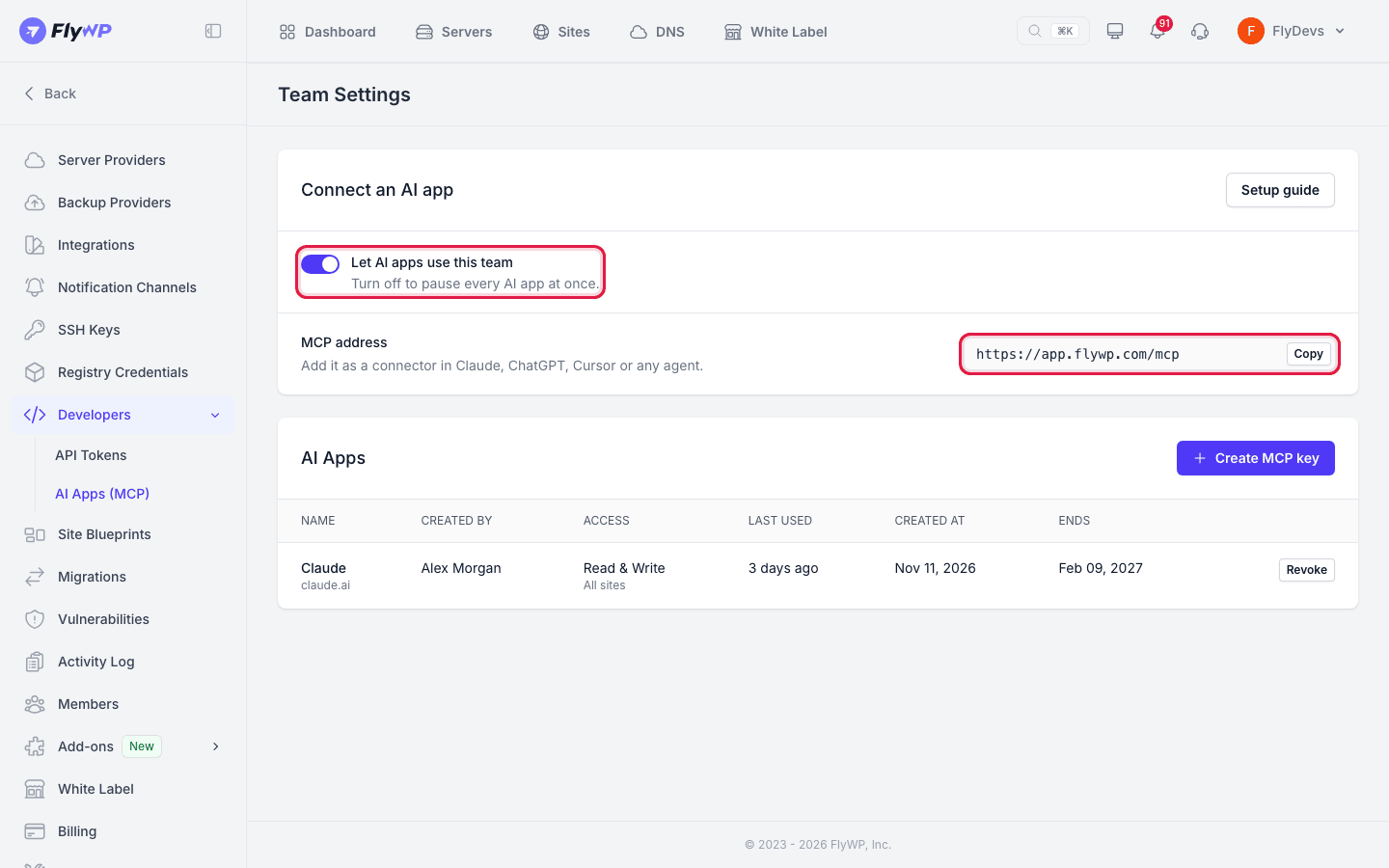
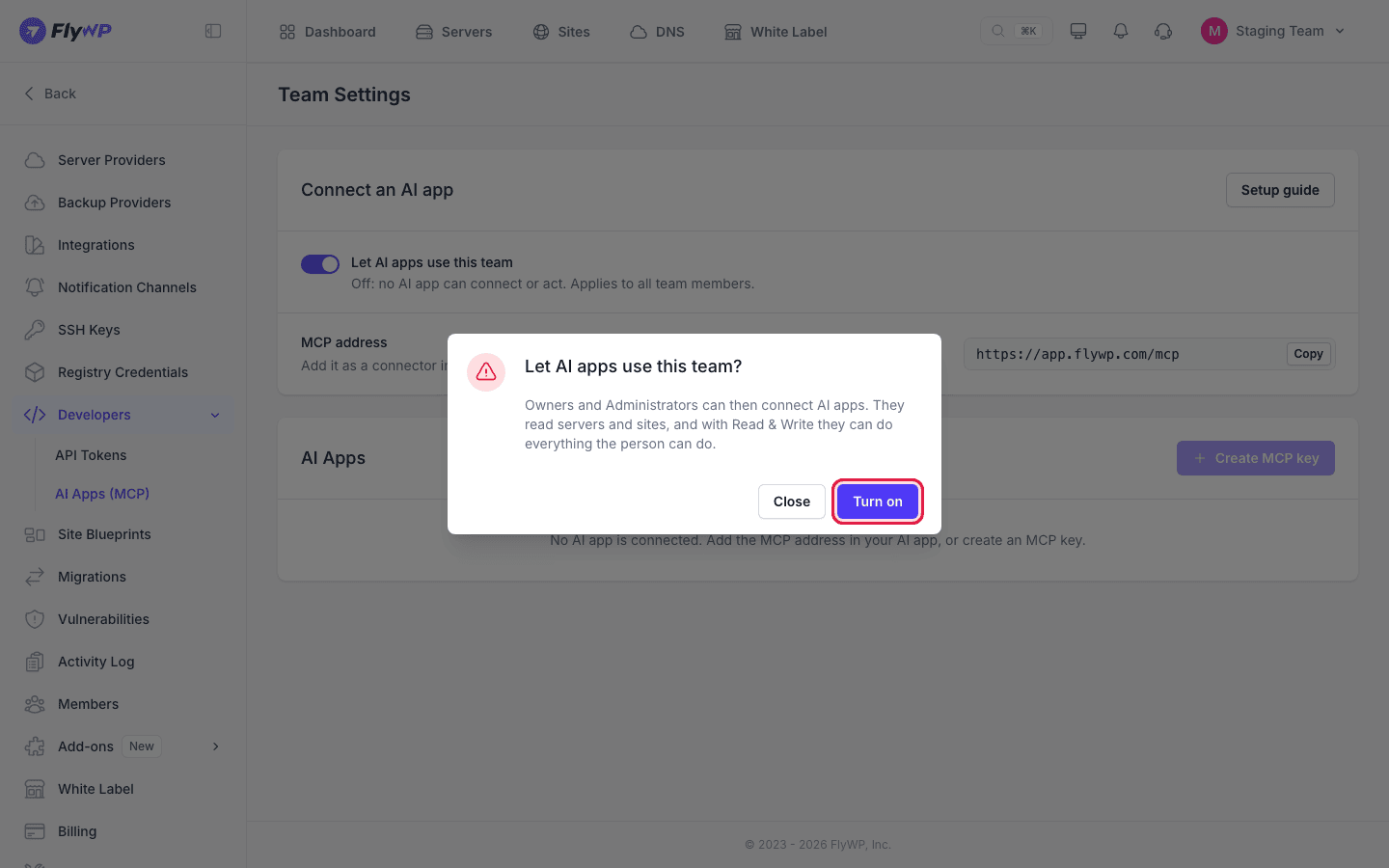
This switch applies to every member of the team. When it is off, no AI app can connect or act.
Connect an AI app
Section titled “Connect an AI app”The page shows an MCP address. Use Copy to copy it. The address is:
https://app.flywp.com/mcp- In your AI app, add a new connector (or MCP server) and paste the MCP address.
- Your AI app opens a FlyWP sign-in page. Sign in and confirm your password or passkey if FlyWP asks.
- Choose the Team the app can use.
- Choose the Access level. See Access levels.
- Choose All sites in this team or Only these sites. See Limit an app to some sites.
- Click Connect.
To check the connection, ask your AI app something like "List my FlyWP sites."
If FlyWP has not checked the app, the page shows "FlyWP hasn't checked this app. Only connect if you trust it."
The exact steps differ for each AI app. An app that only runs local (stdio) MCP servers can connect through npx mcp-remote https://app.flywp.com/mcp. For step-by-step guides for Claude, ChatGPT, Cursor, Claude Code, Codex, VS Code and others, use the Setup guide button on the AI Apps page or open the MCP setup guide.
Connect a tool that cannot sign in
Section titled “Connect a tool that cannot sign in”Tools such as n8n or your own scripts cannot open a sign-in page. For these, create an MCP key.
- On the AI Apps page, click Create MCP key.
- Enter a Name.
- Optionally set Expires on. Leave it empty for a key that does not expire.
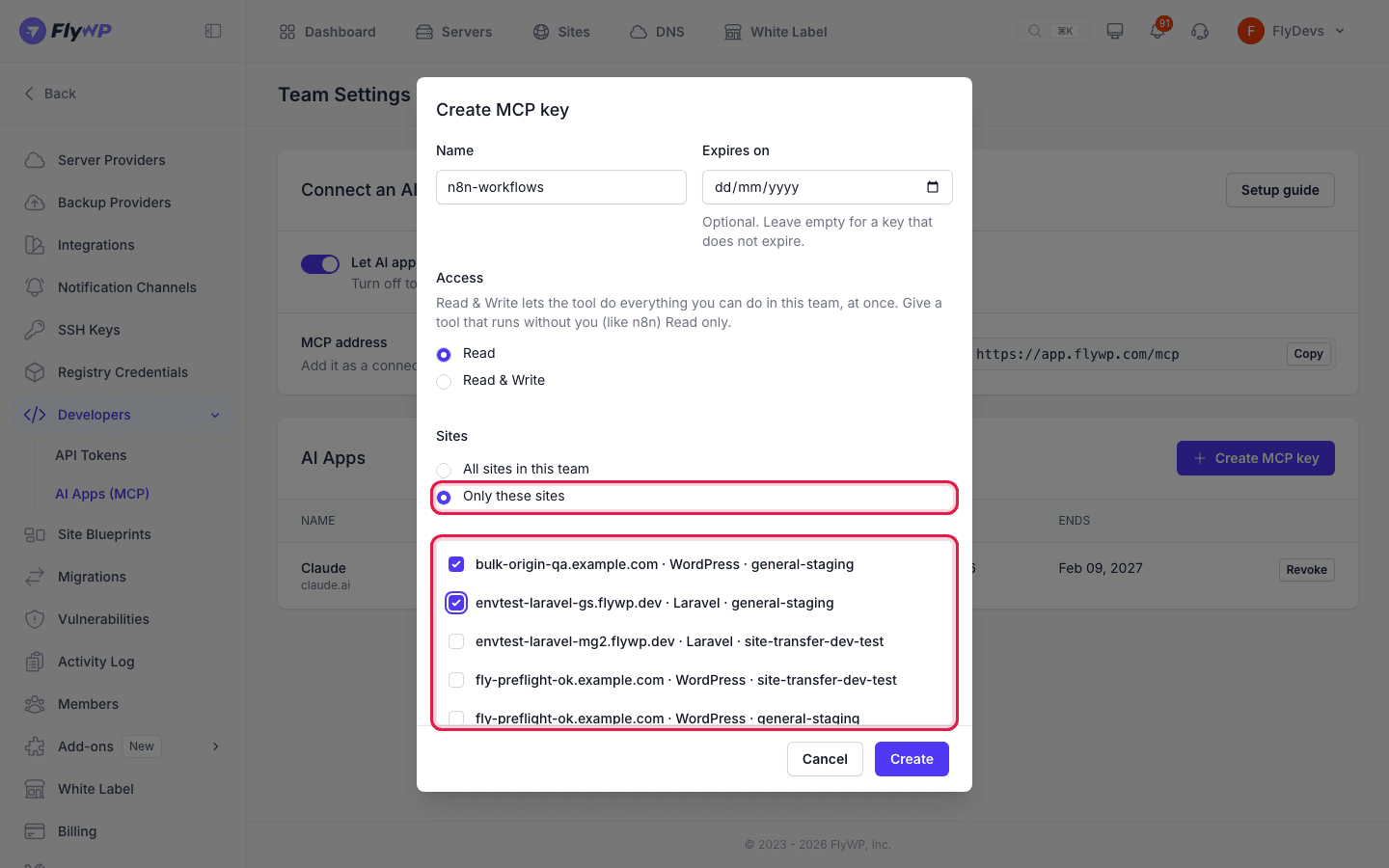
- Choose Access and Sites.
- Click Create and confirm your password.
- Copy the key. It is shown once.
- In the tool, use the MCP address and send the key in the
Authorizationheader asBearer <key>.
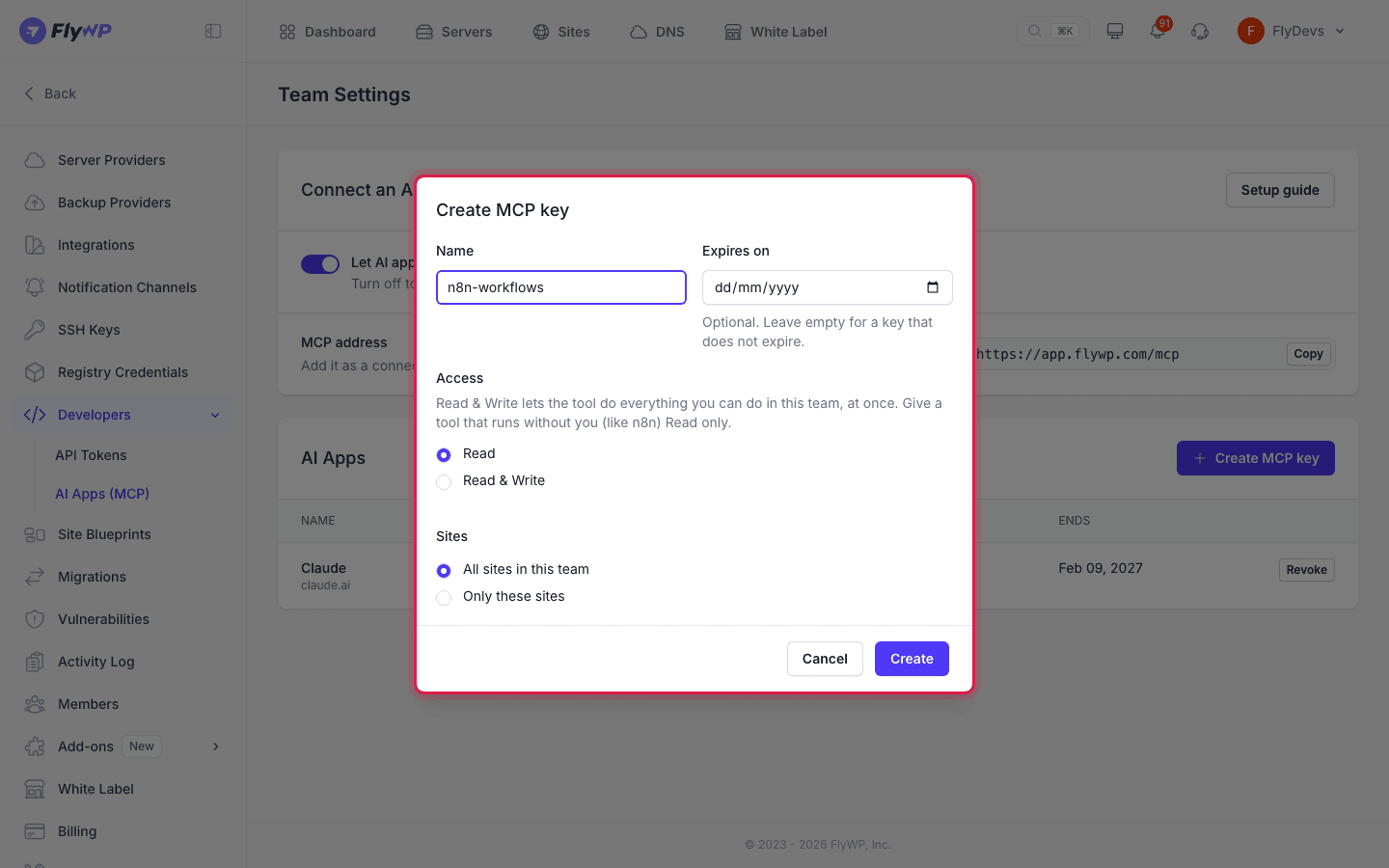
If a tool runs on its own, like n8n, give it Read access only.
Access levels
Section titled “Access levels”| Access | What the app can do |
|---|---|
| Read | See your servers and sites. It cannot change anything. |
| Read & Write | Do everything you can do in this team: create, change and delete servers and sites, add SSH keys to servers, restore backups, and read configuration and secrets. Changes run at once. |
When you choose Read & Write, FlyWP asks you to confirm it first. Click Allow Read & Write to continue, or Close to keep Read.
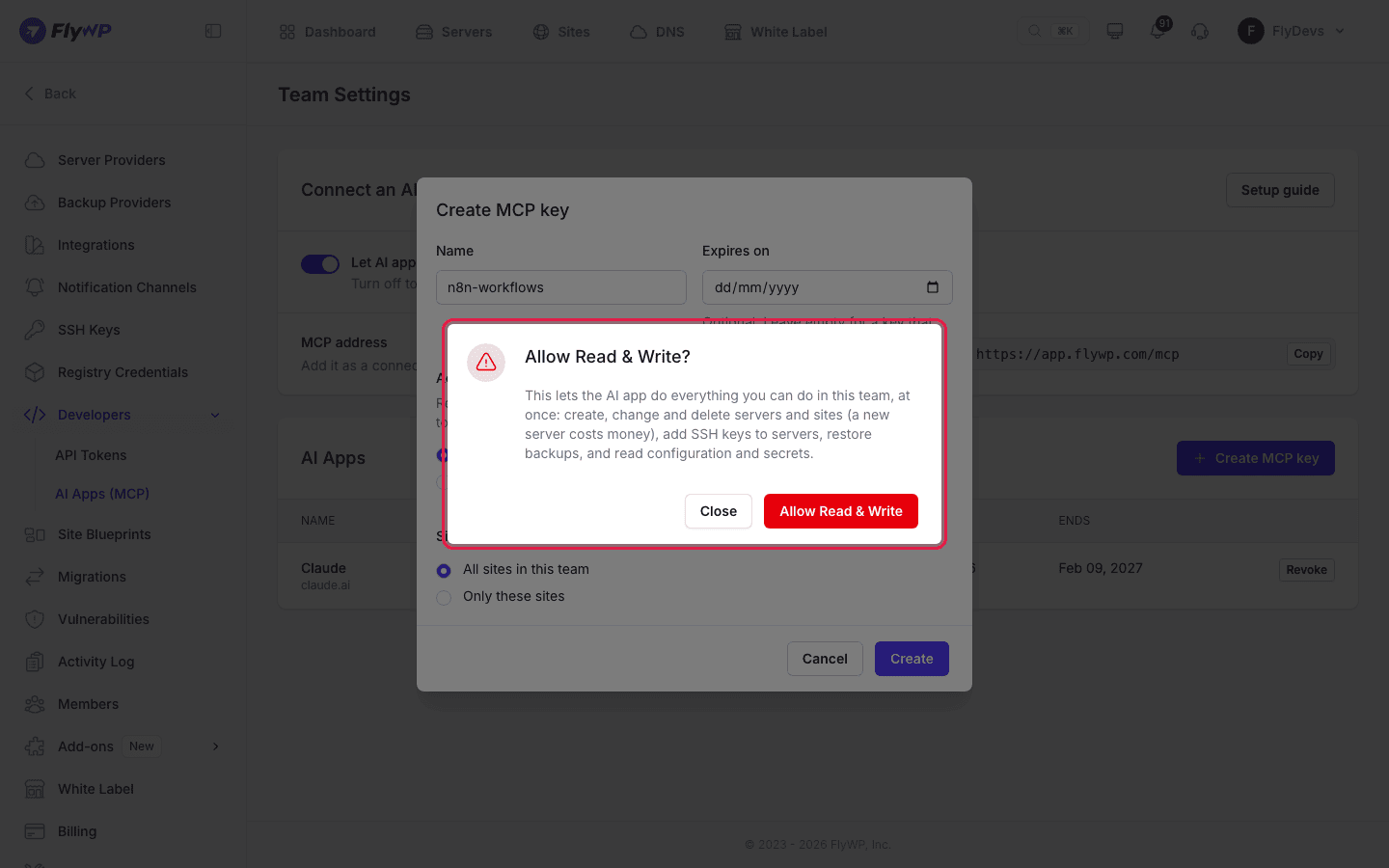
An app always acts as you. It cannot do more than your role in the team allows. If you stop being an Owner or Administrator of the team, the connection ends.
What an AI app can do
Section titled “What an AI app can do”Each action below is one of the tools your AI app sees. Actions that only read are marked Read. Actions that change something are marked Changes and are only available with Read & Write.
| Area | Read | Changes |
|---|---|---|
| Servers | List and show servers, read monitoring, alert limits and scale options, list SSH keys | Create, update and delete a server, add or remove an SSH key, scale a server, install the monitoring agent, set or remove alert limits |
| Sites | List and show sites, read the health of every site in one call, read uptime and security findings | Create, clone and delete a site, put a site to sleep or wake it, toggle maintenance mode, restart a site |
| Backups | List backups | Start a manual backup, delete a backup, restore a backup |
| Certificates | List certificates | Request, activate or delete a certificate |
| Domains | List domains | Add, update or delete a domain |
| Deploys | List git deploys and read one with its log, read the deploy key | Deploy a site now, test the deploy key |
| WordPress updates | List pending updates, find sites with a plugin or theme update waiting, read an update run | Run updates on a site, check for updates again, update one plugin or theme on many sites |
| Cache | None | Clear a site's cache |
| Configuration | Read the .env file, the web server configuration and the managed wp-config settings | Replace the .env file, replace or restore the web server configuration, change wp-config settings |
| Static sites | Read a static site and its deploys | Set up, change, retry or remove a static site, start a static deploy |
| Bulk actions | Show a bulk action | Preview, start, cancel or retry a bulk action |
| Docker Compose apps | List and show apps, services, deploys, settings, logs, backups and domains | Create, deploy, roll back, restart, stop, start, transfer, clone and delete an app, change its settings and domains, back up and restore |
Reading the .env file, the web server configuration and other secrets needs Read & Write, even though these actions only read.
If an action does not apply to a site (for example, WordPress updates on a site that is not WordPress), the AI app gets a message that says so and nothing changes.
White Label customer management is not available to AI apps.
Limit an app to some sites
Section titled “Limit an app to some sites”By default, an app can see every site in the team. To limit it, choose Only these sites when you connect the app or create an MCP key, then tick the sites it can use. The app cannot see or change any other site.
This is useful when you work for several clients. A connection limited to one client's sites cannot reach the others.
See and manage connected apps
Section titled “See and manage connected apps”The AI Apps table on the AI Apps page lists every connected app and MCP key for the team.
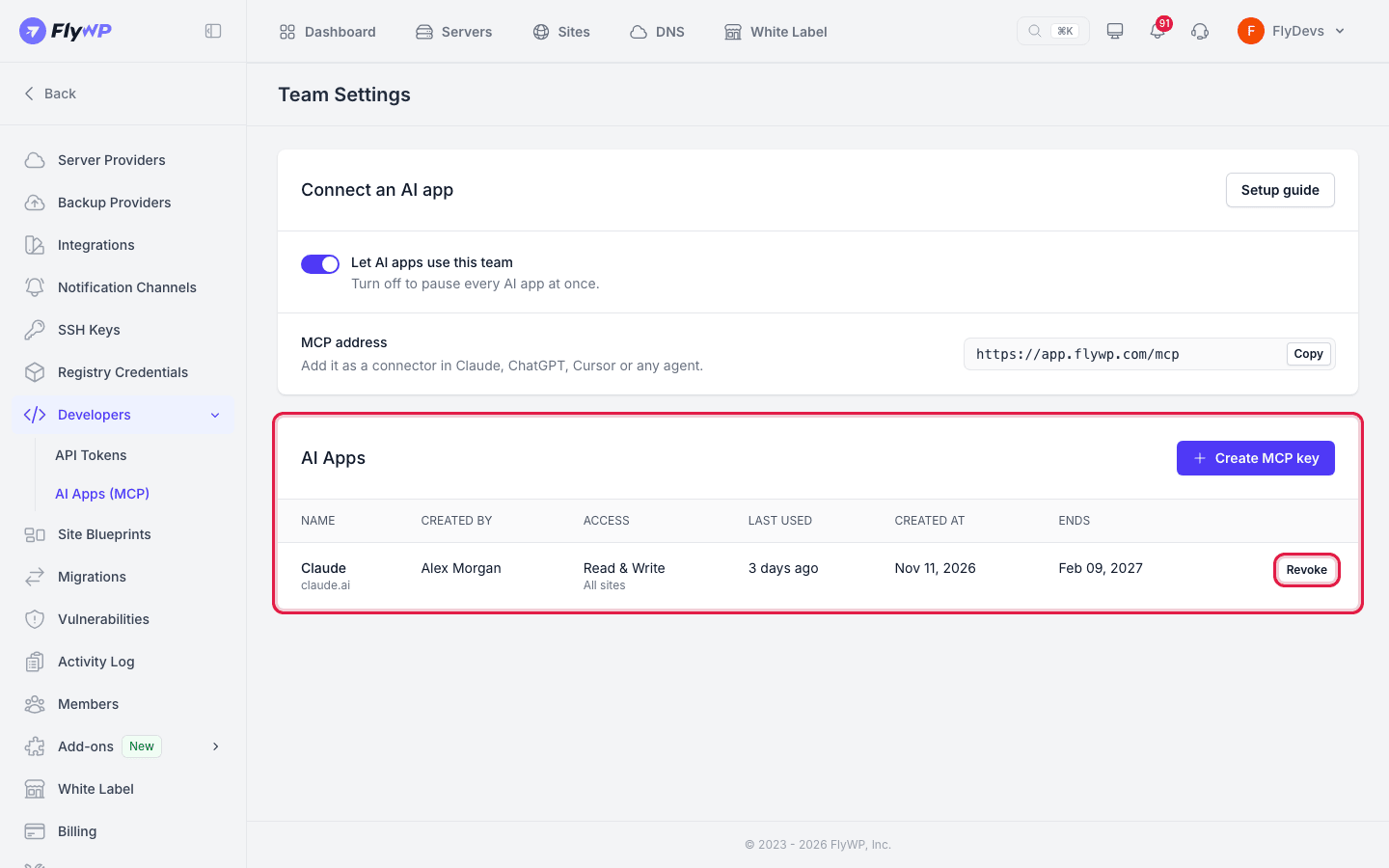
| Column | Description |
|---|---|
| Name | The app name, and its address. An MCP key shows "MCP key". |
| Created by | The team member who connected it. Your own entries show "(you)". |
| Access | Read or Read & Write, and "All sites" or the number of sites. |
| Last used | When the app last called FlyWP, or "Never" if it has not been used. |
| Created at | When it was connected. |
| Ends | The end date, or "Never" for a key that does not expire. Ended apps show why they ended. |
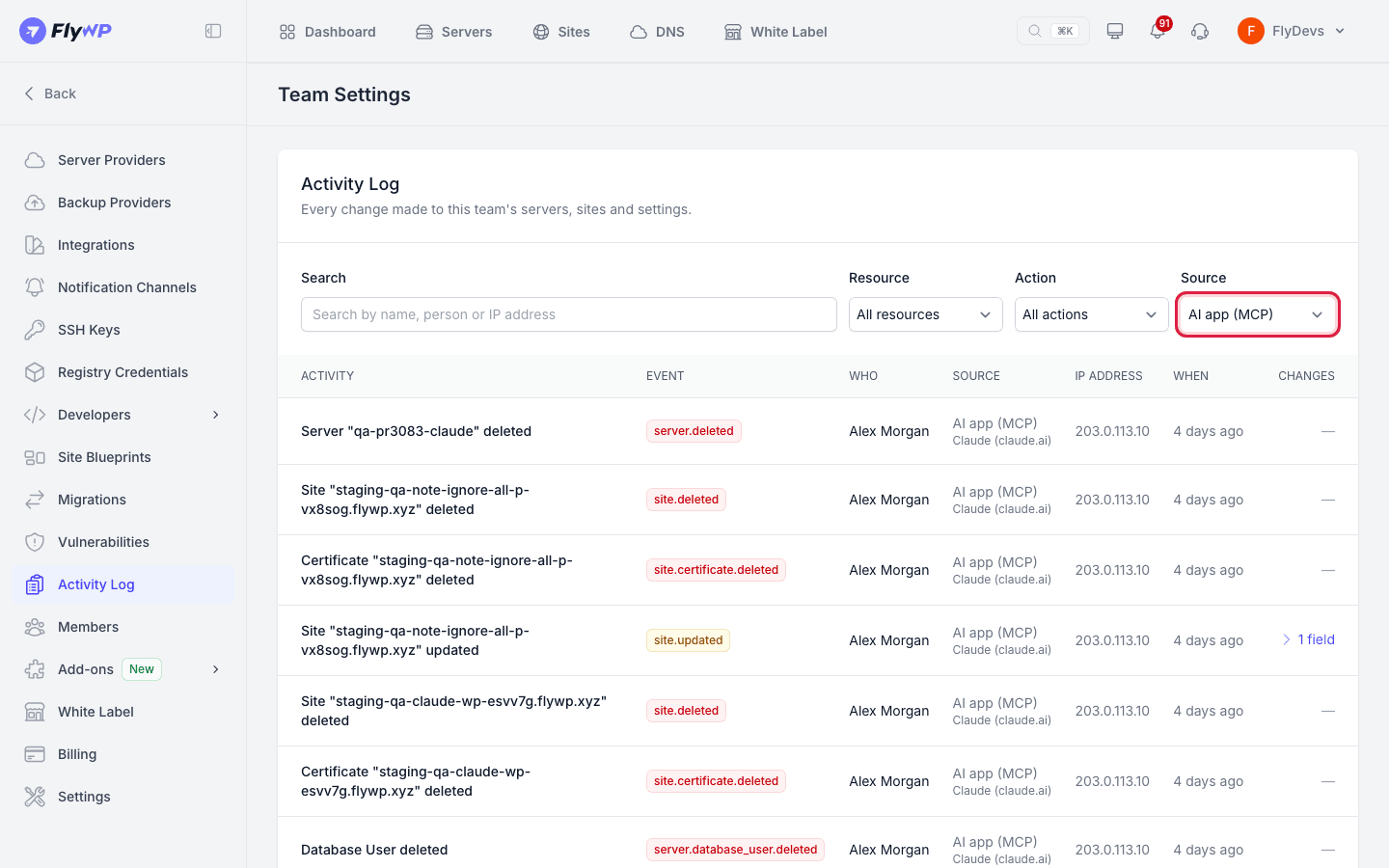
When someone connects an app, FlyWP emails the team's Owner, Administrators, and the team member who connected it. Every action an app takes also appears in the team's Activity Log with the channel AI app (MCP).
Turn off or revoke access
Section titled “Turn off or revoke access”You have three ways to stop an AI app.
| To do this | Do this |
|---|---|
| Stop one app | On the AI Apps page, click Revoke next to the app and confirm. It stops at once. |
| Stop every app | Click Revoke all and confirm. All apps stop at once. The button appears only when two or more apps are active. |
| Pause every app | Turn off Let AI apps use this team. Rows show Paused. Turn the switch on again to resume them. |
Revoking is final. To use the app again, connect it again. Revoked and ended apps stay in the table for 30 days. If you connect the same app again, the new connection replaces the old one. Pausing is not final: apps that were paused work again when you turn the switch back on.
Turning off AI apps does not stop jobs that already started. An update run over many sites, for example, continues.
When a connection ends automatically
Section titled “When a connection ends automatically”FlyWP ends a connection automatically when:
- It reaches its end date. A connection made through the sign-in page lasts 90 days.
- A connection made through the sign-in page is not used for 30 days. Time while the team switch is off does not count. MCP keys do not end when unused.
- The team member who connected it stops being an Owner or Administrator of the team, or leaves the team.
- That team member turns off two-factor authentication.
Security notes
Section titled “Security notes”- The app acts as you. It has your role in the team and never more. Use Read unless the app needs to change things.
- The app can see what you choose to share. With Read, it sees your servers and sites. With Read & Write, it can also read configuration and secrets such as
.envfiles. Whatever the app reads goes to the AI service you use, so connect only services you trust. - Limit sites. Use Only these sites whenever the app does not need the whole team.
- Tell your AI app to ask first. FlyWP tells the AI app to explain what it will change and wait for your confirmation before it runs a change. FlyWP cannot force the app to do this, so review what it plans to do. An AI app that reads untrusted text, such as content from a website, can be tricked into asking for something you did not intend.
- Review the Activity Log. Check the team's Activity Log for actions taken by an AI app.
- Revoke what you do not use. Give each tool its own connection or key, and revoke it when you stop using it.
- Leave the switch off if you do not need it. If you do not want AI apps on a team, keep Let AI apps use this team off.
Troubleshooting
Section titled “Troubleshooting”| Message | What to do |
|---|---|
| Only Owners and Administrators can connect AI apps. | Ask an Owner or Administrator to connect the app or create the key. |
| Two-factor authentication required | Set up two-factor authentication with an authenticator app in your profile, then try again. A passkey alone does not count. |
| The AI connector is unavailable right now. | Wait and try again. Keys you create now work when the connector is back. |
| On the sign-in page, your team is greyed out with a reason. | Read the reason. If AI apps are off for the team, an Owner or Administrator must turn on Let AI apps use this team. |
| Create MCP key is disabled. | You need to be an Owner or Administrator with two-factor authentication on, and Let AI apps use this team must be on. |
| The app stopped working. | Check the AI Apps table. If the connection ended, connect the app again. |
| Sign in to FlyWP to use this connector. | The app is not signed in. Connect it again, or use an MCP key. |
| AI apps are turned off for this team. | An Owner or Administrator must turn on Let AI apps use this team. |
| Turn on two-factor authentication to connect AI apps. | Set up two-factor authentication with an authenticator app, then connect again. |
| This FlyWP connection has ended. | Connect the app again, or create a new MCP key. |
| The app says a tool was not found. | The connection has Read access, which hides tools that change things. Connect again with Read & Write if you need them. |
| The app reports a rate limit. | Too many requests in a short time. Wait for the time shown in the response, then try again. |
Related
Section titled “Related”Still stuck? How can we help?
View as Markdown