Server Settings
Keeping your server healthy means more than just deploying sites. It also means scheduling routine maintenance at a time that won’t interrupt your visitors and knowing exactly what you’re working with under the hood. The Settings tab in the server sidebar gives you a single place to review your server’s key details, control when FlyWP runs automatic maintenance tasks, adjust swap space, set alert limits, and, when the time comes, cleanly retire a server you no longer need.
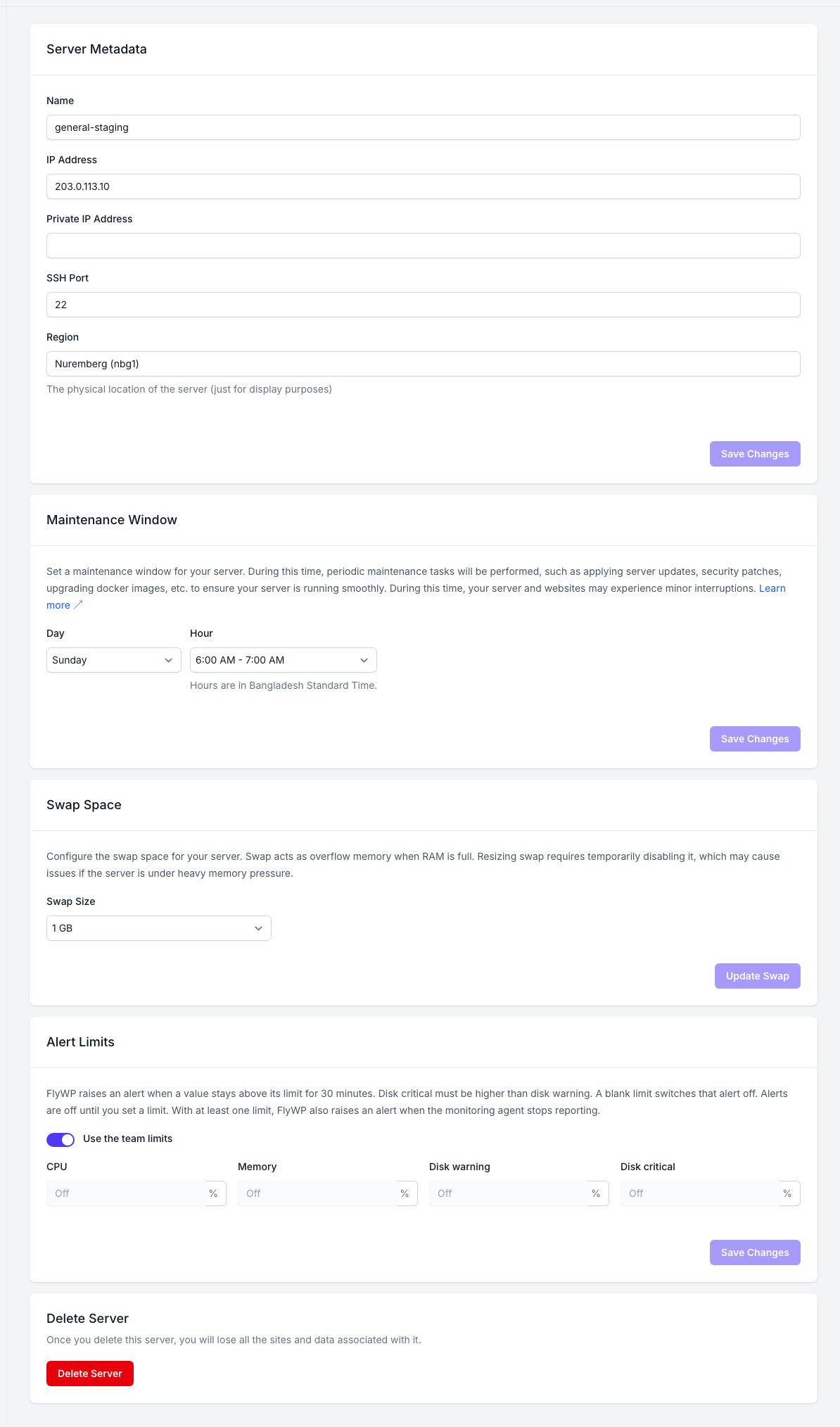
Server Metadata
Section titled “Server Metadata”The Server Metadata card shows key information about your server. You can edit these fields and click Save Changes:
| Field | Description |
|---|---|
| Name | The server name shown in your FlyWP dashboard |
| IP Address | The server’s public IPv4 address (the numeric address other computers use to reach your server over the internet) |
| Private IP Address | The server’s private/internal IP (if configured) — used for communication between servers on the same data center network |
| SSH Port | The port used for SSH (Secure Shell) connections — the encrypted channel you use to log in to your server from the command line |
| Region | The location of the server. This is for display only |
Maintenance Window
Section titled “Maintenance Window”Over time, your server needs routine attention: security patches, system package updates, and other housekeeping tasks. The Maintenance Window lets you tell FlyWP exactly when to run these tasks automatically — so updates happen in the background during quiet hours rather than mid-afternoon on a Tuesday.
Configuring a Maintenance Window
Section titled “Configuring a Maintenance Window”- Select a Day from the dropdown (e.g., Sunday).
- Select an Hour from the dropdown (e.g., 3:00 – 4:00 AM).
- Click Save Changes.
FlyWP will only perform automatic maintenance during this window, minimizing disruption to your live sites.
Swap Space
Section titled “Swap Space”Swap acts as overflow memory when your server’s RAM is full. The Swap Space card lets you pick a Swap Size of 1, 2, 4, 8, or 16 GB and click Update Swap.
Updating swap does not restart your server. FlyWP temporarily turns swap off while resizing it, so avoid doing this while the server is under heavy load. Read the full guide: Increasing Swap Space in FlyWP.
Alert Limits
Section titled “Alert Limits”The Alert Limits card controls when FlyWP alerts you about this server’s resource usage. You can set limits for:
| Limit | What it watches |
|---|---|
| CPU | CPU usage, in % |
| Memory | Memory usage, in % |
| Disk warning | Disk usage, in % |
| Disk critical | A higher disk usage level, in %. It must be higher than Disk warning |
- FlyWP raises an alert when a value stays above its limit for 30 minutes.
- Leave a limit blank to keep that alert turned off. Alerts stay off until you set a limit.
- Turn on Use the team limits to use your team’s limits instead of setting custom limits for this server.
- Once you set at least one limit, FlyWP also alerts you if the monitoring agent stops reporting. See Server Status for details on the monitoring agent.
Click Save Changes to apply your limits.
Delete Server
Section titled “Delete Server”At the bottom of the Settings tab is a danger zone for permanently deleting the server. You would typically reach for this when decommissioning a server you no longer need — for example, after migrating all your sites to a larger server.
Deleting a server is irreversible. FlyWP permanently removes:
- The server itself from FlyWP’s management
- All WordPress sites hosted on the server
- All databases and their data
- All backups stored on the server
- All configuration (firewall rules, SSH keys, cron jobs, daemons)
If the server was provisioned through FlyWP or a connected cloud provider, the underlying VPS (virtual private server) is also destroyed at the provider. Make sure you have off-server backups of anything you need before proceeding.
How to Delete a Server
Section titled “How to Delete a Server”Before deleting, migrate any sites you want to keep to another server first.
- Scroll to the Delete Server section at the bottom of the Settings tab.
- On a FlyWP managed server, you can optionally pick a Reason for cancellation.
- Click the Delete Server button.
- Type the server name to confirm the deletion.
FlyWP removes the server and all associated resources permanently.
Best Practices
Section titled “Best Practices”- Back up critical sites to an external storage provider (e.g., Amazon S3 or Google Cloud Storage) before making any destructive changes.
- Review the Status tab periodically to confirm your server is healthy and sized appropriately for your workload.
- Before deleting a server, verify that all sites have been successfully migrated and that external backups are in place.
Related Pages
Section titled “Related Pages”Still stuck? How can we help?
View as Markdown