Deploys, Rollback and Registry Logins
Every change to a Docker Compose App goes live through a deploy. A deploy sends your current Compose file, environment variables, and resource limits to the server, starts your containers, and confirms they are healthy. The Deploys page lists every deploy and its outcome.
Redeploy the app
Section titled “Redeploy the app”Trigger a redeploy to restart the app with your current settings, for example after an image update.
- Open your app and go to Deploys.
- Click Redeploy.
You can also find the Redeploy button at the top of every page of your app.
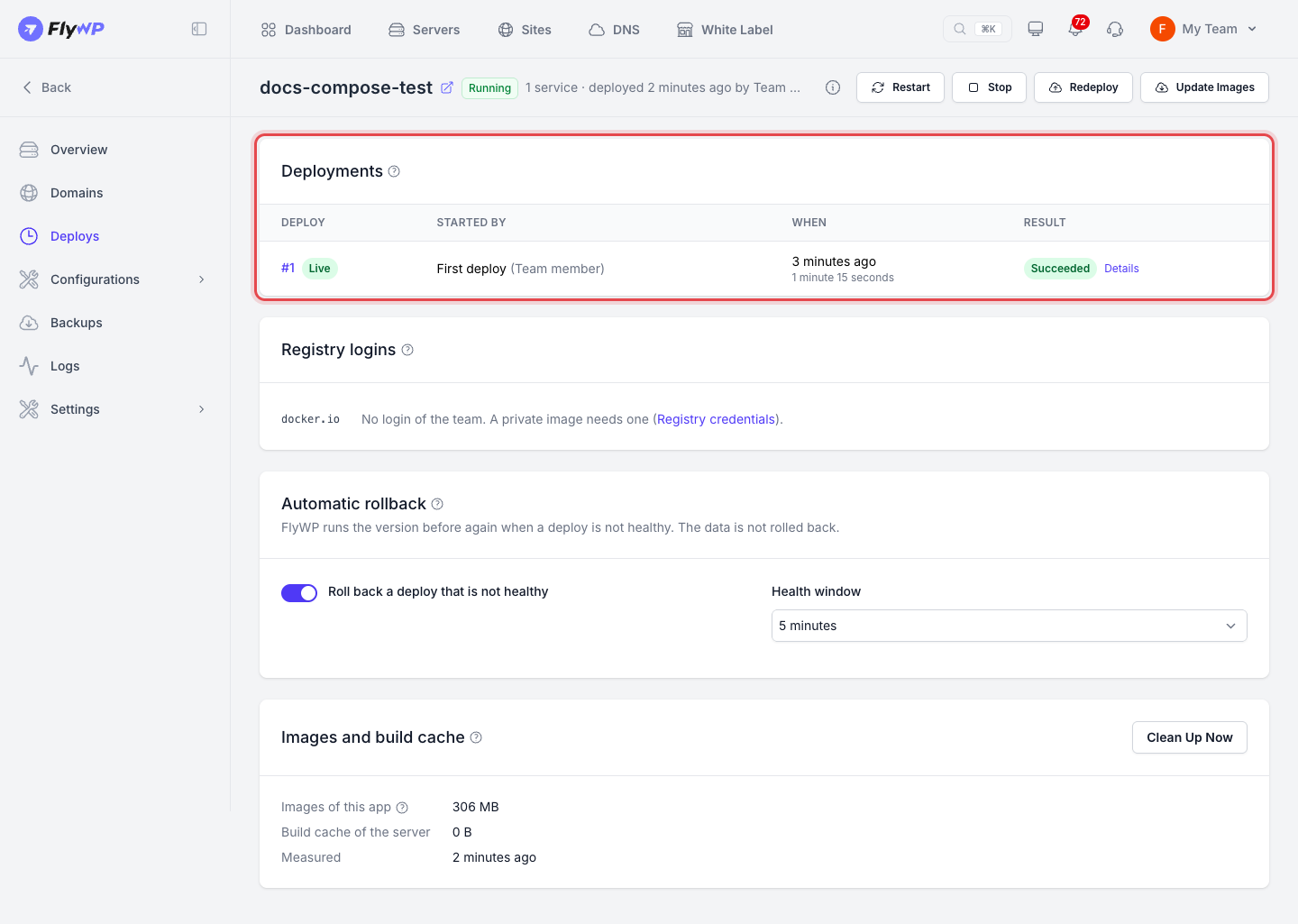
Automatic rollback
Section titled “Automatic rollback”After each deploy, FlyWP watches the app for a short Health window (1 to 30 minutes, you choose). If the app isn't healthy by the end of that window, FlyWP rolls back to the previous version. Rollback doesn't touch your app's data.
Roll back a deploy
Section titled “Roll back a deploy”To return manually to an earlier version:
- Open your app and go to Deploys.
- Open the deploy you want to return to.
- Click Roll back to version, then confirm.
FlyWP automatically takes a safety backup before rolling back, so you can always restore your pre-rollback state from the Backups page.
Compare versions
Section titled “Compare versions”Click Compare Versions on the Deploys page to see what changed between two deploys. The comparison highlights changes across your Compose file, environment variables, images, and resource limits. Secret values are never shown.
Deploy each push
Section titled “Deploy each push”Apps connected to a GitHub repository can automatically deploy whenever you push to their branch.
- Open your app and go to Configurations → Compose file.
- Find the repository card and turn on Push to deploy.
With Push to deploy enabled, every push to the branch triggers a deploy. If GitHub doesn't have the app's webhook yet, the card will let you know. Turn Push to deploy off whenever you prefer to deploy manually.
Registry logins
Section titled “Registry logins”Registry logins lists your team's saved credentials for image registries. Pulling an image from a private registry requires valid credentials for that registry.
By default, FlyWP uses your team's oldest accepted login for that registry. If you want to use a different login, or none, choose it for this app.
Images and build cache
Section titled “Images and build cache”The Images and build cache section shows how much disk space your app's images use. Check this breakdown to see which images take up the most space before cleaning them up.
Still stuck? How can we help?
View as Markdown