Docker Compose Apps
A Docker Compose App runs a set of containers from a Docker Compose file on your FlyWP server. Use it for anything that isn't WordPress, Node.js or a one-click app, like a database with a web frontend, or a stack you already run with Docker Compose.
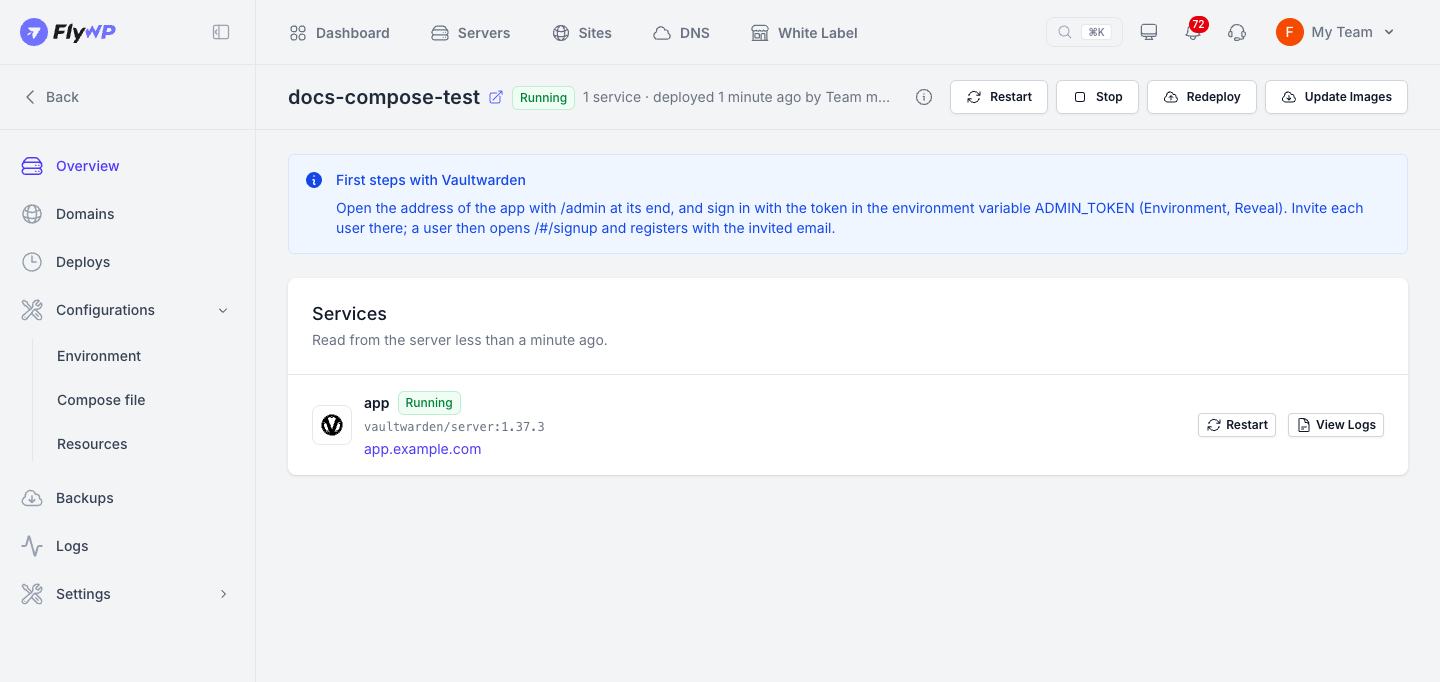
FlyWP validates your Compose file, saves a managed copy, and deploys it to your server. Every app gets dedicated management pages for domains, deploys, settings, backups, and logs. Explore the guides below to learn how each part works.
Before you begin
Section titled “Before you begin”Make sure you have:
- A paid FlyWP plan (Docker Compose Apps aren't available on the Free plan).
- A server in your team that supports apps (trial servers can't run them).
- A server with at least 512 MB of memory. The creation flow displays each app's memory requirements, and templates that require more RAM than your server has free are flagged.
- A team owner or team admin role. Other roles can't create apps.
If any requirement isn't met, the Create Site dialog explains why on the Docker Compose App card and prevents you from continuing.
What you can do with an app
Section titled “What you can do with an app”- Start from a built-in template, paste a Compose file, link to a remote file, or select a file from a GitHub repository.
- Connect one or more domains and let FlyWP automatically secure them with SSL.
- Update environment variables, edit the Compose file, adjust resource limits, and apply your changes with a new deploy.
- Roll back, redeploy, compare versions, and deploy automatically on each push to a branch.
- Schedule automatic backups, take manual snapshots on demand, and restore them.
- Stream live logs and download log files.
- Clone or transfer the app to another server in your team.
Read next
Section titled “Read next”- Create an app walks you through the four-step setup process.
- Compose file rules covers what FlyWP allows, adjusts, or blocks in your Compose files.
Still stuck? How can we help?
View as Markdown