Webhooks for Notification Channels
A webhook sends each alert as one HTTPS request with a JSON body to an address you give. FlyWP builds the page for n8n, and it works with any receiver that accepts a JSON POST over HTTPS. See Send alerts to n8n for a full walkthrough.
Webhooks are available on paid plans, and only the team Owner and members with the Team Admin role can add, change, or remove them.
On this page
Section titled “On this page”- Add a webhook
- Address rules
- Auth header
- Edit a webhook
- Test a webhook
- Delivery log and Resend
- Retries, failures and pauses
- Alert codes
- The Standard JSON message
- Check a request in your own code
Add a webhook
Section titled “Add a webhook”To add a webhook:
-
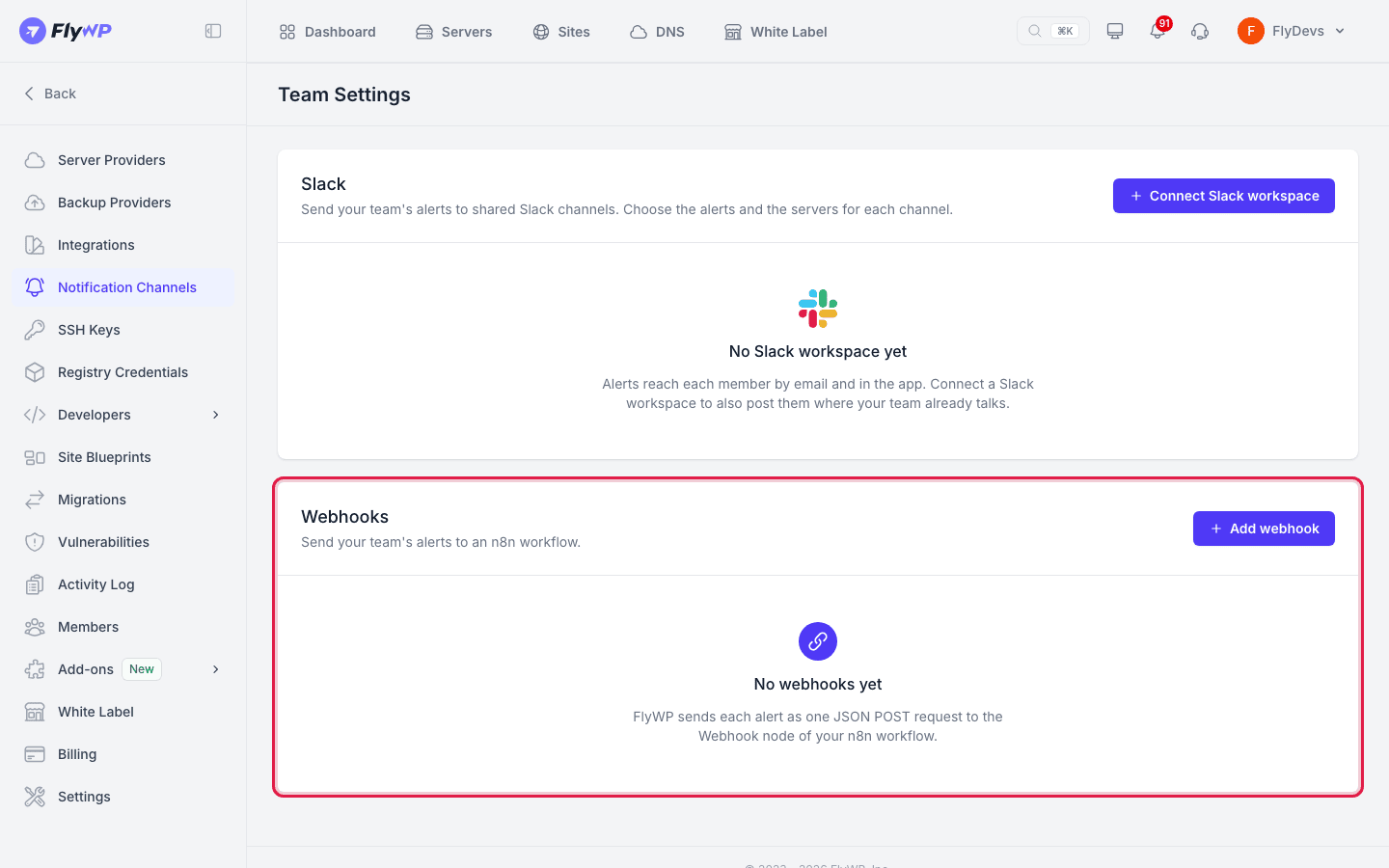
Go to Team Settings → Notification Channels.
-
In the Webhooks card, click Add webhook.
-
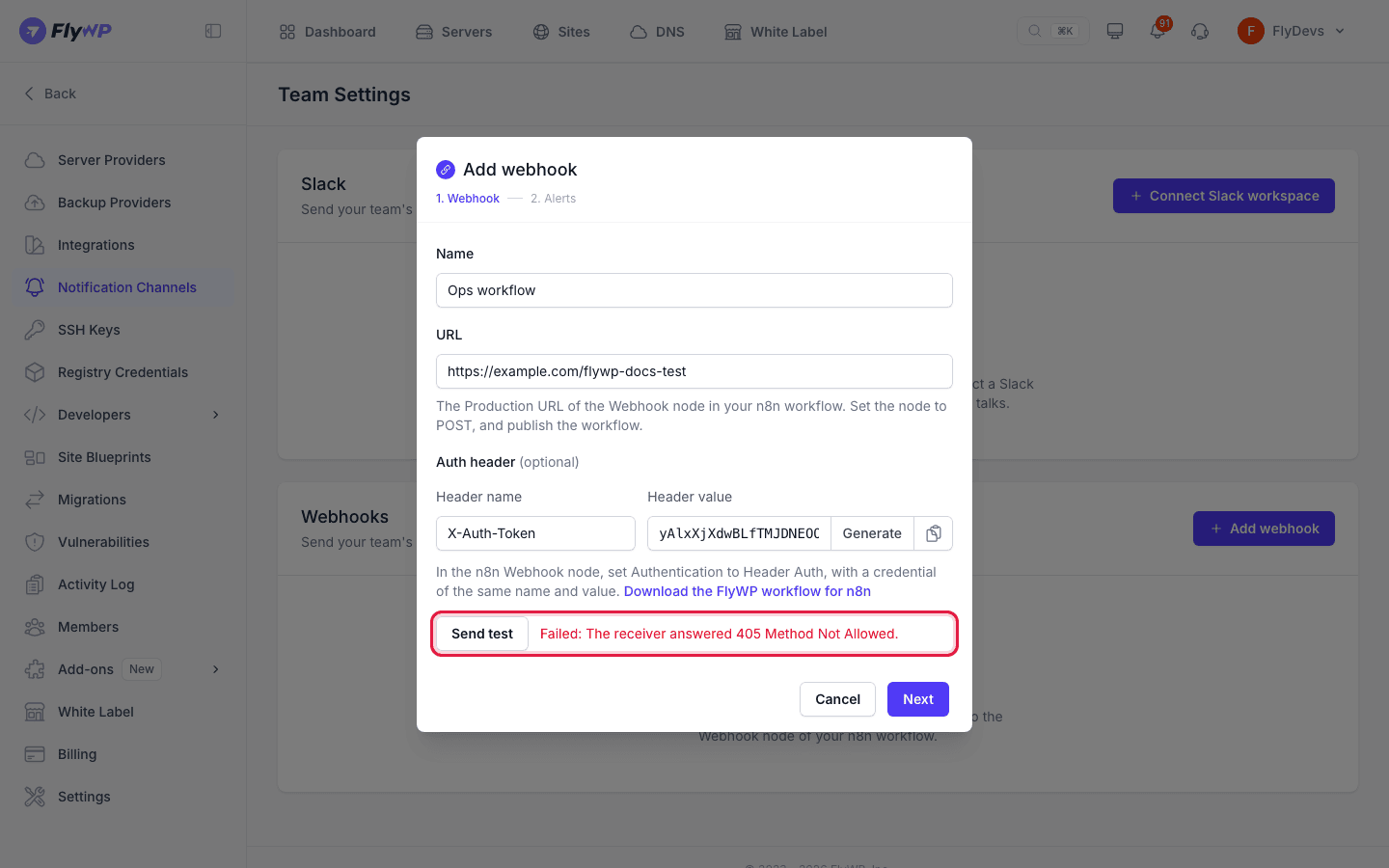
Fill in the details:
Field What to enter Name A name for the webhook, up to 50 characters. URL The address that receives the alerts. It must start with https://.Auth header (optional) A header name and value FlyWP sends with every request. See Auth header. -
Click Send test to check the address. FlyWP shows Delivered with the answer code and time, or Failed with the reason.
-
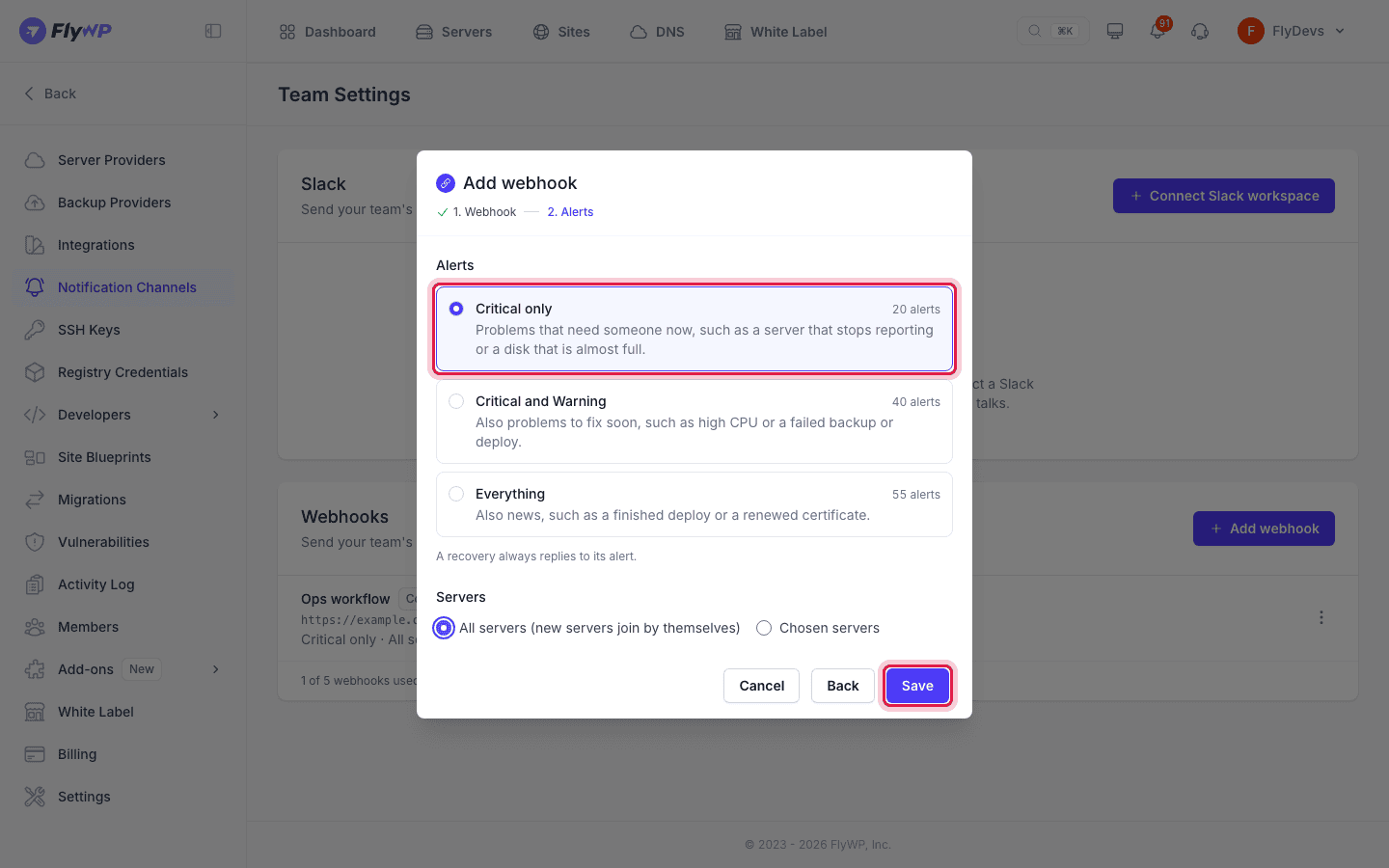
Click Next, choose the alerts level and the servers, then click Save.
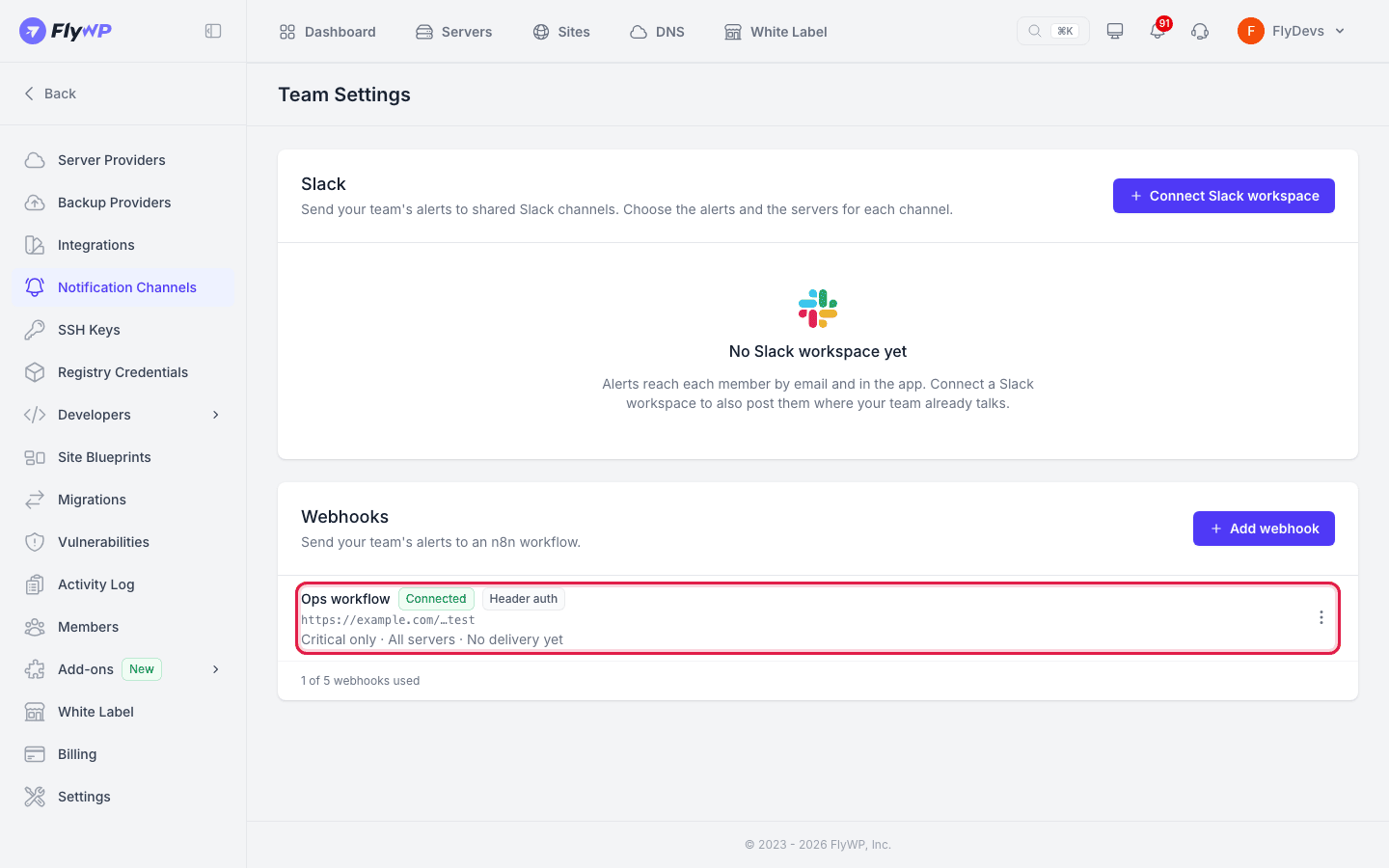
After you save, the Webhooks card lists the webhook with its address (only the end of the path shows), its status and Last delivery. A team can have up to 5 webhooks, and one address can be added once.
Address rules
Section titled “Address rules”- The address must use
https://and a public host name or IP address. FlyWP does not send to private or local addresses, or to FlyWP's own addresses. - FlyWP does not follow redirects. Use the final address.
- The receiver has 10 seconds to answer.
- The address can be up to 2,048 characters.
Auth header
Section titled “Auth header”An auth header lets your receiver check that a request really comes from your FlyWP team. FlyWP sends the header you set on every request, including tests.
- Header name: letters, digits and hyphens, up to 64 characters. Names that FlyWP or HTTP sets itself are not allowed, such as
Content-Type,Host,User-Agentand anything that starts withX-FlyWP-. - Header value: printable characters on one line, up to 512. Click Generate to make a random 32-character value, and the copy button to copy it.
- FlyWP stores the value encrypted and never shows it again.
- The webhook row shows a Header auth badge when a header is set.
Edit a webhook
Section titled “Edit a webhook”In the webhook row, open the menu and click Edit.
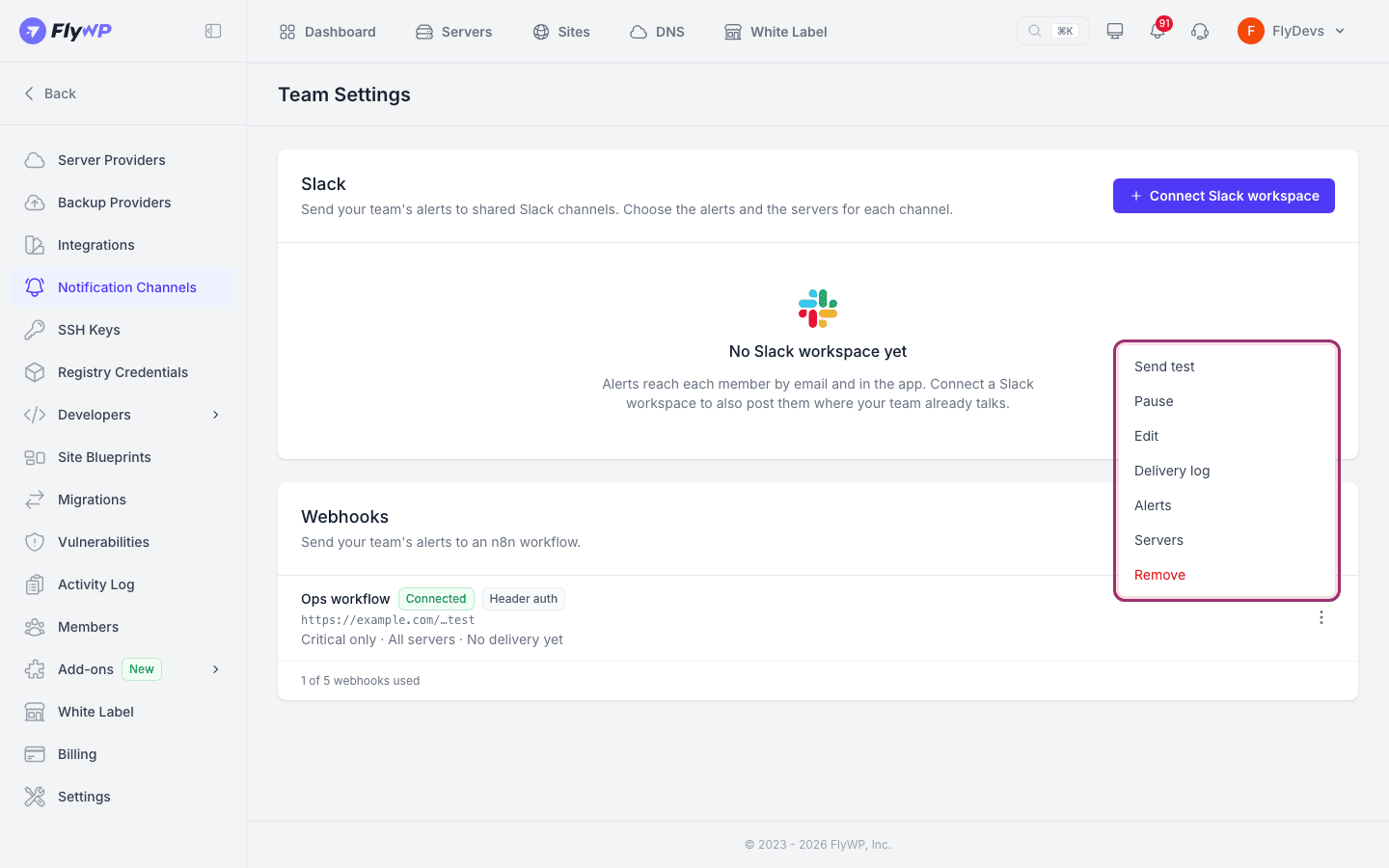
- Leave URL empty to keep the current address. The field shows the masked address as a hint.
- Leave Header value empty to keep the stored value. Clear Header name to remove the header.
- A new address can be tested with Send test before you save.
- Use the Alerts and Servers menu items to change what the webhook gets, as for any channel.
FlyWP records a change of a webhook's address or auth header in the team activity log. The log holds the host name or the header name only, never the full address or the header value.
Test a webhook
Section titled “Test a webhook”Send test sends a sample alert. You can use it in the add and edit forms before you save, and from the row menu of a connected webhook.
- A test body has
"test": true, the title Test alert from FlyWP and the eventtest. - Tests from the add and edit form are limited to 10 an hour for your team and 20 an hour for each person across all their teams. A test from a saved webhook's row menu uses the team limit of 10 an hour. After that, FlyWP says Test limit reached, try again later.
- Slack and Telegram tests are limited to 3 a day for each channel.
Delivery log and Resend
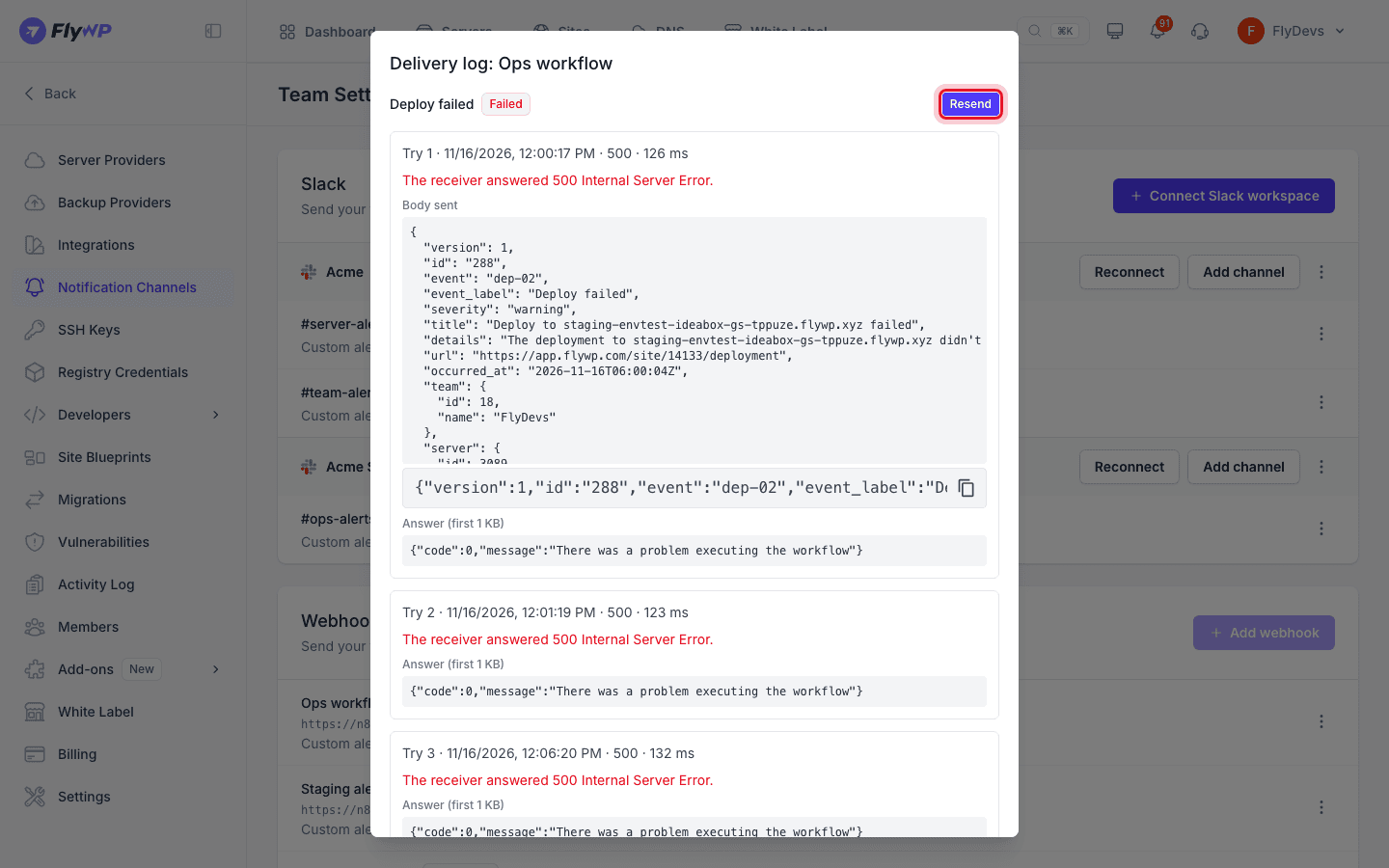
Section titled “Delivery log and Resend”Open the row menu and click Delivery log to see the last 50 deliveries from the last 30 days. Each one shows Delivered, Delivered after retries, Waiting, Failed or Not sent: resolved first, the time taken, the body FlyWP sent and the first 1 KB of the answer.
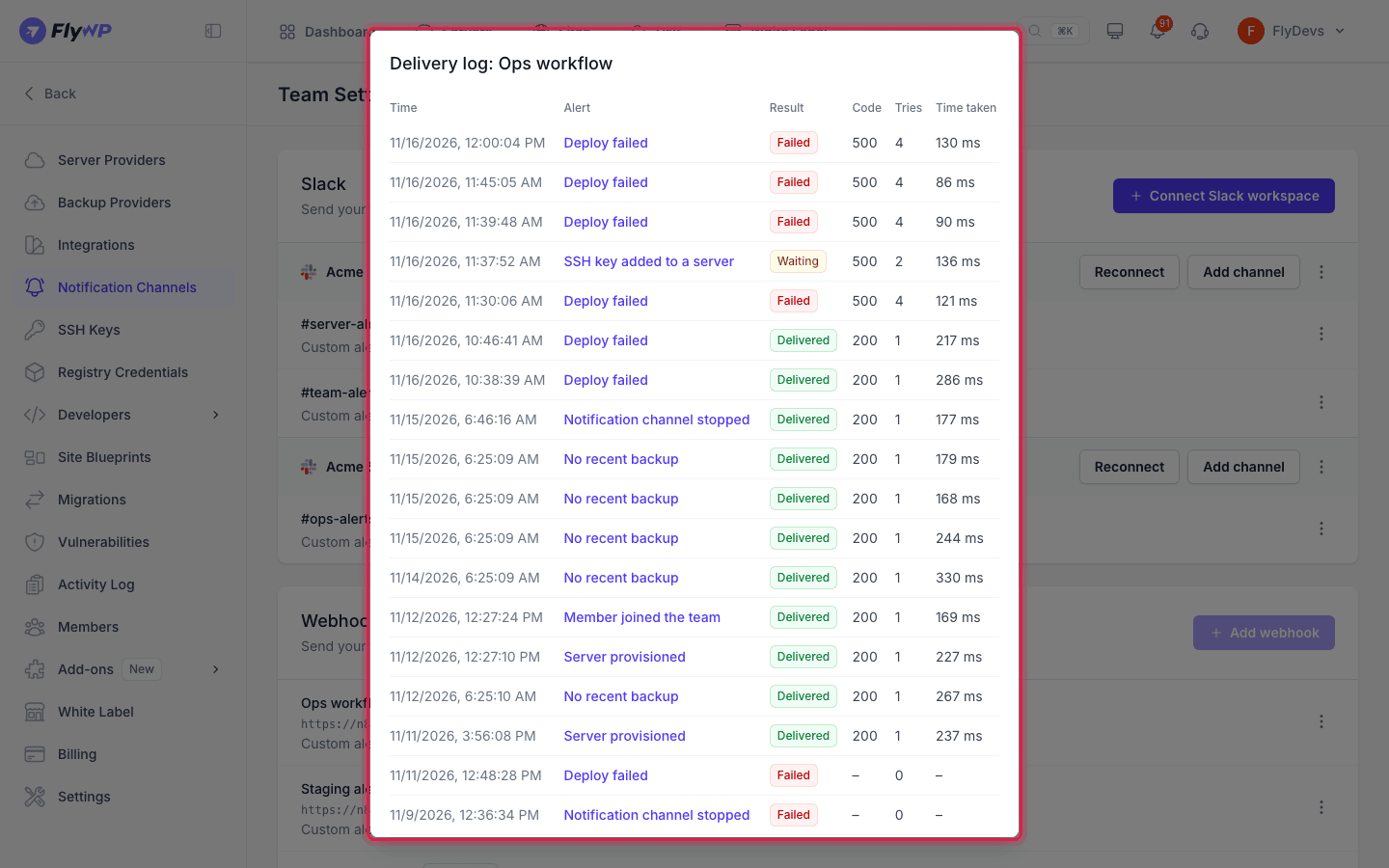
To send a failed delivery again, open it and click Resend. The body and the id stay the same. You can resend 10 times an hour for each webhook and 10 times for each delivery. FlyWP does not resend an alert whose problem is already over, so your receiver never gets down after up.
Retries, failures and pauses
Section titled “Retries, failures and pauses”| What the receiver does | What FlyWP does |
|---|---|
| Answers with a 2xx code | Marks the delivery Delivered. |
| Answers 408, 429 or a 5xx code, does not answer in 10 seconds, or cannot be reached | Tries again after 1, 5 and then 15 minutes. If the receiver answers 429 with a Retry-After number of seconds, FlyWP waits that long, up to 15 minutes. |
| Answers with a redirect or another 4xx code | Fails the delivery at once. A retry would get the same answer. |
| Has an invalid certificate | Fails the delivery at once. Fix the certificate. |
While FlyWP waits to retry, the row shows Failing with the reason. A delivery that fails after all retries counts as a failure. After 5 failed deliveries in a row, FlyWP pauses the webhook (Paused) and raises the Notification channel stopped alert. One delivered alert resets the count. Fix the problem, then click Resume on the row. A paused channel sends nothing, and FlyWP does not replay the alerts it missed.
You can also Pause and Resume a Slack or Telegram channel by hand from its row menu.
Alert codes
Section titled “Alert codes”These are the alerts a channel can receive. The Event column is the code a webhook sends in the event field. For how alerts reach each person by email and in the app, see Notifications.
| Category | Event | Alert | Severity |
|---|---|---|---|
| Servers | srv-01 | Server provisioned | Info |
| Servers | srv-02 | Server provisioning failed | Critical |
| Servers | srv-03 | Server not reporting | Critical |
| Servers | srv-04 | Server back online | Info |
| Servers | srv-05 | High CPU | Warning |
| Servers | srv-06 | CPU back to normal | Info |
| Servers | srv-07 | High memory | Warning |
| Servers | srv-08 | Memory back to normal | Info |
| Servers | srv-09 | Low disk space | Warning |
| Servers | srv-10 | Disk almost full | Critical |
| Servers | srv-11 | Disk space back to normal | Info |
| Servers | srv-12 | SSH key could not be added to a server | Info |
| Servers | cmp-12 | Memory limits for the apps of a server | Warning |
| Sites | sit-01 | Site in a failed state | Critical |
| Sites | sit-02 | Plugin or theme update failed | Warning |
| Sites | sit-04 | Bulk update finished | Info, or Warning if anything failed |
| Sites | sit-05 | Site still in maintenance mode | Warning |
| Sites | mig-01 | Migration completed | Info |
| Sites | mig-02 | Migration failed | Warning |
| Sites | cmp-01 | Docker Compose Apps stopped on the Free plan | Critical |
| Sites | cmp-02 | Docker Compose Apps will be removed | Critical |
| Sites | cmp-03 | Docker Compose service is down | Warning |
| Sites | cmp-04 | Docker Compose service runs again | Info |
| Sites | cmp-05 | Docker Compose service keeps restarting | Warning |
| Sites | cmp-06 | Docker Compose service ran out of memory | Warning |
| Sites | cmp-07 | Docker Compose health check fails | Warning |
| Sites | cmp-08 | Docker Compose App is down | Critical |
| Sites | cmp-09 | Docker Compose App runs again | Info |
| Sites | cmp-11 | Docker Compose App stopped for a full disk | Critical |
| Backups | bkp-01 | Backup failed | Warning |
| Backups | bkp-02 | Backups paused | Critical |
| Backups | bkp-03 | No recent backup | Critical |
| Backups | bkp-04 | Backup storage rejected your credentials | Critical |
| Backups | bkp-05 | Restore failed | Critical |
| Security | sec-01 | Critical vulnerability found | Critical |
| Security | sec-03 | File integrity issues found | Critical |
| Security | sec-04 | Integrity check could not run | Warning |
| Security | sec-05 | Vulnerability scan failed | Warning |
| Security | sec-06 | SSH key added to a server | Warning |
| Deployments | dep-01 | Deploy succeeded | Info |
| Deployments | dep-02 | Deploy failed | Warning |
| Deployments | dep-03 | Git connection lost, deploys stopped | Critical |
| Deployments | cmp-10 | Docker Compose deploy failed | Warning, or Critical if the automatic rollback could not run |
| Domains & SSL | ssl-02 | SSL certificate expires in 3 days | Critical |
| Domains & SSL | ssl-03 | SSL certificate renewal failed | Critical |
| Domains & SSL | ssl-04 | SSL certificate renewed | Info |
| Domains & SSL | ssl-05 | SSL certificate expired | Critical |
| Uptime | upt-01 | Site is down | Critical |
| Uptime | upt-02 | Site is back up | Info |
| Billing | bil-01 | Invoice available | Info |
| Billing | bil-02 | Payment failed | Critical |
| Billing | bil-03 | Final warning before suspension | Critical |
| Billing | bil-04 | Payment successful | Info |
| Billing | bil-05 | Upcoming billing | Info |
| Team | tea-01 | Member joined the team | Info |
| Team | tea-02 | Role changed | Warning |
| Team | tea-03 | Notification channel stopped | Warning |
Notes:
- Uptime alerts need the Uptime Monitor add-on. The category only shows when your team has it.
- Billing alerts can be routed by the team Owner only. Billing and Team alerts are about the team, so the server choice does not apply to them.
- Account security messages (email change, passkey changes, FlyWP support sessions and similar) go only to the person they concern, by email and in the app. They never go to a channel.
- When several sites fail at once, FlyWP can send one combined alert for Backup failed, Backup storage rejected your credentials and Critical vulnerability found. Webhooks get it in
rolled_up.
The Standard JSON message
Section titled “The Standard JSON message”Every request is a POST with Content-Type: application/json. Every key is always present, with null when it has no value.
| Key | Type | What it is |
|---|---|---|
version | number | Format version. Currently 1. |
id | string | The delivery ID. It is the same on every retry and on Resend, so your receiver can drop a duplicate. |
event | string | The alert code, such as upt-01. See the alert codes. A test uses test. |
event_label | string | The name of the alert, such as Site is down. |
severity | string | critical, warning or info. |
title | string | The headline. |
details | string | The body text, as plain text. Paragraphs are separated by a blank line. |
url | string or null | A link to the item in FlyWP. |
occurred_at | string or null | When it happened, in UTC (ISO 8601, ending in Z). |
team | object | id and name of your team. |
server | object or null | id and name of the server, when the alert is about a server or a site. |
site | object or null | id and domain of the site, when the alert is about a site. |
recovery | boolean | true when the problem has ended. |
duration_seconds | number or null | On a recovery, how long the problem lasted. |
related_id | string or null | On a recovery, the id of the alert it closes. |
rolled_up | object or null | When one alert covers several sites: count and the list sites. |
test | boolean | true for a test. |
FlyWP may add keys in the future, so ignore keys you do not know.
An alert, here a site that goes down:
{ "version": 1, "id": "48213", "event": "upt-01", "event_label": "Site is down", "severity": "critical", "title": "example.com is down", "details": "example.com has stopped responding to FlyWP's uptime monitor.\n\n• Down since: 16 Nov 2026, 09:12 UTC\n\n• Last response: 16 Nov 2026, 09:11 UTC\n\n• Server: web-01\n\nIf other sites on web-01 are also down, the server itself is the place to start.", "url": "https://app.flywp.com/site/1234/overview", "occurred_at": "2026-11-16T09:12:40Z", "team": { "id": 77, "name": "Acme Agency" }, "server": { "id": 310, "name": "web-01" }, "site": { "id": 1234, "domain": "example.com" }, "recovery": false, "duration_seconds": null, "related_id": null, "rolled_up": null, "test": false}The recovery arrives as a new request. It has its own id, "event": "upt-02", "recovery": true, the length of the outage in duration_seconds, and "related_id": "48213".
FlyWP also sends two headers with every request:
| Header | Value |
|---|---|
X-FlyWP-Event | The same code as event. |
X-FlyWP-Delivery | The same value as id. |
The User-Agent is FlyWP/1.0 (+https://flywp.com).
Check a request in your own code
Section titled “Check a request in your own code”If you do not use n8n, check the auth header and drop duplicates. This Node.js example expects the header X-Auth-Token:
import express from 'express';import { timingSafeEqual } from 'node:crypto';
const app = express();const secret = Buffer.from(process.env.FLYWP_WEBHOOK_SECRET);const seen = new Set(); // use a database or cache in production
app.post('/flywp-alerts', express.json(), (req, res) => {  const sent = Buffer.from(req.get('X-Auth-Token') ?? '');
  if (sent.length !== secret.length || !timingSafeEqual(sent, secret)) {    return res.sendStatus(401);  }
  const alert = req.body;
  if (seen.has(alert.id)) {    return res.sendStatus(200); // a retry or a Resend: already handled  }  seen.add(alert.id);
  if (!alert.test) {    console.log(`[${alert.severity}] ${alert.title}`);  }
  res.sendStatus(200); // answer with a 2xx code within 10 seconds});
app.listen(3000);
Answer with a 2xx code as soon as you have the alert. Do the slow work after you answer, because FlyWP waits 10 seconds and then tries again.
Related guides
Section titled “Related guides”- Notification Channels: Slack, Telegram, alert levels and which servers and sites a channel gets.
- Send alerts to n8n: a step-by-step n8n workflow.
Still stuck? How can we help?
View as Markdown