NGINX Config Manager
The NGINX Config Manager in FlyWP provides a clean and safe interface to manage your NGINX server configurations without directly accessing the underlying file system. It allows you to control ports, domains, logs, document roots, and modular custom configuration files — all from within the FlyWP dashboard.
Accessing the NGINX Config Manager
Section titled “Accessing the NGINX Config Manager”- From the FlyWP dashboard, navigate to your desired site.
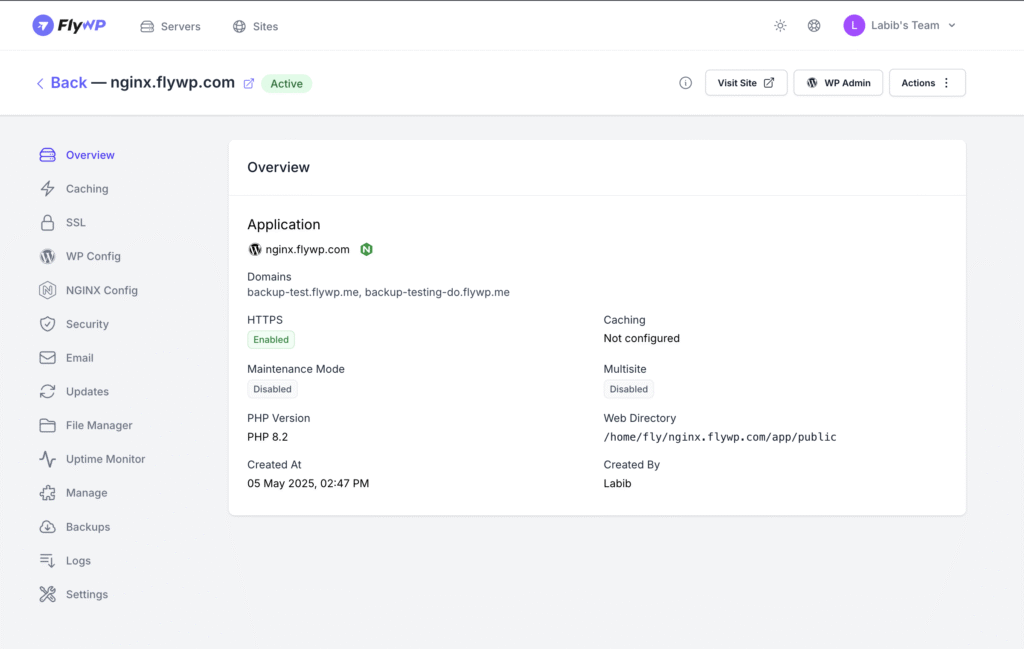
- On the left sidebar, click on the “NGINX Config” option.
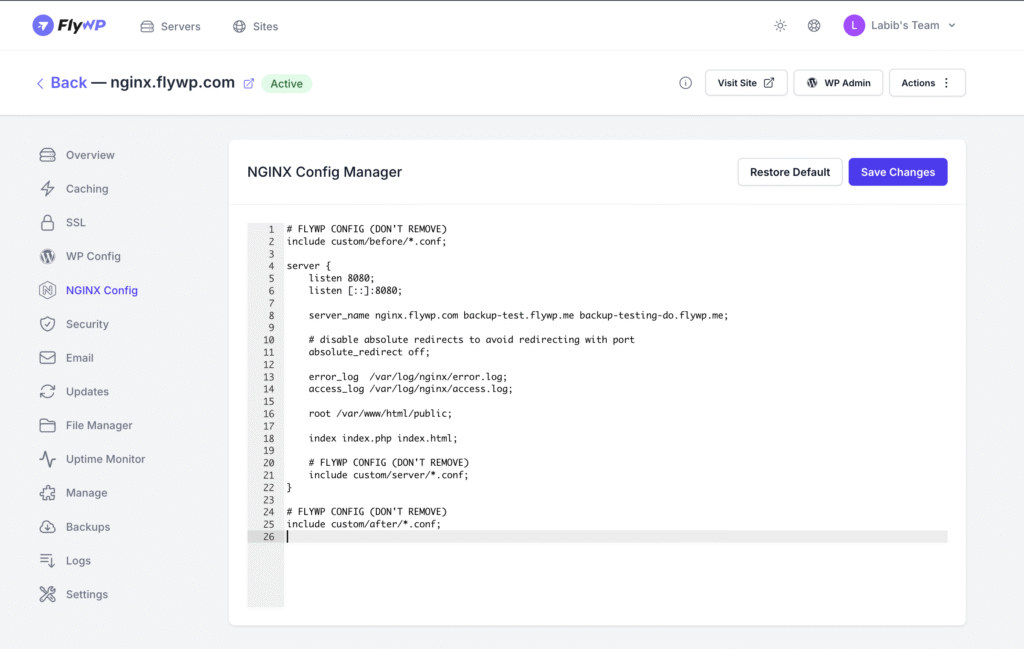
Configuration Overview
Section titled “Configuration Overview”Listen on Ports
Section titled “Listen on Ports”Purpose: Specifies the ports on which NGINX will listen for incoming connections.
listen 8080; listen [::]:8080;- Recommendation: Change this only if you’re running multiple services or testing on non-standard ports.
Server Name Configuration
Section titled “Server Name Configuration”Purpose: Defines the domains or subdomains this server block will respond to.
server_name nginx.flywp.com backup-test.flywp.me backup-testing-do.flywp.me;- Recommendation: Ensure all active domains used for this instance are listed here to prevent routing issues.
Disable Absolute Redirects
Section titled “Disable Absolute Redirects”Purpose: Prevents NGINX from performing automatic redirects that include port numbers.
absolute_redirect off;- Recommendation: Useful when working with non-standard ports or during local/staging development.
Logging Configuration
Section titled “Logging Configuration”Purpose: Specifies where NGINX logs errors and access requests.
error_log /var/log/nginx/error.log;access_log /var/log/nginx/access.log;- Recommendation: Monitor these logs for troubleshooting, performance metrics, and attack detection.
Document Root
Section titled “Document Root”Purpose: Sets the root directory from which NGINX serves files.
root /var/www/html/public;index index.php index.html;- Recommendation: Ensure your index files (e.g., index.php, index.html) are correctly listed to avoid “403 Forbidden” errors.
Include Custom Config Files
Section titled “Include Custom Config Files”Purpose: Modularly extend or override default settings before, during, or after the server block.
include custom/before/*.conf;include custom/server/*.conf;include custom/after/*.conf;- Recommendation: Organize custom logic like security headers, redirects, or rate limiting in these folders for cleaner config and easier debugging.
Saving Changes
Section titled “Saving Changes”After making your desired adjustments:
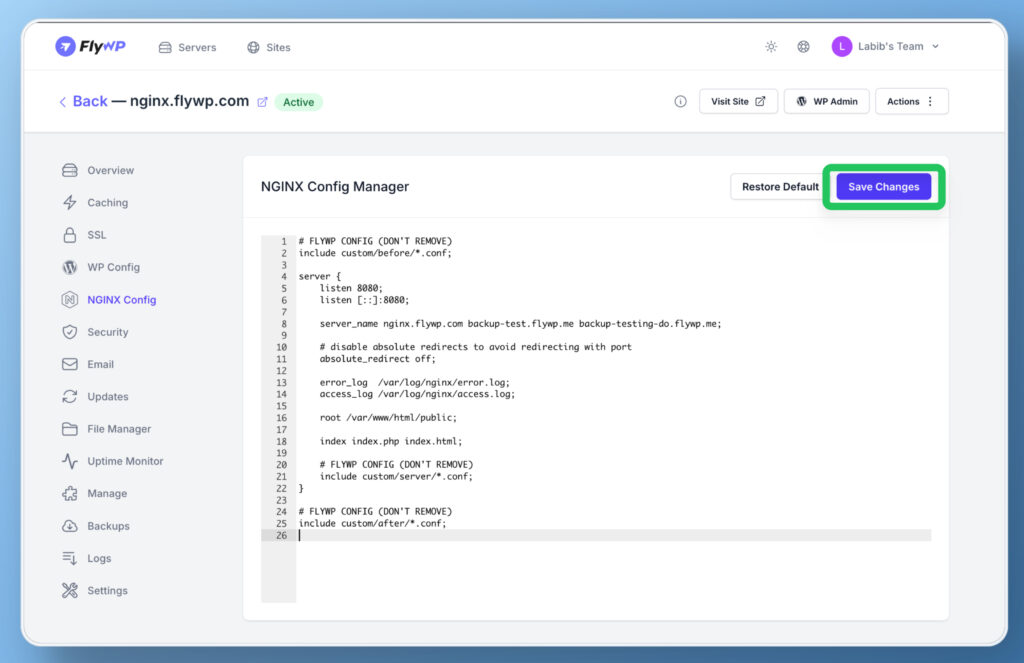
- Click the “Save Changes” button located at the top-right of the NGINX Config Manager panel. Your updated NGINX configuration will be applied immediately.
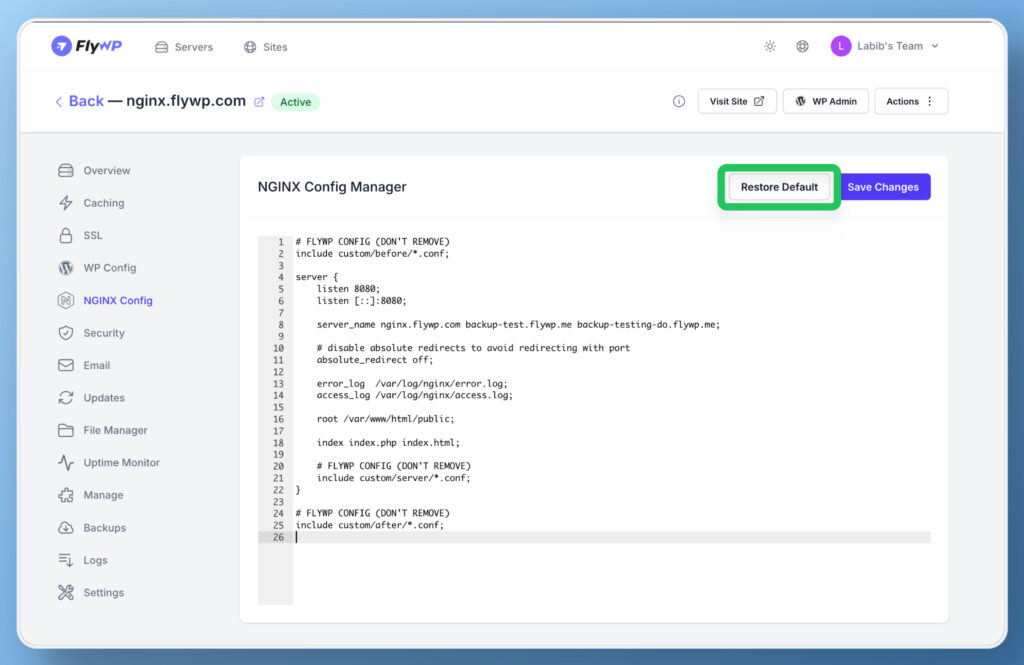
- If something breaks, you can use the “Restore Default” button to revert to FlyWP’s baseline configuration safely.
Recommendations & Best Practices
Section titled “Recommendations & Best Practices”- Do not remove any FlyWP config markers (lines marked # FLYWP CONFIG (DON’T REMOVE)) — they ensure your configuration is parsed correctly by the platform.
- Use the custom/ directories to keep custom changes isolated and maintainable.
- Always validate your syntax if manually editing .conf files included via the manager.
- After changes, verify your site loads correctly and logs are free of errors.
Basic Troubleshooting
Section titled “Basic Troubleshooting”- Site not loading? Check /var/log/nginx/error.log for any syntax errors.
- Changes not applied? Confirm file names inside custom folders end with .conf.
- Need further Help? Reach out to FlyWP Support via Live Chat or Ticket.
Still stuck? How can we help?