Backup Providers
Your server going down should never mean your data is gone for good. By connecting an external cloud storage service as a backup provider, FlyWP sends your site backups to a location completely separate from your server — so you can restore from a clean copy even if the worst happens. Set this up once at the team level, then reuse it across any site you manage.
Supported Providers
Section titled “Supported Providers”FlyWP supports S3-compatible object storage services (where files are stored as objects in a “bucket”, like an organized folder in the cloud), Google Cloud Storage, and consumer cloud file storage services.
| Provider | Storage Type |
|---|---|
| Amazon S3 | Object storage (AWS) |
| DigitalOcean Spaces | S3-compatible object storage |
| Cloudflare R2 | S3-compatible object storage |
| Wasabi | S3-compatible object storage |
| Google Cloud Storage | Object storage (Google Cloud) |
| Google Drive | Cloud file storage |
| pCloud | Cloud file storage |
| Custom (S3 compatible) | Any other S3-compatible storage service |
Adding a Backup Provider
Section titled “Adding a Backup Provider”To add a new provider, you'll need credentials from the storage service you want to connect. The exact credentials vary by provider. See the table in the next section.
- Navigate to Team Settings > Backup Providers.
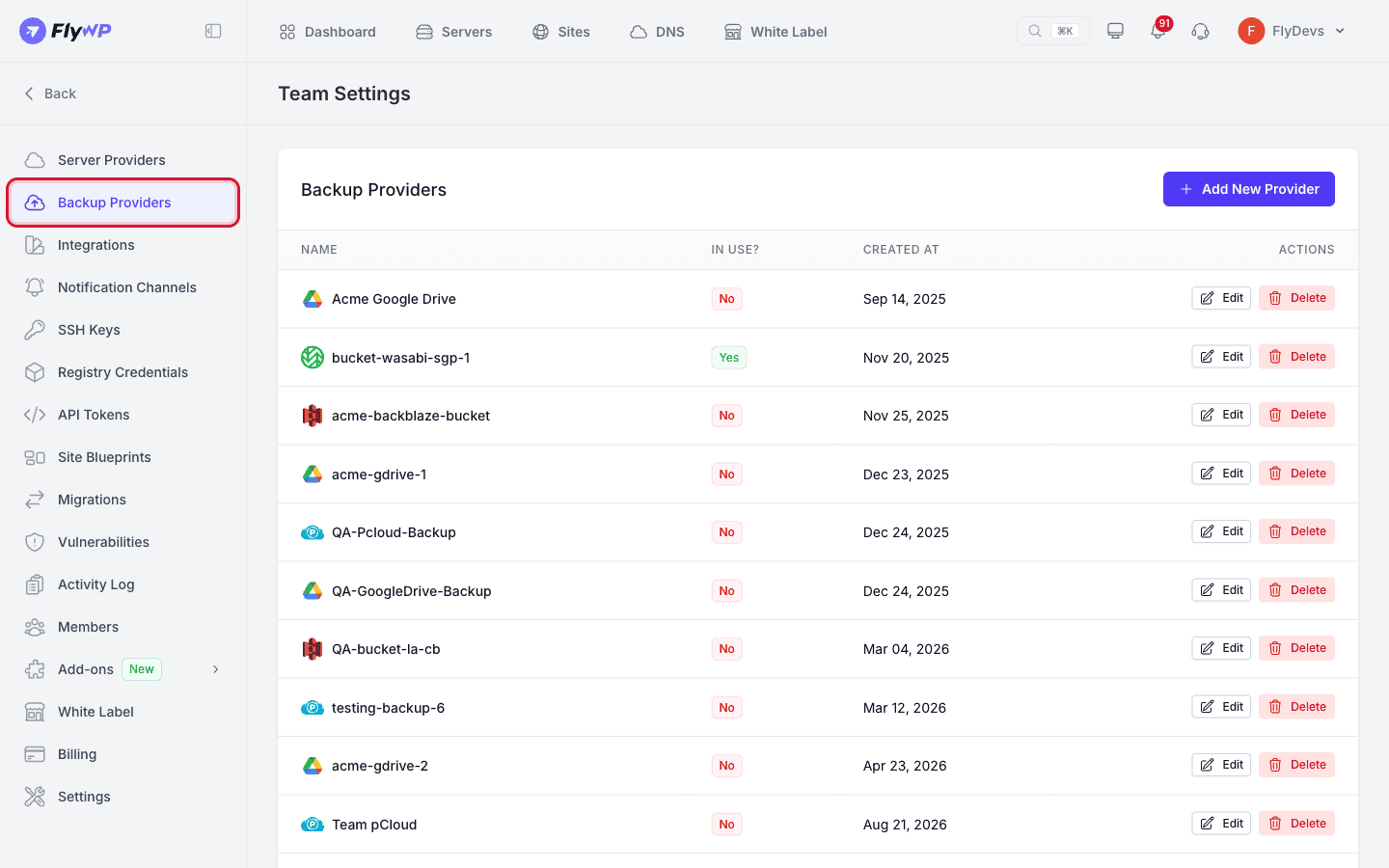
- Click Add New Provider.
- Choose the provider under Select Provider.
- Enter a Name for this connection (something recognizable, like “Wasabi Production”).
- Fill in the required credentials for that provider.
- Click Add Provider.
Credentials by Provider
Section titled “Credentials by Provider”| Provider | Required Fields |
|---|---|
| Amazon S3, DigitalOcean Spaces, Wasabi | Access Key ID, Secret Access Key |
| Cloudflare R2 | Cloudflare Account ID, Access Key ID, Secret Access Key, Location |
| Custom (S3 compatible) | Region, Endpoint URL, Access Key ID, Secret Access Key |
| Google Cloud Storage | Location, Service Account JSON |
| Google Drive, pCloud | Pick a connected account, or click Connect Google Drive / Connect pCloud to authorize one. Accounts are managed under Account Settings > OAuth Connections. |
For S3-compatible providers, you generate an access key (a username and password pair for API access) inside your storage provider’s dashboard, then paste those values into FlyWP.
You don't enter a bucket here. You choose the bucket for each site when you set up that site’s backups.
Using a Backup Provider
Section titled “Using a Backup Provider”Once connected, the provider becomes available as a storage destination inside each site’s backup settings. FlyWP does not automatically start backing up to it — you assign it per site.
- Go to the site’s Backups page.
- Choose the connected provider under Backup Provider.
- Enter the Bucket (or Root Folder ID for Google Drive and pCloud) where backups should go.
- Set the schedule and Backup Retention, then save.
Managing Backup Providers
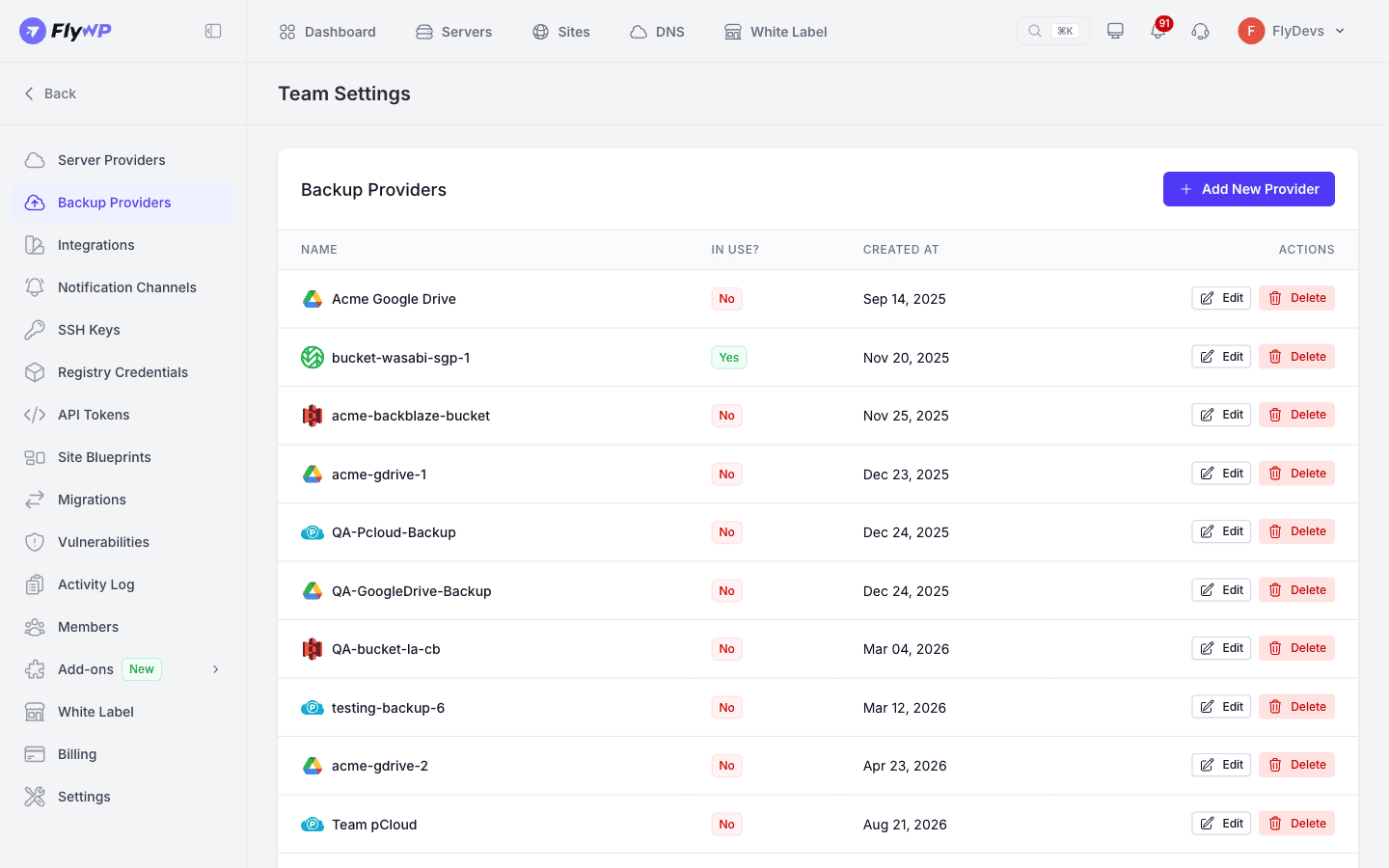
Section titled “Managing Backup Providers”The backup providers table shows each connected storage account with its name, whether it is in use, when it was created, and a delete action. You can connect multiple providers and assign different ones to different sites.
Deleting a Backup Provider
Section titled “Deleting a Backup Provider”Click Delete to remove a provider connection from your team account.
Best Practices
Section titled “Best Practices”- Use a dedicated storage bucket or folder for FlyWP backups to keep things organized and avoid mixing them with other files.
- Test a restore after setting up your first backup to confirm everything works end to end — you do not want to discover a problem when you actually need to recover.
- Consider geographic diversity — storing backups in a different region than your server adds an extra layer of resilience if an entire data center goes offline.
Related Pages
Section titled “Related Pages”Still stuck? How can we help?
View as Markdown