Support Access
FlyWP support cannot open your account on its own. If FlyWP support needs to look at a server or site, you share your support access code. The code opens a time-limited session that you can end at any time.
How it works
Section titled “How it works”- You decide: A session only starts with your code. Support cannot create one without it.
- One team: A session is limited to the team the code belongs to. Each member has a separate code for each team they belong to.
- Time limit: The support agent chooses a session length of 1, 4, or 8 hours when it starts. The session ends by itself when the time is up.
- One at a time: A team can have only one live support session.
- Single use: As soon as a session starts, your code is replaced with a new one. The code you shared cannot be used again.
- Email updates: FlyWP emails you when a session starts, when it ends, and if the agent hands it to a colleague.
- Everything is recorded: Actions taken during a session appear in your Team Activity Log with a FlyWP Support badge.
Share your code
Section titled “Share your code”You can share the code in any of these ways.
From the support ticket form
Section titled “From the support ticket form”When you open a new ticket from Support Tickets, tick Let FlyWP support open my account for this ticket. The code goes on the ticket for FlyWP support only.
From the support chat
Section titled “From the support chat”After you send your first message in the chat, click Share my support access code. The chat posts the code for you.
By copying it
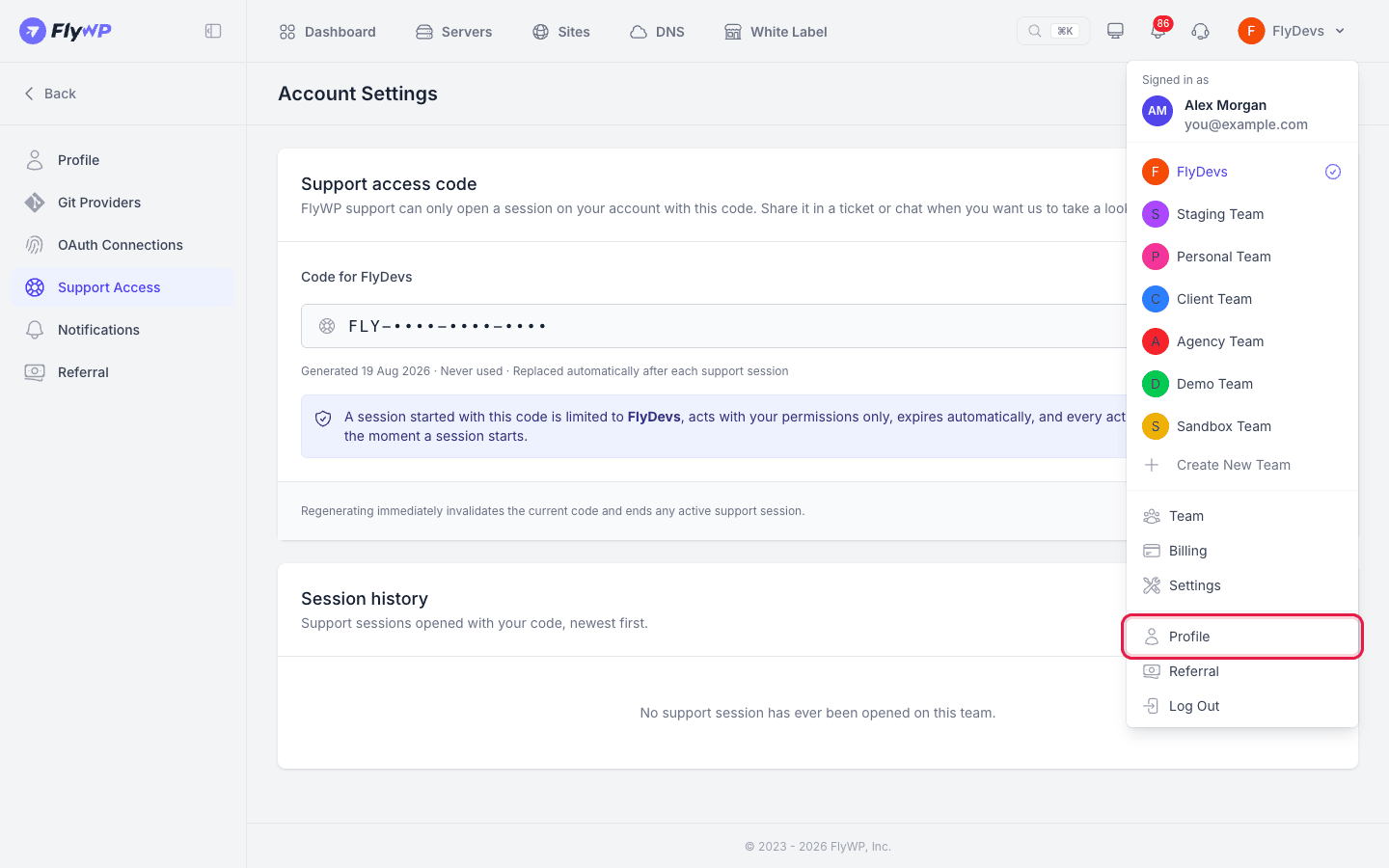
Section titled “By copying it”- Click your team name in the top bar and choose Profile.
- In the sidebar, click Support Access. You can also reach it from the Support menu in the top bar.
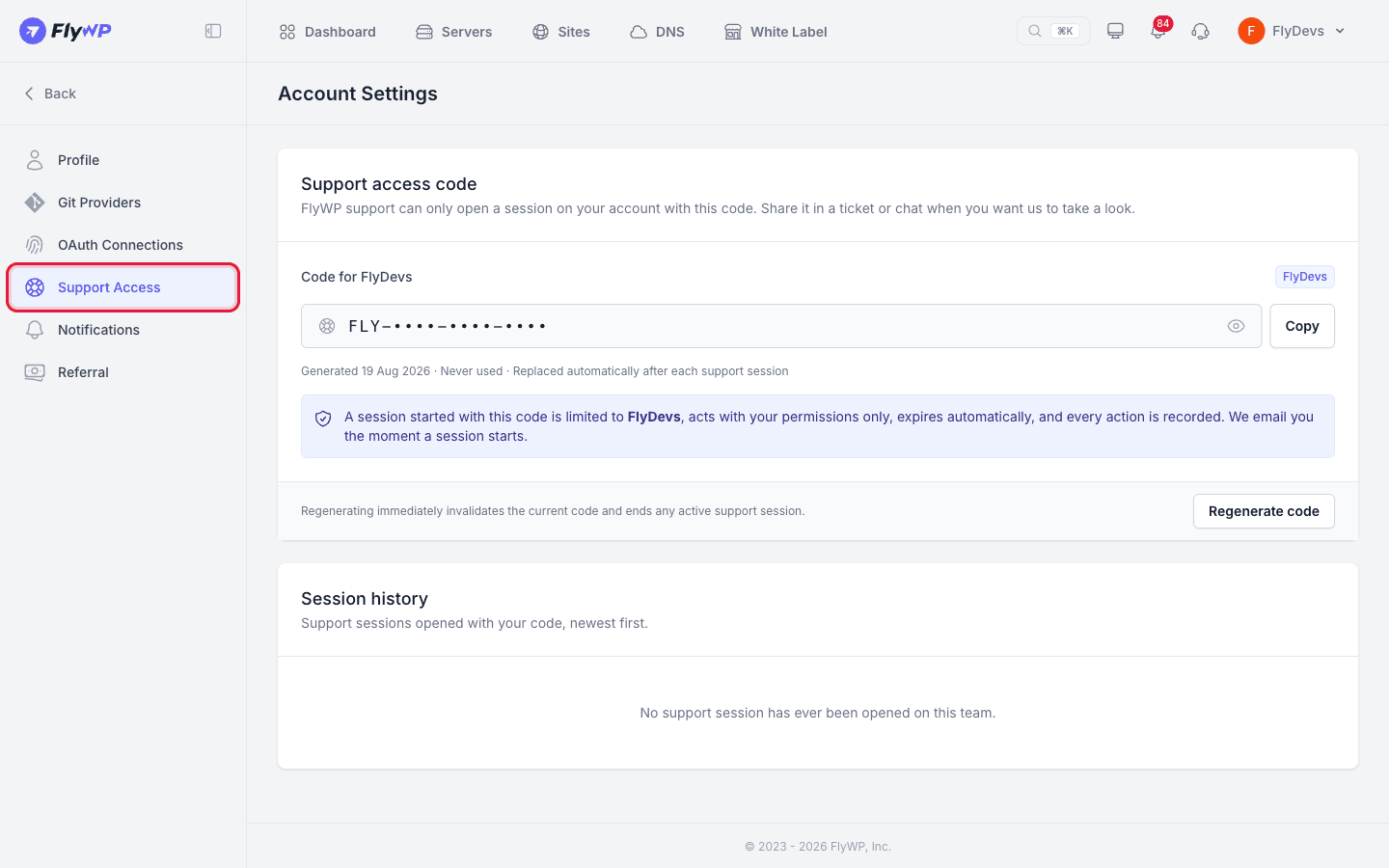
- On the Support access code card, click the eye icon to show the code, then click Copy.
- Paste the code into your ticket or chat. The format is
FLY-XXXX-XXXX-XXXX.
The card also shows when the code was generated and when it was last used.
What support can and cannot do
Section titled “What support can and cannot do”During a session, the agent acts in your team with your permissions, and only in the areas below.
Support can
Section titled “Support can”- Restart services: Restart Nginx, PHP, OpenLiteSpeed, MySQL, Redis, the cron scheduler, containers, and daemons, or restart the server.
- Fix sites: Clear caches, fix file permissions, work in the File Manager, edit
wp-config.phpand Nginx settings, read logs, and put a site to sleep or wake it. - Maintain WordPress: Install, activate, deactivate, update, or delete plugins, run updates, and manage WordPress users.
- Deploy and back up: Run deployments, edit deployment scripts, and create, restore, or delete backups.
- Domains and SSL: Add or change domains, install or reissue SSL certificates, and set redirect rules.
- Databases, cron, and firewall: Create or remove databases and database users, edit cron jobs, and add or remove firewall rules.
- Get you back in: Add an SSH key to one server if you are locked out, and revoke API tokens, team SSH keys, or SFTP accounts that may be compromised.
Support cannot
Section titled “Support cannot”- Billing: View cards, open the billing portal, pay invoices, or buy add-ons.
- Account security: Change your password or email, or view two-factor authentication or passkeys.
- Delete things: Delete servers, sites, or the team.
- Create standing access: Create team SSH keys, team API tokens, or SFTP accounts, or add or change team members.
- Reveal secrets: View cloud provider credentials, FlyWP integration keys, or the secret settings of Docker Compose apps.
- Change DNS: Edit DNS records at your DNS provider.
- Create resources: Create servers or sites, clone or transfer sites, or change the database root password.
Anything not on the list of allowed actions is blocked.
Active session
Section titled “Active session”While a session is open, the Support Access menu item shows Live, and an Active support session card appears on the page. It shows:
- The agent's name.
- When the session started and the ticket number.
- Whose code was used, if it was not yours.
- An Expires badge with the time left.
Your code is hidden while a session is open, because it has already been replaced. When the session ends, the new code is shown again.
End a session
Section titled “End a session”- Go to Profile → Support Access.
- On the Active support session card, click End session now.
Access stops immediately, and the agent is signed out of your team.
Regenerate your code
Section titled “Regenerate your code”Regenerate your code if you shared it by mistake or want to stop an open session.
- On the Support access code card, click Regenerate code.
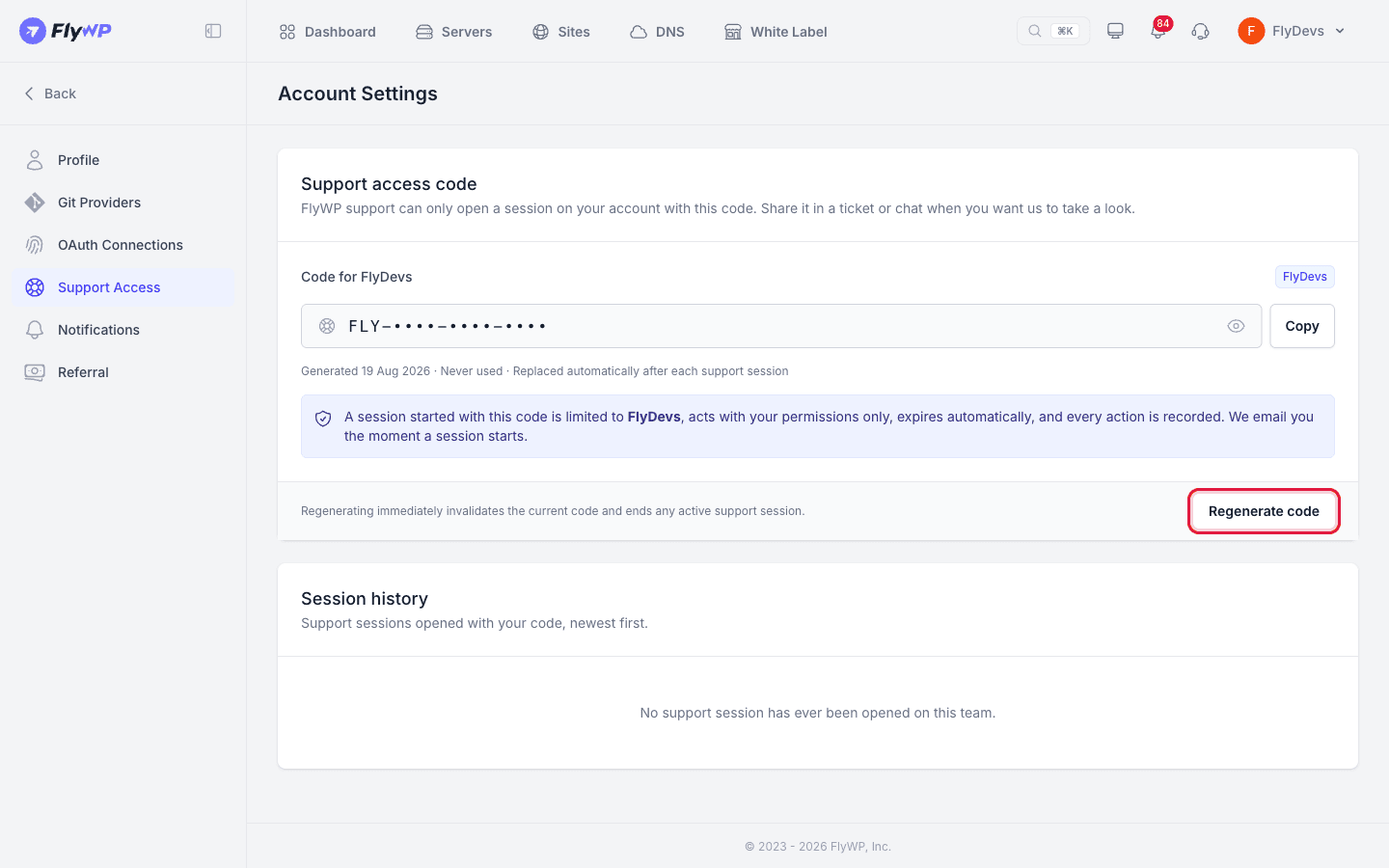
- Confirm your password when asked.
The old code stops working right away, and any open support session on your team ends.
Session history
Section titled “Session history”The Session history card lists the most recent 20 sessions on your team. Team owners see every session. Other members see only the sessions opened with their own code.
| Column | What it shows |
|---|---|
| Agent | The FlyWP team member. |
| Code from | Shown to the team owner only. The member whose code opened the session. |
| Ticket | The support ticket number. |
| Started | The date the session started. |
| Ended by | Active, or how it ended: You, Support Team, Auto-expiry, or Code regenerated. |
Related guides
Section titled “Related guides”Still stuck? How can we help?
View as Markdown