Integrating PageSpeed Insights with FlyWP
Part 1: Generating Your Google PageSpeed Insights API Key
Section titled “Part 1: Generating Your Google PageSpeed Insights API Key”To enable automated performance monitoring within FlywP, you need to connect it to Google’s PageSpeed Insights (PSI) API. This requires a free API key from the Google Cloud Console.
Follow these steps to create and configure your key:
1. Set Up a Google Cloud Project
Section titled “1. Set Up a Google Cloud Project”- Go to the Google Cloud Console.
- Log in with your Google account.
- Click the Project Dropdown (top left, next to the Google Cloud logo) and select New Project.
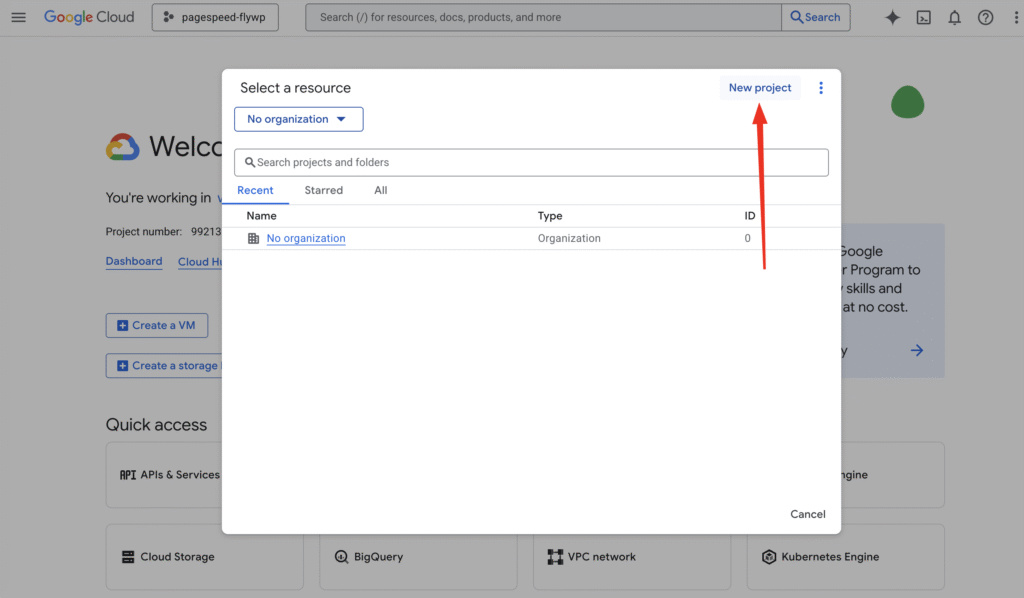
- Enter a name (e.g.,
FlywP-Performance-Monitor) and click Create.
2. Enable the PageSpeed Insights API
Section titled “2. Enable the PageSpeed Insights API”
- Ensure your new project is selected in the top dropdown.
- In the search bar at the top, type “PageSpeed Insights API”.
- Click on the result under the Marketplace/APIs section.
- Click the blue Enable button.
3. Create Your API Key
Section titled “3. Create Your API Key”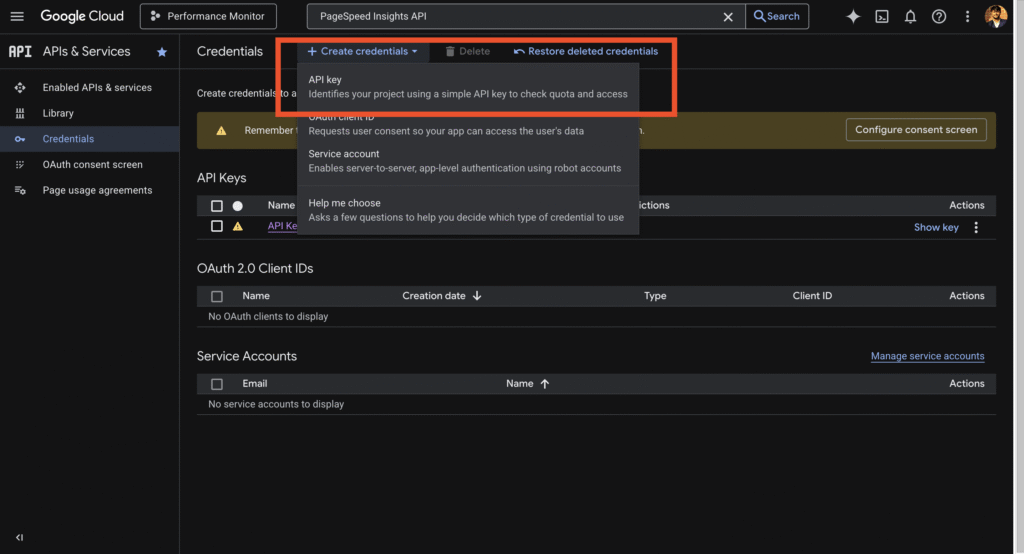
- Once the API is enabled, navigate to APIs & Services > Credentials via the left-hand sidebar.
- Click + Create Credentials at the top of the page.
- Select API key from the dropdown menu.
- A dialog box will appear with your new API key.
- Copy this key and store it securely.
4. (Recommended) Restrict Your API Key
Section titled “4. (Recommended) Restrict Your API Key”To prevent unauthorized use of your key, it is best practice to restrict it:
- In the “API key created” dialog, click Edit API key (or click the pencil icon next to the key in the Credentials list).
- Under API restrictions, select Restrict key.
- From the dropdown menu, find and check PageSpeed Insights API.
- Click Save.
Part 2: Integrate API key with FlyWP
Section titled “Part 2: Integrate API key with FlyWP”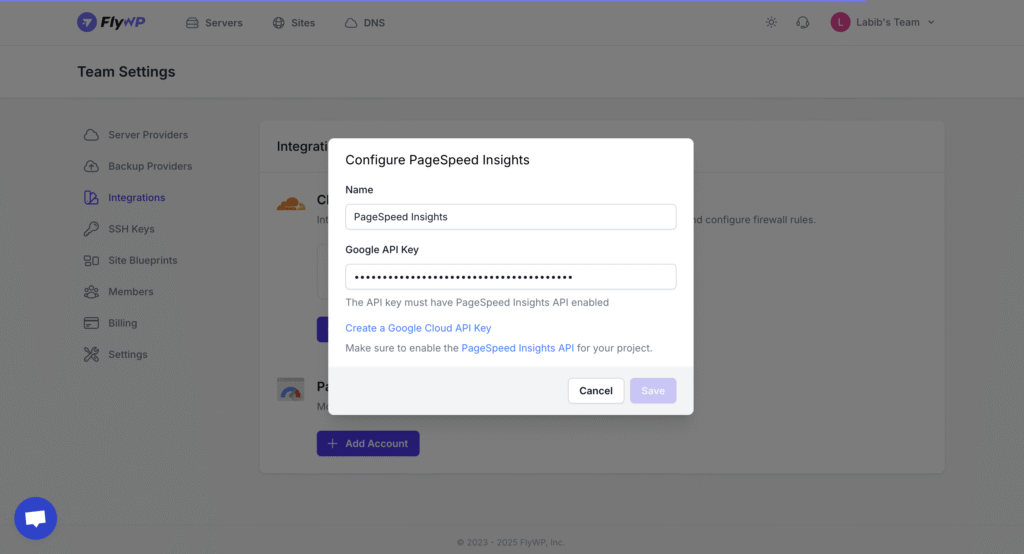
-
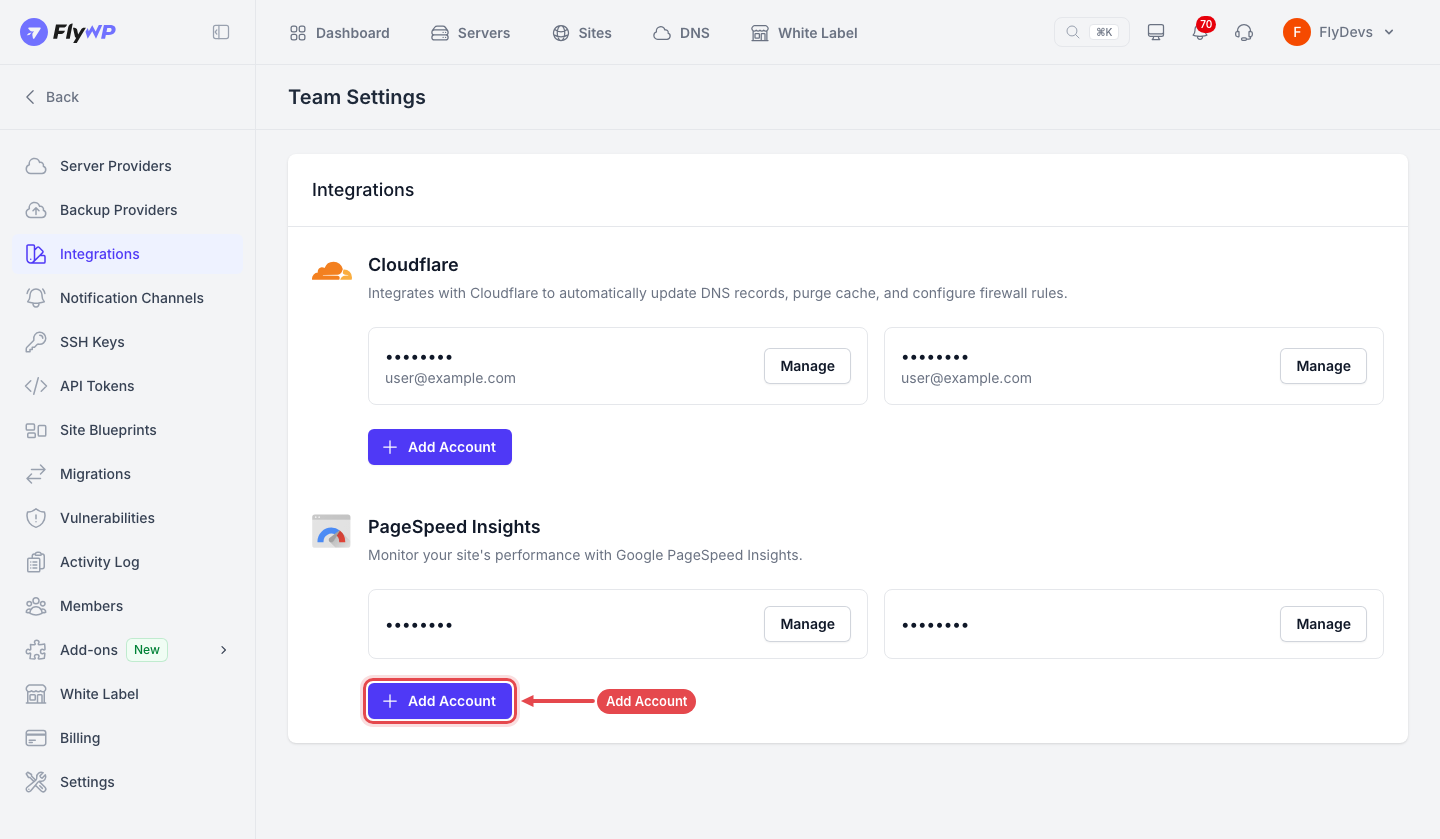
In FlyWP, go to Team Settings → Integrations, find PageSpeed Insights, and click Add Account.
-
Enter a Name and paste your Google API Key in the designated field.
-
Click Add Account.
-
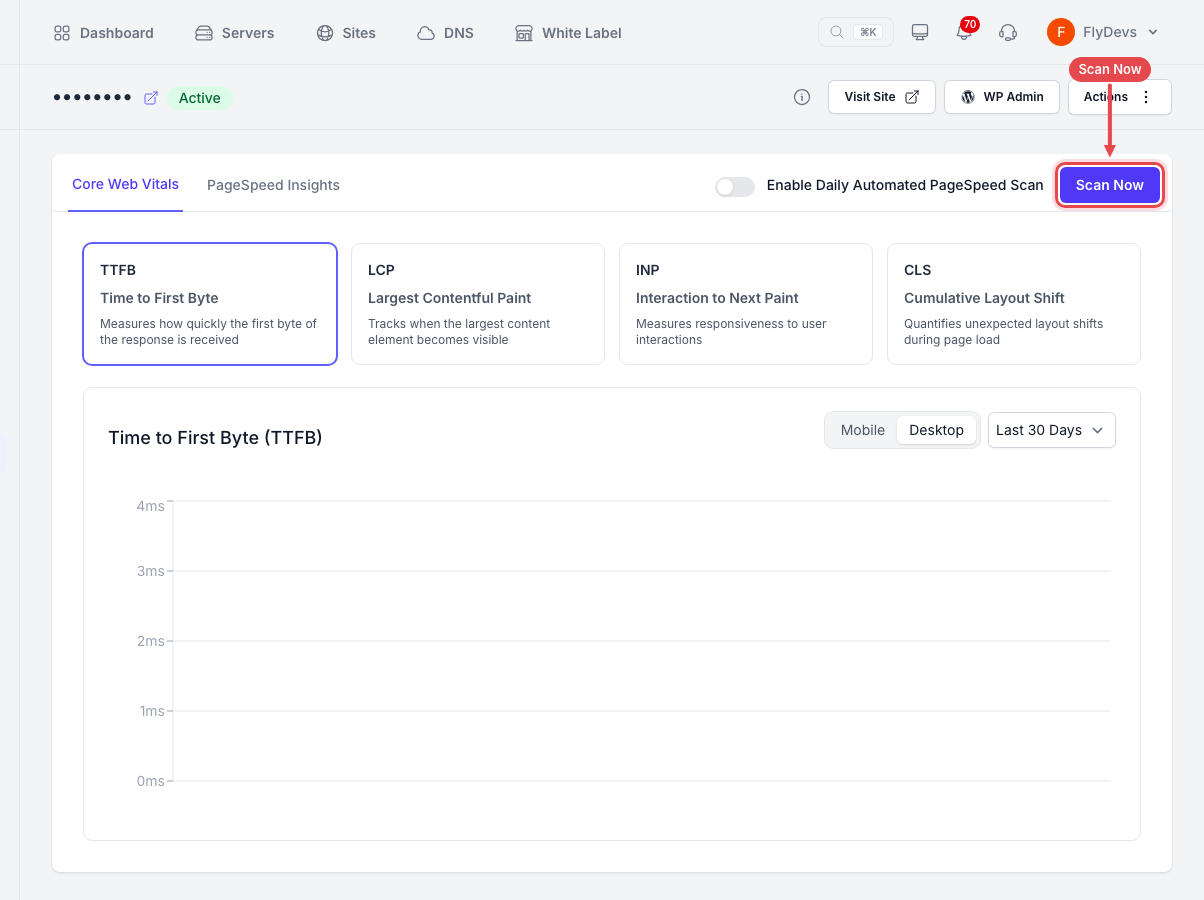
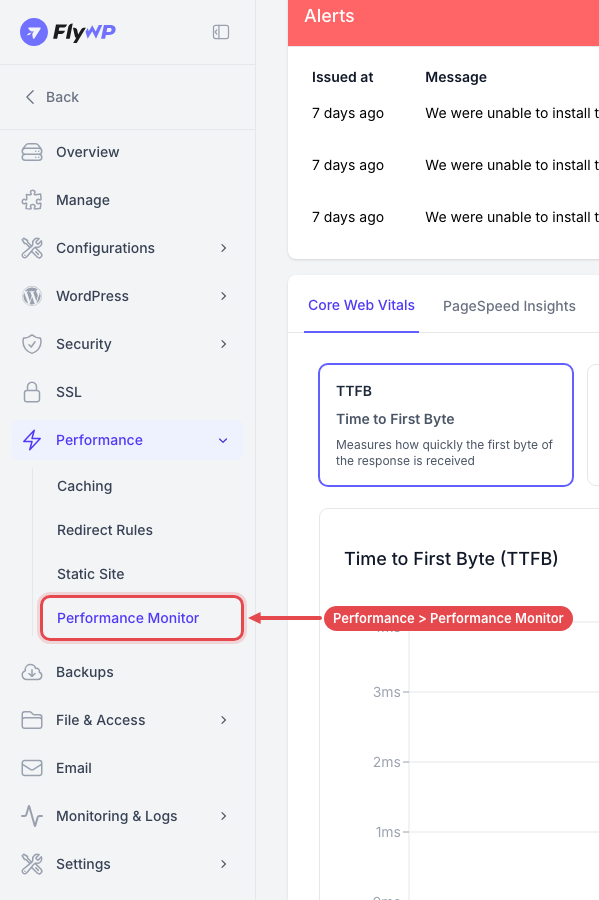
Go to your site dashboard and navigate to Performance → Performance Monitor. You can now click Scan Now to run audits for Desktop and Mobile, and review your Core Web Vitals.
Still stuck? How can we help?
View as Markdown