Laravel Maintenance Mode on FlyWP
Maintenance mode takes your Laravel application offline with a 503 page, using php artisan down. Use it while you make changes that visitors should not see.
Enable maintenance mode
Section titled “Enable maintenance mode”- Open your Laravel site and click Laravel in the site menu.
- In the Maintenance Mode card, click Enable maintenance mode. The Enable maintenance mode? dialog opens.
- Optional: in Secret bypass (optional), enter a secret or click Generate. Visitors with the secret can reach the site at
/<secret>while maintenance mode is active. Use letters, numbers, dashes, and underscores, up to 64 characters. - Click Enable.
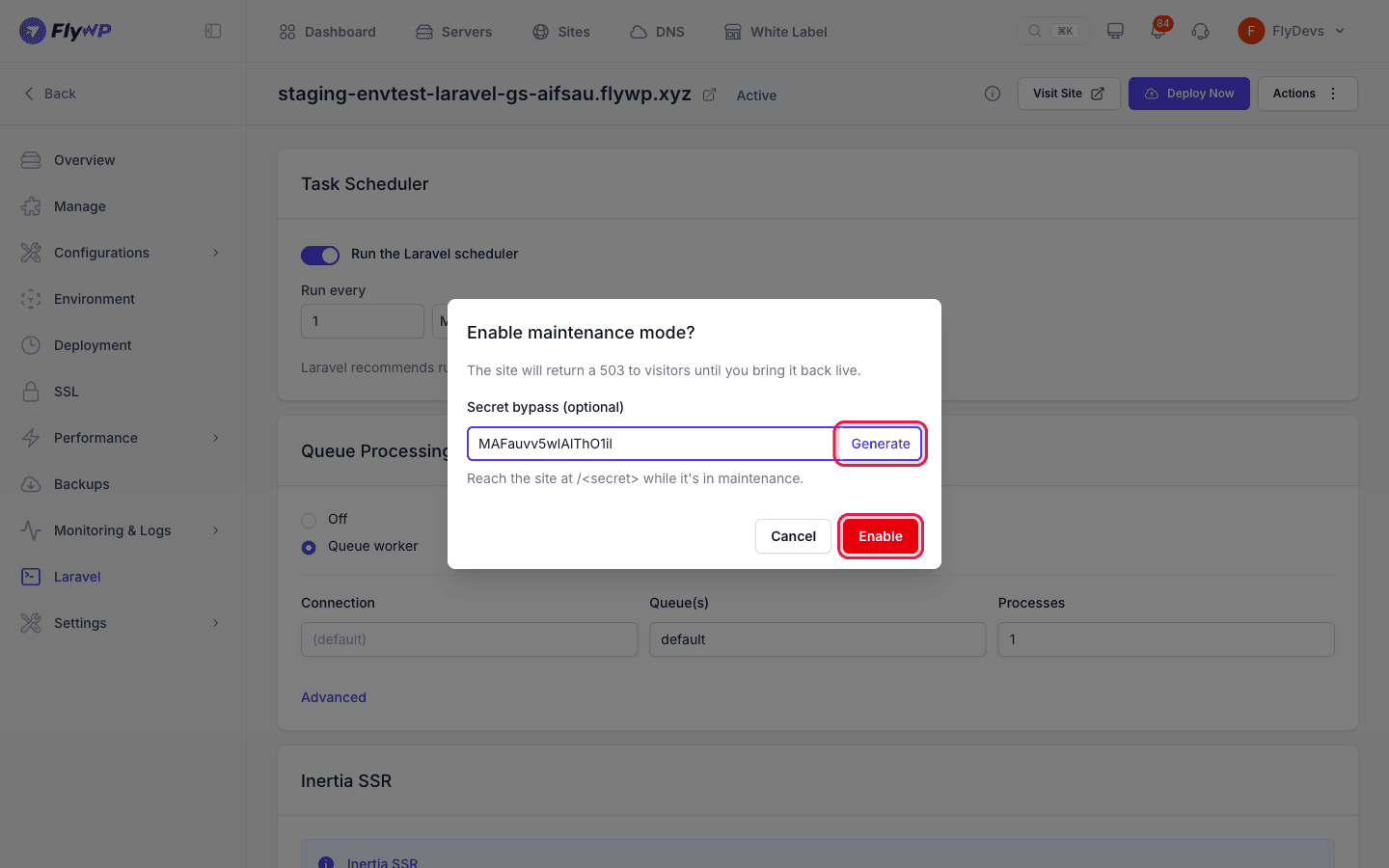
The button shows Applying… until the change finishes, and then you see Maintenance mode enabled. The card badge changes from Inactive to Active, and visitors get a 503 response. You do not need to click Save Changes for this card.
Bring the site live
Section titled “Bring the site live”- Click Turn off maintenance mode.
- In the Bring site live? dialog, click Bring live.
You see Site is live again. when it is done.
The Laravel page checks the current state on the server, so the badge shows Checking… for a moment when you open the page. If the change fails, the site gets an alert with the message Failed to update maintenance mode.
This is separate from the maintenance mode for WordPress sites. See Maintenance Mode for those.
Related guides
Section titled “Related guides”Still stuck? How can we help?
View as Markdown