Resource-Specific Roles
Resource-specific roles let you give a team member access to only the servers, sites, or DNS zones they need. Use them for developers, freelancers, clients, and auditors who should not see the rest of your team.
A member can hold several roles at once, for example Site Administrator on one site and Viewer on all servers.
| Role | Applies to | What it allows |
|---|---|---|
| Team Admin | The whole team | Everything on every server, site, and DNS zone, plus members, team settings, and the White Label panel. Does not include billing. |
| Server Administrator | One server or all servers | Manage the server and its databases, cron jobs, daemons, firewall rules, and SSH keys. Create, manage, and delete sites on that server. |
| Site Administrator | One site or all sites | Manage and delete the site. |
| Viewer | A server, a site, or all of either | View servers, server status, cron jobs, daemons, firewall rules, SSH keys, and sites. Cannot change anything. |
| DNS Manager | One DNS zone or all zones of an integration | Work with DNS records through your connected DNS provider. |
| Billing Manager | The whole team | Manage plans, add-ons, cards, and invoices. Only the team owner can give or remove this role. |
| White Label Manager | The whole team | Manage the White Label panel: branding, domain, plans, customers, and email. Shown only when your team has White Label. |
A server role also covers every site on that server. A member with a server role cannot create, delete, or scale servers. Only a Team Admin or the owner can do that.
Docker Compose apps are stricter: only the owner and Team Admins can edit, deploy, change settings for, or delete them. Site Administrators can restart them.
Give a member access
Section titled “Give a member access”-
Click your team name in the top bar and choose Team, or go to Settings → Members.
-
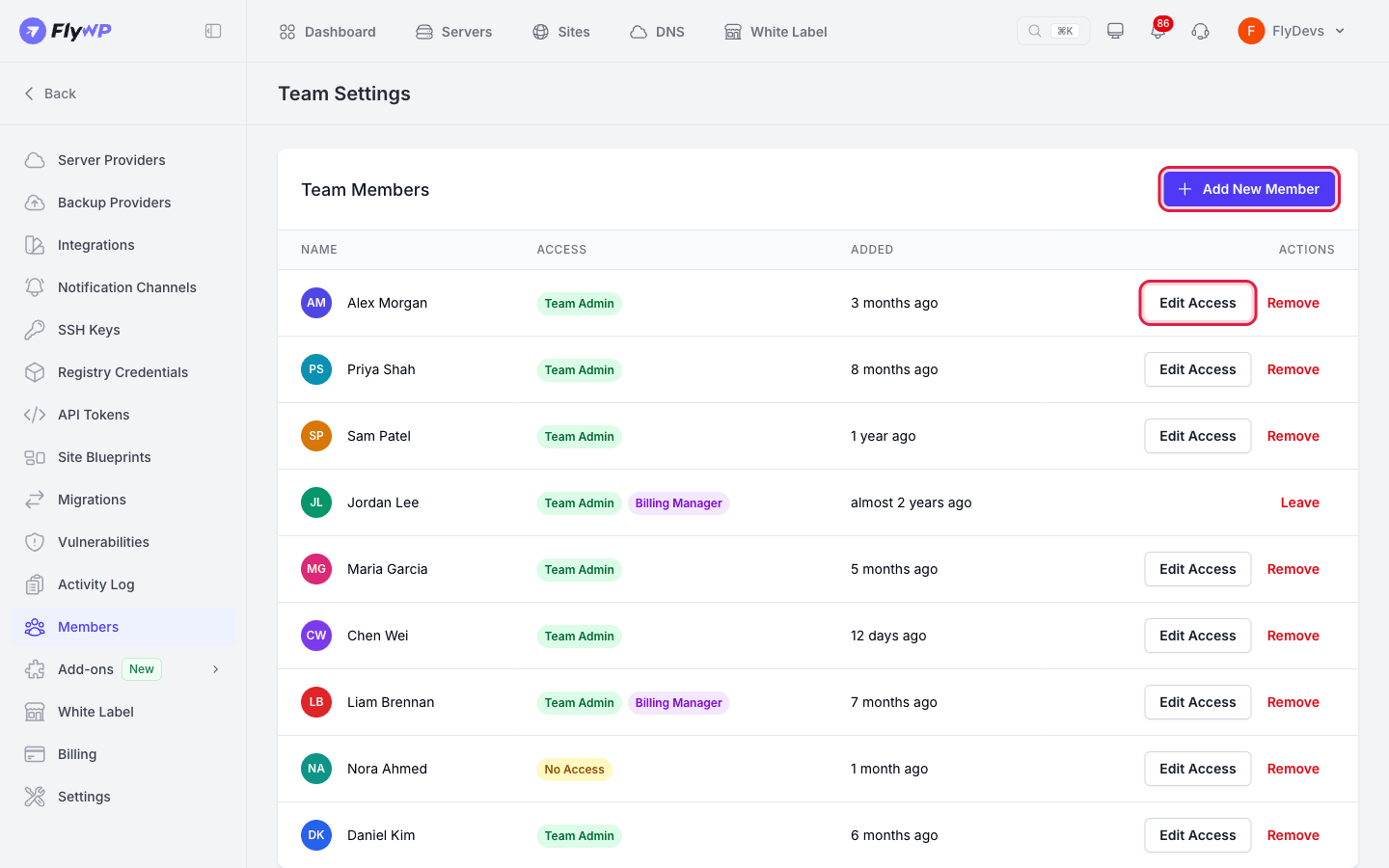
Click Add New Member to invite someone, or click Edit Access on a member's row.
-
The drawer opens from the right. It is titled Invite Team Member for a new person, or Edit Access followed by the member's name. When you invite someone, enter their email first.
-
Choose the member's roles and permissions, as described below.
-
Click Send Invitation, or Save Changes when editing.
You cannot change your own access.
Team Admin
Section titled “Team Admin”Turn on Team Admin to give full access to every server, site, and DNS zone, including member management. The permission list is hidden while it is on, and any permissions you set there are ignored.
Team-wide roles
Section titled “Team-wide roles”These switches sit under Team Admin and work on their own:
- Billing Manager: Manages plans, add-ons, cards, and invoices. Only the team owner can turn it on or off.
- White Label Manager: Appears only if your team has White Label. A Team Admin already has the White Label panel, so the switch is locked on.
Permissions
Section titled “Permissions”With Team Admin off, add one row for each resource the member needs:
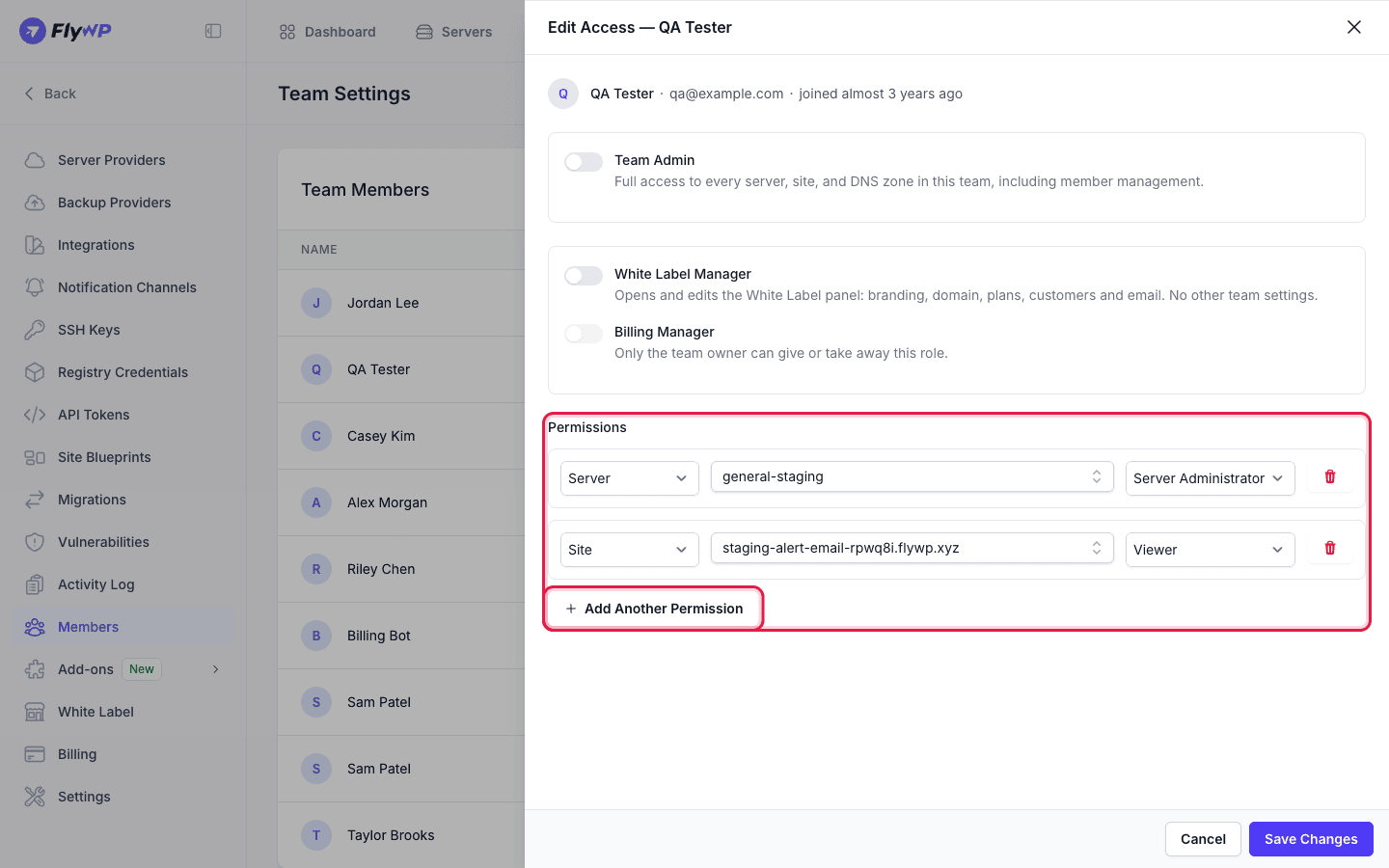
- Under Permissions, choose the type in the first dropdown: Server, Site, or DNS.
- Pick the resource:
- For Server or Site, search by name, or pick All servers or All sites to cover everything of that type, including ones you add later.
- For DNS, choose a DNS provider under Integration… first, then a zone or All zones.
- Choose the role. Server offers Server Administrator and Viewer. Site offers Site Administrator and Viewer. DNS always uses DNS Manager.
- To add more, click Add Another Permission. To remove a row, click the trash icon on it.
A member can have up to 100 rows, and the same resource cannot be listed twice.
If another row already gives the same role, the row shows an amber note such as Already covered by All servers or Already covered by the Production permission. You can delete a covered row without changing what the member can do.
If Team Admin is off and the member has no team-wide role and no rows, the drawer warns This member won't have access to anything in this team. Add a permission or make them a Team Admin. The member list shows No access for them.
Examples
Section titled “Examples”- Freelance developer
- Site:
clientapp.com, Site Administrator - DNS: Cloudflare, zone
clientapp.com, DNS Manager - Result: they can manage that site and its DNS records, and see nothing else.
- Site:
- Auditor
- Server: All servers, Viewer
- Site: All sites, Viewer
- Result: they can look at everything and change nothing.
- Staging sysadmin
- Server:
Staging-VPS-01, Server Administrator - Server:
Production-Cluster, Viewer - Result: full control of staging, read-only on production.
- Server:
What members see
Section titled “What members see”- Navigation: Menu items such as Servers and DNS only appear if the member's roles include them. A Viewer on a site, for example, can open Servers but only sees the servers they have access to.
- Lists and search: The server and site lists and the pickers show only what the member can access.
- Server names: On a site page, the server name is plain text instead of a link when the member has no access to that server.
Related guides
Section titled “Related guides”Still stuck? How can we help?
View as Markdown