Server Alerts and Monitoring Agent
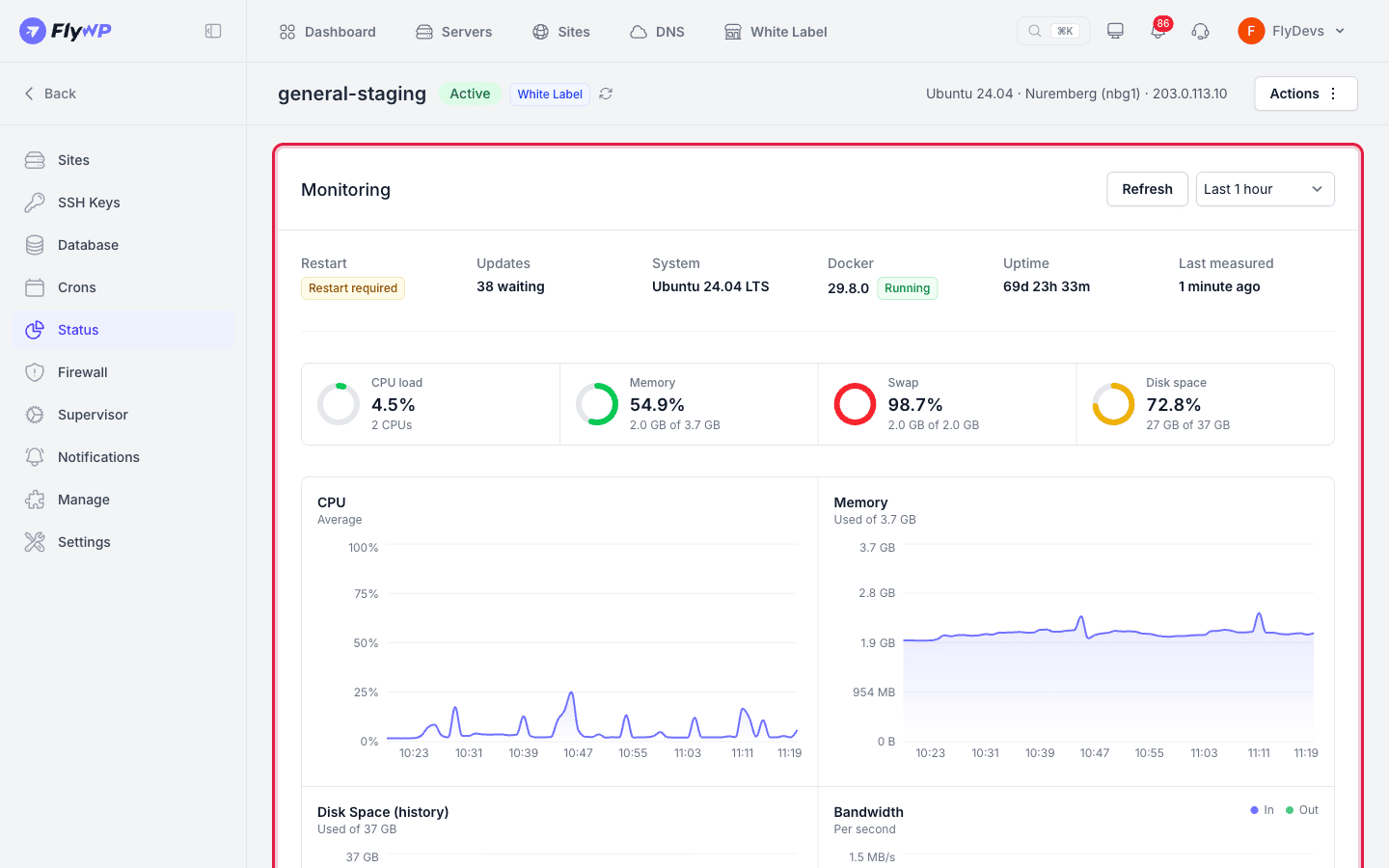
The monitoring agent is a small program FlyWP runs on your server. It measures the server every minute and reports the results to your FlyWP dashboard. With the agent installed, you see resource charts for the server, and FlyWP can alert you when CPU, memory, or disk stays too high, or when the server stops reporting.
What the agent reports
Section titled “What the agent reports”The agent reports:
- CPU, memory, swap, disk space, and bandwidth.
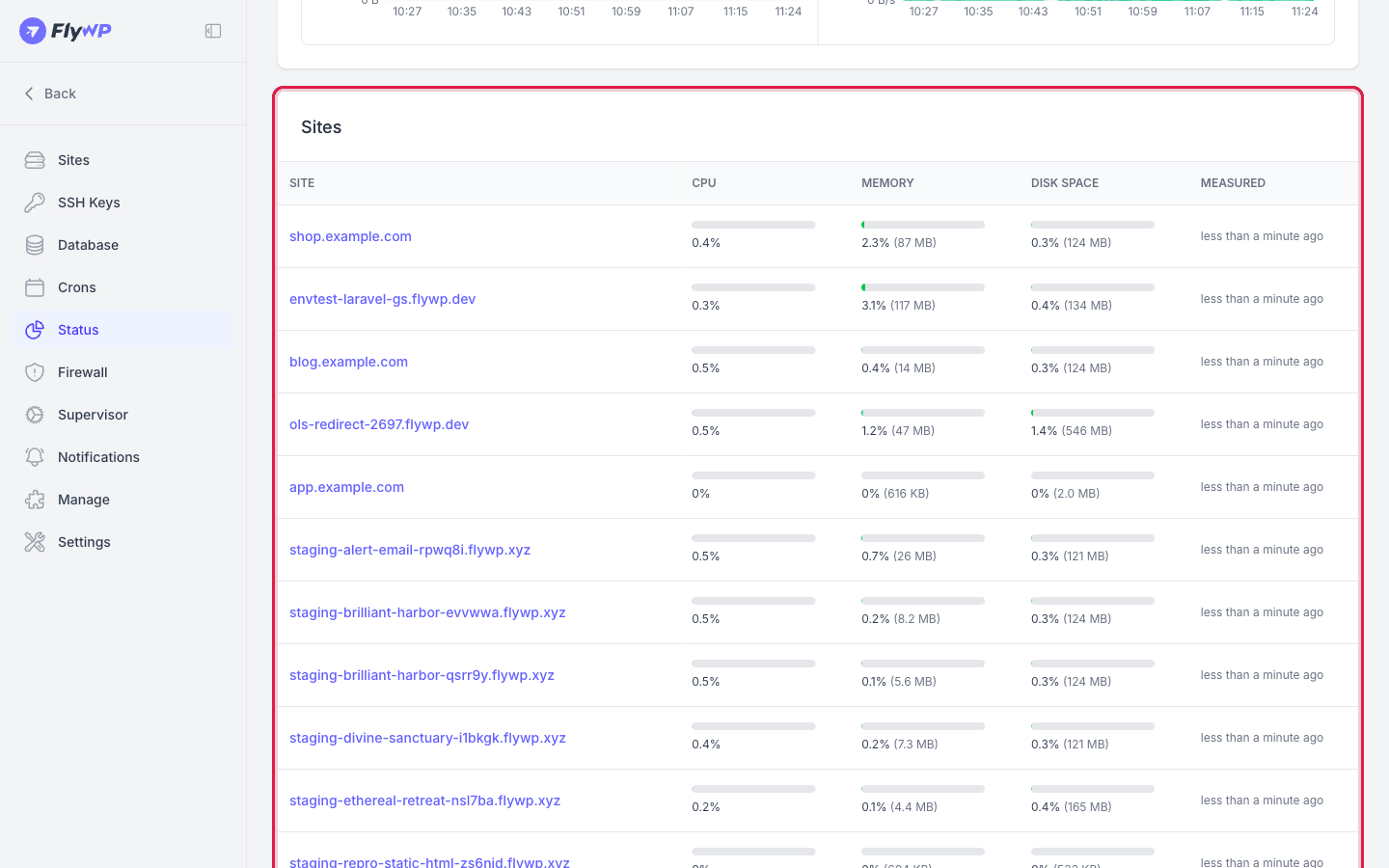
- The CPU, memory, and disk space use of each site.
- Docker: the version and whether it is running.
- The pending updates, and whether the server needs a restart.
You see these on the Status page of the server. For a full tour of the page, see Server Status.
Install the monitoring agent
Section titled “Install the monitoring agent”New servers get the agent when FlyWP finishes setting them up. On a server that does not have it yet, install it yourself:
- Open the server, then click Status in the server menu.
- In the Monitoring card, click Install agent.
FlyWP then shows The install is queued or running. This page shows the agent when the install is complete. The install can take several minutes.
When the install finishes, the first measurement arrives within a minute.
Good to know:
- The agent runs as a service on the server and starts again by itself if it stops. It updates itself, so you never update or restart it by hand.
- If the agent is already installed, FlyWP says The monitoring agent is already installed on this server. Clicking Install agent while an install is running does nothing.
- Install agent appears only when the agent is not installed and you have permission to change the server. If you cannot see it and think you should, contact FlyWP support.
Read the monitoring charts
Section titled “Read the monitoring charts”In the Monitoring card, choose a time range from the list: Last 1 hour, Last 6 hours, Last 24 hours, or Last 7 days. The page updates by itself every minute. Click Refresh to load the latest measurements right away.
The gauges show the latest CPU load, Memory, Swap (only when the server has swap) and Disk space. The charts show CPU, Memory, Disk Space (history), and Bandwidth. If the agent stopped measuring, the card says when it last measured.
Above the gauges, the card shows the latest report from the agent:
| Field | Description |
|---|---|
| Restart | Restart required or Not required. |
| Updates | The number of pending updates, with a badge for how many are security updates. |
| System | The server's operating system. |
| Docker | The Docker version and whether it is running. |
| Uptime | How long the server has been running. |
| Last measured | When the agent last reported. |
Below the card, the Sites table shows the CPU, Memory, and Disk space use of each site, and when it was Measured.
Set the alert limits
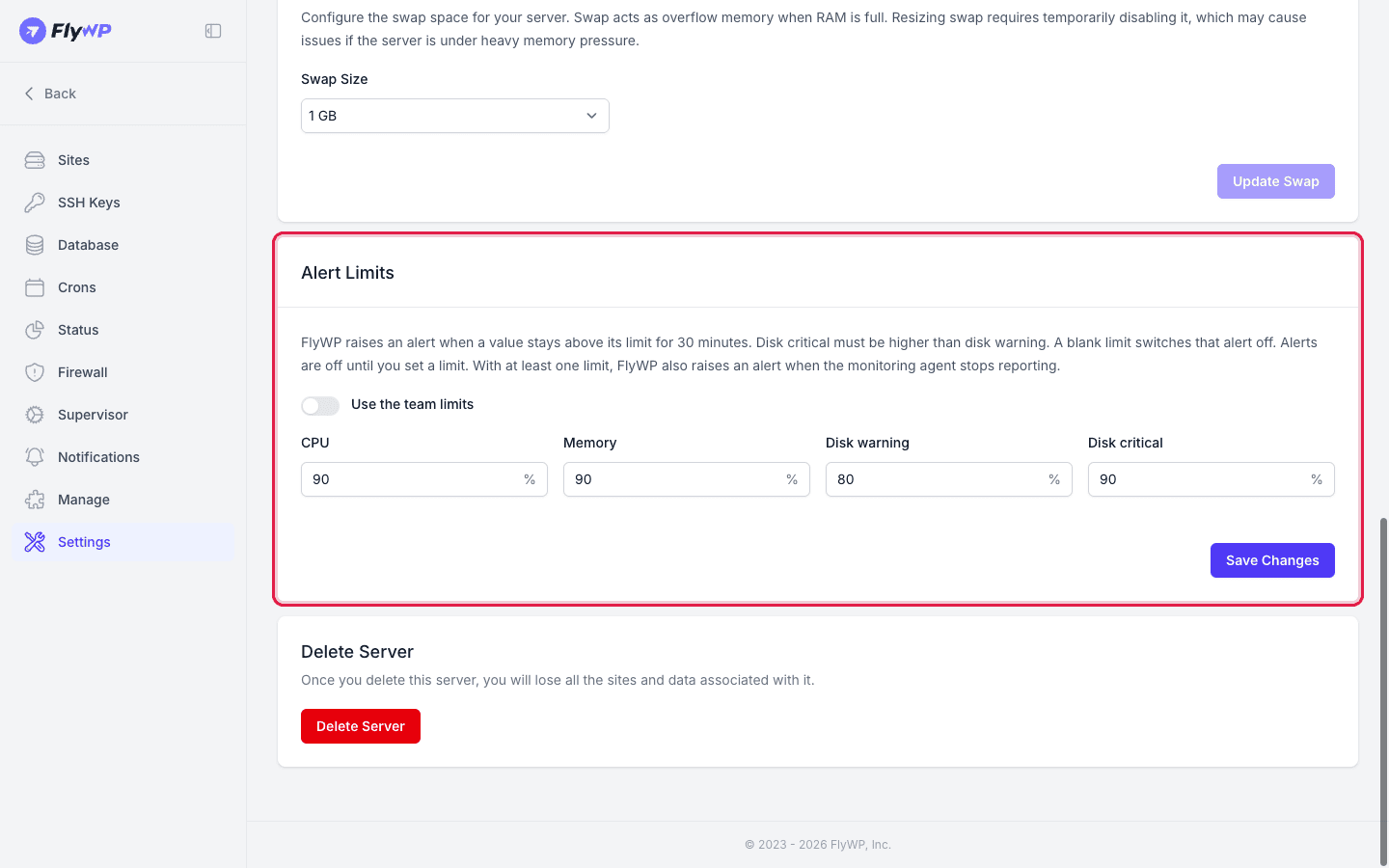
Section titled “Set the alert limits”Alert limits tell FlyWP when a server's resource use is too high. FlyWP sets no limits for you, so alerts are off until you set at least one.
- Open the server, then click Settings in the server menu.
- In the Alert Limits card, enter a percentage in each field you want:
- CPU
- Memory
- Disk warning
- Disk critical
- Click Save Changes.
Rules for the limits:
- Each limit is a whole number from 1 to 99.
- A blank field switches that alert off.
- Disk critical must be higher than Disk warning. If both are set and you try to save a lower critical value, FlyWP shows The disk critical limit must be higher than the disk warning limit.
- Disk critical and Disk warning are two levels of one disk alert, so you can set either one alone.
- Bandwidth has no limit.
Use the team limits
Section titled “Use the team limits”Turn on Use the team limits to give the server your team's limits. The fields then show the team values and are locked. Click Save Changes to apply them. This removes the server's own limits.
To give a server its own limits, turn the switch off, enter the limits, and click Save Changes. A server's own limits replace the team limits completely: a blank field on the server stays off, even when the team has a limit for it.
To set the team limits:
- Open Team Settings, then click Settings in the sidebar.
- In the Server Alert Limits card, enter the limits and click Update.
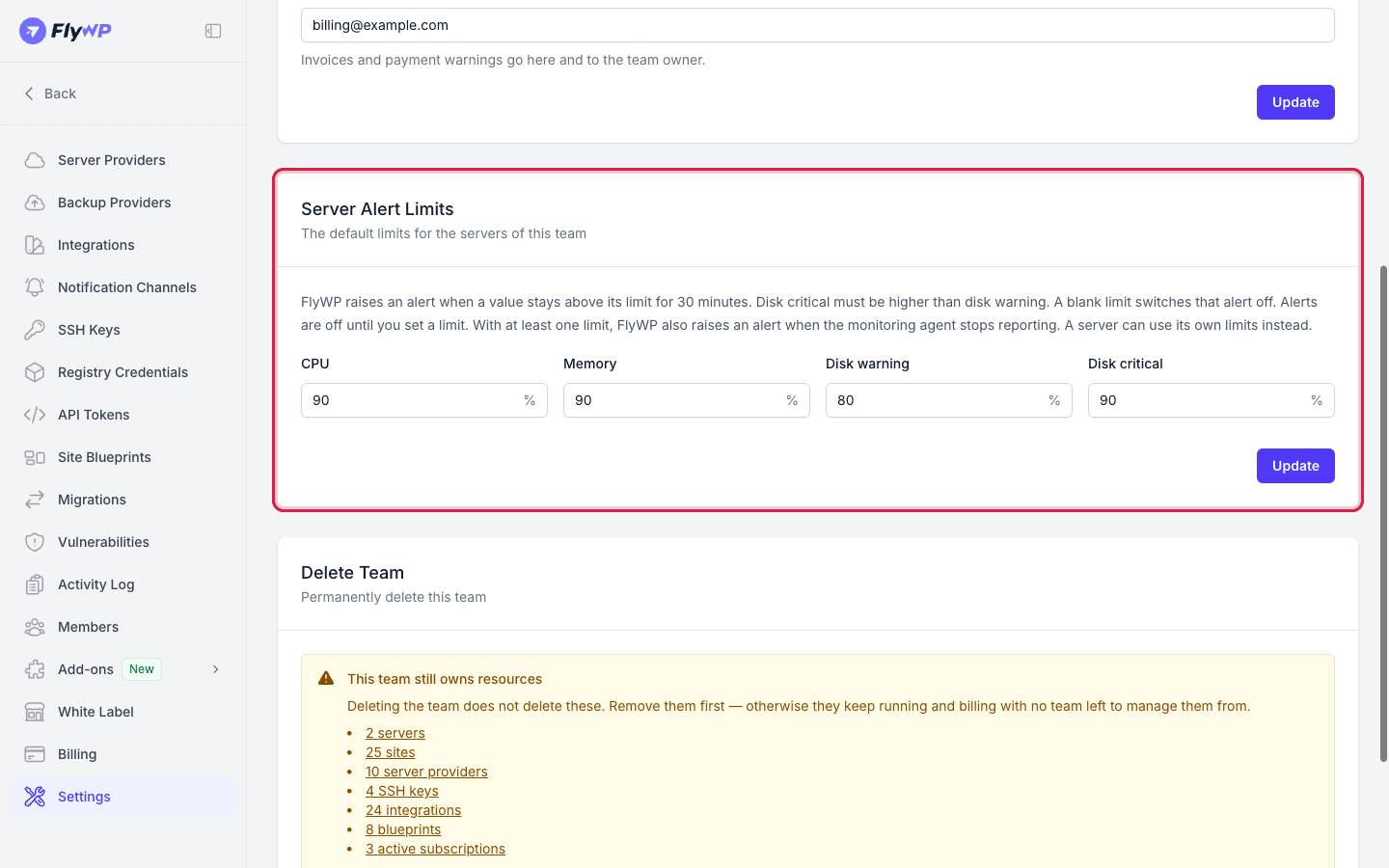
The team limits apply to every server in the team that has no limits of its own.
When FlyWP raises an alert
Section titled “When FlyWP raises an alert”FlyWP raises one alert for each problem, and one message when it clears. It does not repeat the message while the problem lasts.
| Alert | When it opens | When it clears |
|---|---|---|
| High CPU, High memory | The value stayed above its limit for 30 minutes. | The value stayed below the limit for 30 minutes. |
| Low disk space | Disk use stayed above Disk warning for 30 minutes. | Disk use stayed below the limit for 30 minutes. |
| Disk almost full | Disk use stayed above Disk critical for 30 minutes. If a Low disk space alert is open, it escalates to Disk almost full and you get one more message. | Disk use stayed below Disk warning (or below Disk critical when warning is off) for 30 minutes. |
| Server not reporting | The agent stopped reporting. FlyWP waits several minutes before it raises this, so a short network blip does not alert you. | The agent reported again and kept reporting for 10 minutes. |
The 30-minute window means a short spike, such as a backup or an update, does not raise an alert.
Server not reporting is sent when at least one limit is set. A server that is disconnected or failed, or that is scaling, does not raise it.
If you switch a limit off, or clear all limits, FlyWP closes the open alert for it without a message.
Where the alerts go
Section titled “Where the alerts go”FlyWP sends each alert to the people on your team who can open the server's Status page. They get it in the bell in the app, and by email when Servers is switched on in Profile → Notifications. Server not reporting and Disk almost full are critical alerts. The others are warnings, and the recovery messages are informational.
To send these alerts to a shared Slack channel or Telegram group, add a channel for the server. See Notification Channels. To read the alert history and choose your email preferences, see Notifications.
Troubleshooting
Section titled “Troubleshooting”- There is no Install agent button. The agent may already be installed, or you may not have permission to change the server. Ask the team owner, or contact FlyWP support.
- The Sites table says the agent has not reported. The server may be off, or the agent may have stopped. The agent restarts by itself, so wait a few minutes. If it does not report again, contact FlyWP support.
- You get no alerts. Check that at least one limit is set on the server, or that the server uses team limits that are set.
Related guides
Section titled “Related guides”Still stuck? How can we help?
View as Markdown