Common Issues
This page collects the problems people most often bring to FlyWP support, with the cause and the fix for each. Find your area below, then look for the heading that matches what you see.
If nothing here matches, check the FAQ or contact support. Include the server and site name, what you were doing, the exact error text, and the time it happened.
Start with the logs
Section titled “Start with the logs”Most site problems leave a line in a log that names the cause, such as the plugin or theme behind a fatal error. Check the logs before you restart anything or change settings.
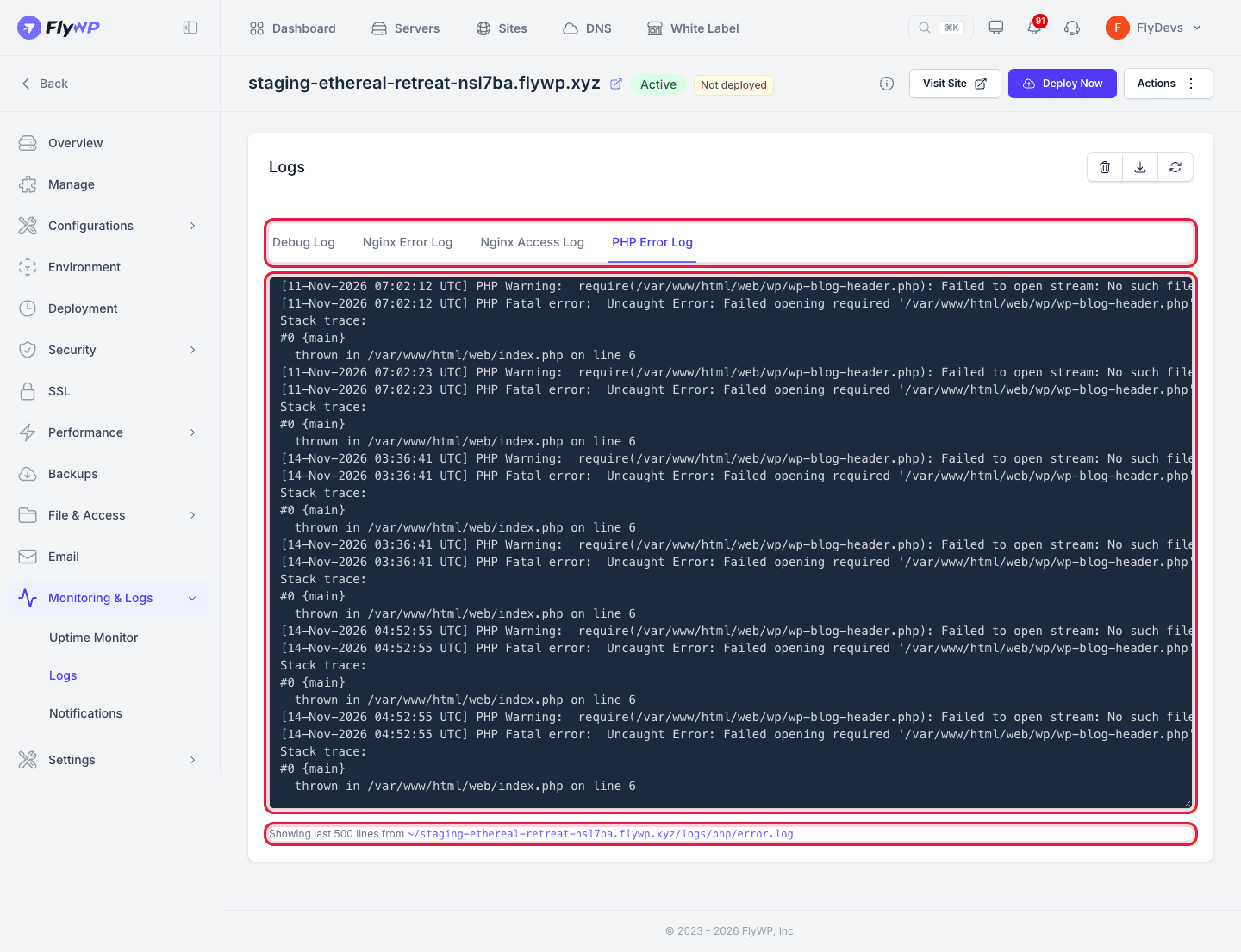
- Open the site, then go to Monitoring & Logs → Logs.
- Pick the log for your problem from the table below.
- Read the newest lines at the bottom. Note the time, the error type (
PHP Fatal error,PHP Warning) and any file path, such aswp-content/plugins/<plugin-name>/. - Use the icons at the top right to refresh the log, download it, or clear it. Clearing deletes the file's contents, so download it first if you need it.
| Log | What it shows | Check it for |
|---|---|---|
| PHP Error Log (Nginx sites) | PHP errors and warnings from the site | 502 errors, "critical error", a blank page, memory limits |
| Debug Log | WordPress errors, once Enable Debug Log is on under Configurations → WP Config | Plugin and theme errors, failed scheduled tasks |
| Nginx Error Log (Nginx sites) | Web server errors | 502 and 504 errors, upload size limits |
| Nginx Access Log (Nginx sites) | Every request: time, address, status code, user agent | 403 blocks, bot traffic, attacks on wp-login.php |
| OLS Error Log, OLS Stderr Log, OLS Access Log (OpenLiteSpeed sites) | The same information for OpenLiteSpeed sites | The same problems as above |
When you contact support, include the last lines of the log you checked. See Logs for more.
Jump to
Section titled “Jump to”- Sites and WordPress
- Servers and resources
- Domains, DNS and SSL
- Blocked requests (403 errors)
- SSH, SFTP and files
- Backups and restore
- Migrations
- Git deployments
Sites and WordPress
Section titled “Sites and WordPress”My site shows 502, 503, 504 or 522
Section titled “My site shows 502, 503, 504 or 522”Symptom: Visitors see "502 Bad Gateway", "503", "504 Gateway Time-out", or Cloudflare "522 Connection timed out" (wp-admin may also time out).
Cause:
- 502: PHP stopped, crashed, ran out of workers, or the server ran out of memory.
- 503: The site is paused (Maintenance or Sleeping), or the web server has no running site target.
- 504: A request exceeded Max Execution Time (Nginx sites) or the proxy timeout.
- 522: Cloudflare cannot reach your server (off, overloaded, or blocked).
Fix:
-
Open the server's Status tab (install the monitoring agent if prompted; see Server Status). If Disconnected or Docker is not Running, see Server shows Disconnected; if CPU load, Memory or Disk space is full, see My server is slow or My server disk is full.
-
Check the status badge next to the site name: click Wake Site if Sleeping (Site Sleep), or turn maintenance mode off if Maintenance (Maintenance Mode).
-
Read the last lines under Logs (see Start with the logs): PHP Error Log and Nginx Error Log (Nginx sites), or OLS Error Log and OLS Stderr Log (OpenLiteSpeed sites). If a fatal error names a plugin or theme, see the critical error steps.
-
If this began after changing PHP or Enable JIT Compiler (Nginx sites), revert under Configurations → PHP and click Save Changes (Change PHP Version). Saving recreates containers, taking the site down briefly. Do not edit FlyWP's configuration files by hand; saving overwrites them or can break updates.
-
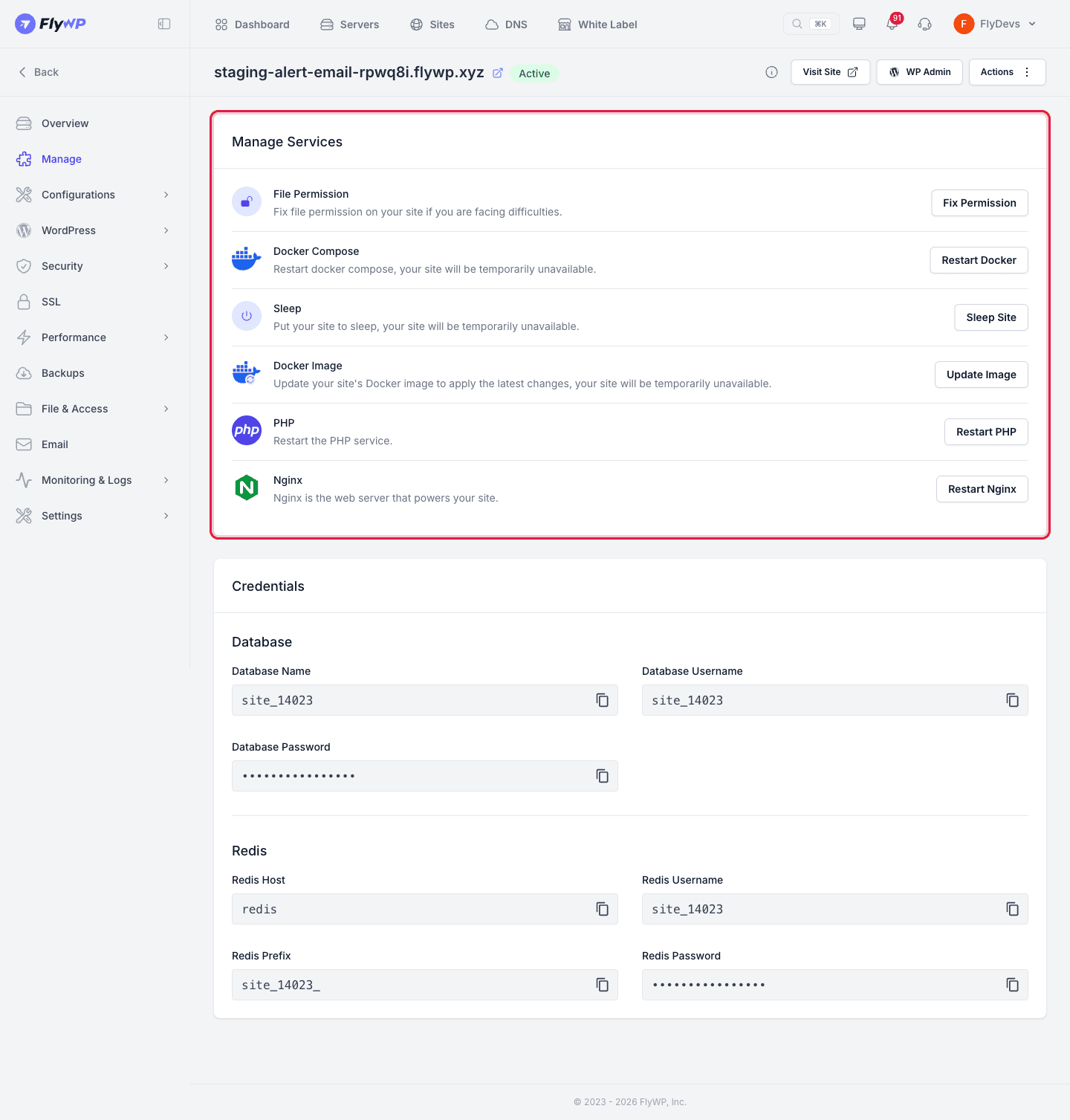
Under Manage → Manage Services, click Restart PHP (Nginx sites) or Restart OLS (OpenLiteSpeed sites), then Restart Docker if still down (the site is unavailable briefly during a restart).
-
For traffic spikes (Nginx sites only), raise Max Children (pm.max_children) under Configurations → PHP → Process Manager Type in small steps only while Memory has room; otherwise reduce load (My server is slow) or move to a larger server. For 504, raise Max Execution Time (the PHP limits steps).
-
For 522, confirm HTTP (80) and HTTPS (443) are allowed in the server Firewall and your provider's firewall.
Still down? Contact support with the site address, time, error code, recent changes, and last error log lines.
"There has been a critical error on this website"
Section titled “"There has been a critical error on this website"”Symptom: The site shows "There has been a critical error on this website" or a blank white page.
Cause: PHP hit a fatal error (usually a plugin/theme conflict, PHP version incompatibility, or memory exhaustion), and FlyWP turns error display off on live sites.
Fix:
- If it started after a PHP change, revert under Configurations → PHP and click Save Changes. Otherwise read the last lines of PHP Error Log (Nginx sites) or Debug Log under Logs to find the plugin or theme folder path (Start with the logs).
- If logs are empty, turn on Enable Debug Log (also enables Enable Debug Mode) under Configurations → WP Config, click Save Changes, reload the broken page, read Debug Log, then turn both off (WP Config). Do not turn on Enable Debug Display on a live site, as it shows errors to visitors.
- In File Manager (File Manager), go to
wp-content/plugins(orwp-content/themes) and rename the named folder via the three-dots menu to skip it (WordPress → Plugins can fail while the site is broken). - If unclear which plugin failed, take a backup first, rename the whole
pluginsfolder (WordPress deactivates every plugin), reload, rename it back, and reactivate plugins one at a time. Only do this as a last resort, because some plugins change files or settings when deactivated. - For "Allowed memory size exhausted", raise PHP Memory Limit (Memory, upload size or timeout errors).
Redis object cache errors (NOPERM, or "Error establishing a Redis connection")
Section titled “Redis object cache errors (NOPERM, or "Error establishing a Redis connection")”Symptom: The Redis Object Cache plugin errors, logs show NOPERM this user has no permissions to run the '...' command, or the site slows down after enabling Object Cache.
Cause: Redis is shared by the sites on a server. Each site's Redis user can only use keys with its own prefix and a limited set of commands (NOPERM means a plugin sent another command). Redis may also be stopped, or its connection settings in wp-config.php changed.
Fix:
-
For
NOPERM, disable the plugin feature triggering that command (such as tracking or analytics), or turn off Object Cache (step 2). If you need that feature, contact support with the site address, plugin name, and fullNOPERMline. -
For connection errors or slowness, open Performance → Caching (Page Caching), turn Object Cache off, click Save Changes, confirm the site loads, then turn it back on, save, and click Clear Cache (FlyWP uses the Redis Object Cache plugin on Nginx sites and the LiteSpeed Cache object cache settings on OpenLiteSpeed sites).
-
Do not change
WP_REDIS_*inwp-config.php(Nginx sites) or LiteSpeed Cache Object Cache settings (OpenLiteSpeed sites); FlyWP manages them (view credentials under Manage → Credentials → Redis; see Redis Credential Access). -
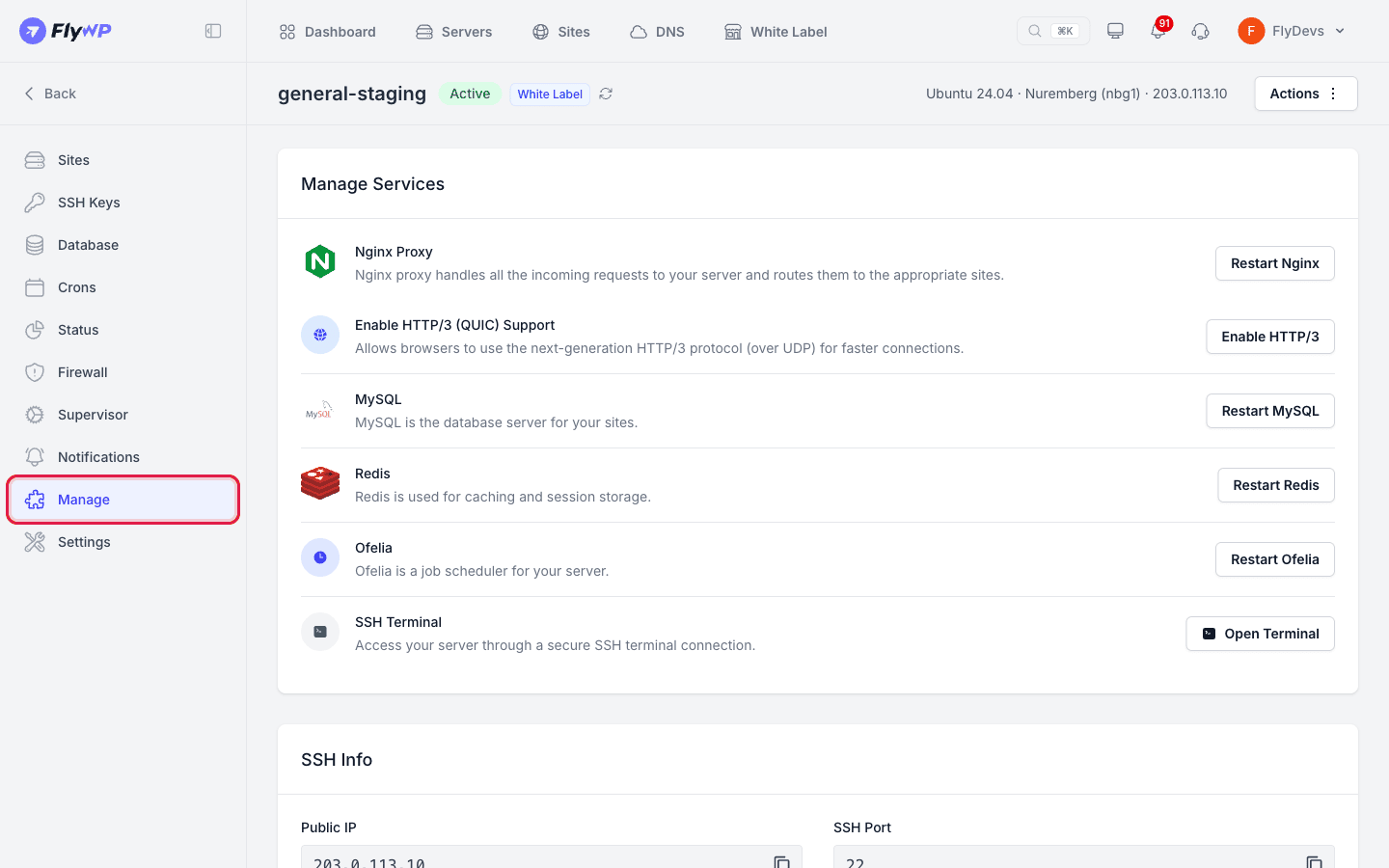
Under the server's Manage tab, click Restart Redis (affects every site on the server for a moment).
Plugin or WordPress updates do not show in FlyWP, or an update "failed"
Section titled “Plugin or WordPress updates do not show in FlyWP, or an update "failed"”Symptom: WordPress → Overview shows missing/old updates, "Failed to load WordPress overview details.", or "Some metrics could not be refreshed and cached values were used.", Plugins shows "Failed to fetch plugin updates." with Fix Now, or an update reports failure despite succeeding.
Cause: FlyWP reads updates via the FlyWP Helper plugin only when Overview data is more than an hour old; stale or missing data means the Helper plugin is inactive, Cloudflare challenges FlyWP, or the site is down.
Fix:
-
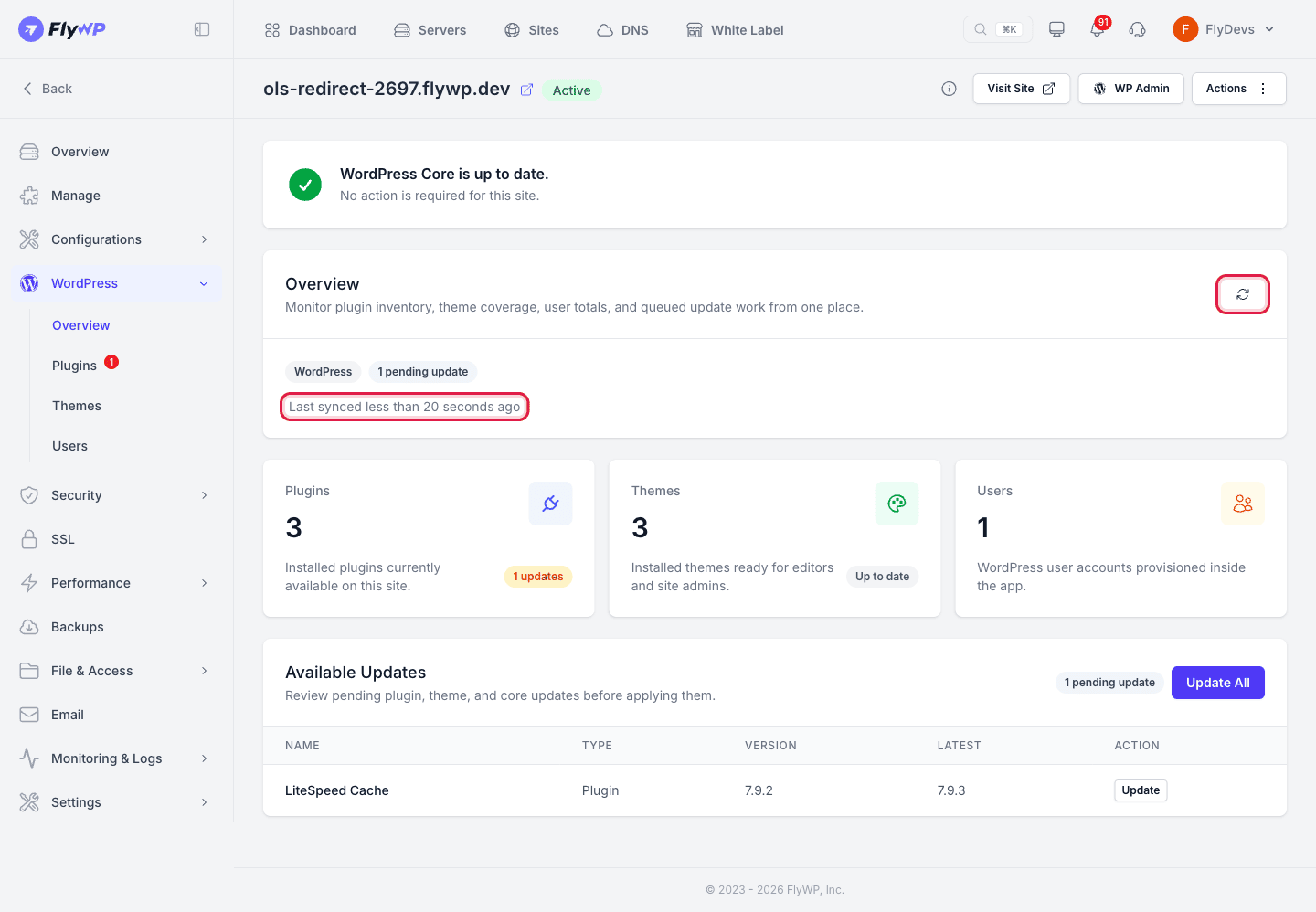
Under WordPress → Overview, click the refresh icon (Last synced shows the last check).
-
Check the FlyWP Helper plugin status on Overview; if not Enabled, click Refresh to install and activate it (FlyWP Helper Plugin Status).
-
If Cloudflare or another firewall still blocks updates, see Cloudflare or a firewall blocks FlyWP's requests.
-
If a plugin does not appear in Available Updates, WordPress does not report an update for it (common for premium plugins that need an active license); update those in wp-admin with the license active.
-
If an update says it failed, check the version under WordPress → Plugins and refresh again to verify.
-
If updates show Unavailable, wake the site or wait until it is Active (not Sleeping, restoring, or updating); Bedrock and Git-deployed sites show Managed on source control because updates come through your repository.
Take a backup before running updates on a live site (Bulk Updates). Still failing? Contact support with the exact error text and time.
WordPress scheduled tasks do not run (WP-Cron)
Section titled “WordPress scheduled tasks do not run (WP-Cron)”Symptom: Scheduled posts show "Missed schedule", or scheduled plugin jobs, emails, or backups run late or never.
Cause: On new sites, FlyWP sets DISABLE_WP_CRON and runs events with WP-CLI every 10 minutes by default; tasks stop if the site is Sleeping, Ofelia stopped, or a plugin task fails.
Fix:
- Confirm the site is not Sleeping (cron pauses while sleeping).
- Under the server's Manage tab, click Restart Ofelia.
- Run
wp cron event listvia WP-CLI and check Debug Log for task errors. - To run tasks more often (WordPress and Bedrock sites), adjust Run Every (seconds, minutes, or hours; 1 minute suits most sites, and very short intervals load the server) under Settings → Cron Settings and click Save Changes (restarts the container briefly; see FlyWP Cron Management).
Leave DISABLE_WP_CRON as it is so WordPress does not run cron on page loads alongside FlyWP's timer. For non-WordPress jobs, use the server's Crons tab (Create a Cron Job). Still broken after Restart Ofelia? Contact support with your interval and one failing task.
My site shows old content after I changed it
Section titled “My site shows old content after I changed it”Symptom: Logged-out visitors still see old pages, or new posts, archives, menus, widgets, or theme changes do not appear.
Cause: Cached copies remain in FlyWP page cache (on Nginx sites, FastCGI Cache keeps pages for the Cache Duration; the FlyWP Helper plugin clears a post's own page when you publish or update it, but archives, menus, widgets, and settings changes stay cached until the duration ends or you clear the cache), Cloudflare/CDNs (not cleared by FlyWP), or your browser.
Fix:
- Test in a private window (logged out) or hard-reload (
Ctrl+Shift+R, orCmd+Shift+Ron Mac). - On Nginx sites with FastCGI Cache, open Performance → Caching → Page Cache and click Clear Cache, or lower Cache Duration (seconds, minutes, hours, or days; see FastCGI Caching).
- On OpenLiteSpeed sites, purge from the LiteSpeed Cache plugin in wp-admin (the Page Cache card has no Clear Cache button).
- If database data looks old, click Clear Cache in Object Cache.
- To bypass caching for carts, checkouts, or accounts (Nginx sites with FastCGI Cache), add rules under Request URI Exclusions and Cookie Exclusions (or use Common Presets: WooCommerce, WordPress Admin, WordPress Cache).
- Purge your Cloudflare cache and check HTML Cache Rules (Cloudflare integration).
- Hard-reload or recheck in a private window.
My static copy does not show my latest changes
Section titled “My static copy does not show my latest changes”Symptom: The static copy shows old content, a deploy stays Running or Queued, or the last deploy shows Failed or Partial.
Cause: The static copy is a snapshot updated only when you redeploy; deploys can also fail on low disk space, or a front-end cache may hold an old copy.
Fix:
- Open Performance → Static Site and click Deploy after content changes, or Full rebuild (slower, refetches every page) if changes are still missing.
- Check the latest Status in Deploy history and click Details to see errors and failed URLs.
- If a deploy stops or hangs on Running, free disk space if full and see If a deploy stops.
- If Cloudflare sits in front of the static domain, purge its cache after deploying.
Still failing? Contact support with the error from Details (see Publish a Static Site).
"Error establishing a database connection"
Section titled “"Error establishing a database connection"”Symptom: The site shows "Error establishing a database connection".
Cause: MySQL stopped (often due to low RAM or disk space), or the database name, user, or password in wp-config.php does not match the database.
Fix:
- Check if other sites on the same server show the error; if so, follow MySQL stops or keeps restarting.
- Check the server's Status tab; a full Disk space gauge stops MySQL (My server disk is full).
- If only one site fails, compare Database Name, Database Username, and Database Password under Manage → Credentials against
DB_NAME,DB_USER, andDB_PASSWORDinwp-config.phpvia File Manager (.envon Bedrock sites; see File Manager and Database).
If credentials match and MySQL is running, contact support with when it began.
"Allowed memory size exhausted", upload too large, or a request times out
Section titled “"Allowed memory size exhausted", upload too large, or a request times out”Symptom: WordPress says "Allowed memory size of ... bytes exhausted" or "exceeds the maximum upload size for this site", the server returns "413 Request Entity Too Large", or long imports/exports hit 504.
Cause: A request exceeded one of the site's PHP limits.
Fix:
-
Under Configurations → PHP, adjust the matching limit:
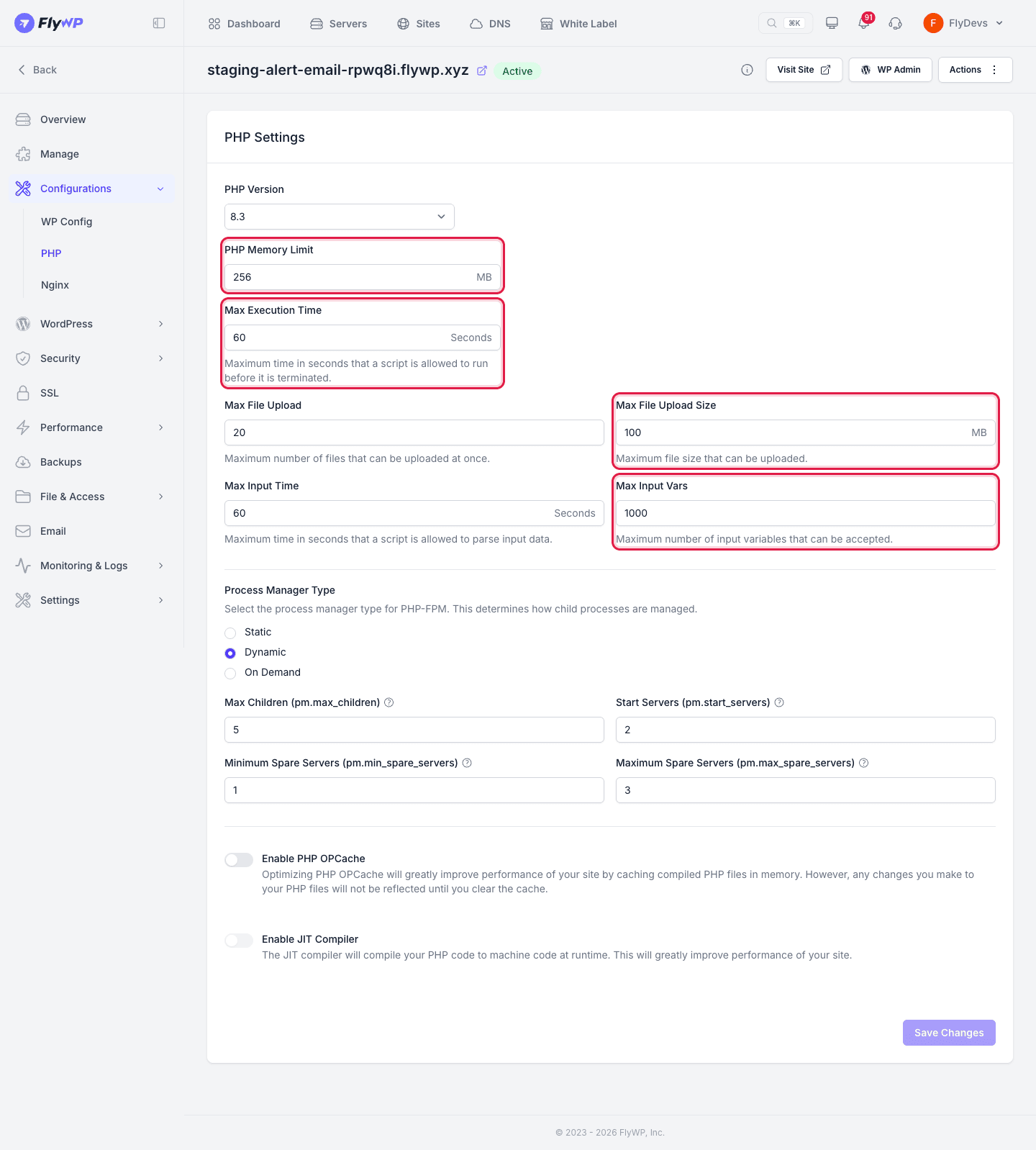
- PHP Memory Limit (MB) for "memory size exhausted" (minimum 128 MB; new sites start at 256 MB; also writes
WP_MEMORY_LIMITtowp-config.phpon WordPress sites). - Max File Upload Size (MB) for upload errors and 413 (new sites start at 100 MB; also sets the Nginx body size limit on Nginx sites—contact support if 413 persists).
- Max Execution Time (seconds) for long requests and 504 (new sites start at 60 seconds; sets PHP's limit only on OpenLiteSpeed sites).
- Max Input Vars for forms or menus that save only partly (default 1000).
- PHP Memory Limit (MB) for "memory size exhausted" (minimum 128 MB; new sites start at 256 MB; also writes
-
Click Save Changes (recreates containers, taking the site down for a moment).
Do not set a large memory limit "just in case"—each busy PHP worker can use that much memory and exhaust server RAM (My server is slow). See Change PHP Version for all settings.
Servers and resources
Section titled “Servers and resources”My server is slow, or CPU, RAM or swap looks too high
Section titled “My server is slow, or CPU, RAM or swap looks too high”Symptom: Sites are slow, CPU/memory alerts fire, or Status gauges stay high after a traffic spike.
Cause: Too many busy sites, a bot/crawler spike, a heavy plugin/import/backup, or PHP workers set too high for RAM (swap use is normal unless swap stays high and sites are slow).
Fix:
- Open the server's Status tab (click Install agent if asked; see Server Status and Server Alerts and Monitoring Agent). Gauges show CPU load (per CPU, can exceed 100%), Memory, Swap, and Disk space; use the time range and Sites table to spot the busiest site or Shared services (MySQL, Redis, proxy).
- Check that site's Nginx Access Log (or OLS Access Log) under Logs for repeated IPs or hits to
wp-login.phporxmlrpc.php. - On Nginx sites only, turn on Bad Bot Protection and 8G Firewall under Security → General (Firewalls and Bot Protection), or enable Cloudflare's proxy and bot protection.
- On Nginx sites, lower Max Children (pm.max_children) under Configurations → PHP if memory runs out; raise it only when Memory has room.
- Move a heavy site to its own server (Clone or Transfer a Site).
- Scale CPU/RAM: if the server has a Scale tab, open it (DigitalOcean, Vultr, Akamai, Hetzner; only larger plans appear, billing the full new plan price—or the rest-of-month difference on FlyWP Managed servers—with the server offline during resize). Choose The disk grows too to grow disk too (only mode on Vultr; a disk never gets smaller), or resize at your provider (FlyWP Managed Servers).
- Only if memory keeps running out, adjust Settings → Swap Space off peak, as resizing disables swap briefly (Increasing Swap Space).
Set early warnings under Settings → Alert Limits. Still slow? Contact support with a Status screenshot.
"Restart required", or Ubuntu updates are waiting
Section titled “"Restart required", or Ubuntu updates are waiting”Symptom: Status shows Restart as Restart required, or Updates lists waiting packages with a red security badge.
Cause: FlyWP installs Ubuntu security updates automatically, but kernel updates need a restart and non-security updates require manual installation.
Fix:
- In a quiet hour, click Actions → Restart Server and confirm (server and all sites go down while restarting, then Docker and sites start automatically; see Server Status).
- Click Refresh on Status; Restart returns to Not required after the next measurement.
- For other updates, connect with SSH using SSH Login and Sudo Password (if stored) on Manage (Managing Services), make a backup first, and run
apt upgradein a quiet hour (can update Docker and restart every site).
Unsure? Contact support with what Status shows for Restart and Updates before updating.
New server is stuck on Creating or Provisioning, or shows Failed
Section titled “New server is stuck on Creating or Provisioning, or shows Failed”Symptom: A new server stays on Creating or Provisioning, stalls on a step, or shows Server Provisioning Failed.
Cause: Provisioning stalls if the provider is slow, SSH is unreachable, a step stops (marking Failed after retries), or a Custom server is waiting for you to run its setup command.
Fix:
- For a Custom server, log in as
rootand run the command in Provision Your Server with FlyWP (reopen the server page to see it again; see Custom Server). - Refresh the page once if a step (Powering On, Connecting, Installing Docker, Starting Services) does not move.
- In your provider's dashboard, verify the server is running with a public IP and allows FlyWP SSH access (Whitelisting IP for SSH Connections).
- If it shows Server Provisioning Failed, copy anything needed from it first, click Delete Server (also deletes it at your provider), and recreate it; for a FlyWP Managed server, FlyWP refunds the creation charge automatically (How to Provision a Server).
If stuck without Server Provisioning Failed, contact support before deleting or restarting at the provider, noting the step and duration.
MySQL stops or keeps restarting
Section titled “MySQL stops or keeps restarting”Symptom: Several sites on one server show "Error establishing a database connection" at once until MySQL restarts.
Cause: Linux stops MySQL first when the server runs out of memory, or a full disk blocks MySQL writes.
Fix:
- Open Status: if Disk space is full, fix My server disk is full first; otherwise check Memory over Last 24 hours or Last 7 days for RAM exhaustion (My server is slow).
- Under Manage, click Restart MySQL (drops running queries briefly), wait a minute, and reload a site.
- Reduce memory use by lowering PHP Memory Limit (and Max Children on Nginx sites) on busy sites, stopping unused sites, or moving to a larger server.
If MySQL keeps stopping with memory and disk fine, contact support with the outage times.
My server disk is full
Section titled “My server disk is full”Symptom: Disk space on Status nears 100%, breaking uploads, updates, backups, deploys, or MySQL.
Cause: Site files, uploads, large logs, old archives, or too many sites filled the disk.
Fix:
- Check the Disk space column in Status → Sites to spot the largest site.
- In that site's File Manager (File Manager), delete old backup archives,
.zipfiles, and unused media. - Under Logs, download any needed large log and click the bin icon to clear it (Application/Node logs cannot be cleared here).
- Delete unused sites (like old staging copies) under Settings → General after backing up (Delete Site is permanent; the gauge updates once an hour).
- Add disk space: if the server has a Scale tab, use it with The disk grows too (only mode on Vultr; server is off during the change and a disk cannot be made smaller afterwards) or resize at your provider (FlyWP Managed Servers).
- If MySQL stopped, click Restart MySQL under Manage once space is free.
If Disk space stays high without matching site usage, contact support with a Status screenshot.
Server shows Disconnected, or all sites are down at once
Section titled “Server shows Disconnected, or all sites are down at once”Symptom: The server shows Disconnected, Status says the agent has not reported, or every site on the server is down.
Cause: FlyWP cannot open an SSH connection because the server is off/restarting/overloaded, SSH is firewalled, or IP Address / SSH Port changed.
Fix:
- Check your provider's dashboard and start or restart the server if off or frozen (Restart Server in FlyWP requires SSH).
- Confirm the SSH rule (port 22) allows FlyWP in your provider's firewall and the server's Firewall tab (Firewall, Whitelisting IP for SSH Connections).
- Verify IP Address and SSH Port under Settings → Server Metadata (Server Settings); these only change what FlyWP stores, not the server, so change them only if they have really changed.
- Click Refresh server status next to the server name (or wait a minute and retry; FlyWP also checks once a day) until the badge returns to Active.
Still Disconnected while running at your provider? Contact support with what your provider's console shows.
Domains, DNS and SSL
Section titled “Domains, DNS and SSL”My SSL certificate won't install, stays pending, or the site shows "SSL is not enabled"
Section titled “My SSL certificate won't install, stays pending, or the site shows "SSL is not enabled"”Symptom: The site padlock shows "SSL is not enabled", SSL shows Failed or Installing, or Install Certificate reports "did not answer from this server over HTTP".
Cause: Let's Encrypt validates every listed domain over HTTP (port 80) and fails the whole certificate if any domain has wrong A/AAAA records, a missing subdomain (like www), a restrictive CAA record, a 403/firewall block on port 80, or over 5 failures per domain each hour.
Fix:
-
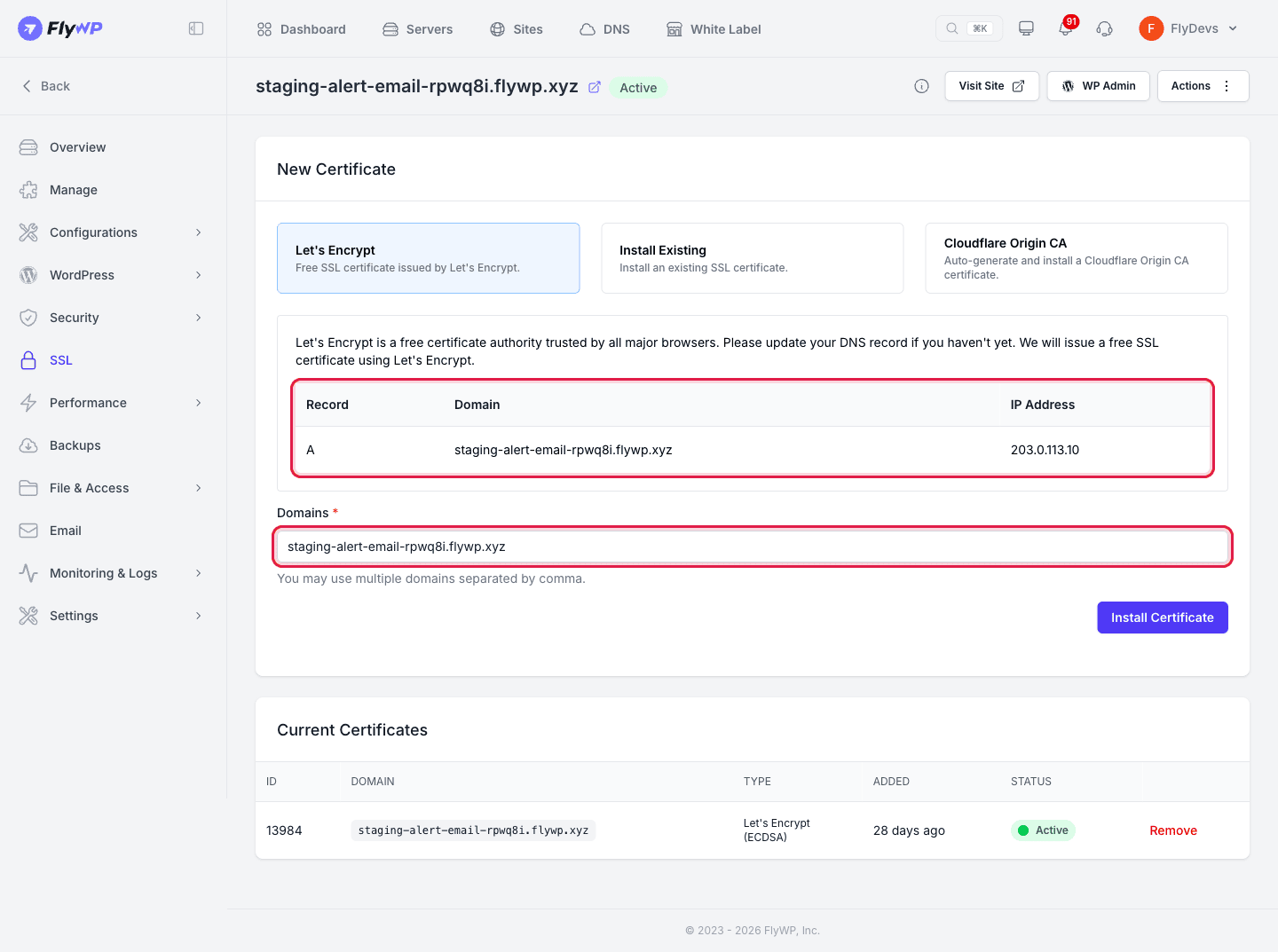
Open SSL → New Certificate → Let's Encrypt to view the required A record and server IP.
-
Point each domain's A record to that IP, remove or fix mismatched AAAA (IPv6) records, allow
letsencrypt.orgin any CAA record, and ensure port 80 is open in the server firewall. -
Remove any unready domain (such as
www) from Domains before installing. -
For "answered with HTTP 403" (Let's Encrypt needs HTTP 200), check site firewall rules (Visitors or tools get 403 Forbidden) and security plugins; for Cloudflare, see Cloudflare certificate errors.
-
Click Install Certificate (and Activate if status is Installed) until Active.
-
Only if DNS and port 80 are confirmed working (for example, a firewall or CDN blocks FlyWP's check but lets Let's Encrypt through), tick I know my DNS is correct. Install without the check. after a failure; failed installs count against Let's Encrypt's limit of 5 failures per domain each hour.
Still failing with valid DNS more than an hour after your last attempt? Contact support with the exact SSL error. Related: SSL Management, SSL Installation Checks and Warnings.
The domain still points to the old server or DNS changes are not showing
Section titled “The domain still points to the old server or DNS changes are not showing”Symptom: After changing the A record, the site loads the old server, DNS checkers show the old IP, or SSL fails.
Cause: Resolvers cache DNS records until the previous TTL expires (lowering TTL does not flush existing caches).
Fix:
- Verify the root and
www(if used) A records point to the server IP shown on SSL. - Check live propagation with a DNS checker or
dig example.com. - If checkers still show the old IP, wait for the previous TTL to expire (before a planned move, lower the TTL a day or more ahead). For Cloudflare domains in DNS Manager, edit the record there; it shows the TTL and whether it is Proxied or DNS Only.
- If DNS shows the new IP but your browser loads the old site, test in a private window or flush local DNS.
- Retry the certificate on SSL once DNS resolves to the new server.
Cloudflare shows a certificate error or the site won't load over HTTPS
Section titled “Cloudflare shows a certificate error or the site won't load over HTTPS”Symptom: Cloudflare shows error 525, 526, or a redirect loop, visitors see certificate warnings with Cloudflare Origin CA, or Let's Encrypt fails while proxied.
Cause: Let's Encrypt is trusted by browsers and needs Full (strict). Cloudflare Origin CA certificates are trusted only by Cloudflare, so they work only while the record is Proxied (orange cloud) with Full (strict); on DNS Only, visitors see a certificate error (the token also needs SSL and Certificates: Edit). Flexible mode connects over plain HTTP, so a site or plugin HTTP-to-HTTPS redirect loops. A Cloudflare WAF or bot rule can block Let's Encrypt HTTP validation.
Fix:
- In Cloudflare SSL/TLS, set mode to Full (strict) (do not use Flexible).
- Use Let's Encrypt on the FlyWP SSL page for browser-trusted certificates, or Cloudflare Origin CA while keeping the DNS record Proxied (orange cloud).
- For Origin CA, connect Cloudflare under Team Settings → Integrations with a token having SSL and Certificates: Edit (Cloudflare Origin Certificate); note Cloudflare Origin CA is not shown on White Label customer accounts.
- If Let's Encrypt fails while proxied, ensure no Cloudflare WAF, bot, or redirect rule blocks
/.well-known/acme-challenge/—or temporarily switch to DNS Only (your server IP is visible while DNS Only), install the certificate, then restore Proxied and Full (strict).
Related: How to integrate Cloudflare.
Changing the primary domain fails or the site shows the wrong address
Section titled “Changing the primary domain fails or the site shows the wrong address”Symptom: Make Primary Domain fails, keeps the old domain, redirects unexpectedly, or shows "SSL is off after the domain rename".
Cause: Renaming rewrites server config and WordPress URLs (so it can fail partway), and the old certificate may not cover the new domain.
Fix:
- Wait for any Pending or In Progress entry in Settings → General → Site Domains → Domain Rename History to reach Success or Failed.
- If the latest attempt shows Failed, confirm the new domain's DNS points to your server (Advanced Domain Manager) and click Retry; if that fails too, stop and contact support with the old domain, new domain, and page message.
- To switch primary domains, add the domain, click its star icon (Make primary domain), then confirm Make Primary (the old domain remains as Redirect).
- If SSL is off after the domain rename appears, test
https://on the new domain; install a Let's Encrypt certificate under SSL if the browser errors (skip if it loads, such as behind Cloudflare). - For unexpected redirects, see www/bare domain loops and migrated domain links.
www and the bare domain redirect to each other, or the site loops
Section titled “www and the bare domain redirect to each other, or the site loops”Symptom: Browsers show "too many redirects" (ERR_TOO_MANY_REDIRECTS) or SSL validation fails when both www.example.com and example.com exist.
Cause: Conflicting domain types (Primary, Redirect, Alias), mismatched WordPress URLs, plugin/Cloudflare redirect rules, or Cloudflare Flexible mode create a loop.
Fix:
- Under Settings → General → Site Domains, ensure one version is Primary and the other is Redirect (Advanced Domain Manager).
- In WordPress Settings → General, match both WordPress Address and Site Address to the primary domain.
- Disable conflicting redirect rules in plugins or Cloudflare while testing.
- Set Cloudflare SSL/TLS to Full (strict) (Cloudflare certificate errors).
- Confirm DNS records exist for both
example.comandwww, then retry the certificate.
Blocked requests (403 errors)
Section titled “Blocked requests (403 errors)”Visitors or tools get 403 Forbidden
Section titled “Visitors or tools get 403 Forbidden”Symptom: Pages, login callbacks ("Sign in with Google"), SEO tools, AI crawlers, webhooks, or scripts get "403 Forbidden" while normal browsers work.
Cause: On Nginx sites (unavailable on OpenLiteSpeed; defaults: 7G on, Bad Bot Protection and Bad Referrer Protection off), server filters can false-positive before WordPress loads:
- 7G blocks
python,pycurl, andhttps://in query strings (breaking OAuth callbacks). - 8G Firewall blocks
curl,libwww-perl,Go-http-client, cookies with unsafe characters, and crawlers like ClaudeBot and Ahrefs. - Bad Bot Protection blocks AI crawlers (GPTBot, ClaudeBot) and some SEO tools with no per-bot allow list.
Fix:
-
Find the 403 line (time, URL, User-Agent) in Monitoring & Logs → Logs → Nginx Access Log (Logs).
-
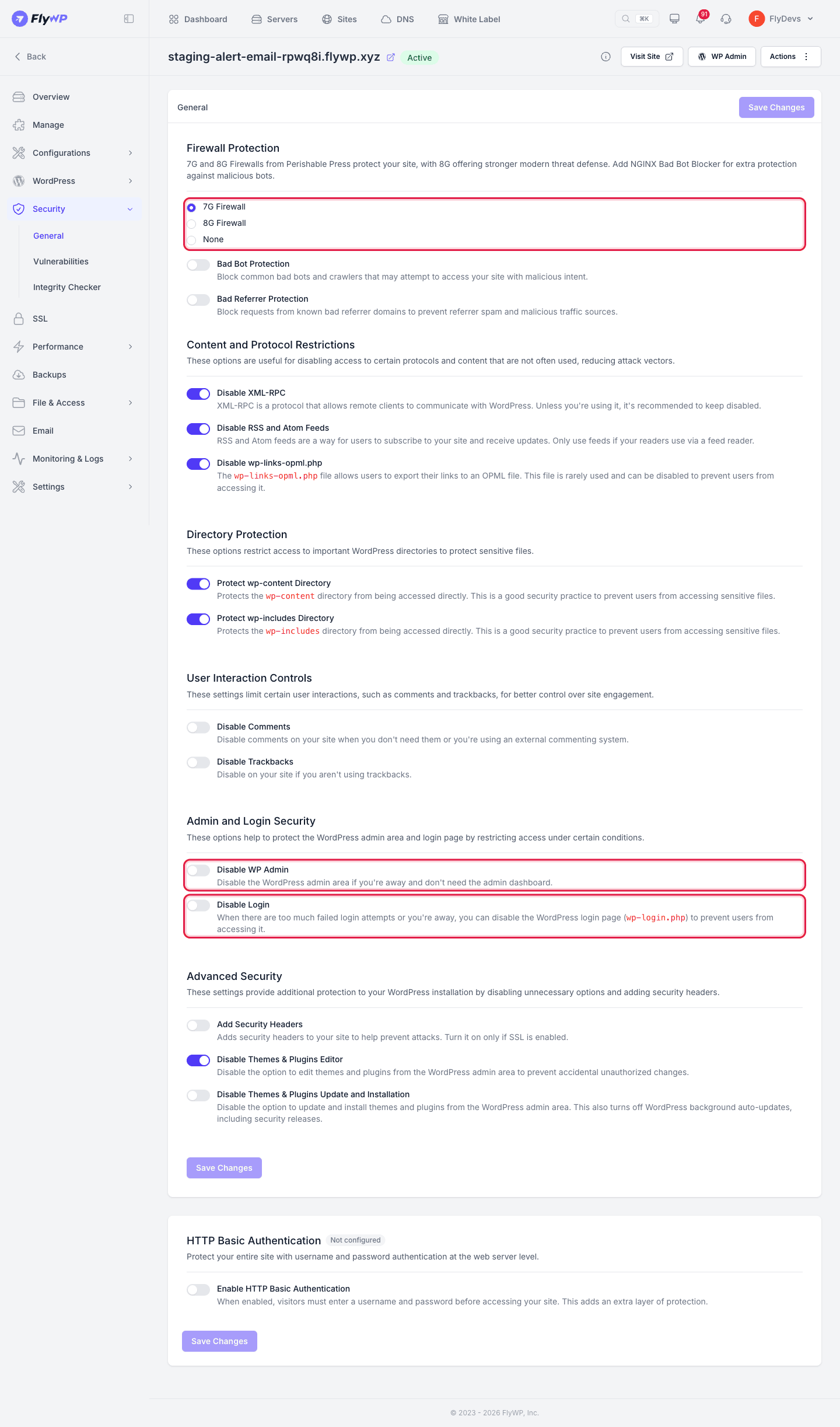
Under Security → General, check Firewall Protection, Disable WP Admin, and Disable Login (Firewalls & Bot Protection). If either of the last two is on, it restricts access to those areas.
-
If OAuth callbacks fail on 7G, switch to 8G Firewall and save, then re-test webhooks and scripts.
-
To allow AI crawlers or SEO tools, turn off Bad Bot Protection (also lets other scrapers through). Because 8G Firewall still blocks ClaudeBot and Ahrefs by User-Agent, allowing them requires 7G Firewall (allows GPTBot and ClaudeBot) or None, which gives up other protection.
-
Give your own scripts a custom User-Agent instead of default
curlor Python headers. -
As a test only, select None and turn off Bad Bot Protection and Bad Referrer Protection, then switch them back on—do not leave the firewall off on a live site.
Unclear which rule caused the 403? Contact support with the time, URL, User-Agent, and expected result.
Plugin and theme updates are empty, or FlyWP can't reach the site (Cloudflare blocking FlyWP)
Section titled “Plugin and theme updates are empty, or FlyWP can't reach the site (Cloudflare blocking FlyWP)”Symptom: Plugins or Themes is empty or shows "Failed to fetch plugin updates" / "...theme updates", "Failed to fetch plugins.", or "Failed to check for updates." (see also Plugin or WordPress updates do not show in FlyWP).
Cause: Cloudflare, a WAF, a security plugin, or a firewall blocked FlyWP's HTTPS requests to /fly-api.
Fix:
- Add the Allow rule via Whitelist FlyWP API Requests in Cloudflare.
- Allow requests to
/fly-api/in any security plugin or other firewall. - Confirm the Helper plugin is active (step 2 of the updates issue) and refresh.
My WordPress site isn't sending email, or the Email settings time out
Section titled “My WordPress site isn't sending email, or the Email settings time out”Symptom: Site emails never arrive, or saving Email shows "can't reach ... on port ..." or times out.
Cause: New sites have no mail relay until configured on Email, and many server providers block default outbound SMTP ports (FlyWP tests ports on save and suggests a working one).
Fix:
-
Open Email (Email), pick a provider or Custom, fill From Email, From Name, SMTP Username, and SMTP Password (plus server, Encryption, and SMTP Port for Custom), and click Verify Connection and Save Changes (no extra SMTP plugin needed).
-
If you see "can't reach", read the message below the form for a reachable port (FlyWP suggests 2525, 587, and 465 in order).
-
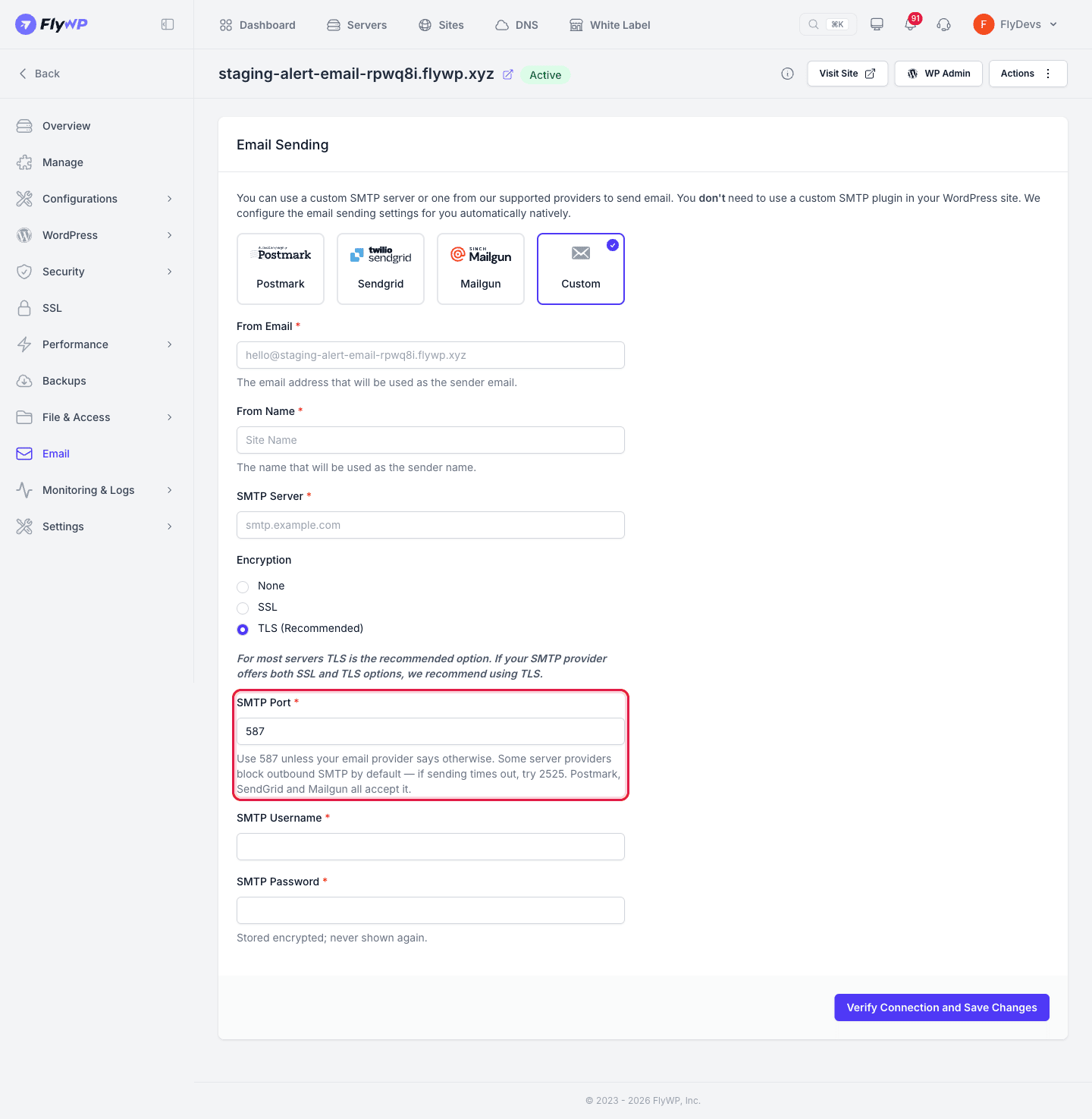
Switch to Custom, set SMTP Port to that port (Postmark, SendGrid, and Mailgun accept 2525), and pick TLS for 2525/587 or SSL for 465.
-
If no port connects, your provider is probably blocking outbound SMTP. If you manage the cloud account yourself, ask them to lift it (DigitalOcean, Vultr, Akamai, and Hetzner have done so on request, but their policies can change; Google Cloud does not allow it). If FlyWP manages the server, contact support.
-
Click Check Connection, then send a Test Email (top right, opens WordPress admin).
I want to use Amazon SES, Gmail or another provider that isn't listed
Section titled “I want to use Amazon SES, Gmail or another provider that isn't listed”Symptom: Email lists only Postmark, Sendgrid, Mailgun, and Custom, or messages through another provider are rejected.
Cause: Any SMTP provider works via Custom (OAuth sign-in is unsupported), and services like SES and Postmark reject unverified From addresses or domains.
Fix:
- Create SMTP credentials with your provider (usually separate from your normal login).
- On Email, choose Custom and enter the SMTP server, Encryption (TLS is recommended), SMTP Port, username, and password.
- Set From Email (and plugin From fields) to a provider-verified address, and add SPF and DKIM records for your domain.
- Click Verify Connection and Save Changes, then send a Test Email.
Re-enter the password if you change the provider or Custom host, as FlyWP only keeps it while those stay the same.
Password reset emails don't arrive, or the WP Admin button opens the login page
Section titled “Password reset emails don't arrive, or the WP Admin button opens the login page”Symptom: WordPress "lost password" emails fail, or WP Admin opens the WordPress login page instead of signing you in.
Cause: Reset emails use the site's normal mail settings, so they fail for the same reasons as other email. WP Admin signs you in without email, but only when the site has SSL, has been set up for one-click login, and has a WordPress user FlyWP can sign you in as. Otherwise it opens the normal login page.
Fix:
- Set up email (My WordPress site isn't sending email) and check spam.
- For WP Admin, install SSL (see the SSL section above) and ensure the FlyWP Helper plugin is active (FlyWP Helper Plugin Status).
- Once email works, you can also use WordPress → Users → Reset Password (sets a new random password straight away, not shown in FlyWP, and WordPress emails the user through the site's mail settings). Still broken? Contact support.
SSH, SFTP and files
Section titled “SSH, SFTP and files”SFTP will not connect, or the account is stuck on "Creating"
Section titled “SFTP will not connect, or the account is stuck on "Creating"”Symptom: SFTP times out or refuses login, or the account on SFTP stays on Creating or shows Failed.
Cause: Site SFTP uses port 20022 (not 22) and dedicated accounts; failures come from wrong ports/usernames, provider firewalls blocking 20022, passwords outside 16 to 32 characters (letters, numbers, and underscores only), or FlyWP losing SSH access during setup.
Fix:
-
Open File & Access → SFTP; refresh if Creating, or three-dot menu → Delete and recreate if Failed (if deleting fails, ensure FlyWP can reach port 22 per the SSH steps).
-
Copy IP Address and Port (
20022for every site) from SFTP Info.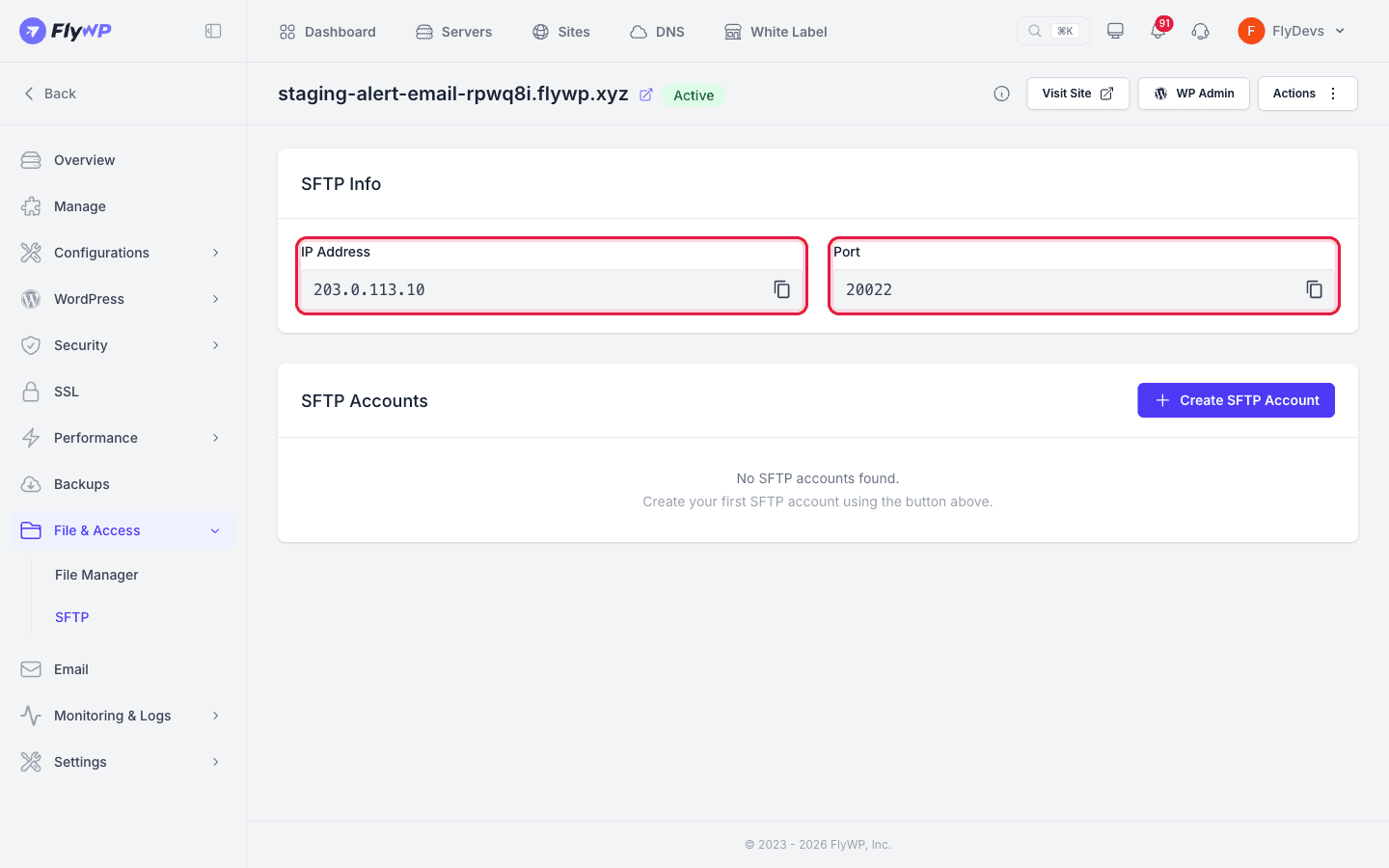
-
Connect with your SFTP account username (not
fly) and leave the remote path empty or/(lands aboveapp, with WordPress files inapp/public). -
Allow TCP port
20022from your IPs in your provider's firewall. -
Prefer an SSH Key account over a password to avoid password rules and leaks (still requires port
20022access; see Site-Specific SFTP Access).
Still failing? Contact support with the SFTP username and creation time.
SSH says "Permission denied", times out, or asks for a password
Section titled “SSH says "Permission denied", times out, or asks for a password”Symptom: ssh fly@your-server-ip is refused, hangs, or asks for a password or passphrase.
Cause: FlyWP turns off SSH password login (any prompt is your key's passphrase); Permission denied (publickey) or timeouts mean the key is missing/still installing, or port 22 is blocked.
Fix:
- Connect as
fly(notroot) on port22:ssh fly@your-server-ip. - On the server's SSH Keys page (SSH Keys):
- Installing: wait a minute and reload.
- Failed: check port 22 firewall access (step 4), delete, and re-add.
- Missing: click Add New Key, set a Name, and paste your public
.pubkey (ssh-ed25519orssh-rsa; private keys are rejected).
- Offer the matching private key (
ssh -i ~/.ssh/your_key fly@your-server-ip, add-vto debug) and load passphrases into your SSH agent after reboots. - Allow port
22in the server Firewall and provider firewall, including FlyWP's IPs (Whitelisting IP for SSH Connections). - Or open Manage → Open Terminal (asks your account password; not available on trial servers; still needs FlyWP access to port 22; see Access Server Terminal).
I get permission or ownership errors after uploading or copying files
Section titled “I get permission or ownership errors after uploading or copying files”Symptom: WordPress cannot write to wp-content, or uploads, plugin installs, or theme installs fail after copying files.
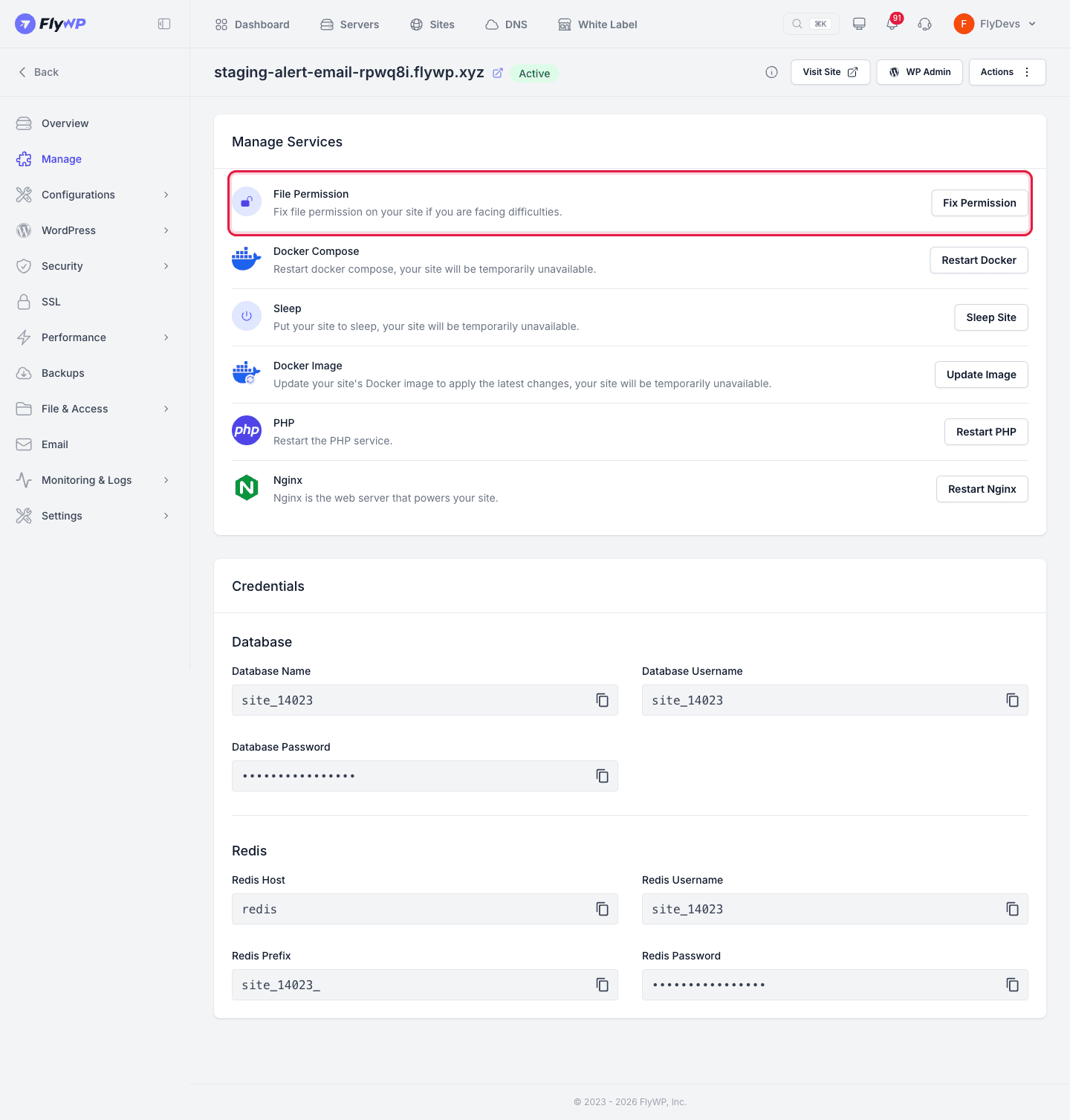
Cause: Files copied as root or with sudo over SSH get the wrong owner instead of fly.
Fix:
-
Under Manage → Manage Services, click Fix Permission on the File Permission row and confirm (restarts containers briefly).
-
Reload the failing page once complete.
-
For future uploads, use site SFTP or File Manager (File & Access → File Manager) instead of copying as
root.
If the error returns, contact support with the exact error and what you were doing.
Backups and restore
Section titled “Backups and restore”"Connection failed" when I save backup settings
Section titled “"Connection failed" when I save backup settings”Symptom: Save Backup Options on Backups fails with Connection failed.
Cause: FlyWP's test write/read/delete failed due to a wrong bucket or region (Amazon S3, Wasabi, DigitalOcean Spaces, Cloudflare R2, and other S3-compatible storage), wrong keys or missing permissions, S3 Object Ownership set to Bucket owner enforced instead of Bucket owner preferred, or a wrong/non-editable Google Drive or pCloud Root Folder ID.
Fix:
- Read the full Connection failed message for what failed.
- Verify bucket name, region, and keys—or for Google Drive, copy the Root Folder ID after
/folders/in the URL and confirm edit access. - Grant the key write, read, and delete permissions (needed for retention cleanup), and set S3 Object Ownership to Bucket owner preferred.
- Click Save Backup Options again.
Provider guides: Amazon S3, Wasabi, Cloudflare R2, DigitalOcean Spaces, Google Drive, pCloud, custom S3-compatible storage.
"Automatic Backups Paused" on the Backups page
Section titled “"Automatic Backups Paused" on the Backups page”Symptom: Backups shows Automatic Backups Paused and scheduled backups stop.
Cause: FlyWP pauses scheduled backups after 3 failed backups in a row.
Fix:
- Verify storage access (previous issue), free storage space, and server status.
- Click Resume Backups and confirm.
- Click Create Manual Backup to test and reset the failure counter.
Google Drive or pCloud backups fail with "OAuth connection expired"
Section titled “Google Drive or pCloud backups fail with "OAuth connection expired"”Symptom: Backups, downloads, or restores fail saying the OAuth connection expired.
Cause: FlyWP's access was revoked in Google or pCloud, or the provider expired the permission.
Fix:
- Under Team Settings → Backup Providers, open Google Drive or pCloud and reconnect your account.
- Run Create Manual Backup on one site to verify (Google Drive backups).
I got a "backup failed" email, but the Backups page shows success
Section titled “I got a "backup failed" email, but the Backups page shows success”Symptom: You received a "backup failed" email, but Backups shows Success (or Failed then Success later).
Cause: FlyWP checks running backups after 15 minutes and emails a failure if no progress or an error appears, even if a large site finishes later and updates to Success.
Fix:
- Trust the Backups list over the email—if the latest backup shows Success, nothing is wrong.
- To prevent late runs, for daily backups, set a quiet Backup Time (UTC) under Backup Settings, turn off Backup Files for database-only backups, or use Standard Backup (
wp-contentonly) and add large folders to Paths to Exclude. - If failures repeat, contact support with the failure dates.
A restore did not finish, or the site is stuck in maintenance mode
Section titled “A restore did not finish, or the site is stuck in maintenance mode”Symptom: After clicking Restore, the site stays in maintenance mode, never finishes, or shows Backup restore failed. Please try again.
Cause: Restores require no other backup/restore running and a Success backup, keeping the site in maintenance mode until complete (a stalled restore ends automatically after 2 hours and the site leaves maintenance mode).
Fix:
- Wait for large sites to finish (restoring can lose changes made since that backup, so take a manual backup first if needed).
- If another backup or restore is running, wait for it to finish and retry.
- If it failed, confirm storage works and the backup shows Success, then retry (Restore WordPress Websites).
- Still in maintenance mode after 2 hours? Contact support with the backup date and restore start time.
Old backups are still in my storage after I changed the backup provider
Section titled “Old backups are still in my storage after I changed the backup provider”Symptom: Old backup files stay in your previous bucket or folder after changing backup providers.
Cause: Retention only removes backups from the site's current provider.
Fix:
- Delete the old files from your previous storage yourself.
- Deleting those backups in FlyWP removes them from FlyWP's list only and leaves the remote files intact.
The Backups page says backups are not available on my plan
Section titled “The Backups page says backups are not available on my plan”Symptom: Backups shows Backups are not available on your current plan (or Backups are not available on this site yet on a White Label host), or Create Manual Backup errors.
Cause: Backups are excluded from the Free plan and some lifetime plans (Backup and Restore).
Fix:
- Click Upgrade Subscription on Backups or choose a plan in team billing.
- On a White Label host, contact your host instead.
Migrations
Section titled “Migrations”For bulk migrations from another host, see Bulk Migration, which has its own troubleshooting section. The items below are for migrating one site with the FlyWP Migrator plugin. The full steps are in How to Migrate WordPress Sites from Any Hosting to FlyWP.
Migration key will not verify, or FlyWP says my site uses a security challenge
Section titled “Migration key will not verify, or FlyWP says my site uses a security challenge”Symptom: Verify Migration Key fails with Invalid key, Invalid key format, or a security-challenge error (CAPTCHA, JS wait, or WAF).
Cause: FlyWP Migrator is inactive, /wp-json/ is blocked, the key is old/incomplete, or a firewall, CAPTCHA, or bot service blocked FlyWP.
Fix:
- Activate FlyWP Migrator on the source site, ensure
/wp-json/is unblocked, and copy the full key again. - Turn off any host firewall, WAF, CAPTCHA, or Cloudflare challenge on the source site until migration completes.
- Click Verify Migration Key again.
My migrated site still links to the old domain
Section titled “My migrated site still links to the old domain”Symptom: Images, links, or pages still point to the old or test domain after migration.
Cause: FlyWP updates Site Address, WordPress Address, and the options table, but not URLs inside posts, pages, or page-builder data.
Fix:
- Take a backup first.
- Run a dry-run search-and-replace via WP-CLI (handles serialized data):
wp search-replace 'https://old-domain.com' 'https://new-domain.com' --all-tables --dry-run - If the preview looks right, rerun without
--dry-run, then runwp cache flush.
To avoid this, migrate to a test domain first, check the site, then rename it.
Migration fails because the table prefix is too long
Section titled “Migration fails because the table prefix is too long”Symptom: Site creation fails with The table prefix may not be greater than 10 characters. or The table prefix must be alphanumeric and end with an underscore (_).
Cause: FlyWP reuses the source prefix and limits it to 10 alphanumeric/underscore characters ending in _ (for example wp_).
Fix:
- Do not edit table names by hand on the source site.
- Contact support with your source host, table prefix, and site URL.
The migration is slow, stuck or marked Failed
Section titled “The migration is slow, stuck or marked Failed”Symptom: Migrating Site shows Migration Failed or stays on Creating dump...
Cause: Large databases (FlyWP warns at 300 MB or more), large uploads, or slow source hosts delay transfers; dumps exceeding 2 hours fail with Database dump did not finish within 2 hours.
Fix:
- Read Database error and Technical details to identify the failed step.
- For databases of 300 MB or more or repeating failures, contact support with the source site URL, database size, and error text before retrying or deleting.
- Click Retry Failed Tasks (restarts the database dump from the beginning if it failed).
- To stop a running migration, click Cancel Migration, then Restart Migration (if no failed tasks remain, delete and start over).
- If it keeps failing, click Delete Site (permanent and cannot be undone; leaves your source site unchanged) and test from a clean source site.
Git deployments
Section titled “Git deployments”Deploy Now is disabled, or a deployment seems stuck
Section titled “Deploy Now is disabled, or a deployment seems stuck”Symptom: A deployment stays deploying and Deploy Now is disabled.
Cause: FlyWP runs one deployment at a time with no cancel button; builds killed by low RAM stay deploying until a check (every 15 minutes) marks runs over 30 minutes as failed.
Fix:
- Wait up to 45 minutes from start until it becomes failed and Deploy Now works again.
- Check the failed log—if the build stopped mid-step or mentions out-of-memory/killed, add server memory (Server Status).
- Still stuck after an hour? Contact support with the deployment start time.
My Git deployment failed
Section titled “My Git deployment failed”Symptom: Deployment shows failed and the site did not update.
Cause: The deploy script stops at the first failing command (such as Deployment failed at line 12: <command>), usually from a failed build/composer step, low RAM or disk space, wrong branch, or unreadable repo.
Fix:
- Open the failed deployment under Deployment and read the last lines for the failed command.
- Verify the branch in Settings → Deployment exists and matches what you push; if memory or disk ran out, free space or move to a larger server (Server Status).
- Fix the command in Settings → Deployment → Deployment Script (runs on your live site, so keep
cdandgit pullunless intentional), click Update, then Deploy Now (Deploy from Git).
Re-deploy once fixed, as a failed deployment can leave live files partly updated.
Deploy fails with "Not possible to fast-forward"
Section titled “Deploy fails with "Not possible to fast-forward"”Symptom: The log ends with Not possible to fast-forward, aborting or says branches have diverged.
Cause: FlyWP uses git pull --ff-only, which fails if tracked files were changed or committed on the server, history was force-pushed, or the branch switched to a diverged one.
Fix:
- Check Branch under Settings → Deployment.
- Copy any direct server changes you need first (a reset removes them), then contact support with the branch name and deployment time to reset the server copy.
- To prevent this, edit tracked files in your repository rather than directly on the server.
Deploy fails after I changed the site's domain
Section titled “Deploy fails after I changed the site's domain”Symptom: Deployments fail after changing the site's domain with a cd error like No such file or directory.
Cause: Renaming the domain renames the site folder, leaving the old path inside Deployment Script.
Fix:
- Under Settings → Deployment → Deployment Script, replace the old domain in every path (for example
cd /home/fly/<domain>/app). - Click Update, then Deploy Now.
FlyWP says "Reconnect required" or "Reconnect GitHub to deploy this site"
Section titled “FlyWP says "Reconnect required" or "Reconnect GitHub to deploy this site"”Symptom: Git Providers shows Reconnect required, or a deploy asks to reconnect GitHub.
Cause: GitHub rejected FlyWP's connection (revoked access, expired token, or missing organization approval).
Fix:
- Under account settings → Git Providers, click Reconnect next to GitHub (Account Settings) and approve with the GitHub account that accesses the repo.
- For organization repos, ask an organization owner to approve the FlyWP app in GitHub organization settings.
- If the message says the connected account can no longer read the repository, check that the repo still exists under the same name and the account still has access. Then click Deploy Now (fixes every site using that connection).
Push to Deploy turned itself off, with a webhook permission error
Section titled “Push to Deploy turned itself off, with a webhook permission error”Symptom: Push to Deploy turns off with Failed to add a webhook to this repository due to permission issues.
Cause: GitHub requires admin access to add webhooks, so FlyWP disables Push to Deploy when the connected account lacks permission.
Fix:
- Ensure the GitHub account under Git Providers is a repo owner or admin (or follow the previous issue if unauthorized or needing organization approval).
- Under Settings → Deployment, click Enable Push to Deploy—or leave it off and use Deploy Now if you lack admin access.
I pushed to GitHub but nothing deployed
Section titled “I pushed to GitHub but nothing deployed”Symptom: Pushing with Push to Deploy enabled does not start a deployment.
Cause: Either the first Deploy Now hasn't run yet, the push had no commits (such as a branch/tag delete), the webhook is missing, a deploy was already running, or GitHub needs reconnecting.
Fix:
- For a new Git site, add the deploy key and run the first deployment with Deploy Now first.
- Check Recent Deliveries on the FlyWP webhook under GitHub Settings → Webhooks; if missing, toggle Push to Deploy off and on under Settings → Deployment.
- If a delivery shows a conflict response, wait for the active deploy to finish and retry; if a
422response, reconnect under Account Settings → Git Providers. - If commits are missing after a deploy ran, check the target branch under Settings → Deployment (FlyWP deploys that branch whichever branch you pushed to).
Related Pages
Section titled “Related Pages”Still stuck? How can we help?
View as Markdown