Backups and Restore for Docker Compose Apps
The Backups page shows your app's backup settings, scheduled snapshots, and manual backups.
Backups aren't included on all plans. If your team's plan doesn't include backups, the page will notify you and you won't be able to turn on a schedule.
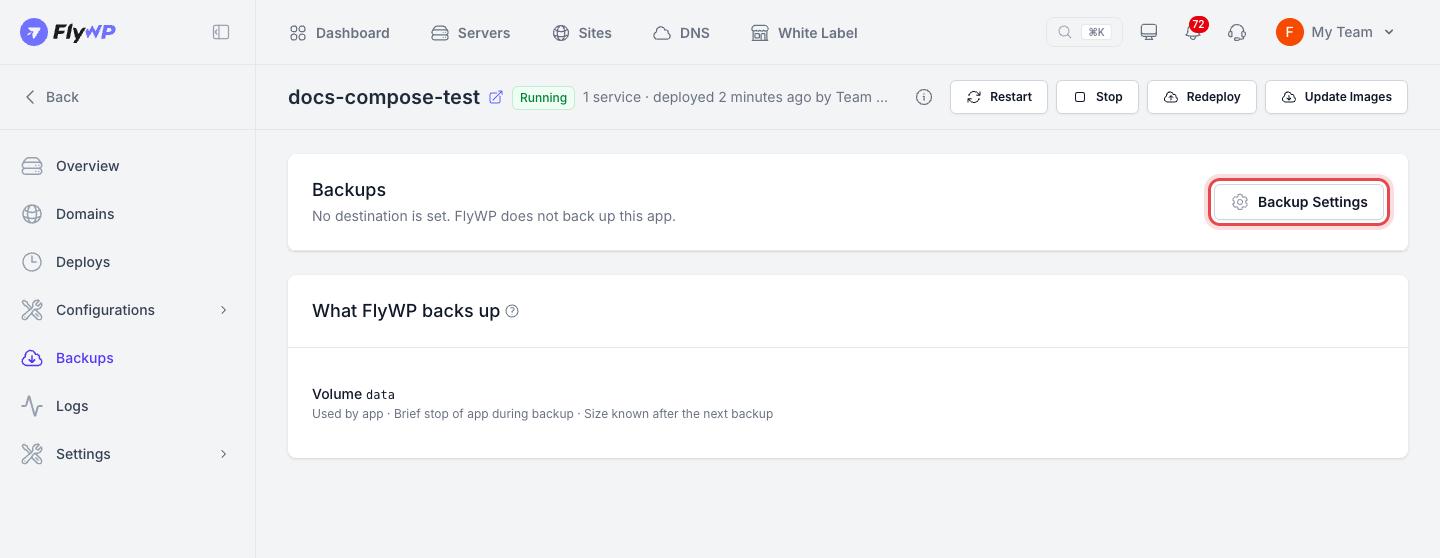
Set the schedule
Section titled “Set the schedule”- Open your app and go to Backups.
- Under Destination, choose where to store your backups.
- Under Schedule, choose Off, Daily or Hourly, and pick the time for a daily backup.
- Set Keep backups for to your preferred retention period in days.
- Save the settings.
Each backup briefly pauses any services that store data without a database copy. Because hourly backups pause those services every hour, choose a daily schedule if your app serves live traffic around the clock.
Manual backups and automated safety backups (taken before changes) aren't deleted after the retention window in Keep backups for.
You can also pause your schedule anytime. When paused, the page displays The schedule is paused.
What FlyWP backs up
Section titled “What FlyWP backs up”Click What FlyWP backs up to see what's included in each archive: the Compose file, environment variables, resource limits, and all persistent data from the app's volumes.
Back up now
Section titled “Back up now”Click Back up this app now to create a backup immediately. It appears in the list as soon as it finishes.
Safety backups
Section titled “Safety backups”FlyWP automatically takes a safety backup before every deploy, rollback, and restore. These snapshots let you revert to the previous working state if anything goes wrong. FlyWP keeps the five newest safety backups that passed and the five newest that failed.
Restore a backup
Section titled “Restore a backup”- Open your app and go to Backups.
- Find the backup you want and click it.
- Click Restore, then confirm.
Restoring replaces your app's current data with the data from the backup. FlyWP takes a safety backup right before the restore, so you can go back to the state from before the restore.
Delete a backup
Section titled “Delete a backup”Use Delete this backup to remove any backup you no longer need. Deleted backups cannot be restored.
Still stuck? How can we help?
View as Markdown