Scale a Server
When your sites outgrow a server, you can upgrade it to a larger plan without creating a new server or migrating anything. From the Scale tab, FlyWP changes the plan at your provider and then syncs the new CPU, RAM, and disk size.
Which servers can be scaled
Section titled “Which servers can be scaled”You can scale:
- FlyWP-managed servers. See FlyWP Managed Servers.
- Servers on your own DigitalOcean, Vultr, Akamai, or Hetzner account, created through a provider you connected to FlyWP. See Connecting a server provider.
You can't scale:
- Servers on Amazon EC2.
- Custom servers. Change the plan directly with your hosting provider instead.
- Servers on a team using White Label.
For these servers, the Scale tab doesn't appear in the server sidebar. If you open the scale page by its URL, you see FlyWP cannot scale this server (or A White Label team cannot scale its servers. on a White Label team).
Only the team Owner and team Administrators can scale a server. Other roles, such as Server Administrator, don't see the Scale tab. For more on team roles, see Granular Team Management.
Scale a server
Section titled “Scale a server”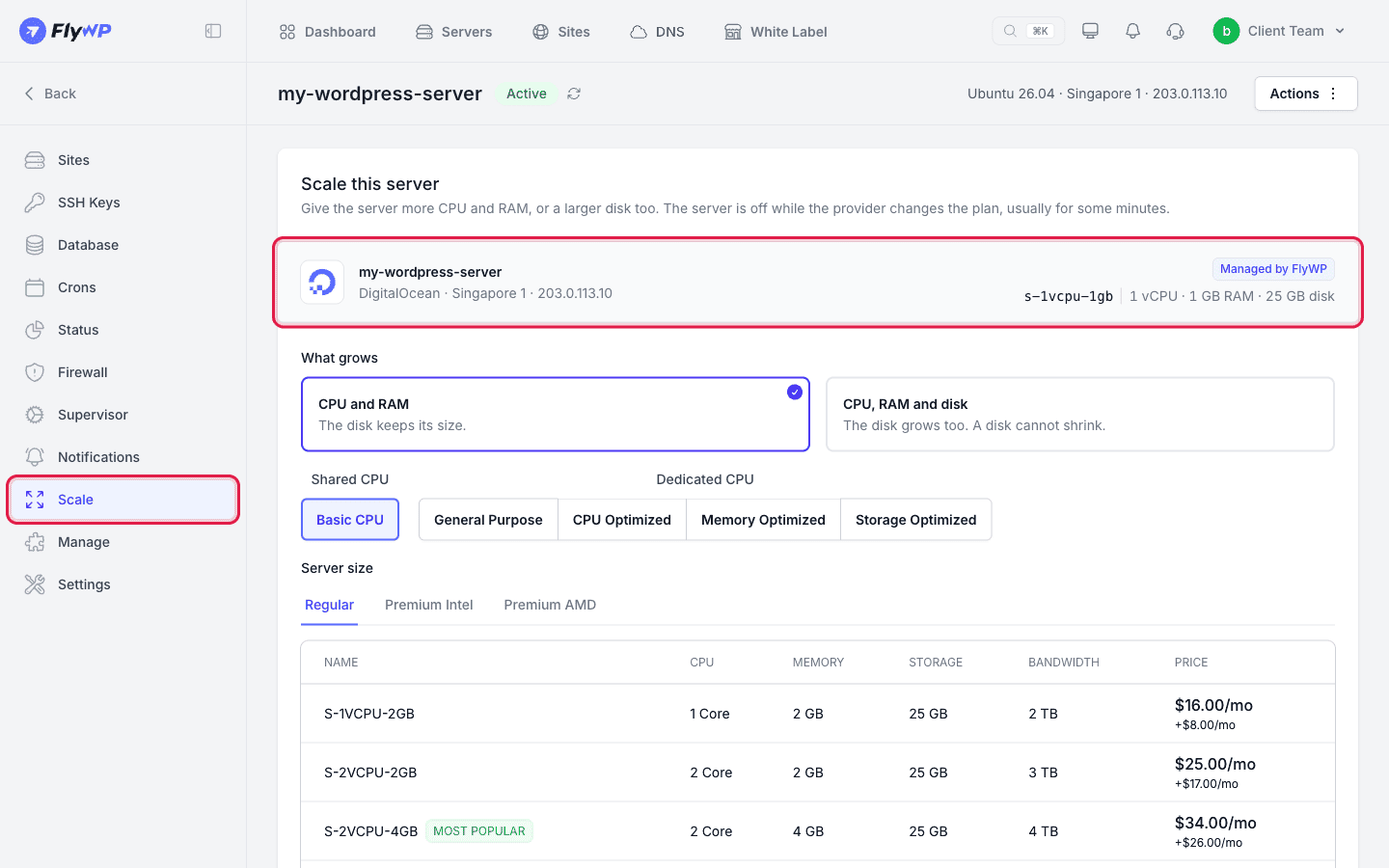
-
Open the server and click Scale in the server sidebar.
-
Under What grows, choose one:
- CPU and RAM: keeps your current disk size.
- CPU, RAM and disk: grows the disk along with CPU and RAM. A disk can't shrink after you expand it.
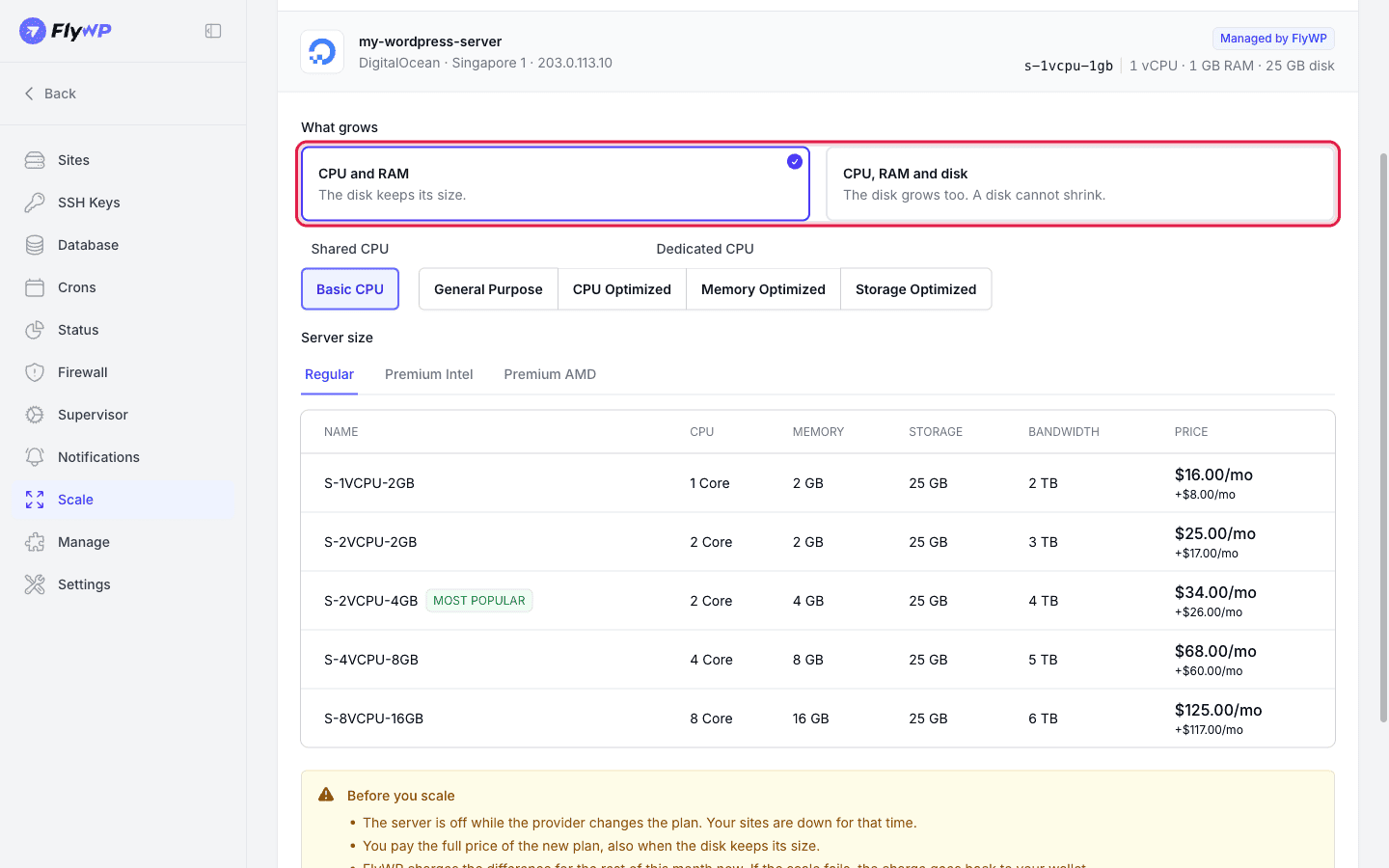
Some providers only support CPU, RAM and disk, so you won't need to choose.
-
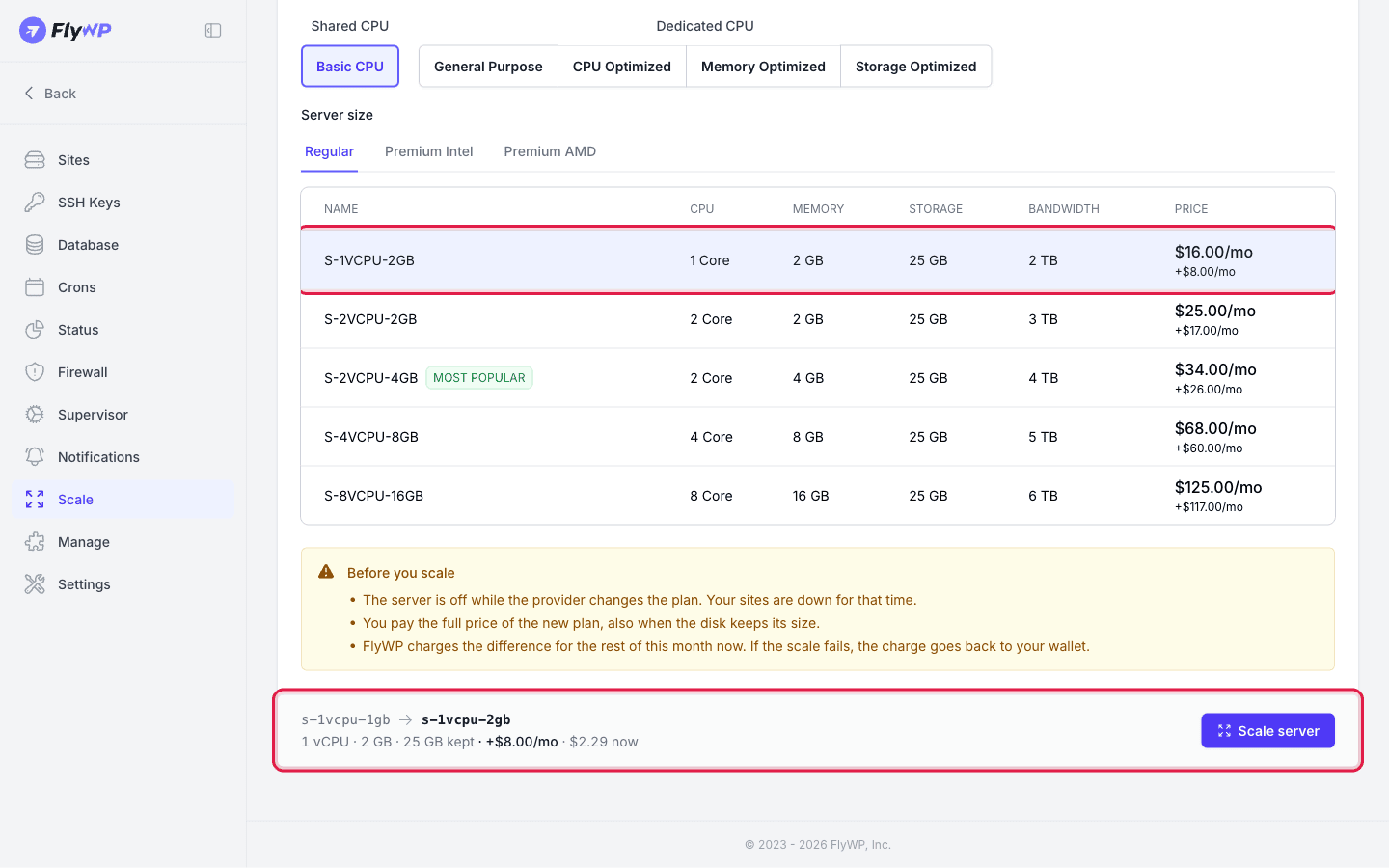
Pick a plan from the list. Each plan shows its monthly price and the difference from your current plan. On a managed server, only plans that cost more than your current one are listed.
-
Review the summary at the bottom of the card. It lists the new plan, its vCPU, RAM, and disk, and the price difference. On a managed server, it also shows the amount FlyWP charges right away.
-
Click Scale server.
-
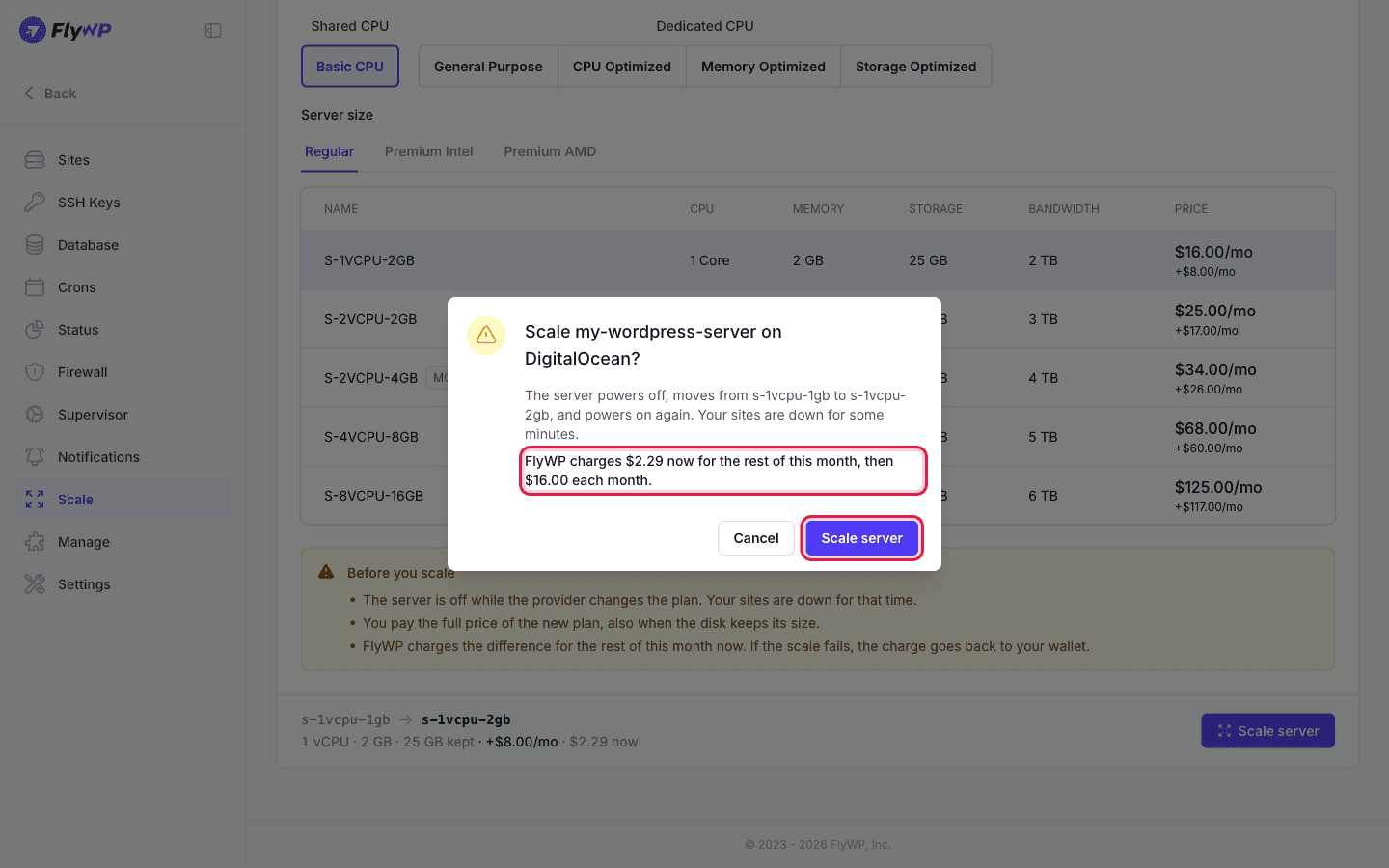
Review the notes in the confirmation window. If you chose CPU, RAM and disk, type the server name to confirm, then click Scale server.
What it costs
Section titled “What it costs”- Managed servers: FlyWP charges the price difference for the rest of the current billing month right away. It takes the charge from your wallet balance first, then any remainder from your saved card. Starting with your next monthly charge, you pay the new plan's price. If the scale fails, the charge is refunded to your wallet. For more details, see FlyWP Managed Servers.
- Servers on your own provider account: Your provider bills you for the new plan. FlyWP shows the provider's list price for each plan.
You pay the full price of the new plan, even if you choose CPU and RAM to keep your current disk size.
What happens while it runs
Section titled “What happens while it runs”While scaling is in progress, the Scale page shows Scaling with these steps:
- Power off: gracefully shuts down the server so the database is written to disk.
- Change the plan: the provider moves your server to the new plan. Larger disks can take longer.
- Power on: starts the server back up on the new plan.
- Update FlyWP: FlyWP syncs the new CPU, RAM, and disk from your provider.
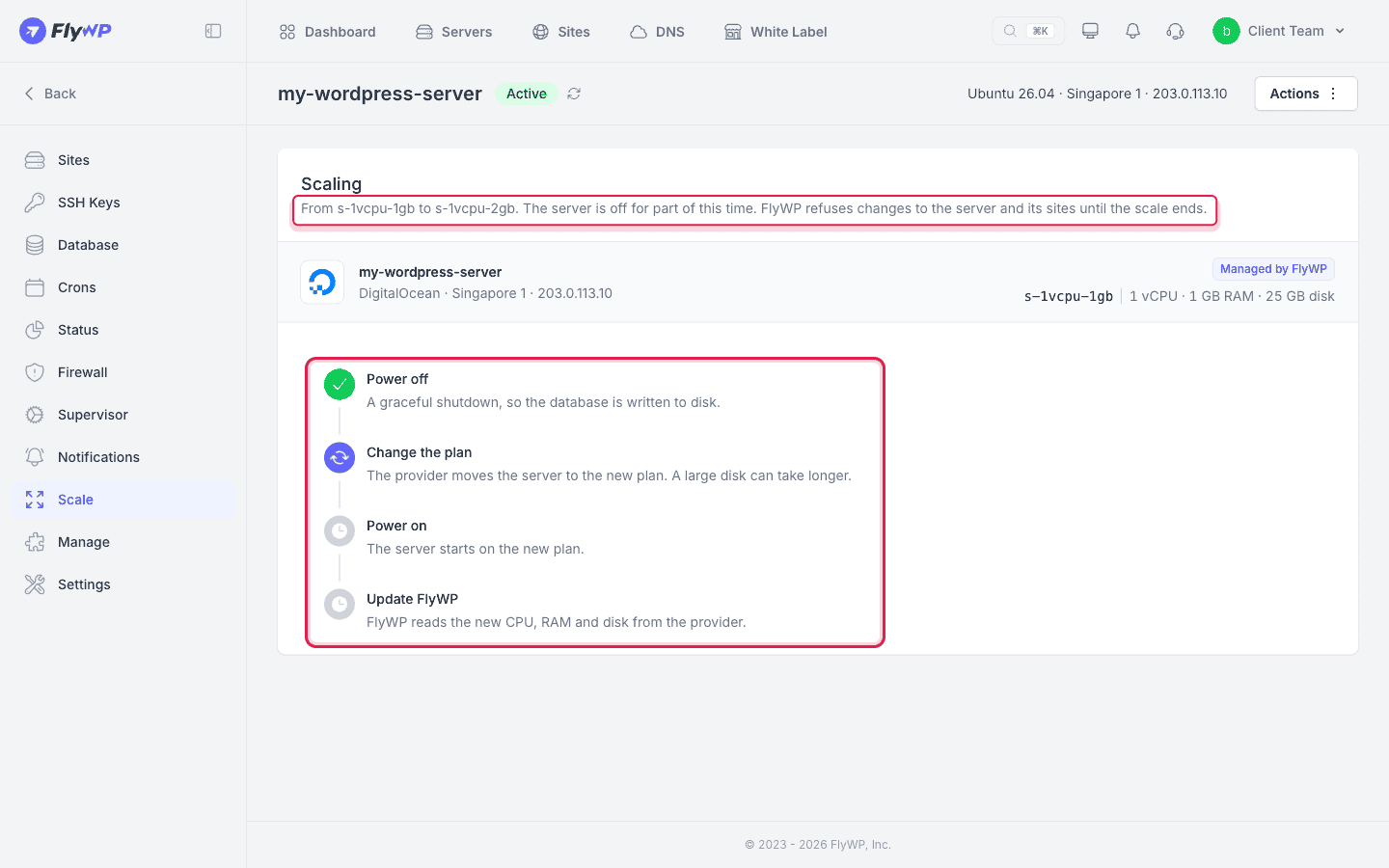
The page updates automatically, so you can leave it open or check back later. While it runs, other server pages show This server is scaling with a View the progress link.
While scaling is in progress, you can still view your server and sites, but FlyWP blocks changes such as deploying, adding new sites, or updating settings.
Once scaling finishes, the page shows the result for a day.
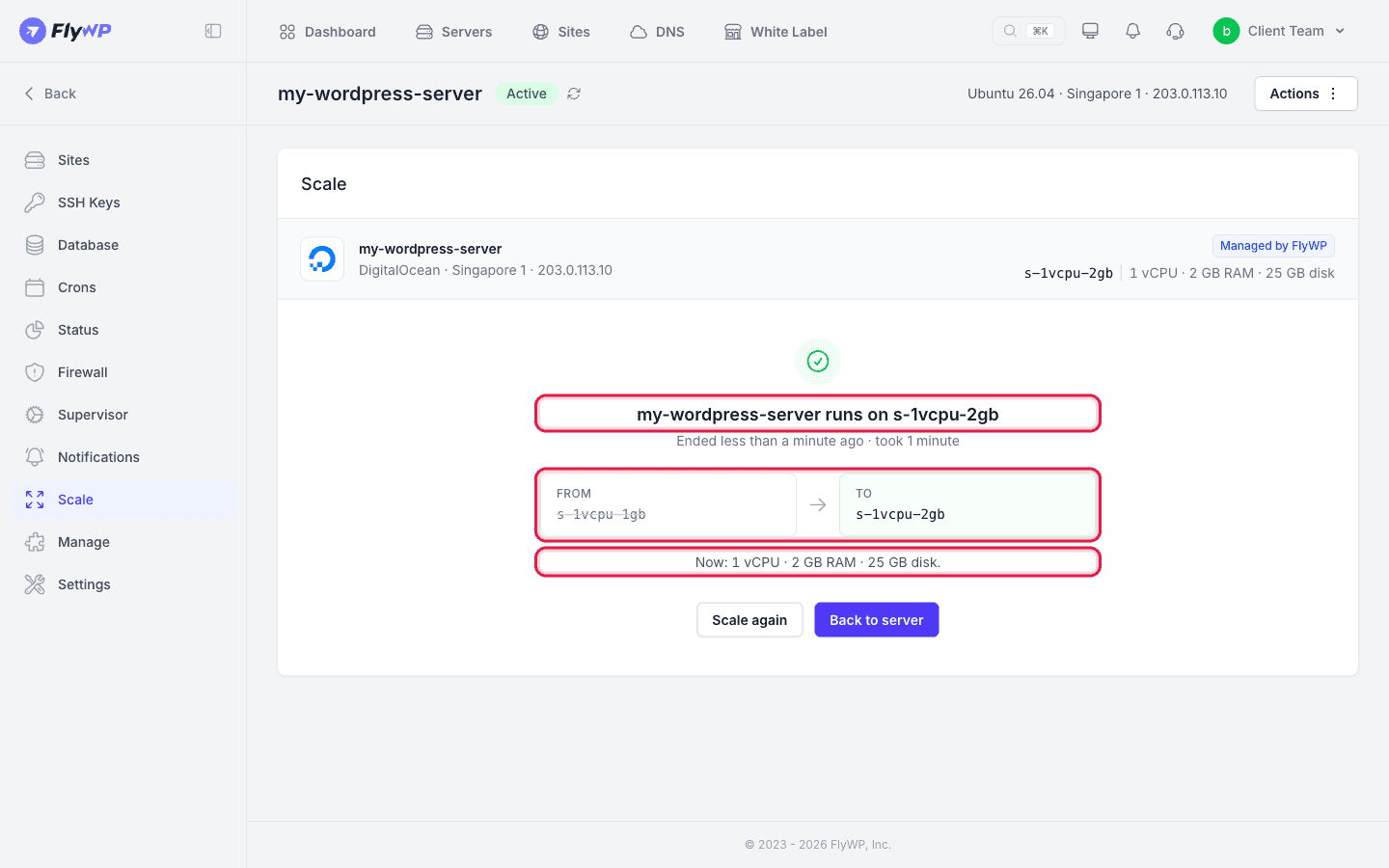
| Result | What it means |
|---|---|
<server name> runs on <plan> | Scaling succeeded, and the page shows your new CPU, RAM, and disk. Click Scale again to upgrade further. |
| The scale failed | Your server stays on its previous plan. On a managed server, the charge is refunded to your wallet. Click Try again to start over. |
| The scale needs attention | FlyWP couldn't complete the scale automatically, and the server may still be powered off. Contact FlyWP support. You can't start another scale until support checks the server. |
When you can't start a scale
Section titled “When you can't start a scale”FlyWP won't start a scale in these cases, and shows a message that explains why:
| Message | What to do |
|---|---|
| The server must be Ready to scale. | Wait until the server status is Ready. |
| A scale is already in progress on this server. | Wait for the current scale to finish. |
| A site on this server is being changed. Try again when it ends. | Wait until sites finish creating, updating, deploying, migrating, or deleting. |
| A backup or a restore runs on this server. Try again when it ends. | Wait for the backup or restore to finish. |
| FlyWP rotates the SSH keys of this server. Try again in a few minutes. | Try again in a few minutes. |
| The last scale of this server needs FlyWP support. Contact support before you scale again. | Contact FlyWP support. |
| Pay the open invoice of this server before you scale it. | Managed servers only. Pay the open invoice, then try again. |
| A server cannot scale in the last day of its billing period. Try again after the monthly charge. | Managed servers only. Try again after the monthly charge. |
| The provider has no larger plan for this server in its region. | No larger plan is available from your provider in this region. |
If your server is on your own provider account, you may also see a message that the provider rejected your API token. Update the token, or grant it permission to modify servers, in your provider connection. The message tells you which permissions the token needs.
Still stuck? How can we help?
View as Markdown