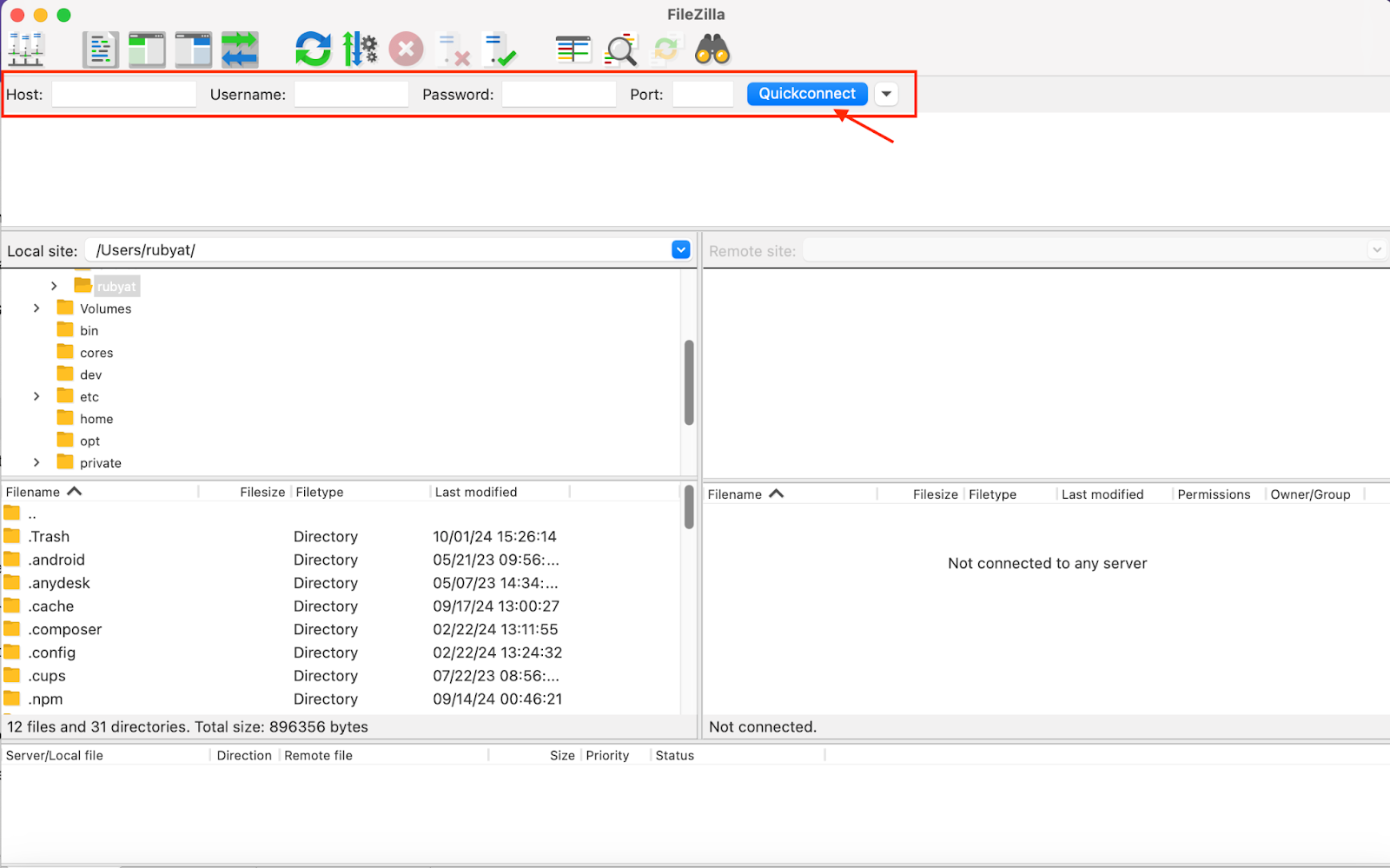
Here’s a quick guide to accessing your FlyWP server through FileZilla using SSH keys.
Steps:
1. Create an SSH Key (If You Don’t Have One)
- For Windows: Use PuTTYgen to generate a key. For more details about how to generate a key, you can follow this link.
- For macOS/Linux: Open Terminal and run:
ssh-keygen -t rsa -b 4096

2. Set the SSH Key in FileZilla
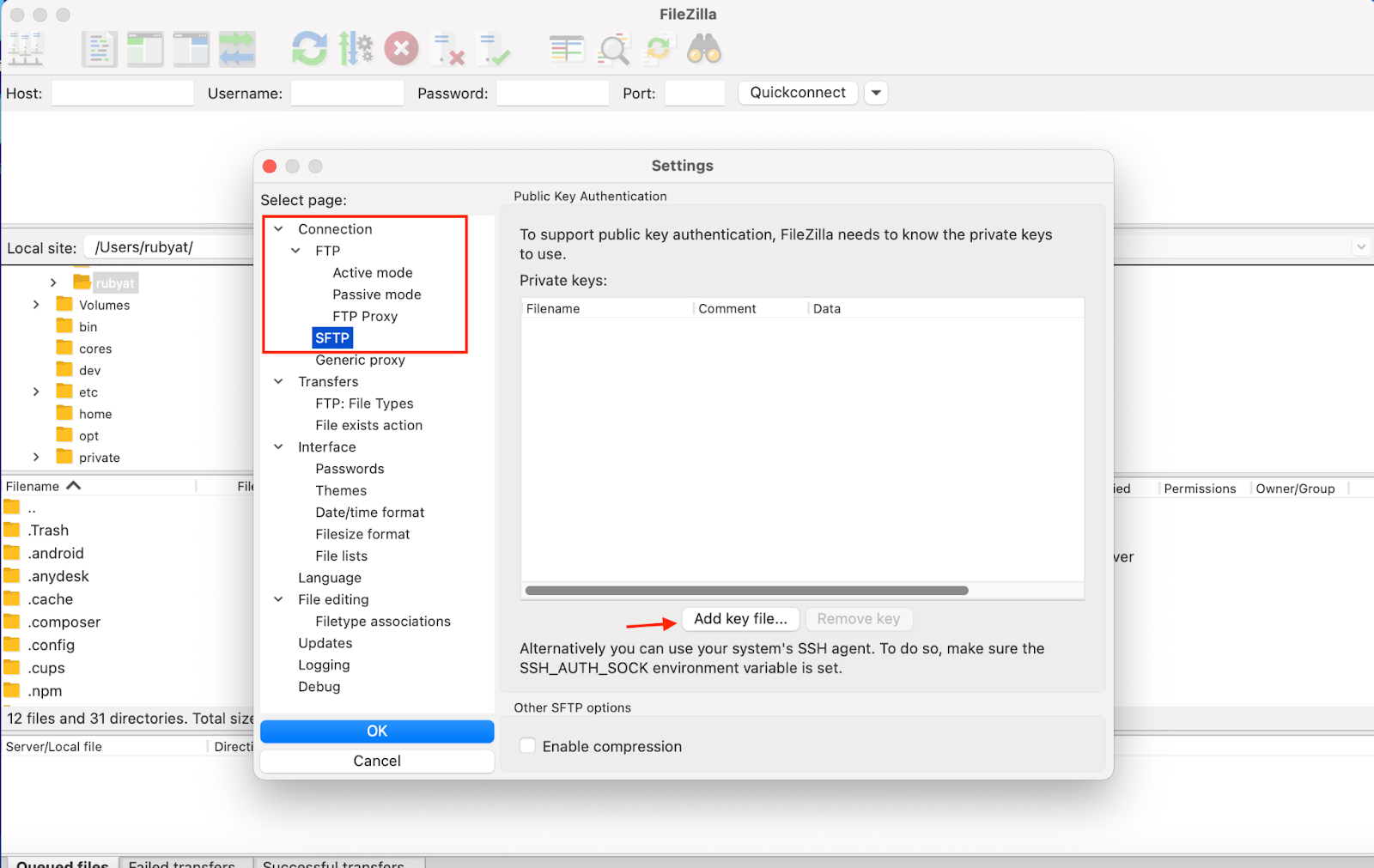
- Open FileZilla and go to Edit > Settings.
- Navigate to SFTP under Connection settings.
→ Click Add key file and select your private key file (e.g., id_rsa).
3. Use FlyWP Server Credentials
- Go to your FlyWP dashboard, then Server > Manage to find your credentials (IP, username, etc.).

- Enter these details in FileZilla:
• Host: Your server’s IP address.
• Username: Provided in the server credentials.
• Port: Use port 22 for SSH. - Now, click Quickconnect.