
Overview
If your site uses Cloudflare with Bot Protection Mode, you may need to whitelist specific IP addresses to allow API requests to bypass the Web Application Firewall (WAF). Use the instructions below to add an Allow rule for IP address 91.107.195.115.
This doc will help resolve the following error faced on the FlyWP updates page.
- Check for updates failed after callback.
- Failed to check for updates.
- Failed to fetch themes.
- Failed to fetch plugins.
Quick Access [Recomended]
Click here to go to Cloudflare Security Rules
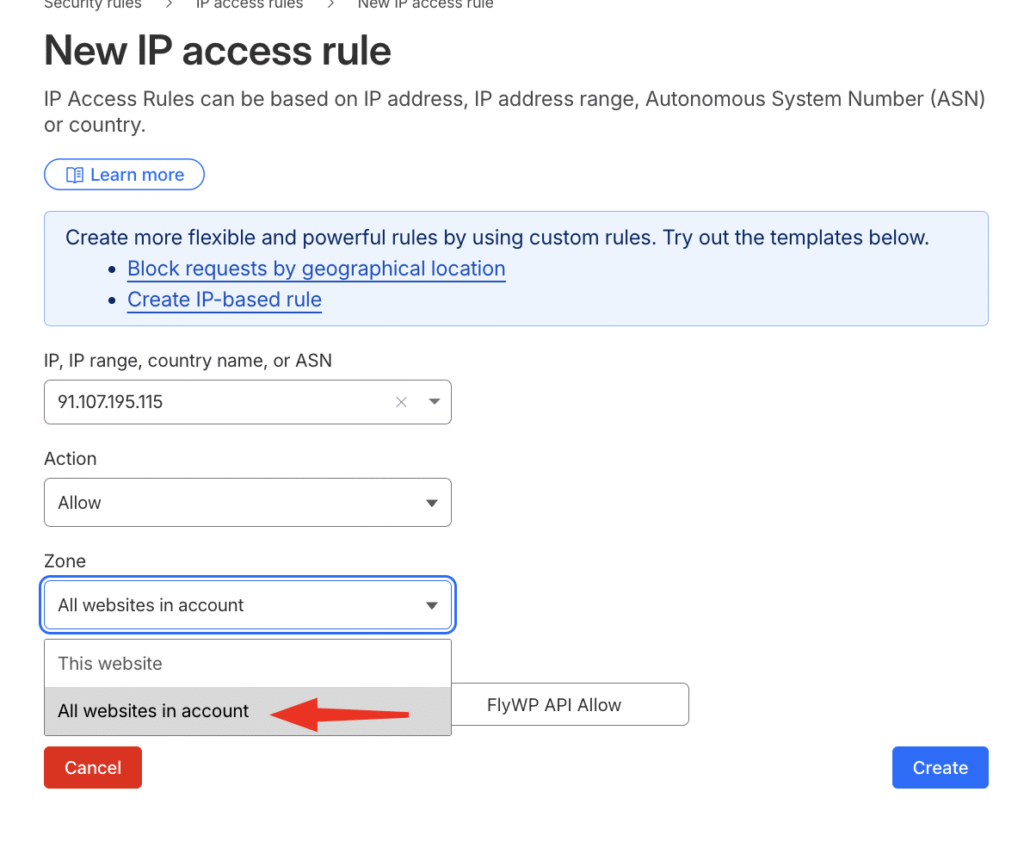
- Enter the following rule details:
- IP / ASN: Enter
91.107.195.115 - Action: Select Allow.
- Zone: Select All Website in this Account
- Note: (Optional) Enter
FlyWP API Access.
- IP / ASN: Enter
- Select Create.
Instructions For New Dashboard users
Note: IP Access Rules are only available in the new security dashboard if you have configured at least one IP access rule previously. Cloudflare generally recommends using Custom Rules, but IP Access Rules is required for FlyWP.
- Log in to the Cloudflare dashboard and go to the Security rules page.
- Select Create rule and then click IP access rules.
- Enter the following rule details:
- IP / ASN: Enter
91.107.195.115 - Action: Select Allow.
- Zone: Select whether the rule applies to the current website only or to all websites in the account. We suggest selecting All Website in this Account
- Note: (Optional) Enter
FlyWP API Access.
- IP / ASN: Enter
- Select Create.

In case you do not see the IP Access rules section, click on the [Link: Click here to go to Cloudflare Security Rules] to directly access the rule settings.
Once you have added the rule, changes typically take effect immediately across Cloudflare’s global network. However, in some rare cases, propagation may take up to 60 seconds.
If API requests are still being blocked after a minute, please check the following:
- Rule Priority: Ensure no other “Block” rules in your WAF Custom Rules are overriding this IP Access rule.
- Server Firewall: Verify that the server itself (outside of Cloudflare) is not blocking the connection.
If you continue to experience connectivity issues with the API after following these steps, please contact FlyWP support for further assistance.