

Your WordPress site works perfectly on your laptop. Then you deploy it, and something breaks.
A plugin that worked in staging suddenly conflicts in production. Your live server behaves differently from your development environment. Every deployment feels like a gamble.
If that sounds familiar, the problem probably isn’t WordPress. It’s the way traditional hosting works.
For years, shared hosting and cPanel have powered millions of WordPress websites because they’re simple, affordable, and familiar. They still make perfect sense for many projects. But as websites grow, so do the challenges. Environment drift, inconsistent deployments, and limited scalability become difficult to ignore.
That’s why more developers, agencies, and SaaS teams are adopting Docker-based hosting. Docker doesn’t magically make WordPress faster or better. It makes your infrastructure consistent. Every environment runs the same stack, every deployment follows the same process, and every site stays isolated from the others.
Here’s the key takeaway: Docker isn’t automatically better than traditional hosting. It’s the better choice when you need predictable deployments, isolated environments, and room to scale. For a simple brochure website, Docker is often unnecessary. For an agency managing dozens of client sites or a WooCommerce store where downtime means lost revenue, it’s a much stronger foundation.
The biggest barrier isn’t Docker itself. It’s the operational overhead that comes with it – YAML files, reverse proxies, SSL certificates, backups, and container management. That’s the problem platforms like FlyWP solve. They give you Docker’s technical advantages without requiring you to become a DevOps engineer.
In this guide, you’ll compare Docker and traditional WordPress hosting across performance, security, scalability, development workflow, and cost, so you can choose the right solution for your website today and as it grows.
What Is Traditional WordPress Hosting?
“Traditional hosting” covers a range of setups, but they all share one trait: WordPress runs directly on a server’s operating system, using software that’s installed and configured at the OS level rather than isolated into containers. The main categories are:
- Shared hosting — Your site lives on a server alongside hundreds (sometimes thousands) of other websites, all sharing the same CPU, RAM, and software stack. It’s the cheapest entry point and the most common starting place for new sites.
- VPS (Virtual Private Server) hosting — You get a slice of a physical server with dedicated resources, giving you more control and consistency than shared hosting, but you’re still responsible for a lot of server management yourself unless you use a managed layer on top.
- Managed WordPress hosting — Providers like WP Engine or Kinsta handle server maintenance, caching, and updates for you, layered on top of what is still, under the hood, a traditional (non-containerized) server architecture.
- Dedicated servers — An entire physical machine reserved for one client, typically used by larger sites with heavy traffic or compliance requirements.
In all of these setups, the day-to-day workflow tends to look similar: you log into cPanel or a similar control panel, upload files via FTP, manage your database through phpMyAdmin, and adjust PHP settings through a web interface or configuration files that live directly on the server.
A simplified traditional hosting architecture looks like this:
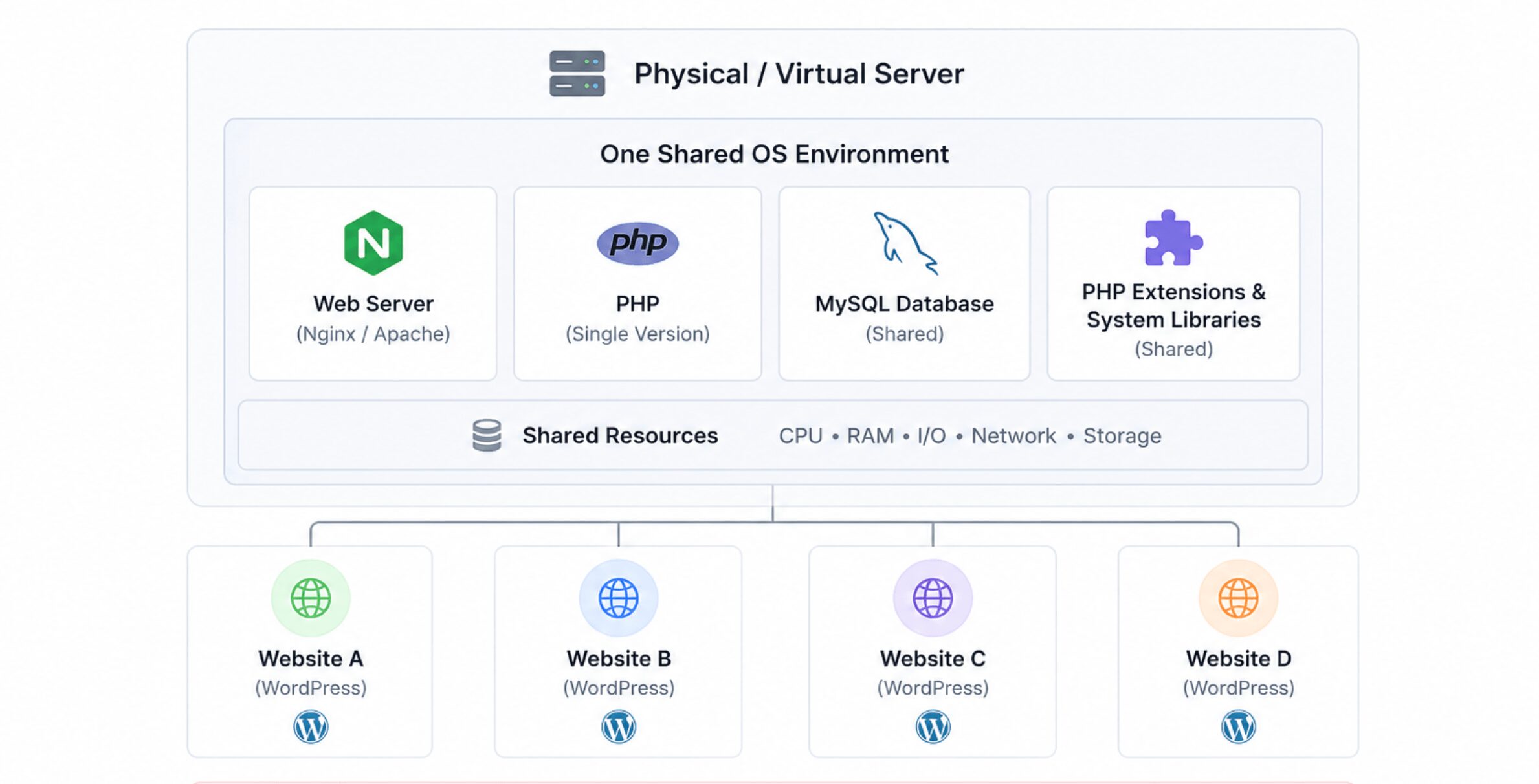
Physical/Virtual Server ↓ One shared OS environment ↓ Apache/Nginx + PHP + MySQL installed directly on the server ↓ Multiple websites running in that same environmentBecause every site on the server shares the same PHP version, the same installed extensions, and often the same resource pool, one misbehaving site or plugin can affect the performance, or even the uptime, of every other site sharing that environment.
What Is Docker WordPress Hosting?
Docker takes a fundamentally different approach. Instead of installing WordPress directly onto a server’s operating system, Docker packages each piece of the stack- the web server, PHP, the database, caching – into its own isolated container. If you want the full technical rundown, we cover it in more depth in our complete guide to running WordPress on Docker.
A few core concepts worth understanding:
- Containers — Lightweight, isolated environments that package an application with everything it needs to run (code, runtime, system tools, libraries), separate from the host machine and from other containers.
- Images — The blueprint a container is built from. A WordPress Docker image, for example, bundles a specific PHP version and WordPress core files in a repeatable, version-controlled way.
- Docker Compose — A tool for defining and running multi-container applications. A typical WordPress Compose file might spin up separate containers for Nginx (web server), PHP-FPM (PHP processing), MySQL (database), and Redis (object caching) — all working together but running independently.
Because each service lives in its own container, updating PHP for one site doesn’t touch the PHP version running for another. A misconfigured plugin can’t crash a neighboring site’s database. And because the entire environment is defined in code (the Compose file), you can spin up an identical copy of your production environment locally or in staging with a single command.
A simplified Docker hosting architecture looks like this:
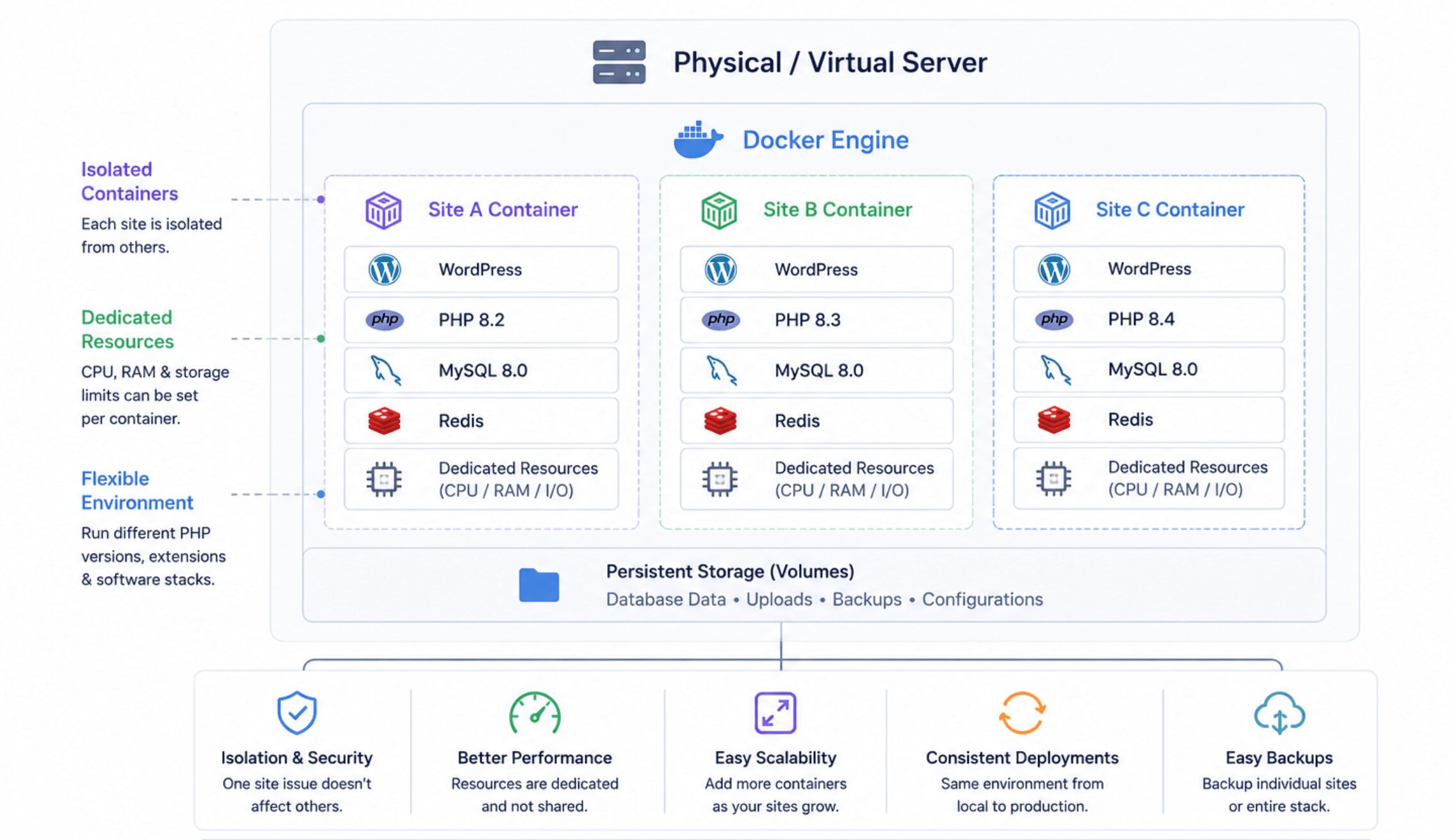
Traditional server:  Server → One shared environment → Many websites competing for the same resources
Docker:  Server → Individual containers → Independent, isolated environments per site
This is the structural difference that everything else in this article flows from: traditional hosting shares one environment across many sites, while Docker gives each site its own self-contained, portable environment.
Docker vs Traditional WordPress Hosting at a Glance
| Feature | Traditional Hosting | Docker |
|---|---|---|
| Deployment | Manual FTP uploads or plugin-based deployment; inconsistent across environments | Git-based, scripted, or automated deployment; same process every time |
| Isolation | Sites often share PHP versions, resources, and in shared hosting, the same OS | Each site runs in its own container, isolated from others |
| Security | Depends heavily on host-level hardening; shared environments carry cross-site risk | Stronger isolation by default; a compromised container is contained rather than server-wide |
| Scalability | Mostly vertical (upgrade to a bigger server); manual migrations to scale further | Horizontal scaling via container replication; easier to scale specific services |
| Resource allocation | Often shared/pooled, especially on shared hosting | Resource limits can be set per container |
| Backups | Usually plugin- or host-managed; varies in reliability | Can snapshot entire container/volume state, but requires proper setup |
| Environment consistency | Local, staging, and production often differ (“works on my machine”) | Same container image runs identically in local, staging, and production |
| Team collaboration | Harder to standardize; team members may have different local setups | Environment is defined in code and shared across the team |
| Performance | Solid with good caching (OPcache, object caching); depends on shared load | Comparable performance when configured correctly Docker itself isn’t inherently faster |
| Learning curve | Low – cPanel and FTP are widely understood | Higher – requires comfort with the command line and container concepts |
| Maintenance | Often handled by the host (managed hosting) or manually (VPS/shared) | Requires managing container updates, orchestration, and infrastructure – or a platform that does it for you |
| Cost | Lower entry cost, especially shared hosting | Higher entry cost (VPS/cloud server required), but better cost-efficiency at scale |
The table makes something important clear: Docker doesn’t win every category by default. It wins the categories that matter most for teams managing multiple sites, frequent deployments, or growth – and it loses ground on simplicity and up-front cost, which matter most for a single small site.
Performance Comparison
This is one of the most misunderstood parts of the Docker conversation, so it’s worth being direct about it upfront:
Docker itself doesn’t magically make WordPress faster. Proper server configuration does.
A poorly configured Docker setup can absolutely be slower than a well-tuned traditional server, and a well-tuned traditional server can outperform a sloppy Docker deployment. What Docker actually offers is a more consistent and repeatable path to good performance, because the same optimized configuration ships with every deployment instead of being re-created by hand each time.
Page speed depends far more on caching strategy, image optimization, and theme/plugin bloat than on whether the site is containerized. Both hosting types can serve a page in under a second, or take five seconds, depending on configuration.
Server response time (TTFB) benefits from container isolation in one specific way: on shared traditional hosting, a traffic spike on a neighboring site can slow down your response times. In Docker, resource limits mean a noisy neighbor is far less likely to affect you – assuming you’re on a platform that enforces those limits properly. If your site is currently struggling here, it’s worth reading about how to fix a slow WordPress server response time regardless of which hosting model you choose.
Resource utilization tends to be more efficient in Docker setups because containers only consume what they’re allocated, and idle containers use minimal overhead. Traditional shared hosting, by contrast, often over-provisions or under-provisions resources across dozens of sites at once.
Caching compatibility is essentially equal between the two, as long as the stack is configured correctly:
- OPcache speeds up PHP execution by caching compiled bytecode – works the same whether PHP runs in a container or directly on the OS.
- Redis provides object caching to reduce database load – commonly run as its own container in Docker setups, or as a separate service in traditional hosting.
- Nginx and PHP-FPM handle web serving and PHP processing efficiently in either architecture, provided they’re tuned for the site’s traffic patterns – see our comparison of OpenLiteSpeed vs. Nginx vs. Apache and our guide to optimizing PHP-FPM settings if you want to go deeper.
Bottom line: if you compare a well-optimized traditional host to a well-optimized Docker host, performance will be close. The real performance advantage of Docker shows up over time, across many deployments, because it’s harder to accidentally misconfigure a production environment when it’s built from the same reproducible image every time.
Security Comparison
Traditional hosting risks tend to concentrate around shared infrastructure and manual processes:
- Shared environments mean that on cheap shared hosting, a vulnerability in one site’s plugin can sometimes be leveraged to affect other sites on the same server (a risk generally known as cross-site contamination).
- Manual configuration mistakes – an open file permission, an outdated PHP version, a missed security patch – are easy to make when server hardening depends on a human remembering to do it consistently across dozens of sites.
- Shared PHP and software versions mean you can’t always patch or isolate one site without affecting others on the same stack.
Docker’s advantages come primarily from isolation:
- Container isolation means each site’s process space, filesystem, and dependencies are separated from every other site on the server, significantly limiting the blast radius of a compromised plugin or theme.
- Limited permissions – containers typically run with restricted privileges by default, reducing what an attacker can do even if they gain access.
- Easier rollback – because environments are defined by version-controlled images, reverting to a known-good state after an incident is faster and more reliable than manually undoing changes on a live server.
- Immutable infrastructure – rather than patching a live server in place (and potentially leaving it in an inconsistent state), you can rebuild and redeploy a clean container from a known configuration.
It’s worth being clear-eyed here: Docker improves your security posture, but it doesn’t replace good security practices. A container with an outdated WordPress core, weak admin credentials, or a vulnerable plugin is still vulnerable – isolation limits the spread of a breach, not the likelihood of one.
Updates, firewall rules, backups, and monitoring still matter just as much in a containerized environment as in a traditional one. For a more structured approach, our CIS benchmarks for securing WordPress walk through hardening steps that apply to both hosting models.
Scalability Comparison
Traditional hosting generally scales in one direction: up.
- Vertical scaling means moving to a bigger server – more CPU, more RAM – when your current one is maxed out. It works, but it has a ceiling, and it usually requires downtime or a migration window.
- Manual migrations are often required to move to a new host or server tier entirely, which can mean re-configuring DNS, re-installing software, and manually copying files and databases.
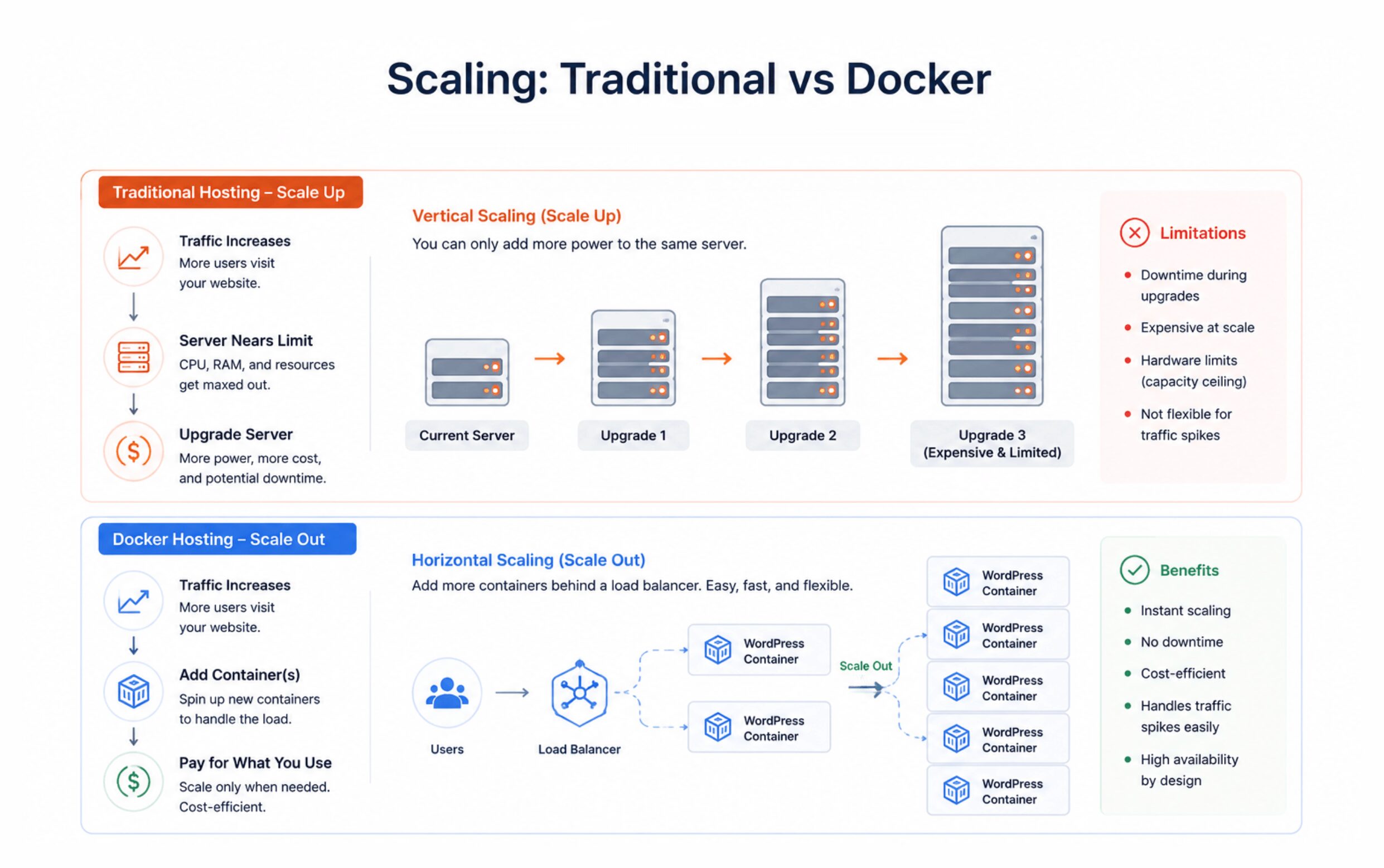
Docker is built for a different scaling model:
- Horizontal scaling means adding more containers to handle load, rather than making one server bigger. This is a natural fit for traffic spikes – a high-traffic WooCommerce store during Black Friday, for instance, can spin up additional containers to absorb demand and scale back down afterward.
- Container replication lets you run multiple identical copies of your WordPress environment behind a load balancer, distributing traffic without manually configuring each instance from scratch.
- Easy deployments because every environment is built from the same image; deploying to a new server or region takes minutes rather than hours, since there’s no manual software installation involved.
A real-world example: An agency running 30 client sites on traditional VPS hosting typically needs a separate server (or a carefully managed multi-tenant server) for each performance tier, with scaling handled site-by-site. On a Docker-based platform, that same agency can run all 30 sites as isolated containers on shared infrastructure, scaling individual sites up or down based on their actual traffic – without needing to provision and manage 30 separate servers.
Development Workflow
This is where the day-to-day experience of the two approaches diverges the most.
Traditional workflow:
- FTP uploads — changes are pushed by manually uploading files to the live (or staging) server.
- Manual edits — configuration changes, plugin updates, and PHP tweaks are often made directly on the server through a control panel.
- “Works on my machine” — because local development environments rarely match production exactly (different PHP versions, different extensions, different server software), bugs that don’t appear locally can surface only after deployment.
Docker workflow:
- Git-based deployment — code changes are pushed to a repository, and deployment is triggered from there, rather than through manual file transfers.
- Consistent environments — because the same Docker image is used locally, in staging, and in production, the same code behaves the same way at every stage.
- Local = staging = production — this is arguably Docker’s single biggest workflow advantage. A developer can run the exact production environment on their laptop, catch issues before they ever reach a live site, and know that what works in staging will work in production.
Example workflow (Docker-based):
- A developer clones the project repository and runs
docker compose upto spin up a local development environment identical to production. - Changes are made and tested locally against the same PHP version, plugin set, and database structure as the live site.
- Code is pushed to a Git repository.
- A deployment pipeline builds a new container image and deploys it to staging for review.
- Once approved, the same image is promoted to production: no re-installation, no manual configuration, no guesswork.
Compare that to a traditional workflow where a developer might make a change locally in a completely different environment (different PHP version, no Redis, different server software), then upload it via FTP and hope nothing breaks, because there’s no reliable way to guarantee the two environments match.
Cost Comparison
Cost is where traditional hosting still has a clear, honest advantage – at least on the sticker price.
- Shared hosting — typically the cheapest option, often $3–$15/month, because you’re sharing server resources across many customers.
- Managed WordPress hosting — usually $20–$100+/month depending on traffic and features, with maintenance and optimization handled for you.
- VPS hosting — generally $10–$80/month for a dedicated slice of a server, with more control but more responsibility.
- Docker-based hosting — requires at minimum a cloud server (commonly $10–$40/month for a capable VPS from a provider like DigitalOcean, Hetzner, or Vultr), plus either your own time to manage the Docker environment or a management platform layered on top.
On raw monthly cost alone, a single small site will almost always be cheaper on basic shared hosting than on a Docker setup. That’s not in dispute.
Where the comparison shifts is total cost of ownership, especially once you’re managing more than one site:
- Time — manually configuring, securing, and maintaining each traditional hosting environment takes real hours, especially at scale. Docker’s reproducibility reduces the time spent redoing the same setup work for every new site.
- Maintenance — patching PHP versions, renewing SSL certificates, and updating server software across a dozen traditional hosting accounts individually takes meaningfully longer than updating a handful of shared container images.
- Downtime — inconsistent environments lead to more deployment failures, and each failure has a cost in lost time, lost revenue (especially for e-commerce), and lost trust if it affects client sites.
- Learning curve — Docker has real upfront costs in time spent learning container concepts, YAML syntax, and orchestration, which traditional hosting mostly avoids.
The honest framing: if you’re running one low-traffic site, shared hosting is very likely cheaper in every sense – dollars and time. If you’re running multiple sites, especially client sites or anything that needs staging environments and frequent deployments, Docker’s efficiency gains tend to outweigh its higher server cost, provided you’re not spending excessive hours managing the infrastructure yourself.
Pros and Cons
Traditional Hosting
Pros
- Beginner-friendly, with a shallow learning curve
- Low cost, especially for a single small site
- Easy, fast initial setup
- Large support ecosystem – tutorials, forums, and host support teams are everywhere
Cons
- Less flexible when requirements grow beyond a single site
- Environment inconsistencies between local, staging, and production
- Scaling limitations, especially under sudden traffic spikes
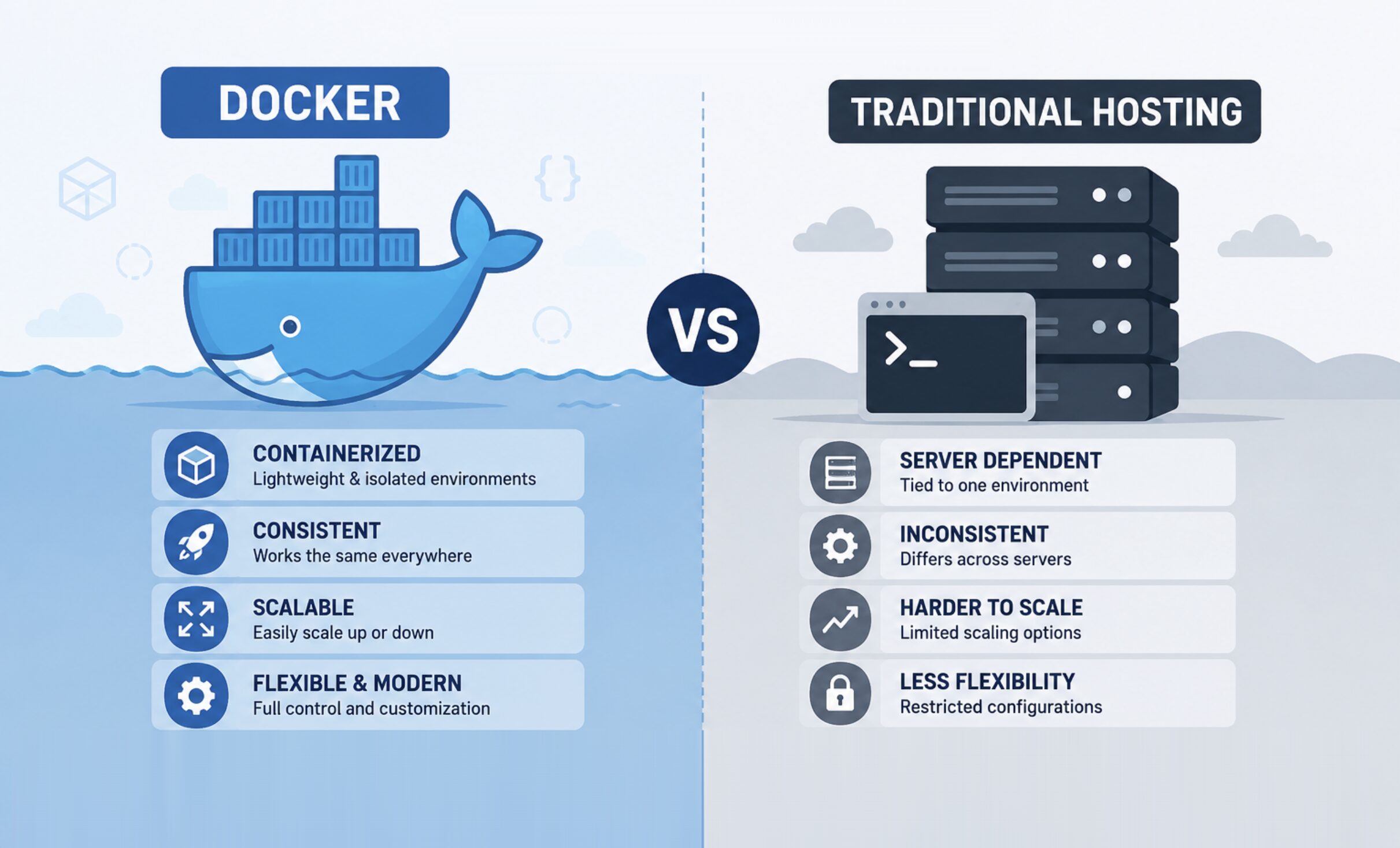
Docker
Pros
- Predictable, repeatable deployments
- Better isolation between sites and services
- Easier horizontal scaling
- A more modern development workflow (Git-based, environment-as-code)
- Infrastructure portability – the same setup can move between cloud providers with minimal changes
Cons
- Higher learning curve, particularly around the command line and YAML configuration
- More involved initial setup than traditional hosting
- Requires comfort with command-line tools, or a platform that abstracts them away
Which One Should You Choose?
Choose Traditional Hosting if…
- You run a personal blog or small brochure site.
- You have a small business website with infrequent updates.
- You rarely make technical changes to your site.
- You don’t manage multiple environments (local, staging, production) or multiple sites.
Choose Docker if…
- You manage client websites as a freelancer or agency.
- You develop plugins or themes and need reliable testing environments.
- You run WooCommerce stores that need to handle traffic spikes without downtime.
- You work in a team and need everyone on the same environment.
- You need proper staging environments that mirror production exactly.
- You deploy frequently and need that process to be predictable.
- You want infrastructure that’s portable across servers or cloud providers.
If you’re not sure which camp you fall into, a useful gut check is this: how many times in the past year has a deployment, plugin update, or server change caused an unexpected problem? If the answer is “never,” traditional hosting is probably serving you fine. If the answer is “more than once,” that’s usually a sign you’ve outgrown the “works on my machine” model.
The Biggest Drawback of Docker (And How to Solve It)
It’s worth being straightforward about this rather than glossing over it: Docker’s biggest weakness isn’t a technical one; it’s the operational burden it puts on whoever has to manage it.
Common pain points include:
- Learning and remembering the right Docker commands for day-to-day operations
- Writing and maintaining YAML configuration files for Docker Compose
- Setting up and troubleshooting a reverse proxy to route traffic to the right container
- Manually issuing and renewing SSL certificates for every site
- Building reliable backup processes for containerized volumes and databases
- Setting up monitoring to catch issues before they become outages
- Handling server provisioning – spinning up, securing, and configuring the underlying cloud server in the first place
None of these tasks are impossible. But together, they represent a real time investment and a real skill requirement that most WordPress users and even many developers don’t want to take on themselves. This is precisely what discourages a lot of teams from adopting Docker even when it would genuinely serve them better: not Docker’s architecture, but the DevOps work required to run it well.
How FlyWP Makes Docker WordPress Hosting Easy
This is the gap FlyWP is built to close: giving you the architectural benefits of Docker isolation, consistency, scalability without requiring you to personally manage containers, YAML files, or server infrastructure.
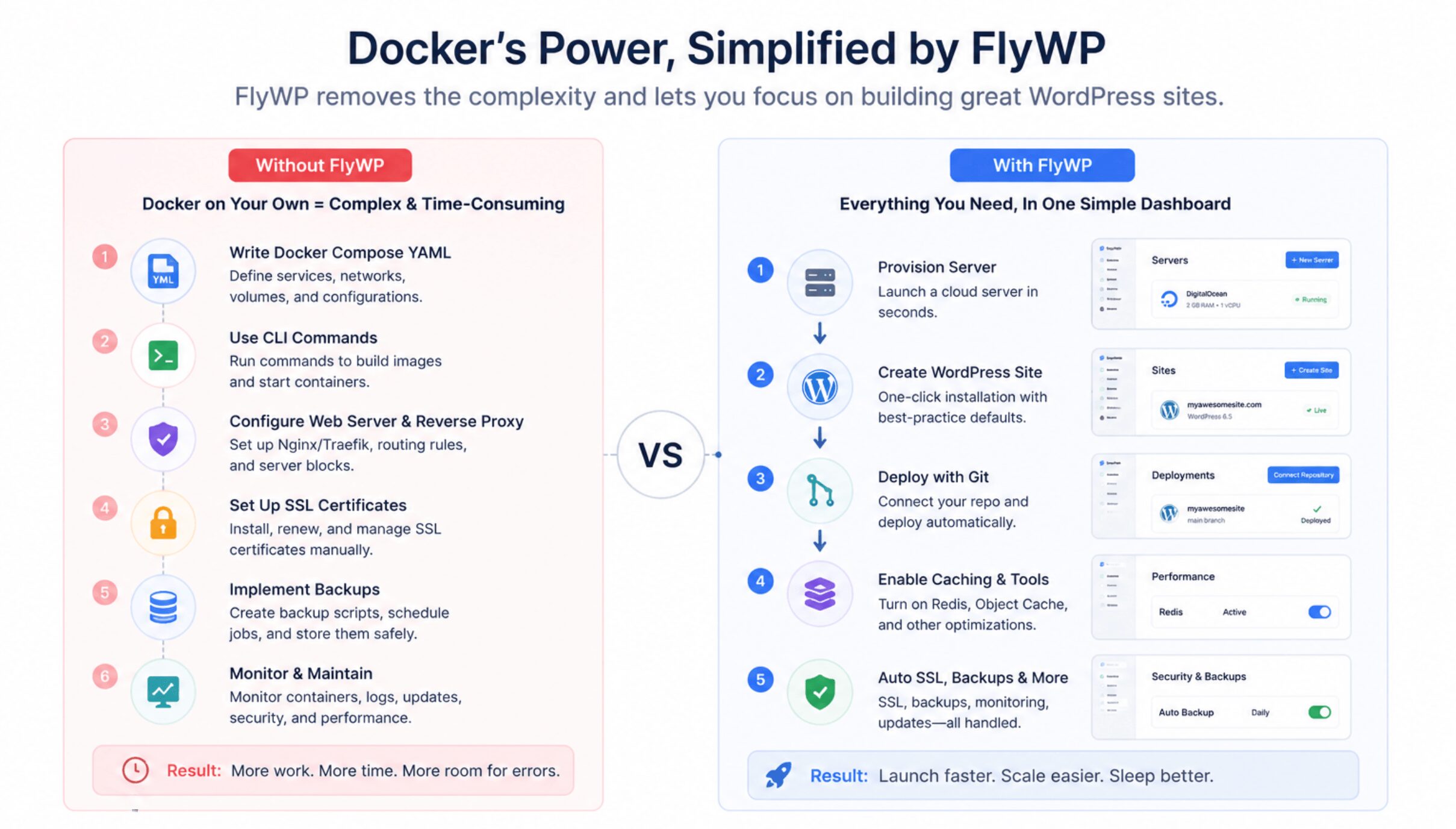
With FlyWP, you can:
- Provision cloud servers in minutes — connect your own cloud provider account (DigitalOcean, Hetzner, Vultr, and others) and have a fully configured server ready to go, without manually installing or configuring software.
- Deploy Docker-powered WordPress sites — each site runs in its own isolated container, giving you the security and consistency benefits described above, without writing a single Compose file by hand.
- Manage multiple websites from one dashboard — instead of logging into a separate cPanel for every site, agencies and freelancers can see and manage every client site’s server, backups, and settings in one place.
- Enable Redis and object caching — caching that would otherwise require manual configuration is available with a toggle, addressing the performance-tuning work described in the performance section above.
- Create staging sites — spin up a staging environment that mirrors production exactly, solving the “works in staging, breaks in production” problem that traditional hosting struggles with.
- Set up automated backups — instead of relying on a patchwork of plugins or manual scripts, backups are handled at the platform level, with flexible storage integrations to choose where they’re stored.
- Configure SSL automatically — certificates are issued and renewed without manual intervention, removing one of the most common Docker pain points listed above.
- Manage teams and permissions — give collaborators or clients the right level of access without sharing root credentials to the server.
- Monitor server health — keep visibility into resource usage and uptime across every site without setting up separate monitoring tooling.
- Scale without managing Docker manually — resource limits and scaling decisions are handled through the dashboard rather than the command line. See the full feature list for everything included.
In short: the reasons to choose Docker over traditional hosting (isolation, consistency, scalability) remain fully intact, FlyWP just removes the reasons people hesitate to adopt it (complexity, time, and specialized DevOps knowledge).
Frequently Asked Questions
Is Docker better than traditional WordPress hosting?
It depends on your use case. Docker is better for teams managing multiple sites, needing staging environments, or requiring predictable deployments. Traditional hosting is often the simpler, more cost-effective choice for a single low-traffic site.
Does Docker improve WordPress performance?
Not by itself. Docker’s main benefit is consistency and isolation, not raw speed. Performance still depends on proper caching (OPcache, Redis), server resources, and site optimization the same factors that affect traditional hosting.
Is Docker suitable for beginners?
Docker has a steeper learning curve than traditional hosting, particularly around command-line tools and configuration files. Managed Docker platforms like FlyWP significantly lower that barrier by handling the technical setup for you.
Can I migrate an existing WordPress site to Docker?
Yes. A typical migration involves exporting your files and database, then importing them into a Docker-based environment our guides on cloning a WordPress site and transferring a WordPress site walk through the process. Managed platforms simplify this considerably compared to configuring the migration yourself, with dedicated site migration tools that handle most of the heavy lifting.
Is Docker more secure than shared hosting?
Generally, yes, primarily because of container isolation, a compromised site is far less likely to affect others on the same server. That said, Docker doesn’t replace fundamentals like keeping WordPress core and plugins updated and using strong credentials.
Does Docker replace cPanel?
Functionally, yes, Docker-based platforms typically use their own dashboards rather than cPanel, since server management works differently in a containerized environment. The underlying tasks (managing files, databases, and settings) are still handled, just through a different interface.
Can WooCommerce run on Docker?
Yes. WooCommerce runs the same on Docker as it does on traditional hosting, and many stores benefit from Docker’s ability to scale horizontally during high-traffic events like sales or product launches; see our guide to hosting high-traffic WordPress sites for more on what that looks like in practice.
What are the disadvantages of Docker for WordPress?
The main disadvantages are the learning curve, the initial setup complexity, and the need for comfort with command-line tools and configuration unless you use a managed platform that abstracts those requirements away.
Is Docker hosting more expensive?
The base infrastructure cost (a cloud server) is often comparable to or slightly higher than basic shared hosting, but rarely dramatically more expensive. Where cost differences show up most is in time: Docker can reduce the ongoing labor of managing multiple sites, which often offsets a higher sticker price.
Do I need Docker if I only have one website?
Usually not. If you run a single site with infrequent updates and no need for staging environments, traditional hosting is typically simpler and more cost-effective. Docker’s advantages become more apparent as the number of sites, deployments, or team members grows.
Conclusion
Traditional WordPress hosting remains the right choice for a lot of websites. It’s affordable, easy to use, and requires little technical knowledge to get started, which is exactly why it still powers so much of the web.
Docker, on the other hand, offers a more modern approach built for developers, agencies, and growing businesses. Its real strengths are consistency, isolation, scalability, and automation, not raw speed, and not necessarily lower cost on a single site.
The real challenge with Docker was never Docker itself; it’s the infrastructure work required to run it well. Platforms like FlyWP close that gap, handling the servers, SSL, backups, and container management so you get Docker’s technical advantages without needing to become a DevOps engineer to access them.
If you’re evaluating your hosting setup, the right next step isn’t “switch to Docker” or “stick with what you have” by default; it’s an honest look at how often environment inconsistency, deployment risk, or scaling limits are actually costing you time and money.
If they are, it’s worth exploring what a Docker-powered setup with FlyWP could look like for your sites. Check out our pricing to see what fits your setup, or dive into the documentation to see exactly how it works under the hood.