Managing WordPress websites has become increasingly complex. Traditional hosting environments often require manual server configuration, environment troubleshooting, and deployment workflows that can lead to inconsistencies between development, staging, and production.
This is one reason Docker has become a popular choice for modern WordPress infrastructure. Docker allows WordPress and its dependencies, including PHP, databases, web servers, and caching services, to run inside isolated containers. As a result, deployments become more predictable, environments remain consistent, and websites are easier to scale and maintain.
For WordPress developers, agencies, and businesses managing multiple websites, Docker offers a more reliable and portable approach than traditional hosting setups. Whether you’re building a local development environment, creating staging workflows, or running production workloads, containerization can simplify how WordPress is deployed and managed.
In this guide, you’ll learn what Docker is, how Docker containers work with WordPress, the benefits and challenges of containerized hosting, how to run WordPress with Docker Compose, and how FlyWP simplifies Docker-powered WordPress management.
Editor’s Note: This guide is designed for WordPress developers, agencies, and site owners who want to understand how Docker works with WordPress. While examples are beginner-friendly, the concepts discussed are also used in production environments at scale.
TL;DR
- FlyWP abstracts Docker complexity away, giving WordPress teams a managed, Docker-powered hosting platform without requiring container knowledge.
- Docker is a containerization platform that packages applications and their dependencies into isolated, portable environments called containers.
- For WordPress, Docker solves the classic environment inconsistency problem – dev, staging, and production all run identically.
- A typical WordPress Docker stack includes a WordPress container, a MySQL/MariaDB database container, an Nginx or Apache web server, and optionally Redis for caching.
- Docker Compose lets you define and spin up your entire multi-container WordPress environment with a single configuration file and one command.
- Key benefits include site isolation, easier deployments, portability across servers, and faster disaster recovery.
- Key challenges include managing backups, SSL, updates, and monitoring, all of which require extra tooling or expertise.
Docker for WordPress packages WordPress, PHP, databases, and supporting services into isolated containers. This makes deployments more consistent, portable, scalable, and easier to manage across development, staging, and production environments.
What is Docker?
Docker is an open-source platform that allows developers to build, ship, and run applications inside containers, lightweight, self-contained units that bundle an application with everything it needs to run: code, runtime, system libraries, and configuration files.
Think of a container like a standardized shipping container. Before standardized containers transformed global trade, every port had to handle cargo of different sizes and shapes. Docker did the same thing for software: it standardized how applications are packaged and run, regardless of where they’re deployed.
Containers vs. Virtual Machines
Before Docker, the go-to solution for environment isolation was virtual machines (VMs). Both containers and VMs isolate applications, but they do it very differently.
| Feature | Virtual Machine | Docker Container |
|---|---|---|
| Includes full OS? | Yes | No (shares host OS kernel) |
| Startup time | Minutes | Seconds |
| Resource usage | High | Low |
| Portability | Limited | High |
| Image size | GBs | MBs |
VMs virtualize hardware and run a full operating system for each instance. Docker containers virtualize only at the operating system level, they share the host OS kernel but remain fully isolated from each other. The result is dramatically faster startup times, far lower resource consumption, and much smaller image sizes.
Why Docker Became the Industry Standard
Docker was released in 2013 and quickly became foundational infrastructure for modern software teams. Key reasons for its adoption:
- Reproducibility: A Docker image built once runs identically everywhere – developer laptops, CI/CD pipelines, cloud servers.
- Speed: Containers start in seconds. VMs take minutes.
- Ecosystem: Docker Hub hosts millions of pre-built images, including official images for WordPress, MySQL, Nginx, Redis, and more.
- Orchestration compatibility: Docker integrates natively with Kubernetes, Docker Swarm, and other orchestration platforms for large-scale deployments.
- CI/CD integration: Docker is a natural fit in automated build and deployment pipelines.
What Does Docker Do for WordPress?
Containerizing WordPress with Docker addresses six specific pain points that traditional hosting struggles with.
1. Environment Consistency
The most common WordPress deployment headache is environment drift: your local PHP version doesn’t match production, a plugin behaves differently on staging, or a server upgrade silently breaks your site. Docker eliminates this. You define your environment once in a Docker image, and that exact environment, same PHP version, same extensions, same configuration, runs identically everywhere.
Impact: Teams report dramatically fewer “works on my machine” bugs and faster debugging cycles when development and production environments are containerized identically.
2. Site Isolation
In traditional shared hosting, multiple WordPress sites run on the same server with shared PHP processes, shared resources, and often shared file permissions. If one site is compromised or crashes, others can be affected.
With Docker, each WordPress site runs in its own isolated container. Processes, filesystem access, and network interfaces are all sandboxed. A security incident in one container cannot spread to others on the same host.
3. Easier Deployment
Deploying a WordPress site traditionally means manually copying files, configuring databases, setting file permissions, and hoping nothing breaks. With Docker, your entire application is an image. Deploying is as simple as pulling the latest image and restarting the container, the same process every time, with no manual steps.
Docker enables GitOps-style deployments where a code push triggers an automated pipeline that builds a new image, runs tests, and deploys all without manual server intervention.
4. Portability
A Dockerized WordPress site is fully portable. You can move it between cloud providers, from a local machine to a VPS, or from one data center to another, without reconfiguring the entire stack. The container carries its environment with it.
This makes vendor lock-in far less of a concern. If your current hosting provider raises prices or underperforms, migrating a Docker-based site is a matter of pulling the image on a new server.
5. Scalability
Docker containers can be scaled horizontally by simply spinning up additional instances behind a load balancer. When traffic spikes, you launch more WordPress containers. When it drops, you scale back. This is significantly faster and more resource-efficient than provisioning new VMs or upgrading to a larger server.
For high-traffic WordPress sites, publishing platforms, WooCommerce stores during sales events, and news sites covering breaking stories, this on-demand scalability is operationally critical.
6. Faster Recovery
When a traditional WordPress server fails, recovery means rebuilding the server, reinstalling software, restoring backups, and manually reconfiguring everything, a process that can take hours. With Docker, recovery is a matter of launching a new container from your image and restoring your data volume. This can reduce recovery time from hours to minutes.
Traditional WordPress Hosting vs. Docker Containers
| Feature | Traditional Hosting | Docker Containers |
|---|---|---|
| Isolation | Limited – sites share server resources | High – each site runs in its own container |
| Portability | Low – tied to server configuration | High – runs anywhere Docker is installed |
| Deployment | Manual – FTP, SSH, manual config | Automated – image pull and restart |
| Scaling | Moderate – requires server upgrades | Easy – spin up additional containers |
| Consistency | Variable – environments differ between servers | Consistent – identical across all environments |
| Recovery time | Hours – rebuild server from scratch | Minutes – launch container from image |
| Resource efficiency | Lower – VMs or full server overhead | Higher – containers share the OS kernel |
| Expertise required | Moderate – server admin skills | Moderate to high – container knowledge needed |
| Cost at small scale | Low – shared hosting is cheap | Moderate – requires a VPS or cloud server |
Traditional hosting remains a viable choice for simple, low-traffic WordPress sites where consistency and scalability are not primary concerns. For development teams, agencies managing multiple sites, or any site with variable or high traffic, Docker’s advantages compound significantly.
Understanding a Typical WordPress Docker Stack
A production-ready WordPress deploymentisn’t a single container; it’s an orchestrated stack of specialized services, each running in its own container.
Docker Compose is a tool that lets you define and run an entire WordPress environment, including WordPress, MySQL, Nginx, and Redis – using a single configuration file and command.
WordPress Container
The core container runs the WordPress application files and PHP. It’s built on the official WordPress Docker image, which is available in multiple variants (Apache, FPM) and PHP versions. This container handles PHP execution and serves as the application layer.
Database Container
WordPress requires a MySQL or MariaDB database. In a Docker setup, this runs in a dedicated database container, completely isolated from the WordPress application container. The two communicate over a private Docker network. Using an official MySQL or MariaDB image ensures a consistent, tested database environment.
Web Server Container
For production deployments, Nginx is the preferred web server for Docker-based WordPress setups. Running Nginx in its own container in front of the PHP-FPM WordPress container provides better performance and more flexible request routing than running Apache inside the WordPress container. Nginx handles static file serving, SSL termination, and proxying PHP requests to the WordPress container.
Redis Container
For performance, a Redis container provides object caching for WordPress. When WordPress generates a page, PHP queries the database. With Redis caching query results and WordPress object cache in memory, subsequent requests are served far faster, often 5–10x faster for database-heavy operations. The official Redis Docker image is minimal and fast to start.
Monitoring Components
Production stacks typically add lightweight monitoring containers: tools like Prometheus and Grafana for metrics, or Netdata for real-time server and container performance visibility. These run alongside your WordPress stack without interfering with it.
Architecture Overview
[Visitor Request] ↓[Nginx Container] — SSL termination, static files, reverse proxy ↓[WordPress (PHP-FPM) Container] — Application logic ↓ ↓[MySQL Container] [Redis Container](Persistent data) (Object cache) ↑[Monitoring Containers] — Observe all servicesAll containers communicate via a private Docker network. Persistent data (database files, WordPress uploads) is stored in Docker volumes that persist independently of the containers themselves.
How Docker Containers Work With WordPress
Understanding the request lifecycle helps clarify why Docker improves WordPress performance and reliability.
- Step 1 – Visitor request: A visitor’s browser sends an HTTP/HTTPS request to your domain. DNS resolves to your server’s IP address.
- Step 2 – Nginx container receives the request: Nginx handles SSL termination (decrypting HTTPS), checks whether the request is for a static file (images, CSS, JS), and either serves it directly or forwards dynamic requests to the PHP container. Static files are served extremely fast from Nginx without PHP ever being invoked.
- Step 3 – WordPress (PHP-FPM) container processes the request: For dynamic requests, page loads, form submissions, and admin actions, Nginx forwards the request to the WordPress PHP-FPM container. PHP executes WordPress, loading plugins, themes, and templates.
- Step 4 – Redis cache check: Before querying the database, WordPress checks Redis for cached results. If a valid cached version exists (cache hit), PHP skips the database query entirely and returns the cached result. This is where the major performance gains from Redis caching come from.
- Step 5 – Database query (if needed): On cache misses or non-cacheable requests, the WordPress container queries the MySQL/MariaDB container over the private Docker network. The result is returned to PHP, optionally stored in Redis, and the response is assembled.
- Step 6 – Response delivered: Nginx sends the assembled HTML response back to the visitor’s browser.
Each container does one job. Each job is isolated. This separation of concerns makes individual components easier to scale, update, and troubleshoot.
How to Run WordPress Using Docker Compose
Docker Compose is a tool for defining and running multi-container Docker applications. You describe your entire stack – containers, networks, volumes, and environment variables- in a single docker-compose.yml file. Then you start everything with one command.
Basic WordPress Docker Compose Example
version: '3.8'
services:
  db:    image: mysql:8.0    container_name: wordpress_db    restart: unless-stopped    environment:      MYSQL_DATABASE: wordpress      MYSQL_USER: wpuser      MYSQL_PASSWORD: strongpassword      MYSQL_ROOT_PASSWORD: strongrootpassword    volumes:      - db_data:/var/lib/mysql    networks:      - wordpress_net
  wordpress:    image: wordpress:php8.2-fpm    container_name: wordpress_app    restart: unless-stopped    depends_on:      - db    environment:      WORDPRESS_DB_HOST: db:3306      WORDPRESS_DB_NAME: wordpress      WORDPRESS_DB_USER: wpuser      WORDPRESS_DB_PASSWORD: strongpassword    volumes:      - wordpress_data:/var/www/html    networks:      - wordpress_net
  nginx:    image: nginx:alpine    container_name: wordpress_nginx    restart: unless-stopped    ports:      - "80:80"      - "443:443"    volumes:      - wordpress_data:/var/www/html      - ./nginx/conf.d:/etc/nginx/conf.d      - ./nginx/ssl:/etc/nginx/ssl    depends_on:      - wordpress    networks:      - wordpress_net
  redis:    image: redis:alpine    container_name: wordpress_redis    restart: unless-stopped    networks:      - wordpress_net
volumes:  db_data:  wordpress_data:
networks:  wordpress_net:
Starting Your Stack
docker-compose up -dThe -d flag runs containers in detached mode (background). Docker Compose pulls any missing images, creates the network, initializes volumes, and starts all services in the correct order.
Understanding the Key Components
Services define each container in your stack. Each service specifies an image, environment variables, ports, volumes, and network membership. In the example above, db, wordpress, nginx, and redis are four separate services, each running in its own isolated container.
Networks define how containers communicate. By placing all services onwordpress_net, they can reach each other by service name (e.g., the WordPress container connects to the database using the hostname db). Nothing on this network is exposed externally unless explicitly mapped to a host port.
Volumes provide persistent storage that survives container restarts and replacements. db_data stores MySQL database files. wordpress_data stores WordPress core files, plugins, themes, and uploaded media. Volumes are managed by Docker and are not deleted when containers are removed – only when explicitly deleted.
Environment variables pass configuration to containers without hardcoding values into images. Database credentials, WordPress settings, and other configuration parameters are passed this way. In production, sensitive values should be managed with Docker secrets or a .env file kept out of version control.
Useful Docker Compose Commands
# Start all servicesdocker-compose up -d
# Stop all servicesdocker-compose down
# View running containers and statusdocker-compose ps
# View logs for all servicesdocker-compose logs -f
# View logs for a specific servicedocker-compose logs -f wordpress
# Restart a specific servicedocker-compose restart nginx
# Pull latest image versionsdocker-compose pull
# Access a container's shelldocker-compose exec wordpress bash
Challenges of Managing WordPress in Docker
Docker brings significant advantages, but it also introduces operational complexity that doesn’t exist in traditional managed hosting. Understanding these challenges is essential before committing to a Docker-based WordPress setup.
Backups
Traditional hosts often provide one-click backup tools. In Docker, backups require two separate concerns: database backups (a mysqldump copy of the database container) and file backups (a copy of the WordPress volume). These need to be scheduled, tested, and stored off-server. Setting this up correctly and verifying restores work – takes meaningful engineering effort.
SSL Certificate Management
HTTPS is mandatory for any production WordPress site. In a Docker setup, SSL termination typically happens in the Nginx container. Provisioning and auto-renewing Let’s Encrypt certificates in a containerized environment requires additional tooling (commonly Certbot or a reverse proxy like Traefik), careful volume mounting, and testing. Misconfigured SSL causes site outages.
Monitoring
Visibility into container health, resource usage, PHP errors, and database performance requires intentional setup. Unlike managed hosting, where basic monitoring is included, Docker environments need purpose-built monitoring stacks (Prometheus + Grafana, Netdata, or similar) configured and maintained separately.
Updates
WordPress core, plugin, theme, and Docker image updates are independent concerns. PHP image updates, in particular, require building and redeploying new container images rather than running a system package upgrade. Without a proper CI/CD pipeline, keeping everything updated and secure becomes manual and error-prone.
Scaling
Horizontal scaling (running multiple WordPress containers behind a load balancer) requires solving shared filesystem access (multiple containers can’t write to the same volume without coordination), session management, and cache invalidation across instances. These are solvable problems, but each requires deliberate architecture decisions.
Security
Container security is not automatic. Best practices require running containers as non-root users, minimizing image surface area, keeping images patched, securing Docker socket access, and applying proper network isolation. An insecurely configured Docker setup can be worse than traditional hosting.
How FlyWP Simplifies Docker-Based WordPress Management
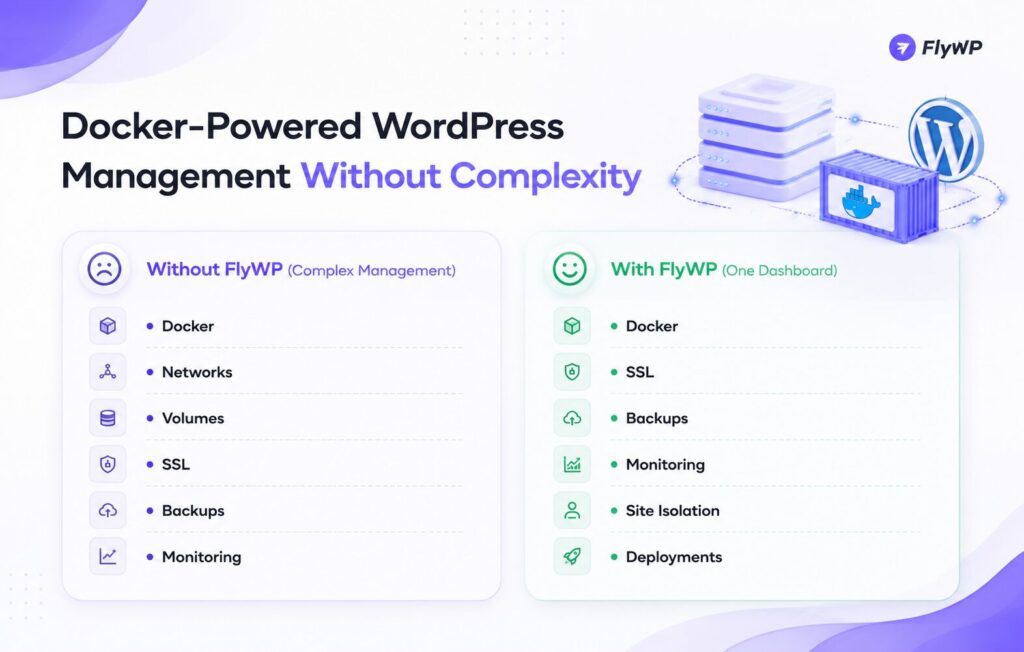
Understanding Docker’s architecture and managing it yourself is powerful – but it demands DevOps expertise that most WordPress developers and agencies don’t need to acquire. FlyWP was built specifically to deliver Docker’s infrastructure advantages while removing the operational complexity.
Docker-Powered Architecture, Without the Learning Curve
Every site on FlyWP runs in its own isolated Docker container. You get all the consistency, isolation, and portability benefits of containerization without writing a single line of Docker configuration. FlyWP handles image selection, container orchestration, and runtime management automatically.
Complete Site Isolation
Each WordPress site on FlyWP is a fully isolated container environment. There’s no shared PHP process, no shared filesystem, and no shared database server between sites. A misbehaving plugin on one site cannot affect another. Security incidents are contained. Resources are not shared.
Streamlined Server Management
FlyWP connects to your preferred cloud provider (DigitalOcean, Vultr, Linode, AWS, Hetzner, and others) and provisions Docker-ready servers on your behalf. Server configuration, security hardening, Docker installation, and stack setup are handled by FlyWP, not manually. You manage your WordPress sites; FlyWP manages the infrastructure.
Automated Backups
FlyWP includes built-in automated backup scheduling with off-site storage. Both database and file backups are handled by the platform, with one-click restore. This eliminates the most operationally risky aspect of self-managed Docker WordPress hosting.
Security Built In
FlyWP implements Docker security best practices by default: isolated container networking, minimal attack surface, regular image updates, and optional WAF integration. Security is a platform concern, not something each site owner needs to configure independently.
Monitoring and Observability
FlyWP’s dashboard provides real-time visibility into server resources, site uptime, PHP error logs, and container health, without requiring a separate monitoring stack. Issues surface in the interface rather than requiring manual log inspection.
Faster Deployments
With FlyWP, deploying a new WordPress site takes minutes, not hours. Spinning up a containerized environment, provisioning a database, configuring Nginx, and issuing an SSL certificate happen through a guided interface rather than a series of command-line operations. For agencies managing dozens of client sites, this time difference is measurable and significant.
FlyWP is, in effect, a managed Docker hosting layer purpose-built for WordPress – giving teams infrastructure that was previously only accessible to organizations with dedicated DevOps resources.
Frequently Asked Questions:
Does WordPress work with Docker?
Yes, WordPress works very well with Docker. Docker allows WordPress, PHP, databases, and supporting services to run in isolated containers with consistent configurations. Many developers and hosting platforms use Docker for both development and production environments.
Is Docker good for WordPress?
Yes, Docker is an excellent choice for WordPress. It provides better environment consistency, site isolation, portability, and scalability than many traditional hosting setups. It’s especially useful for agencies, developers, and growing websites.
Is Docker faster than traditional hosting?
Not necessarily, but Docker can improve overall performance when configured properly. Its efficient resource usage and support for services like Redis and Nginx often result in faster and more reliable WordPress environments. For best results, combine Docker with caching and performance optimization.
Can I run multiple WordPress sites in Docker?
Yes, you can run multiple WordPress sites using Docker on the same server. Each site can operate in its own isolated container environment with separate resources and configurations. This approach improves security, stability, and manageability.
Is Docker suitable for production WordPress environments?
Yes, Docker is widely used for production WordPress deployments. It enables consistent deployments, easier scaling, and faster disaster recovery compared to traditional server setups. Many modern hosting platforms rely on Docker as part of their infrastructure.
What are the disadvantages of Docker?
Docker introduces additional complexity compared to traditional hosting. Managing networking, backups, SSL certificates, monitoring, and updates often requires extra tools or technical expertise. Managed platforms can help reduce this operational overhead.
Do I need Docker knowledge to use FlyWP?
No, you don’t need Docker knowledge to use FlyWP. FlyWP manages the underlying Docker infrastructure while providing a simple interface for deploying and managing WordPress websites. You get the benefits of Docker without handling containers manually.
What is Docker for WordPress?
Docker for WordPress is a containerization technology that packages WordPress, PHP, databases, and supporting services into isolated containers. This makes deployments more consistent, portable, scalable, and easier to manage across development, staging, and production environments.
What is Docker Compose for WordPress?
Docker Compose is a tool that lets you define and run an entire WordPress environment, including WordPress, MySQL, Nginx, and Redis – using a single configuration file and command.
Conclusion
Docker has become one of the most effective ways to run and manage WordPress websites in modern hosting environments. By packaging WordPress and its dependencies into isolated containers, Docker delivers consistent environments, stronger security, simplified deployments, and greater scalability than traditional hosting approaches.
For developers and agencies, containerized WordPress infrastructure eliminates many of the challenges associated with server configuration, environment mismatches, and resource conflicts. Whether you’re building a local development workflow, managing client websites, or running a high-traffic WooCommerce store, Docker provides a reliable foundation for growth.
However, managing Docker in production comes with additional responsibilities, from backups and SSL certificates to monitoring, updates, and infrastructure maintenance. While the benefits are significant, the operational complexity can become a barrier for many WordPress teams.
That’s where FlyWP comes in.
FlyWP combines the power of Docker-based WordPress hosting with an intuitive management experience, allowing you to enjoy containerization without handling the underlying infrastructure yourself. You get isolated WordPress environments, simplified server management, automated workflows, and the flexibility to scale as your websites grow.
If you’re looking for a more secure, scalable, and developer-friendly way to host WordPress in 2026 and beyond, Docker-powered infrastructure is a smart choice, and FlyWP makes it easier than ever to get started.
Ready to experience Docker-powered WordPress hosting without the DevOps overhead? Explore FlyWP and see how easy modern WordPress infrastructure can be.