

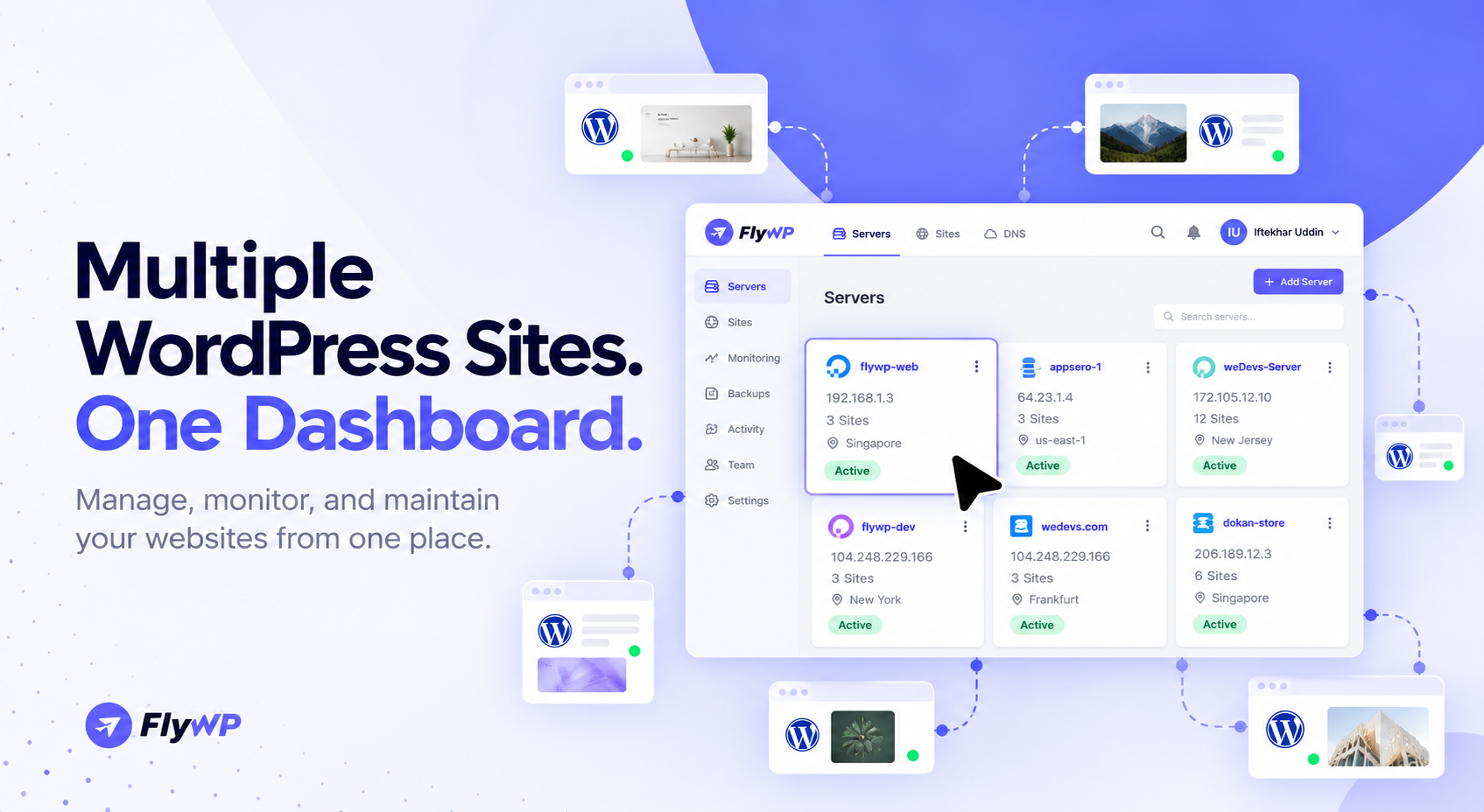
Managing one WordPress website is relatively simple. But when you manage 10, 50, or 100+ websites, routine tasks like plugin updates, backups, security checks, and performance monitoring can quickly become time-consuming.
For WordPress agencies, freelancers, and developers, managing multiple WordPress sites efficiently means finding a way to handle these tasks without constantly switching between dashboards, hosting accounts, and server control panels.
The solution is a centralized WordPress management workflow. With the right tools, you can oversee multiple websites from one dashboard, simplify maintenance, improve visibility, and scale your operations as your client portfolio grows.
In this guide, you'll learn how to manage multiple WordPress sites, which features to look for in a management tool, and how a platform like FlyWP can help streamline your workflow.
Why Is Managing Multiple WordPress Sites So Challenging?
As your website portfolio grows, managing each WordPress installation separately creates several challenges.
- Repetitive maintenance: Updating WordPress core, themes, and plugins individually takes time.
- Security risks: Outdated software and missed vulnerabilities can expose websites to attacks. Our WordPress plugin vulnerabilities guide shows how quickly an unpatched plugin becomes a problem.
- Backup complexity: You need to ensure every website has reliable backups and a working recovery process.
- Fragmented infrastructure: Switching between different hosting providers and server dashboards makes management harder.
- Limited visibility: Identifying downtime, failed updates, and performance issues across dozens of websites becomes difficult.
- Team coordination: Agencies need to control who can access, update, or manage each client's website.
These problems can affect productivity and make it harder to maintain consistent service quality. A centralized dashboard helps bring essential management tasks into one place.
What Is a Centralized WordPress Management Dashboard?
A centralized WordPress management dashboard is a tool that lets you oversee multiple WordPress websites through a single interface instead of logging into each site's administration panel separately.
Depending on the platform, you may be able to manage updates, monitor website status, configure backups, review security issues, and access individual WordPress dashboards from one location.
However, not every tool offers the same capabilities.
- WordPress management plugins connect websites hosted in different environments for centralized maintenance.
- Hosting dashboards manage websites within a particular hosting provider's infrastructure.
- Server management platforms help you manage servers, deploy websites, and oversee infrastructure alongside WordPress sites.
- WordPress Multisite runs multiple websites within a shared WordPress network, which is different from managing independent installations.
Choose the approach that matches your hosting setup and operational requirements.
How to Manage Multiple WordPress Sites From One Dashboard
Follow these six steps to create a more efficient website management workflow.
Step 1: Choose the Right Management Tool
Start by identifying your primary requirements. If you only need centralized updates and maintenance, a WordPress management plugin may be sufficient. If you also need to deploy websites, manage cloud servers, and control infrastructure, consider a server management platform.
Evaluate supported hosting environments, security features, backup options, automation, and pricing before making a decision. Our comparison of the best WordPress management tools is a good place to start.
Step 2: Connect or Deploy Your Websites
Add your existing WordPress websites to your chosen management dashboard, following the platform's connection process. Alternatively, deploy new websites through your hosting management platform.
For example, tools such as MainWP use a dashboard and a companion plugin to connect independent WordPress installations, including sites hosted on different servers.
Before connecting client websites, verify permissions and ensure that communication between the sites and dashboard is secure. If you are moving sites onto a new platform first, see how to transfer a WordPress site to a new host.
Step 3: Organize Sites by Client or Project
Once your websites are connected, organize them using consistent naming conventions and groups.
For example, an agency managing 50 websites could group them by client, project, server, or environment. Separate production websites from staging environments to reduce the risk of accidental changes.
Good organization makes it easier to identify the right website, prioritize maintenance, and assign responsibilities.
Step 4: Centralize Updates and Maintenance
Use your management dashboard to review available WordPress core, plugin, and theme updates.
Where supported, bulk-update features let you apply the same action to multiple selected websites rather than repeating the process individually.
However, avoid updating every production site without preparation. Back up important websites, test critical changes in staging sites, and review any errors after deployment.
Step 5: Configure Backups, Security, and Monitoring
A centralized workflow should include more than updates.
- Schedule automated backups and verify that files are stored in the intended destination.
- Test restoration procedures so you know how to recover a website.
- Monitor uptime and configure alerts for outages. See our roundup of WordPress uptime monitoring tools for options.
- Review security alerts, vulnerabilities, and suspicious changes.
- Monitor server resources and investigate recurring performance issues with a server performance monitoring workflow.
Automation reduces repetitive work, but regular reviews are still necessary to confirm that these safeguards are functioning properly.
Step 6: Manage Team Access and Activity
For agencies, assign access according to each team member's responsibilities. Developers may need deployment access, while support staff may only need access to specific websites.
Use individual accounts, least-privilege permissions, and activity logs wherever available. FlyWP's granular team permissions are built for this. This helps protect client websites and makes it easier to investigate unexpected changes.
Essential Features to Look for in a WordPress Management Tool
Before selecting a tool, check whether it supports the following capabilities:
| Feature | Why it matters |
|---|---|
| Centralized dashboard | Provides visibility across multiple websites |
| Bulk updates | Simplifies routine maintenance |
| Backup and restore | Supports recovery from errors or data loss |
| Security monitoring | Helps identify vulnerabilities and suspicious activity |
| Uptime monitoring | Alerts you when websites become unavailable |
| Site cloning and migration | Makes development and website transfers easier |
| Team permissions | Controls who can access or modify websites |
| Multi-server support | Helps manage infrastructure as your portfolio grows |
Your priorities will depend on your workflow. A freelancer managing a few websites may need a simple maintenance solution, while an agency operating across multiple servers may require deeper infrastructure controls.
Best Ways to Manage Multiple WordPress Sites: Tools Compared
Several approaches can help you centralize WordPress management.
| Tool or approach | Best for |
|---|---|
| MainWP | Self-hosted management of independent WordPress websites |
| ManageWP | Centralized maintenance for websites across different hosting environments |
| Hosting-provider dashboard | Managing sites within a specific hosting ecosystem |
| FlyWP | Managing WordPress websites and server infrastructure from one dashboard |
MainWP offers centralized website management through its self-hosted dashboard, while ManageWP is another option for managing multiple WordPress installations. Compare their current features and pricing against your specific needs.
FlyWP takes an infrastructure-focused approach, combining WordPress site management with server deployment and management capabilities. This can be useful when you want to manage both your websites and the servers they run on. For a wider look at that category, read our guide to the best WordPress cloud server management platforms.
How FlyWP Helps You Manage Multiple WordPress Sites
FlyWP helps agencies, freelancers, and developers manage WordPress websites and server infrastructure from a centralized dashboard.
Here are some ways FlyWP can simplify your workflow.
Manage Websites and Servers From One Dashboard
FlyWP provides a centralized interface for overseeing your websites and servers. Its bulk actions let you select multiple sites and perform supported tasks, including configuring backup policies, enabling uptime monitoring, and applying other site-management actions.
Simplify WordPress Maintenance
FlyWP supports centralized WordPress updates, Magic Login for quick dashboard access, and site cloning and transfer. These capabilities help reduce repetitive tasks when maintaining multiple websites.
Strengthen Website Protection
You can use FlyWP's backup and restore capabilities, vulnerability scanning, and security features to support your website maintenance workflow. Configure suitable backup policies and verify that recovery procedures work for your sites.
Choose Your Hosting Setup
With FlyWP, you can use Managed Hosting or connect your own compatible server through its Bring Your Own Server (BYOS) approach. This flexibility helps you choose an infrastructure setup that fits your projects and budget. Read our complete guide to bring your own server WordPress hosting to see how the two options compare, or review managed WordPress hosting for agencies.
Ready to simplify WordPress management? Explore FlyWP and discover how centralized site and server management can fit into your workflow.
Best Practices for Managing 50–500 WordPress Websites
As your portfolio grows, follow these practices to maintain consistency:
- Standardize maintenance: Establish a recurring schedule for updates, backups, and security reviews.
- Test before deployment: Use staging environments for risky changes and major updates.
- Automate routine tasks: Configure scheduled backups, monitoring, and alerts wherever supported.
- Document every website: Maintain records of client ownership, hosting details, and renewal dates.
- Review access regularly: Remove unnecessary permissions and use individual team accounts.
- Track operational costs: Monitor hosting, plugin licenses, and maintenance time to understand profitability.
The goal is not simply to manage more websites. It is to build a reliable process that maintains quality as your workload increases. For a deeper look at scaling without adding headcount, read how to manage 50+ WordPress websites without increasing your team.
Frequently Asked Questions
How can I manage multiple WordPress sites from one dashboard?
Use a centralized WordPress management tool to connect your websites and oversee supported tasks such as updates, monitoring, and maintenance from one interface. Choose a solution that matches your hosting environment and management requirements.
What is the best tool to manage multiple WordPress sites?
The best tool depends on your needs. MainWP and ManageWP are options for centralized website management, while FlyWP is suited to users who also want to manage WordPress hosting and server infrastructure.
Can I update plugins on multiple WordPress sites at once?
Yes. Tools with bulk-update capabilities let you update plugins across selected websites. Back up important sites and test critical updates before applying changes to production websites.
Can I manage WordPress sites hosted on different servers?
Yes, provided your chosen management tool supports your hosting environments and connection requirements. Some tools focus on connecting independent WordPress installations, while others also manage the underlying servers.
Can I host multiple WordPress sites on one server?
Yes. A single server can host multiple WordPress websites, but its capacity depends on traffic, resource consumption, application configuration, and workload isolation. Monitor resource usage as you add sites.
Is WordPress Multisite the same as managing multiple WordPress sites?
No. WordPress Multisite runs multiple websites within a shared WordPress network. Centralized management tools can manage independent WordPress installations without requiring them to belong to the same network.
How can I manage client websites without sharing administrator passwords?
Use secure connection methods, individual user accounts, role-based permissions, and tools that support passwordless access. Avoid sharing credentials between team members and limit access to what each person needs.
How can a WordPress agency scale from 10 sites to 100 or more?
Standardize maintenance processes, automate repetitive tasks, organize websites by client, implement monitoring, and use scalable infrastructure. Review performance and operational costs regularly as your portfolio grows.
Does FlyWP let me manage multiple WordPress sites from one dashboard?
Yes. FlyWP provides centralized WordPress site and server management, with features for bulk actions, backups, updates, and monitoring. Its Managed Hosting and BYOS options support different infrastructure requirements.
Conclusion
Managing multiple WordPress sites doesn't have to mean repeating the same tasks across dozens of dashboards. With centralized management, you can streamline maintenance, improve visibility, and establish consistent processes for updates, backups, security, and monitoring.
Start by choosing a tool that fits your current setup, standardizing your workflow, and automating tasks where appropriate. As your website portfolio grows, the right management platform can help you scale without adding unnecessary operational complexity.
If you manage WordPress websites across multiple servers, FlyWP offers a centralized way to manage your sites and infrastructure from one dashboard.