

Your hosting bill grows every time you sign a new client. That is simply how per-site managed hosting works, and for a growing agency it turns into one of the fastest-rising costs on the books.
Self-managed WordPress hosting, usually called BYOS or bring your own server, breaks that link between client count and hosting spend. You rent the cloud server yourself, then pay a control panel a few dollars a month to run it for you.
What Self-Managed WordPress Hosting, or Bring Your Own Server, Means
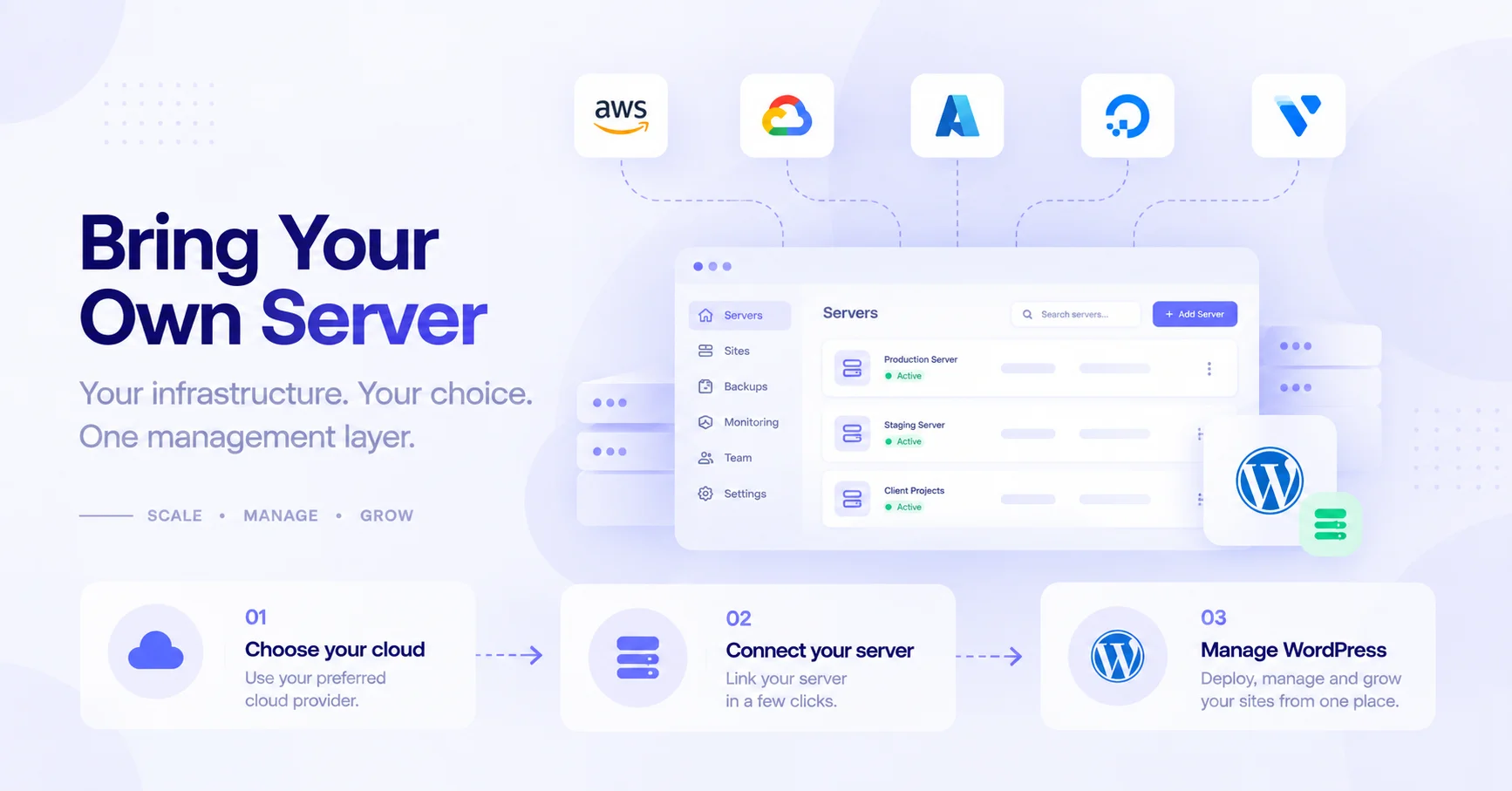
BYOS describes a setup where you rent a server directly from a cloud provider such as DigitalOcean, Vultr, Hetzner, Akamai, or AWS, then connect it to a control panel that installs and manages the WordPress stack on it.
You end up with two separate bills. The cloud provider charges you for the machine, and the panel vendor charges you for the software that runs it.
The industry has never settled on one name for this, which makes it harder to research than it should be. FlyWP, xCloud, and ServerAvatar all use the literal phrase “Bring Your Own Server”.
GridPane calls the same thing “Self-Managed Hosting”. SpinupWP and RunCloud describe themselves as VPS control panels or cloud server control panels. All four labels point at the same architecture.
One product often gets grouped in here by mistake. Cloudways looks similar because you choose your cloud provider, but Cloudways owns the account with that provider, bills you directly, and gives you no root access. That makes it managed cloud hosting rather than BYOS, and the difference matters when you want to move.
How BYOS Works, From Sign-Up to Live Site
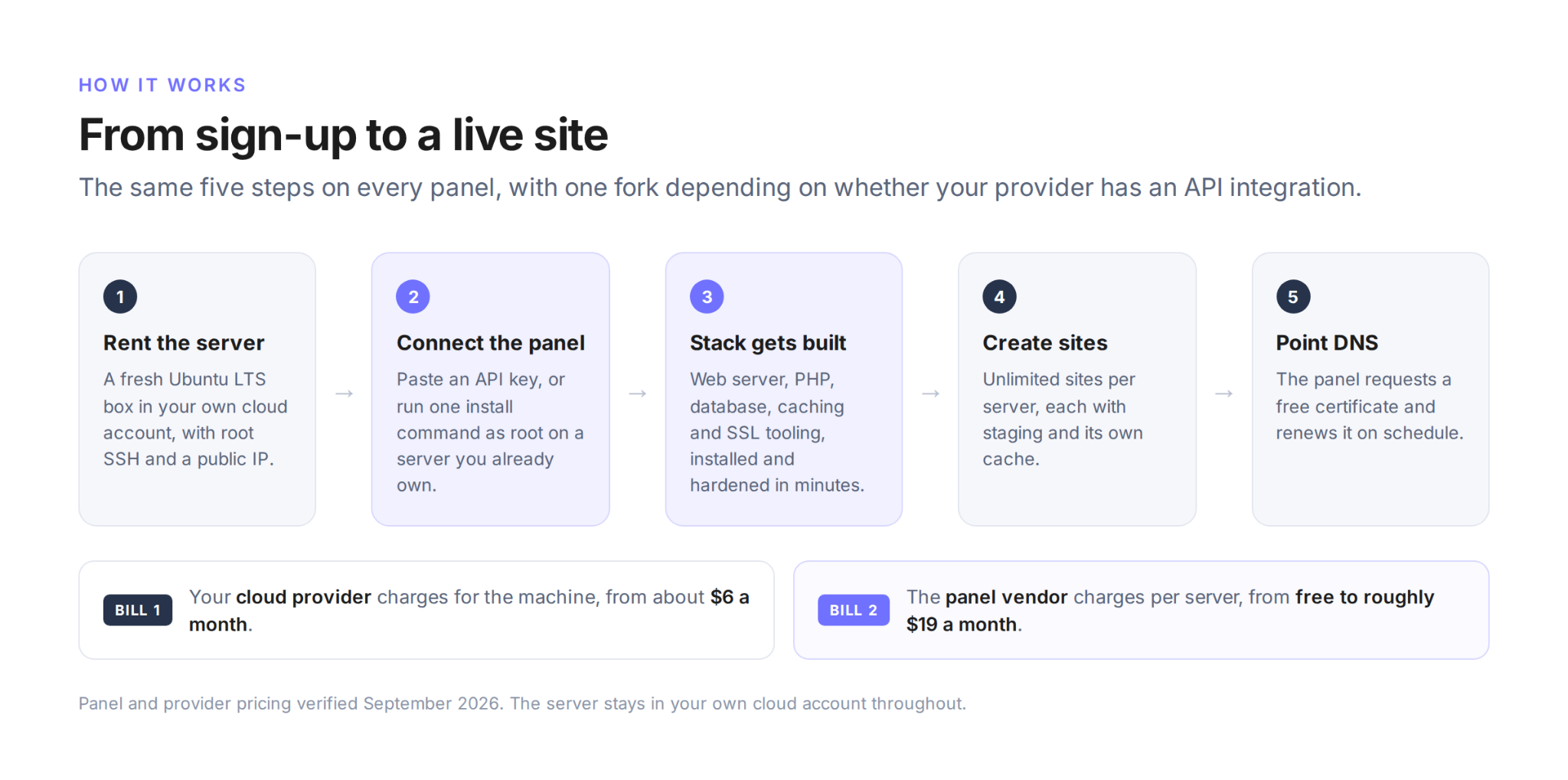
The flow is the same across every panel, with one fork near the start depending on whether your provider has an API integration.
- Create a panel account. Most vendors offer a free tier or a trial that covers one server.
- Connect your cloud provider. You either paste an API key so the panel can create servers for you, or you point the panel at a server you already made and run its install command as root over SSH.
- Let the panel provision the stack. It installs the web server, PHP, the database, a caching layer, and the SSL tooling, then hardens the configuration. A progress bar runs for a few minutes.
- Create your first site. You pick a stack option where the panel offers one, such as Nginx or OpenLiteSpeed, and the panel sets up the site.
- Point DNS and issue SSL. Once your domain resolves to the server, the panel requests a free Let’s Encrypt certificate and renews it on schedule.
What each panel actually installs varies. FlyWP runs every site inside its own Docker container and offers a choice of Nginx or OpenLiteSpeed with Redis and FastCGI caching. RunCloud, SpinupWP and GridPane install their stacks straight onto the host instead.
Both approaches work, and the practical difference shows up mainly when you want to isolate one site from another or move a single site between servers.
BYOS Compared With Managed Hosting, VPS and Reseller Plans
Three alternatives get confused with BYOS regularly. Here is where the responsibility and the money actually sit in each one.
| Model | Who owns the server | Who does the ops work | What you pay for | Root access |
|---|---|---|---|---|
| BYOS | You, in your own cloud account | Panel automates the stack, you own incidents | Server plus a per-server panel fee | Yes |
| Managed WordPress hosting | The host | The host | Sites and monthly visits | No |
| Unmanaged VPS | You | You, all of it | Server only | Yes |
| Reseller hosting | The host | The host | A fixed number of cPanel accounts | No |
BYOS vs Managed WordPress Hosting
Managed hosts bundle the ops work into a per-site price, and for one site that bundle is good value. Kinsta’s Launch plan runs $35 a month and includes 75,000 estimated visits, CDN bandwidth, backup retention, staging, free malware removal and 24/7 support.
What you give up is control and headroom. Managed plans meter visits, cap storage, ban certain plugins and give you one fixed stack. GridPane’s pitch against the category puts it bluntly, citing “strict restrictions on ‘views’ per month, PHP workers” and “one stack option and restrictive plugin bans”.
On BYOS there are no visit caps, because the only ceiling is the RAM and bandwidth you bought. Our breakdown of managed hosting versus cloud hosting covers that trade in more depth.
BYOS vs a Traditional Unmanaged VPS
These two are the same machine at the same price, and the only difference is who builds and maintains the stack on it. On a raw VPS you configure the web server, PHP, the database, caching, certificates, the firewall and the backup jobs yourself, then keep all of it patched.
On BYOS the panel does that in minutes and keeps doing it, for a few dollars per server per month. The lock-in shifts rather than disappears, though, because a panel lays out configuration its own way, so leaving means exporting your sites rather than lifting a familiar directory tree.
BYOS vs Reseller Hosting
Reseller plans rent you a slice of somebody else’s shared cPanel infrastructure, metered in accounts rather than servers. InMotion charges $16.99 a month for 25 cPanel licenses and $49.99 for 100, with WHMCS billing included, and the host runs everything.
The limits are density and hardware, since you sit on shared capacity with a fixed account count and no say over the stack. A single 2 vCPU, 4 GB server costs around $29 a month all in and comfortably holds 20 to 30 cached brochure sites with dedicated resources and root access.
Reseller hosting still wins on one point, because the billing tooling comes bundled and on BYOS you supply that yourself.
Why Agencies Move to Self-Managed Hosting
The reasons cluster into four, and the first one dominates every conversation.
- Per-site pricing stops scaling against you
- You pay raw infrastructure rates with no markup
- One dashboard covers every client across every provider
- Hosting becomes a service you sell rather than a cost you absorb
Per-Site Pricing Stops Scaling Against You
A managed plan charges more as you add clients, while a server charges the same whether it holds three sites or thirty. Agency owner Rob Marlbrough, quoted in The Admin Bar’s 2026 agency hosting roundup, described the shift as structural rather than financial. “Get away from shared per-site pricing plans,” he said. “It changes your business at the core of how you operate.”
The numbers behind that are easy to check. Freelancer Jonathan Jernigan wrote in March 2025 that he runs ten client sites plus three of his own on a single Vultr High Frequency server costing $22 to $24 a month, which works out near $2 per site. Removing the platform margin helps too, since Cloudways charges $88 for an 8 GB DigitalOcean server that costs $48 at DigitalOcean list price.
One Dashboard, and Hosting You Can Sell
Agencies running sites across several providers otherwise live in several control panels at once. Panels consolidate that, and most now add role-based permissions so a client can reach their own site and nothing else. Staging, team seats and Git deployment usually come in the same package.
Once infrastructure drops toward a dollar or two per site, care plans start carrying real margin, which is why Michael Paul Bourne credited his panel as “the catalyst for me to go from ‘reselling some hosting’ to ‘running a hosting company’”. The trade-off gets stated just as consistently in those same conversations. The learning curve is real, and you are the one holding the pager.
What BYOS Costs at 1, 10 and 50 Sites
Almost nobody publishes this comparison at more than one site count, which hides where the crossover happens. The table below uses list prices captured in September 2026, assumes cached brochure sites, and pairs DigitalOcean servers with a $5 per server panel fee.
| Sites | Your own server plus panel | Kinsta | Flywheel |
|---|---|---|---|
| 1 site | $17 (2 GB server plus $5 panel) | $35 Launch | $25 Starter |
| 10 sites | $29 (2 vCPU, 4 GB plus $5 panel) | $169 Scale | $96 Freelance |
| 50 sites | $84 to $104 across 2 or 3 servers | $675 Agency 60 | $642 Agency plus extra sites |
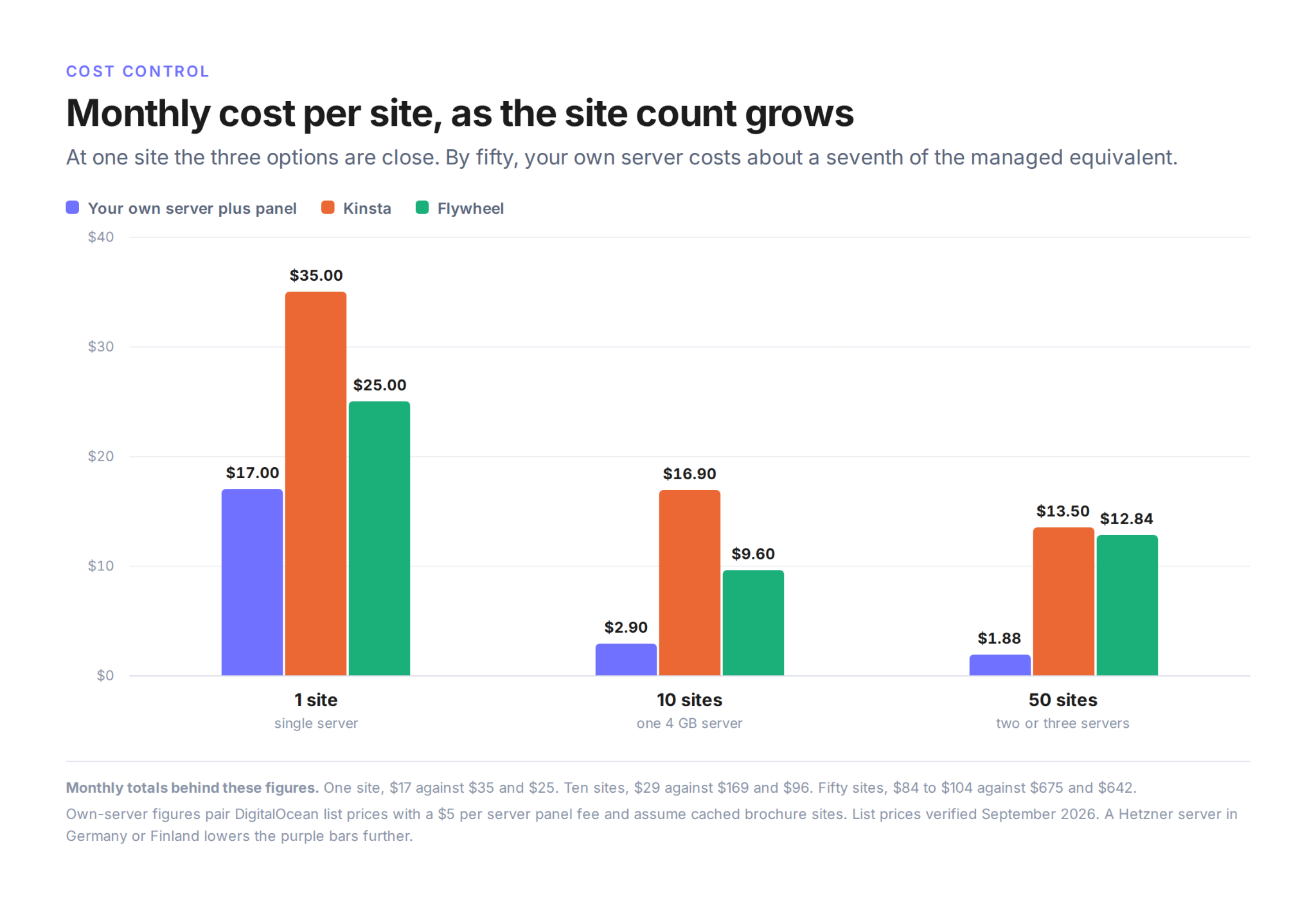
At one site the gap is small enough that convenience often wins. By ten sites BYOS costs roughly a fifth of the managed equivalent, and by fifty it is six to nine times cheaper.
Swap DigitalOcean for a Hetzner server in Germany or Finland and the gap widens further, though Hetzner raised prices twice during 2026 and its US locations cost far more with a fraction of the bandwidth, so check current rates rather than trusting a figure you read last year.
The Costs That Do Not Appear on the Panel’s Pricing Page
Panel fees are only part of the bill. Budget for these as well.
- Off-site backup storage. You supply the bucket, so S3, Backblaze B2, Wasabi or R2 charges land on your card, not the panel’s.
- Provider snapshots and backups. DigitalOcean charges 20 percent of the server price for weekly backups, 30 percent for daily, and $0.06 per GB per month for snapshots.
- Bandwidth overage. DigitalOcean bills $0.01 per GiB past your pooled allowance.
- Transactional email. A relay service is not optional, for reasons covered in the FAQ below.
- Add-ons. Uptime monitoring, security scanning and CDN sit outside the base fee on most panels.
Three levers pull the total back down. Consolidate cached sites onto fewer servers, pick a cheaper provider for workloads that tolerate it, and let volume discounts do their work, since per-server rates fall as your fleet grows. Our guide to cloud server costs goes deeper on the provider side of that.
How to Choose a Cloud Provider
Pick a provider your panel integrates with natively, because API integration is what lets you create servers without leaving the dashboard. After that, price against specs, then bandwidth, then region coverage.
| Provider | 2 vCPU, 4 GB | Included transfer | Worth knowing |
|---|---|---|---|
| DigitalOcean | $24 | 4 TB | Native on every panel surveyed, 12 locations |
| Vultr High Performance | $24 | 5 TB | 32 regions, strong price to performance in the $6 to $24 band |
| Akamai, formerly Linode | $24 | 4 TB | Egress overage $0.005 per GB, backups $2 to $10 |
| Hetzner, Germany and Finland | About €5.49 | 20 TB | Cheapest by a wide margin, but EU first and priced up twice in 2026 |
| AWS Lightsail | $24 | 4 TB | Burstable CPU gets throttled, halved transfer in several regions |
| UpCloud | €12 | Zero cost egress claimed | Publishes a 99.99 percent SLA |
| Contabo | €5.50 for 4 vCPU, 8 GB | Unlimited, fair use | Cheapest on paper, but LowEndTalk threads warn against it for production |
Latency to your actual audience should override the price column. Hetzner’s headline rates apply to its German and Finnish data centers, so a client base in Sydney or São Paulo is better served elsewhere even at a higher monthly figure. Data residency works the same way, and picking an EU region is the simplest route when a client’s contract calls for it.
Connecting a Server You Already Own
Every panel accepts a server you provisioned yourself, and the requirements are close to identical across vendors. Expect to need all of the following.
- A fresh, clean Ubuntu LTS install, usually 22.04 or 24.04, on 64-bit
- Root access over SSH, by key or password
- A public static IPv4 address, since NAT servers are commonly rejected
- Ports 22, 80 and 443 open, plus an agent port on some panels
- At least 2 GB of RAM, and 2 vCPUs in practice
- No existing control panel or web stack on the machine
That last point catches people out. “Existing infrastructure” works when it means a server you rented and have not built on yet, or hardware you own outright. It does not usually mean a box already running cPanel and live sites, and in that case you build a second server and migrate across rather than converting the first one in place.
Two hardware details are worth checking before you buy. Some panels support ARM instances and some refuse them, which decides whether Hetzner’s ARM line or DigitalOcean’s ARM droplets are on the table. Some also require KVM virtualization rather than OpenVZ or LXC.
What Server Specs WordPress Actually Needs
Start at 2 GB of RAM and never go below it. SpinupWP and GridPane both set that floor for their stacks, and FlyWP’s own minimum for a connected server is 2 vCPUs with 2 GB. Below that, backups and cloning jobs start failing under load even when the sites themselves look fine.
| Workload | Starting size | Sites per server |
|---|---|---|
| Brochure and cached sites | 1 vCPU, 2 GB | 10 to 20 |
| Mixed client portfolio | 2 vCPU, 4 GB | 20 to 30 |
| WooCommerce store | 2 dedicated vCPU, 4 GB | Its own server |
| Membership or LMS site | 2 vCPU, 4 GB, then scale | Its own server |
| High-traffic cached blog | 2 vCPU, 4 GB plus a CDN | Comfortably shares |
GridPane’s rule of thumb is 7 to 10 cached sites per GB of RAM, and it recommends keeping MySQL under half of available memory on servers of 8 GB or less.
For a store with a large database, size RAM at roughly double the database size. Anything that bypasses page cache on every request, which describes carts, logins and course dashboards, wants dedicated CPU rather than shared.
Stack choice matters less than most comparison posts suggest. A 2026 benchmark on identical hardware found Nginx and OpenLiteSpeed effectively tied on uncached requests, at 185 against 192 requests per second, because PHP execution is the bottleneck rather than the web server. OpenLiteSpeed pulled ahead on cached hits, which a CDN can also absorb.
Who Handles Security, and What Stays Yours
Security under BYOS splits three ways, and that split is where most misunderstandings live. The cloud provider secures the building and the hypervisor, the panel configures and patches the stack, and everything in the application layer stays with you.
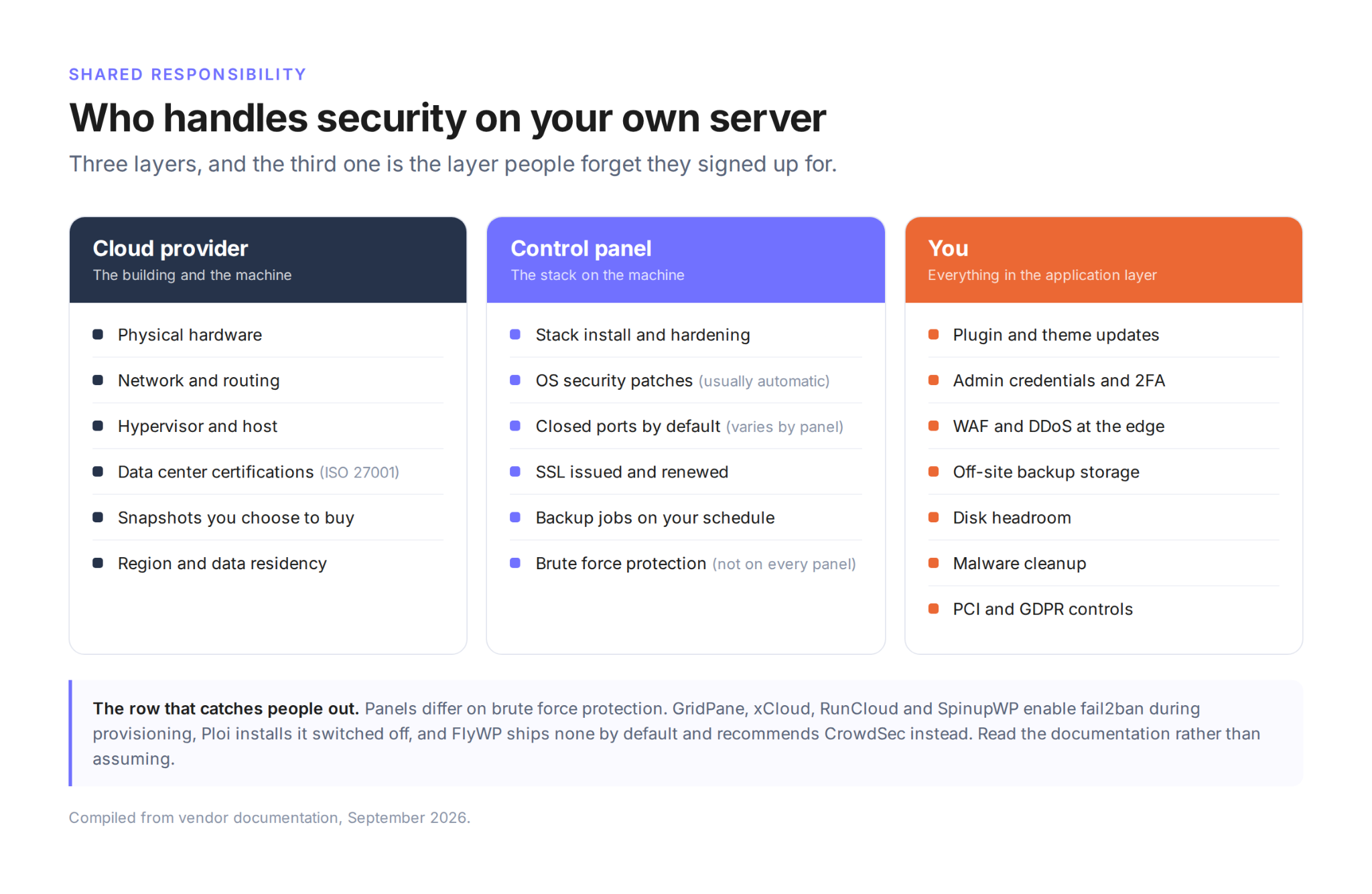
Panels genuinely differ on the brute force row, so read the documentation rather than assuming. GridPane, xCloud, RunCloud and SpinupWP all enable fail2ban during provisioning. Ploi installs it but leaves it switched off deliberately.
FlyWP states plainly in its own FAQ that it “does not currently include built-in brute-force protection such as fail2ban” and recommends installing CrowdSec instead, while its firewall and bot protection works at the request-filtering layer on Nginx sites. Row by row, this is where each duty lands.
| Responsibility | Cloud provider | Control panel | You |
|---|---|---|---|
| Physical hardware and network | Yes | No | No |
| Hypervisor and host security | Yes | No | No |
| Stack install and hardening | No | Yes | No |
| OS security patches | No | Usually, automatically | Non-security updates on some panels |
| Firewall and closed ports | Optional tooling | Usually by default | Verify it, since panels differ |
| Brute force protection | No | Varies by panel | Install it where the panel ships none |
| SSL certificates | No | Yes, issued and renewed | No |
| Plugin and theme updates | No | Tooling only | Yes |
| Admin credentials and 2FA | No | No | Yes |
| WAF and DDoS at the edge | No | No | Yes, usually via Cloudflare |
| Malware cleanup | No | No | Yes |
One exposure is specific to running your own box. A single server has a public IP, and once an attacker knows it they can hit the origin directly. Cloudflare’s own guidance is to proxy your DNS records, block traffic that does not come from Cloudflare addresses, and rotate the origin IP after onboarding. That work is yours on every panel.
Who Is Responsible for Backups
You are, on every panel in this category. The panel schedules and runs the jobs, but you choose the destination, you pay for the storage and you own the restore test. Destinations are your own buckets.
FlyWP writes to Amazon S3, DigitalOcean Spaces, Cloudflare R2, Google Cloud Storage, Wasabi, Backblaze B2, Google Drive, pCloud and anything S3-compatible, with hourly or daily schedules and a retention window you set.
Other panels offer a similar spread, and Ploi declines whole-server backups outright, pointing users at provider snapshots instead. Two failure modes deserve attention before you trust the setup.
First, several panels build the archive on the server’s own disk before uploading it, which means a full disk kills the site and its backups in the same moment. GridPane lists “disk space exceeded” among its documented backup failure causes and SpinupWP documents the matching out-of-space error.
Second, a backup on the same machine as the site is not a backup, a point the OVH data center fire in March 2021 made expensively clear for customers without off-site copies.
Keep at least one copy somewhere else, and test a restore, since informal surveys suggest fewer than 5 percent of WordPress users ever have. Provider snapshots are a useful second layer rather than a replacement, because they capture the whole machine but restore at machine granularity.
Compliance works the same way, since provider certifications such as ISO 27001 cover infrastructure only and PCI or GDPR controls at the application level stay with you.
How Scaling Works on Your Own Server
Scaling on BYOS is a ladder, and most sites never climb past the second rung.
- Cache and put Cloudflare in front. Full page caching plus Redis object caching absorbs most growth, and Cloudflare’s free plan includes unmetered layer 3 to 7 DDoS protection.
- Resize CPU and RAM. Both DigitalOcean and Hetzner require a brief power-off, and DigitalOcean advises roughly a minute of downtime per GB of used disk. Resize CPU and RAM only where you can, because growing the disk is permanent and blocks you from scaling back down.
- Move the noisy site to its own server. This is the natural answer for a store or an LMS, and it costs only the extra per-server panel fee.
- Split the database onto its own server over private networking, once a single machine genuinely cannot cope.
- Add a load balancer and multiple app servers with a shared filesystem. This last step is manual on every panel researched.
Be clear about what this architecture will not do. A single server does not scale out automatically under load, and no panel in this category advertises managed multi-node WordPress clusters.
Uptime SLAs, compliance attestations such as SOC 2 and enterprise CDN or WAF all come from elsewhere. Managed hosts sell exactly those things, and for some clients that is the whole reason to stay on one.
How to Migrate Sites In and Out
Inbound migration is usually plugin-driven and free. Panels ship their own tools, and RunCloud and GridPane both point users at Migrate Guru, which is free with no paid tier and handles large multisite installs.
All-in-One WP Migration, Duplicator Pro and WP Migrate Pro also work, at $99, $59 and $99 for the paid extensions most real sites need.
Whichever route you take, migrate to a staging domain first and check the site before you touch DNS. FlyWP’s own documentation makes that recommendation and flags its migration feature as still in Beta, noting that “some things might break during the Migration”. Downtime comes from your DNS cutover rather than the transfer, so lower your TTL a day ahead.
Moving between servers inside one panel is the easy case, since clone and transfer tools exist for exactly that. Moving away is the case worth understanding before you commit.
Your server stays yours and your sites keep serving, which every vendor in this space states openly. What stops is the automation, and our site migration documentation covers the mechanics in both directions.
How Much Technical Skill You Need
Less than running a raw VPS, more than using managed hosting. WPShout’s October 2025 assessment puts panels “in between managed and unmanaged cloud hosting”, suited to advanced users who are not necessarily developers.
The panel abstracts the genuinely hard parts, including the stack install, PHP and database tuning, certificate issuance, cron and OS patching. What stays with you is narrower than people fear but real.
- DNS records, and Cloudflare setup if you use it
- SSH keys, and running one install command as root during onboarding
- Creating and paying for an object storage bucket
- Reading backup failure notices and watching disk graphs
- Keeping plugins and themes updated, which no panel does for you
Support is the largest difference between vendors and worth checking before you pick. GridPane offers 24/7 tickets on paid plans, SpinupWP publishes email-only support with a two-hour target on its higher tier, and FlyWP lists dashboard live chat alongside email and documentation.
Who Should Use BYOS, and Who Should Not
The honest answer splits by how many sites you run and who is available when something breaks. BYOS makes sense if you run more than a handful of sites, can absorb the ops duty or have someone who can, want root access and stack choice, are tired of visit caps and plugin bans, or plan to sell hosting and care plans as a service.
Freelancers and agencies are the explicit target market for every panel in this category. Managed hosting is the better call if you run one site where $25 a month already covers everything, have nobody to run a root command or read a disk-space warning.
There is a middle path worth knowing about. Several vendors, including FlyWP, sell managed servers alongside the BYOS tier, where the same panel runs on a machine the vendor provisions and bills.
FlyWP’s managed servers start from $7 a month and its BYOS tier runs $5 per server, falling to $3 once you pass ten servers. That lets you keep one dashboard while choosing per client whether you or the vendor owns the machine. Our roundup of WordPress cloud server management platforms compares the options across vendors.
Frequently Asked Questions on Bring Your Own Server WordPress Hosting
If I cancel the panel subscription, do I lose my sites?
No, the server and the sites are yours and keep running, but the automation around them stops. The practical trap is SSL renewal, because certificates are often requested through the panel.
One practitioner who moved roughly 40 sites off a panel found that “any domains using autorenewal/Letsencrypt will no longer be renewed” once disconnected, and had to install Certbot and script the fix. Sites do not fail on cancellation day. They fail up to 90 days later when certificates expire.
Who do I contact when something breaks, the panel or the cloud provider?
The cloud provider handles hardware, network and region outages, and the panel handles its own stack within its support hours. A wide band in the middle belongs to nobody.
SpinupWP publishes an unusually clear boundary list and excludes config customization, scaling, page speed work, malware cleanup and servers holding more than 80 sites. Read your panel’s support scope before you need it.
Can my WordPress site send email from its own server?
Not by default. DigitalOcean and other major providers block outbound port 25 as policy, so you need an SMTP relay such as Postmark, Mailgun, SendGrid or SES over port 587. The failure is silent, which is what makes it dangerous, and the first casualties are usually WooCommerce order confirmations and password reset emails.
What happens if my payment to the panel fails?
Expect staged degradation rather than an instant cutoff, though the details are vendor-specific and sometimes documented inconsistently. RunCloud describes retries over ten days, then an account lock lasting 90 days, after which the account is deleted.
Ask your vendor to confirm in writing what breaks at each stage, because the answer decides how much warning you actually get.
Can I charge clients for hosting on my own servers?
Usually yes, but check three things rather than one. Confirm your cloud provider’s terms allow reselling, confirm your panel’s plan tier allows commercial use, since free tiers often do not, and understand the blast radius if one client’s site is compromised.
Abuse complaints are handled case by case, and a reseller on DigitalOcean’s forum worried that isolated violations “could impact all their customers”.
Can I run non-WordPress apps on the same server?
Generally yes, within the stack your panel installs. SpinupWP supports anything that runs on its LEMP stack, including Laravel, Symfony, Drupal and static sites. Panels differ here, so anything outside the installed stack may be unsupported even when it technically works.
Does the panel upgrade my operating system between Ubuntu versions?
Usually not, and this is a slower problem than it looks. Panels configure unattended security patches, and FlyWP states that it “automatically configures unattended OS-level security updates on your server”.
Major version upgrades are a different job, though, and SpinupWP notes that non-security package updates have to be run manually over SSH. One practitioner leaving a panel after several years found it had left him on Ubuntu 16.04, so put a calendar reminder against your distribution’s end-of-life date rather than assuming the panel owns it.
Where to Start
If you run more than five sites and you are paying per site for all of them, price a single 2 vCPU, 4 GB server against your current bill before you do anything else. That one calculation tells you whether self-managed WordPress hosting is worth the operational trade, and it usually takes about ten minutes.
Compare the per-server pricing against what you spend today, then move one low-risk site first and learn the workflow on something that does not matter.