

Managing a few WordPress websites is usually straightforward. You can log in, install updates, check backups, fix an issue, and move on to the next site.
The process changes when you manage 50 or more websites.
You may have dozens of WordPress installations running on different servers, configurations, and maintenance schedules. A simple task such as checking plugin updates can turn into hours of repetitive work. A failed backup or security issue can also go unnoticed if there is no central way to monitor your sites.
At this point, adding more websites does not just add more URLs to your list. It adds more maintenance tasks, servers, access permissions, failure points, and client requests.
So how can you manage 50+ WordPress websites without continuously adding people to your team?
The answer is to change how you manage the sites. Instead of treating every website as a separate project, standardize your infrastructure, centralize routine operations, and automate tasks that do not require manual decisions.
In this guide, you'll learn how to build that system and decide which parts of WordPress management should be automated and which ones still need human review.
Why Managing 50+ WordPress Websites Is Different
The difference between managing 10 websites and managing 50 websites isn't simply five times more work.
As your website portfolio grows, so does the number of things you need to track and coordinate. Small manual tasks that were easy to handle across a few sites can become a significant operational workload.
Managing 10 Websites vs. 50 vs. 100+
Imagine you manage 10 WordPress websites.
You need to check updates, monitor uptime, review backups, handle client requests, and occasionally troubleshoot an issue. If something goes wrong, you can usually remember which sites need attention.
Now imagine managing 50 websites.
A weekly plugin update might involve checking dozens of sites. You may have different WordPress versions, plugin combinations, PHP versions, and server configurations across the portfolio.
Then consider 100 websites.
Even if each website requires only 10 minutes of routine maintenance per month, 100 websites represent more than 16 hours of work every month for that one task alone.
The workload comes from several areas:
- More updates and maintenance: WordPress core, plugins, themes, PHP versions, and server components need regular attention.
- More servers and hosting environments: Sites may be distributed across different servers, providers, or configurations.
- More credentials and access requirements: Your team needs to manage access for administrators, developers, clients, and other stakeholders.
- More potential points of failure: Failed backups, expired SSL certificates, unavailable servers, and broken updates all need attention.
- More client communication: Each client may have different requirements and priorities.
- More tracking: You need to know which sites are updated, backed up, monitored, and healthy.
The problem becomes clearer when you perform these tasks one site at a time.
For example, if you need to update a plugin across 50 websites, you can either open each WordPress dashboard and repeat the process 50 times, or use a centralized workflow that lets you identify and manage those updates from one place.
The first approach adds work as your portfolio grows. The second is designed to handle a larger number of sites without adding the same amount of manual work.
The Hidden Cost of Managing a Growing Website Portfolio
The visible cost of managing more websites is easy to understand: more hosting, tools, and potentially more team members.
The less obvious cost comes from the time your team spends switching between repetitive tasks.
A team member responsible for 50 websites might spend a typical week:
- Checking which sites need updates.
- Reviewing backup status.
- Checking whether any sites are down.
- Responding to client requests.
- Investigating plugin conflicts.
- Checking server resources.
- Following up on failed backups.
- Updating staging environments.
- Reporting completed maintenance work.
None of these tasks is particularly difficult. The problem is that they have to be repeated across many websites.
Time Spent on Repetitive Tasks
If one maintenance task takes 5 minutes per website, doing it across 50 websites takes more than 4 hours.
At 100 websites, the same task takes more than 8 hours.
And that's for only one task.
When backups, updates, monitoring, security checks, and reporting are handled manually, routine maintenance can consume a large part of your team's working hours.
Context Switching
Managing multiple websites also means switching between dashboards, servers, clients, credentials, and tasks.
You may spend a few minutes checking one site and then move to another client with a completely different setup. The time required to remember each site's configuration may be small, but it adds up across hundreds of tasks.
Human Errors
Manual work also creates more opportunities for mistakes.
You might accidentally update the wrong site, forget to verify a backup, miss an outdated plugin, or overlook a failed deployment.
Standardized and automated workflows reduce the number of times your team has to perform these repetitive actions manually.
Emergency Maintenance
Problems don't always happen during scheduled maintenance.
A site may go down after an update. A plugin may introduce a compatibility issue. A server may run out of resources. A security vulnerability may require immediate attention.
With 50 or 100 sites, you need a system that helps you identify which sites actually need attention instead of manually checking every site.
Increasing Support Workload
More websites also usually mean more requests.
One client may ask you to install a plugin. Another may need a staging site. Someone else may report that their website is slow.
If your team handles every request through the same manual process, the support workload grows along with the number of sites.
Cost Per Site as Your Portfolio Grows
Your operational cost isn't limited to hosting.
You also spend team time on maintenance, monitoring, troubleshooting, support, backups, and reporting.
If your team spends 40 hours per month managing 50 websites, that's an average of 48 minutes of operational time per site each month.
If centralization and automation reduce repetitive work while maintaining the same service level, the amount of team time required per site can decrease as your portfolio grows.
Key takeaway: The challenge isn't simply the number of WordPress websites you manage. It's the number of repetitive operations required for each website. To manage 50+ sites without continuously increasing your team, reduce the amount of manual work required per site.
Build a Centralized WordPress Management System
Once you manage dozens of WordPress websites, managing each site separately becomes difficult to maintain.
You may have one browser tab for Site A, another for Site B, a hosting dashboard for Site C, and a spreadsheet tracking which sites have been updated.
This can work when you manage a small number of sites. As the number grows, you need a central control layer.
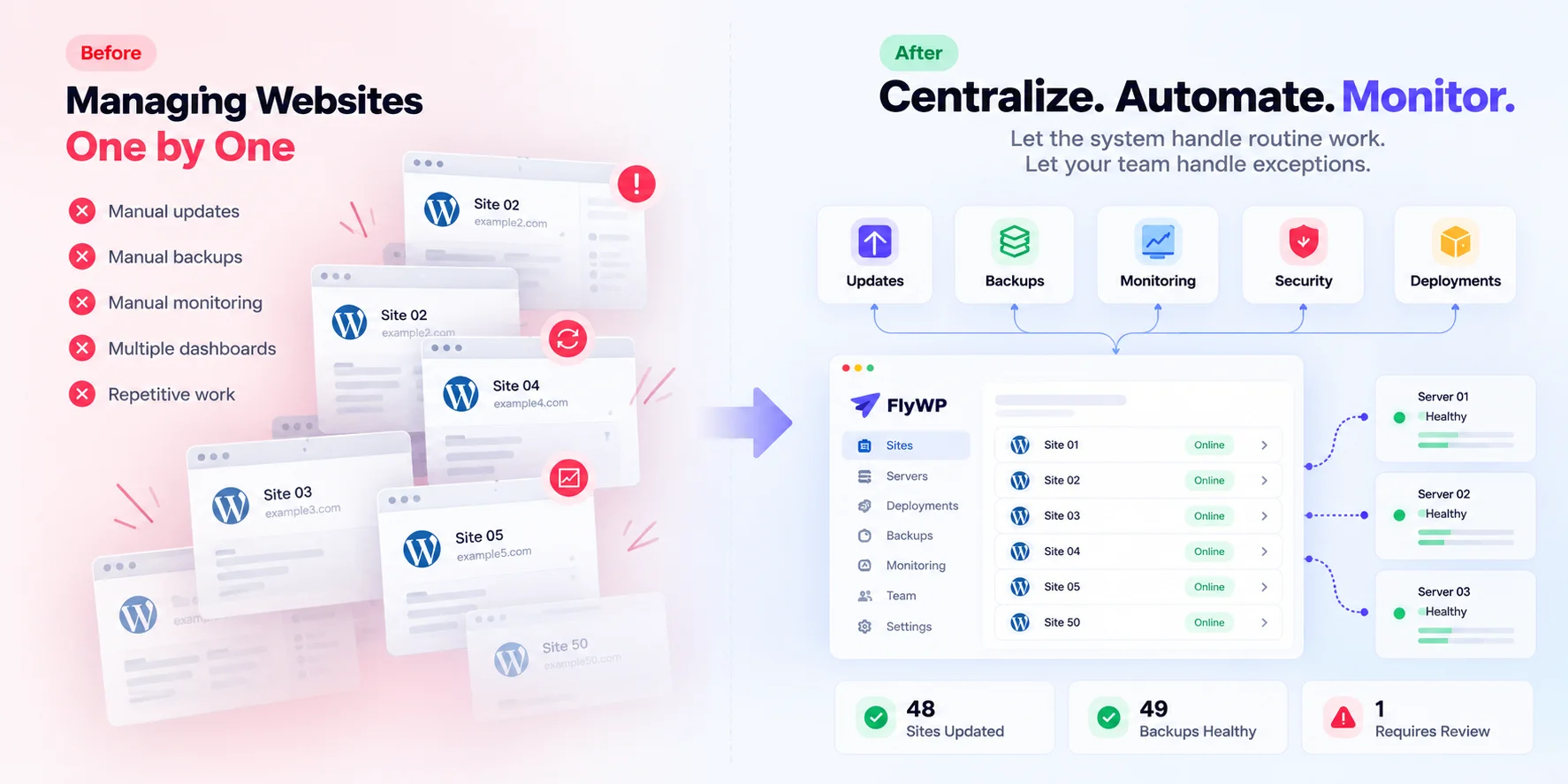
A centralized WordPress management system gives you one place to see your websites, check their status, perform routine actions, and identify which sites need attention.
The goal isn't to put every setting into one dashboard. The goal is to remove unnecessary repetition from your team's daily work.
Centralized Site Management
Instead of starting with individual websites, start with your entire site portfolio.
One Dashboard for Multiple Sites
You should be able to see your websites from one place rather than logging into each WordPress installation separately.
For example, your dashboard could show:
- Website name and URL
- Connected server
- WordPress version
- Plugin or theme update status
- Backup status
- Uptime or availability
- Security alerts
- Current operational status
This gives you a portfolio-level view before you start working on individual sites.
Site Inventory
As your portfolio grows, remembering every site's configuration becomes unrealistic.
Maintain a central inventory that tells you where each website is hosted, which server it uses, who manages it, and what state it is currently in.
For example:
| Website | Server | WordPress | Updates | Backup | Status |
|---|---|---|---|---|---|
| Client A | Server 01 | 6.x | 2 pending | Healthy | Online |
| Client B | Server 02 | 6.x | Up to date | Healthy | Online |
| Client C | Server 03 | 6.x | 5 pending | Failed | Review |
You don't necessarily need to maintain this table manually. A centralized management platform can collect much of this information automatically.
Server and Site Status
Your team should quickly identify which websites and servers need attention.
If 49 websites are operating normally and one has a failed backup, your workflow should direct your attention to that one site rather than making you manually verify all 50.
Bulk Actions
Some maintenance tasks are the same across many websites.
Suppose 30 websites need the same plugin update. Updating them individually means repeating the same process 30 times.
A centralized system can allow supported actions across multiple sites, such as:
- Updating plugins
- Updating themes
- Managing backups
- Deploying sites
- Creating staging environments
- Applying standard configurations
Bulk actions don't mean you should automatically change every site at once. You still need to consider compatibility, client requirements, and the risk associated with the change.
Consistent Workflows
Centralization also makes it easier for your team to follow the same process.
For example:
Provision server → Deploy WordPress → Configure SSL → Apply security settings → Set up backups → Connect monitoring → Add team access → Hand over to client
When the process is standardized, adding another website doesn't require creating a new process from scratch.
Standardize Your WordPress Infrastructure
Centralization works better when your websites also follow consistent infrastructure practices.
Define standard configurations for areas such as:
- Supported PHP versions
- WordPress versions
- Web server configuration
- Backup policies
- Security settings
- Monitoring
- Access permissions
The goal isn't to make every website identical. It's to avoid unnecessary differences that make maintenance harder.
Centralize WordPress Updates
WordPress updates are easy to handle when you manage a few websites. When you manage 50 or 100, the same task can take a significant amount of time.
Every site may have WordPress core updates, plugin updates, theme updates, and sometimes PHP or server updates.
A centralized update workflow lets you manage these tasks across your portfolio while keeping human review where it matters.
Manage WordPress Core, Plugin, and Theme Updates
Instead of asking your team to log in to every WordPress dashboard, use a central system to identify which sites have pending updates.
For example, your dashboard might show:
- 12 sites with plugin updates
- 5 sites with WordPress core updates
- 3 sites with theme updates
- 30 sites fully up to date
Your team can then focus on the sites that actually need attention.
Bulk updates can reduce repetitive work further. If a plugin needs to be updated across 20 compatible websites, you don't necessarily need to repeat the same process 20 times.
However, you should avoid treating every website as identical. A plugin update that works normally on one site could cause an issue on another because of differences in themes, plugins, PHP versions, or custom code.
Test Before You Update
Not every update should go directly to production.
A safer workflow is to test important changes before applying them to live websites, especially when an update affects a business-critical site.
For example, suppose you're managing 50 WooCommerce websites and a new version of a payment-related plugin is released.
Instead of updating all 50 sites immediately, you could:
- Select a representative site.
- Apply the update to its staging environment.
- Test checkout, payment, login, and other important functions.
- Monitor the result.
- Roll out the update to the remaining compatible sites.
Not every minor update needs the same testing process. Define different rules based on the risk of the change.
Use Different Update Policies for Different Sites
Your websites may not all have the same requirements.
A personal blog can tolerate a different maintenance process than an online store generating revenue every day.
You can group sites into categories such as:
- Low-risk sites: Routine updates can be automated.
- Standard business sites: Updates can follow a scheduled maintenance process.
- High-risk or revenue-critical sites: Updates require staging and human approval.
This lets you automate routine maintenance without treating every website the same way.
For example, imagine you update a plugin across 40 websites.
If 39 updates succeed and one fails, your team should not need to manually check all 40 websites. The system should identify the failed update and show which site needs attention.
The workflow becomes:
Automated update → Monitor result → Identify exception → Human review → Fix or roll back
Keep a Record of What Changed
When you're managing many websites, knowing that something changed can be as important as knowing what changed.
Keep a record of:
- What was updated
- Which website was updated
- When the update happened
- Whether it succeeded
- Whether errors occurred
- Who initiated the change, when relevant
For example, if a client reports that their website stopped working at 10:30 AM, you can check whether an update or deployment happened around that time instead of investigating the entire site from scratch.
Automate Backups and Disaster Recovery
When you manage 50+ WordPress websites, backups can't depend on someone remembering to create them.
You need a backup system that runs consistently, alerts you when something fails, and gives you a clear process for restoring a website.
Create a Consistent Backup Policy
Your backup policy should answer:
- How often should each site be backed up?
- What should each backup include?
- How long should backups be retained?
- Where should backups be stored?
- How many previous versions should be available?
- Who can restore a site?
- What happens when a backup fails?
The answer may vary depending on the website.
For example, an online store that processes orders throughout the day may need more frequent backups than a small company website that changes only a few times a week.
Instead of configuring these settings from scratch for every website, create standard backup profiles based on site type.
Automate Backup Creation
Once backup policies are defined, automate the process.
A scheduled workflow can create backups without requiring your team to log in to each WordPress dashboard.
For example:
Every day → Backup runs automatically → Backup status is recorded → Failure triggers an alert
If you add another 20 websites next month, the new sites should inherit the appropriate backup policy as part of your standard setup.
Store Backups Separately From Your Website
Keeping a backup on the same server as your website can create a problem if that server becomes unavailable.
Store important backups separately from the production environment so a server-level problem does not remove both the website and its backup.
The exact storage setup will depend on your infrastructure and recovery requirements, but the principle is simple: your recovery copy should not depend entirely on the system it is designed to recover.
Monitor Backup Health
Creating backups is only part of the process.
You also need to know whether backups are actually completing.
Your system should alert you when:
- A scheduled backup fails
- Backup storage becomes unavailable
- A backup is unusually small or incomplete
- A website has not produced a backup within the expected window
This is another example of exception-based management.
Your team shouldn't manually verify 50 backup logs every morning. The system should identify which backups need review.
Make Restoration Simple
A backup is useful only if you can restore it when needed.
Your recovery process should be documented and easy for the appropriate team members to follow.
A basic restoration workflow might look like:
Identify backup → Select restore point → Restore files/database → Verify site → Test important functions → Return to production
You should also know how long restoration takes and what happens if the original server is unavailable.
Plan for Disaster Recovery
Disaster recovery goes beyond creating backups.
If a server fails completely, your team may need to:
- Provision replacement infrastructure.
- Restore the WordPress files and database.
- Reconfigure the domain.
- Restore SSL.
- Reconnect required services.
- Verify the website.
- Test important functions.
- Communicate with the client.
The exact process will depend on your infrastructure, but it should be defined before an emergency occurs.
Not every website needs the same recovery priority.
A revenue-critical WooCommerce site may need a different recovery process from a low-traffic brochure website.
Define recovery priorities based on the importance of each site.
Key principle: Automate backup creation and monitoring, but keep disaster recovery planning and recovery decisions under human review.
Monitor 50+ Websites From One Place
Monitoring becomes difficult when your team has to check every website manually.
A scalable monitoring system should continuously check the areas that can affect availability and operations.
Monitor Uptime
Uptime monitoring should identify when a website becomes unavailable and alert the team.
There is little value in manually opening 50 websites every morning just to confirm that they are online.
Monitor Performance
Performance monitoring can help identify sites with unusually high resource usage or declining performance.
For example, if several websites running on the same server suddenly become slower, the problem may be related to the server rather than each individual website.
Monitor Security
Security monitoring should help identify vulnerable plugins, themes, or other issues that require attention.
The goal is not to make your team inspect every site manually. It is to surface issues that require investigation.
Avoid Alert Fatigue
More monitoring can create more notifications.
If your team receives an alert for every minor event, important problems can become harder to notice.
Configure alerts around events that actually require action, such as:
- Website downtime
- Failed backups
- Critical vulnerabilities
- SSL problems
- Failed deployments
- High resource usage
The principle is simple:
Monitor continuously → Alert when action is needed → Review the exception
Use Staging, Cloning, and Standardized Deployments
Managing 50+ websites becomes easier when you stop rebuilding every environment from scratch.
Use Cloning for Repeatable Setups
If you regularly create similar WordPress websites, start with a standardized environment instead of configuring every site manually.
A repeatable deployment might include:
Provision server → Deploy WordPress → Configure DNS/SSL → Install standard plugins → Apply security settings → Configure backups → Enable monitoring → Test → Launch
This reduces setup time and creates more consistent environments.
Use Staging for Higher-Risk Changes
Staging gives your team a place to test changes before they reach production.
Use it when you need to:
- Test major plugin updates
- Change themes
- Modify custom code
- Test WooCommerce changes
- Review client-requested changes
- Validate migrations
Not every change needs staging, but higher-risk production changes should have a defined testing process.
Standardize Deployments
The more consistent your deployments are, the easier they are to support later.
If every new website follows a similar setup, your team already knows where to look when something goes wrong.
This also makes automation easier because the process has predictable steps.
Keep Sites Isolated While Managing Them Centrally
Centralized management does not mean every website should share the same environment.
You want centralized control while keeping appropriate boundaries between websites.
Why Isolation Matters
Suppose one website experiences a sudden traffic spike and consumes most of the available server resources.
If other websites share the same environment without appropriate resource controls, they may also experience performance problems.
Similarly, a configuration problem on one site should not unnecessarily affect another client's website.
Isolation can help with:
- Resource management
- Security boundaries
- Troubleshooting
- Deployment consistency
- Limiting cross-site impact
Use Isolated Environments Where Appropriate
Depending on your infrastructure, sites can be separated through containers, separate applications, resource limits, or other isolation mechanisms.
For agencies and larger site portfolios, isolated environments can provide:
- Better separation between client sites
- More predictable resource usage
- Easier troubleshooting
- Reduced risk of cross-site impact
- More consistent deployments
Isolation does not replace backups, monitoring, security, or access controls.
The goal is to create an architecture where websites can be managed centrally without making them unnecessarily dependent on one another.
Simplify Client and Team Access
Managing 50+ websites also means managing the people who need access to them.
Your team may include developers, marketers, support staff, administrators, and clients. Giving everyone the same level of access creates unnecessary security and operational risks.
Stop Sharing Server Credentials
Sharing one server password with an entire team makes access difficult to control.
Instead, use individual accounts wherever your infrastructure supports them.
Individual accounts make it easier to:
- Identify who performed an action
- Remove access when someone leaves
- Review activity
- Change permissions for one person
Use Role-Based Permissions
Not everyone needs administrator-level access.
For example:
| Role | Typical access |
|---|---|
| Developer | Site and deployment tools |
| Support | Site-level troubleshooting |
| Marketer | WordPress content access |
| Client | Their own website |
| Infrastructure admin | Server management |
The exact roles depend on your organization, but the principle is the same: give people the access required for their work, not access to everything. If someone leaves, removing their SSH keys should be part of the same process.
Give Clients Access Without Giving Them Everything
A client may need access to their website without needing access to your entire infrastructure.
For example, they may need to:
- Manage WordPress content
- View their website
- Access relevant backups
- Review activity
- Request specific maintenance
They should not automatically be able to see or modify another client's website.
Manage Access at Scale
Access management becomes more complicated as your portfolio grows.
When a new team member joins, define which sites, servers, and tools they need.
When someone leaves, make access removal part of the documented offboarding process.
Review:
- WordPress accounts
- Server accounts
- Management platform access
- SSH keys
- API credentials
- Other infrastructure permissions
Structured onboarding and offboarding reduce the risk of forgotten access across dozens of websites.
Manage Servers Alongside Websites
Managing 50 WordPress websites doesn't necessarily mean managing 50 servers.
You might have 50 websites running across 10 servers, 20 servers, or another infrastructure setup.
If your team manages websites from one place but has to manage every server separately, server administration can become the next bottleneck.
Centralize Server Management
Your team should have a clear view of the infrastructure supporting your websites.
Track areas such as:
- Server inventory
- Server health
- PHP versions
- Web server configuration
- SSL status
- CPU and memory usage
- Disk usage
- Connected websites
For example, if five websites are reporting performance problems and all five run on the same server, your team can investigate the infrastructure instead of troubleshooting each website independently.
Reduce Server-Level Manual Work
Server management includes many repetitive tasks that can be standardized.
Provisioning
Instead of manually configuring every new server:
Create server → Install required components → Configure web server → Configure PHP → Configure security → Add monitoring → Ready for WordPress
Configuration
If your standard WordPress servers use the same web server, PHP setup, security configuration, and monitoring, you shouldn't need to recreate those settings manually every time.
Maintenance
Routine maintenance may include:
- Updating system packages
- Managing PHP versions
- Checking disk usage
- Reviewing server health
- Managing services
- Monitoring resources
Automate predictable tasks where it is safe to do so, while keeping human review for changes that could affect production workloads.
Don't Let Server Management Become the New Bottleneck
The same principles used for WordPress management should apply to your infrastructure:
Standard configuration → Automated provisioning → Centralized monitoring → Automated routine maintenance → Human review of exceptions
This allows your team to manage more infrastructure without manually configuring and checking every server.
Automate Repetitive Workflows
When you manage 50+ websites, automation becomes less about saving a few minutes and more about changing how your team spends its time.
If a task follows the same steps every time, ask whether your team needs to perform it manually at all.
The goal is not to automate everything. Some decisions need context and human judgment.
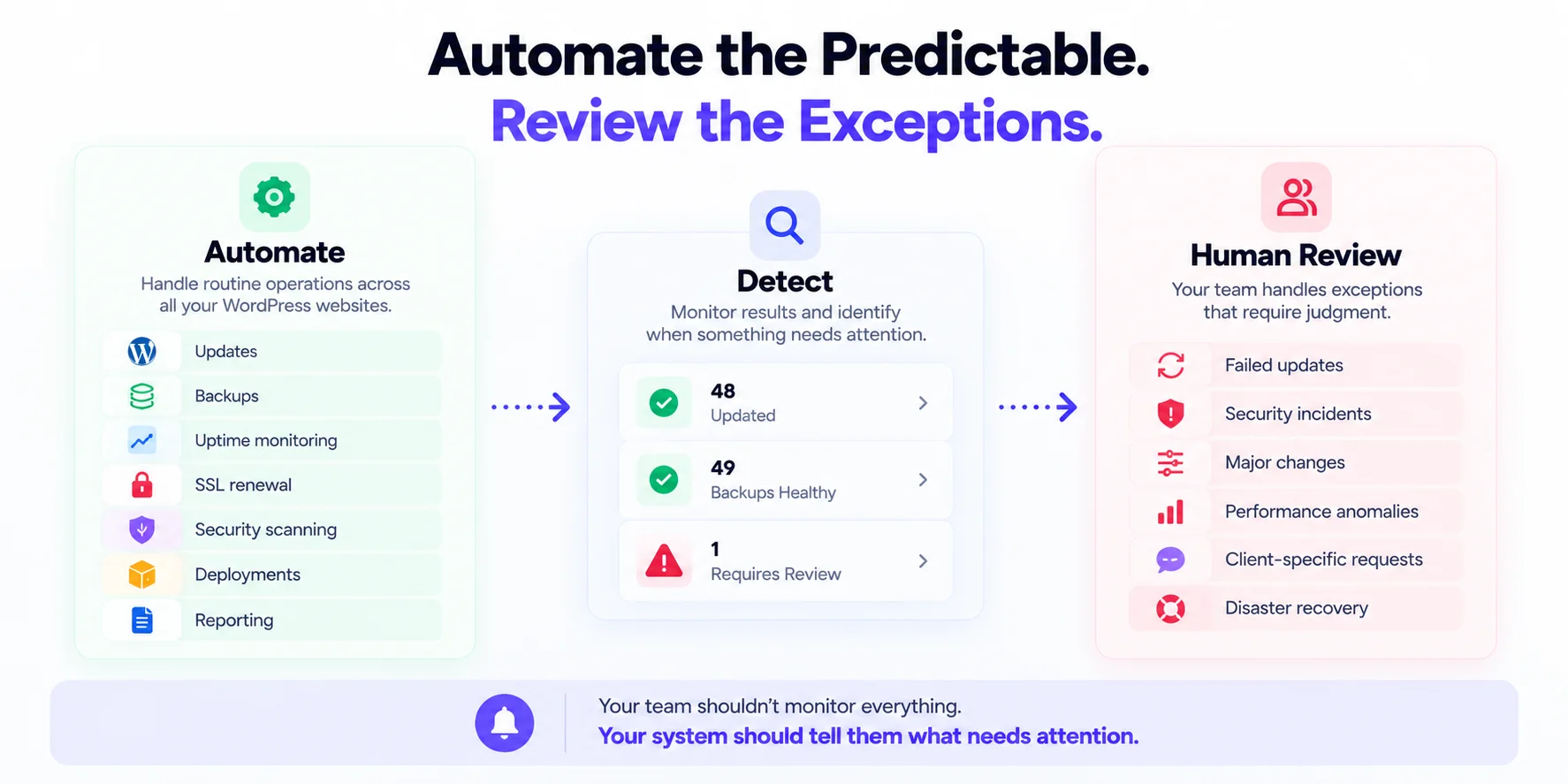
The goal is to automate predictable work and send exceptions to the people who need to handle them.
Tasks You Should Automate
Start with tasks that are repetitive, predictable, and easy to verify.
WordPress Updates
Routine WordPress core, plugin, and theme updates can often be automated or managed centrally.
Backups
Automate backup creation, retention, and status monitoring, then alert your team when something fails.
Uptime Monitoring
Your monitoring system can check websites continuously and alert your team when a site becomes unavailable.
Security Alerts
Automatically identify vulnerable plugins, themes, or other known issues with tools like FlySecurity Pro so your team can focus on alerts that require action.
SSL Management
SSL certificates can often be issued and renewed automatically. Your team should investigate only certificates that fail to renew or require special configuration.
Site Deployment
Standard WordPress environments can be deployed using repeatable processes:
Provision environment → Install WordPress → Configure SSL → Apply standard settings → Configure backups → Enable monitoring
Server Provisioning
If you regularly create similar servers, define a standard server configuration and use it whenever a new environment is required.
Notifications and Reporting
Configure notifications for events that require attention, such as failed backups, downtime, critical vulnerabilities, failed deployments, and server resource problems.
Routine operational reports can also be generated automatically instead of being assembled manually each month.
Tasks You Should Keep Human-Reviewed
Some tasks involve risk, context, or client-specific decisions and should remain under human review.
These can include:
- Major production changes
- Failed updates
- Security incidents
- Performance anomalies
- Client-specific requests
- Disaster recovery decisions
The right question is not:
"Can we automate this?"
It is:
"Can we automate this safely and reliably?"
The 80/20 Rule for WordPress Operations
A useful way to think about automation is to separate predictable work from exceptions.
Your system should handle predictable operations as much as possible, while your team focuses on exceptions that require judgment.
For example:
| Situation | Who handles it |
|---|---|
| Normal backup | Automated |
| Failed backup | Human review |
| Routine plugin update | Automated |
| Update causes an error | Human review |
| Normal uptime | No action |
| Website goes down | Human review |
This creates an exception-based workflow where the system handles normal operations and brings unusual situations to your attention.
Create a Reporting System for 50+ Websites
Once you automate your operations, you need a way to understand what is happening across your website portfolio.
Reporting should help you identify problems, measure operational performance, and decide where your team should spend its time.
What You Should Track
At a minimum, consider tracking:
- Site uptime
- Update status
- Backup status
- Security status
- Performance
- Server health
- Incidents
The goal is to answer questions such as:
- Which sites need attention today?
- Which sites have recurring problems?
- Which servers are becoming overloaded?
- Which websites are not following our standard configuration?
- How many incidents did we handle this month?
Centralized Reporting
Your reporting system can serve different audiences.
Internal Operations Reporting
Your team needs operational information such as:
- Sites with failed backups
- Pending updates
- Security vulnerabilities
- Downtime incidents
- Server resource issues
- Open maintenance tasks
This report should help your team decide what to work on.
Client Reporting
Clients usually don't need every technical detail.
A client-facing report might show:
- Website uptime
- Maintenance completed
- Updates performed
- Backup status
- Security checks
- Issues identified and resolved
Use Reporting to Find Problems Before Clients Do
Reporting becomes more useful when you look for patterns rather than individual incidents.
For example, if the same website has failed backups three times in a month, that's not just three separate alerts. It may indicate a configuration or infrastructure problem.
Look for:
- Recurring failures: A site that repeatedly experiences the same issue may need a permanent fix.
- Outdated sites: Consistently outdated sites may have compatibility, approval, or infrastructure issues.
- Underperforming infrastructure: Several sites with high resource usage on the same server may indicate an infrastructure problem.
- High-maintenance sites: Sites that consume disproportionate operational time may require a review of pricing, service scope, or infrastructure.
Calculate the Real Cost Per Website
Managing a website has costs beyond hosting.
If you're trying to scale from 50 to 100 websites without significantly increasing your team, understand how much operational effort each website actually requires.
Calculate Your Current Cost Per Site
Include:
- Hosting and server infrastructure
- Management time
- Maintenance
- Support
- Management tools
- Security
- Backups
- Emergency work
A basic operational cost calculation is:
Total monthly management cost ÷ Number of websites
This gives you a baseline to compare as your portfolio grows.
Compare Manual vs. Automated Operations
Suppose one recurring maintenance task takes 30 minutes per website each month.
For 50 websites:
50 × 30 minutes = 1,500 minutes
That's 25 hours per month spent on one task.
At 100 websites:
100 × 30 minutes = 3,000 minutes
That's 50 hours per month.
If you can automate or centralize part of that workflow, the time required doesn't necessarily have to increase at the same rate as the number of websites.
Apply the same calculation to backups, updates, reporting, monitoring, deployment, and other repetitive tasks.
Scale Revenue Without Scaling Operational Overhead
For an agency or WordPress management business, the goal isn't simply to manage more websites.
You also need the economics of the service to remain sustainable.
If adding 10 websites always requires another employee, operational cost will grow alongside your portfolio.
If your systems allow your existing team to manage more websites without the same increase in manual work, you can potentially:
- Manage more sites per employee
- Reduce operational cost per site
- Make margins more predictable
- Spend more time on client work and growth
The important metric is whether operational effort is growing as quickly as your website portfolio.
A Practical Workflow for Managing 50+ WordPress Websites
You don't need to redesign your entire operation in one day.
Build a scalable workflow step by step:
- Inventory every website: Record domains, clients, servers, versions, backups, security, and monitoring.
- Standardize infrastructure: Define supported server, PHP, WordPress, security, and backup configurations.
- Centralize site management: Manage updates, backups, monitoring, and site status from one place.
- Define backup and security policies: Create standard rules based on site type and business importance.
- Automate routine tasks: Automate predictable updates, backups, monitoring, deployment, and notifications.
- Set up staging and deployment workflows: Test higher-risk changes before production.
- Monitor exceptions: Let systems identify failed updates, backups, downtime, vulnerabilities, and resource problems.
- Review operational metrics: Track maintenance time, recurring problems, incidents, and cost per site.
- Improve the system continuously: When the same manual task appears repeatedly, determine whether it can be standardized or automated.
The objective is to build a system that becomes easier to operate as more websites are added.
What Should Be Automated vs. Manually Reviewed?
Use this framework when deciding where automation makes sense:
| Task | Automate | Human Review |
|---|---|---|
| WordPress updates | Yes | Failed updates |
| Plugin updates | Yes | High-risk changes |
| Backups | Yes | Failed backups |
| Uptime monitoring | Yes | Incidents |
| Security scanning | Yes | Critical findings |
| SSL renewal | Yes | Failures |
| Site deployment | Yes | Complex projects |
| Staging creation | Yes | Major changes |
| Server provisioning | Yes | Exceptions |
| Performance monitoring | Yes | Anomalies |
| Client requests | No | Yes |
| Major migrations | Partially | Yes |
| Disaster recovery | Partially | Yes |
A simple rule works across most of these workflows:
Automate predictable work. Human-review exceptions.
When Do You Need a WordPress Management Platform?
You don't necessarily need a dedicated WordPress management platform when you manage a few websites.
The need becomes clearer as your portfolio grows and separate dashboards and manual workflows start consuming more of your team's time.
You may benefit from a centralized platform when:
- You manage 20+ websites.
- Your team repeats the same maintenance tasks every week.
- You manage multiple servers.
- It's difficult to track updates across all sites.
- Backup verification is inconsistent.
- Clients expect faster maintenance and support.
- A significant part of someone's time is spent on routine WordPress administration.
- Your operational cost per site is increasing.
When evaluating a platform, look for capabilities such as:
- Centralized website management
- Bulk updates
- Backup and restoration
- Monitoring
- Security management
- Staging and cloning
- Server management
- Access control
- Automation
- Reporting
- Support for your infrastructure as you scale
The key question is:
Are your current tools and processes making it harder to manage the next 20 websites?
If the answer is yes, changing the operating model may have more impact than simply adding more people.
How FlyWP Helps Manage WordPress Websites at Scale
If you're managing WordPress websites on your own cloud infrastructure, FlyWP brings WordPress site management and server management into one platform.
Instead of managing websites and the infrastructure behind them through separate workflows, you can manage both from a centralized environment.
With FlyWP, you can:
- Manage multiple WordPress websites from one dashboard.
- Manage the servers supporting those websites.
- Deploy and clone WordPress sites.
- Automate routine WordPress operations.
- Manage backups and recovery workflows.
- Monitor infrastructure and websites.
- Control team access and permissions.
The value comes from reducing the number of separate tools and manual steps your team needs to manage.
The goal isn't to remove your team from WordPress management. It's to let your team spend less time repeating routine operations and more time handling the work that requires judgment.
Manage your WordPress infrastructure from one place.
Frequently Asked Questions
Can one person manage 50 WordPress websites?
Yes, one person can manage 50 WordPress websites when routine operations are centralized and automated. The workload depends on site complexity, infrastructure, client support requirements, and how much manual maintenance is involved.
How do you manage multiple WordPress websites efficiently?
Manage multiple WordPress websites efficiently by centralizing site management, standardizing infrastructure, and automating routine tasks. Use consistent workflows for updates, backups, monitoring, security, and deployments.
How often should 50+ WordPress websites be backed up?
Most WordPress sites should have automated backups based on how frequently their data changes and how important the site is. A frequently updated WooCommerce site may need more frequent backups than a low-traffic business website.
How do you safely update plugins across multiple WordPress sites?
Safely update plugins by testing higher-risk updates in staging before applying them to production sites. Routine updates can be automated when compatibility and risk are well understood, while failed updates should receive human review.
What is the best way to monitor multiple WordPress websites?
The scalable approach is centralized monitoring for uptime, performance, security, backups, and server health. Your monitoring system should alert your team when something requires attention instead of requiring manual checks for every site.
Should every WordPress site have its own server?
No, a WordPress site does not always need its own server, but important sites should have appropriate resource and security isolation. The right setup depends on traffic, resource requirements, security needs, and workload.
How do agencies manage hundreds of WordPress websites?
Agencies typically rely on standardized infrastructure, centralized management, automation, monitoring, and defined maintenance workflows as their site portfolio grows. They separate routine operations from exceptions that require human attention.
What should you automate when managing multiple WordPress sites?
Automate predictable tasks such as backups, uptime monitoring, routine updates, SSL management, site deployment, server provisioning, notifications, and reporting. Keep major production changes, security incidents, failed updates, and client-specific decisions under human review.
When should you use a WordPress management platform?
Consider a WordPress management platform when separate dashboards and manual workflows make it difficult to manage your growing site portfolio efficiently. Signs include increasing maintenance time, multiple servers, inconsistent backups, and difficulty tracking updates.
Conclusion
Managing more WordPress websites doesn't have to mean hiring proportionally more people.
The scalable approach is to centralize repetitive operations, standardize your infrastructure, automate predictable tasks, monitor exceptions, and keep your team focused on decisions that require human judgment.
The goal isn't to manage 50 websites manually.
It's to build a system where managing 50 websites feels operationally closer to managing 10.