Nginx doesn't read .htaccess files. Every rule that WordPress normally drops into .htaccess (pretty permalinks, file protection, caching headers) has to live in your Nginx server configuration instead. Copy an outdated snippet from a forum and you can end up with broken permalinks, a 502 error, or PHP files that run from your uploads folder.
This guide gives you a complete Nginx config for WordPress that you can adapt, then explains what each block does and why it's there.
Quick answer: A working Nginx config for WordPress needs four things: a
rootandindex index.php, the permalink ruletry_files $uri $uri/ /index.php?$args;, alocation ~ \.php$block that passes requests to PHP-FPM, and deny rules that protect sensitive files. Everything else (SSL, caching, rate limiting) builds on that foundation.
How Nginx Serves WordPress
Nginx can't execute PHP. It serves static files (images, CSS, JavaScript) directly and hands .php requests to PHP-FPM over the FastCGI protocol. PHP-FPM runs WordPress and returns the generated HTML to Nginx, which sends it to the visitor.
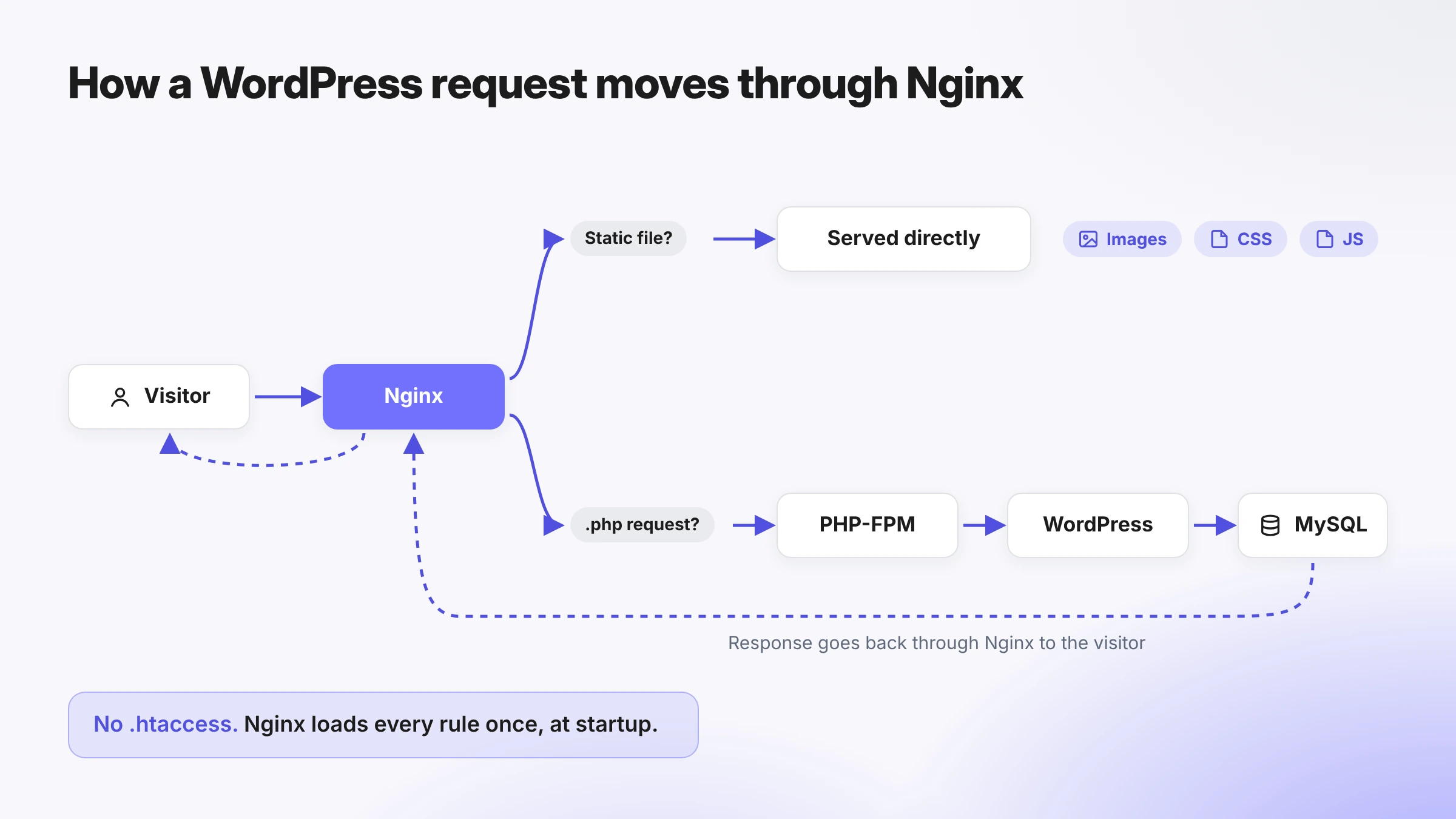
Because there's no .htaccess, Nginx loads all its rules once at startup instead of checking directory files on every request. That's one reason Nginx is efficient, but it also means you must reload Nginx after every config change.
On Ubuntu and Debian, the files you'll work with are:
| File or folder | Purpose |
|---|---|
/etc/nginx/nginx.conf | Main config. Contains the http {} block that includes everything else |
/etc/nginx/conf.d/*.conf | Extra settings loaded inside http {} (good for cache zones and rate limits) |
/etc/nginx/sites-available/ | One server config per site |
/etc/nginx/sites-enabled/ | Symlinks to the sites that are active |
/etc/nginx/snippets/ | Reusable chunks you include in several sites |
Before You Start
This guide assumes:
- An Ubuntu or Debian server with Nginx and PHP-FPM installed. WordPress currently recommends PHP 8.3 or greater. The examples use the PHP 8.3 socket,
/run/php/php8.3-fpm.sock; change it to match your version. If you're starting from a blank server, our WordPress VPS deployment CLI guide shows how to get one ready. - WordPress files in
/var/www/example.com/public. - A domain pointed at the server and an SSL certificate (for example, from Let's Encrypt) at
/etc/letsencrypt/live/example.com/. - Sudo access.
Check your Nginx version with nginx -v. The http2 on; directive used below requires Nginx 1.25.1 or later. Ubuntu 24.04's own package ships Nginx 1.24, so if you're on an older version, replace listen 443 ssl; + http2 on; with listen 443 ssl http2;.
The Complete Nginx Config for WordPress
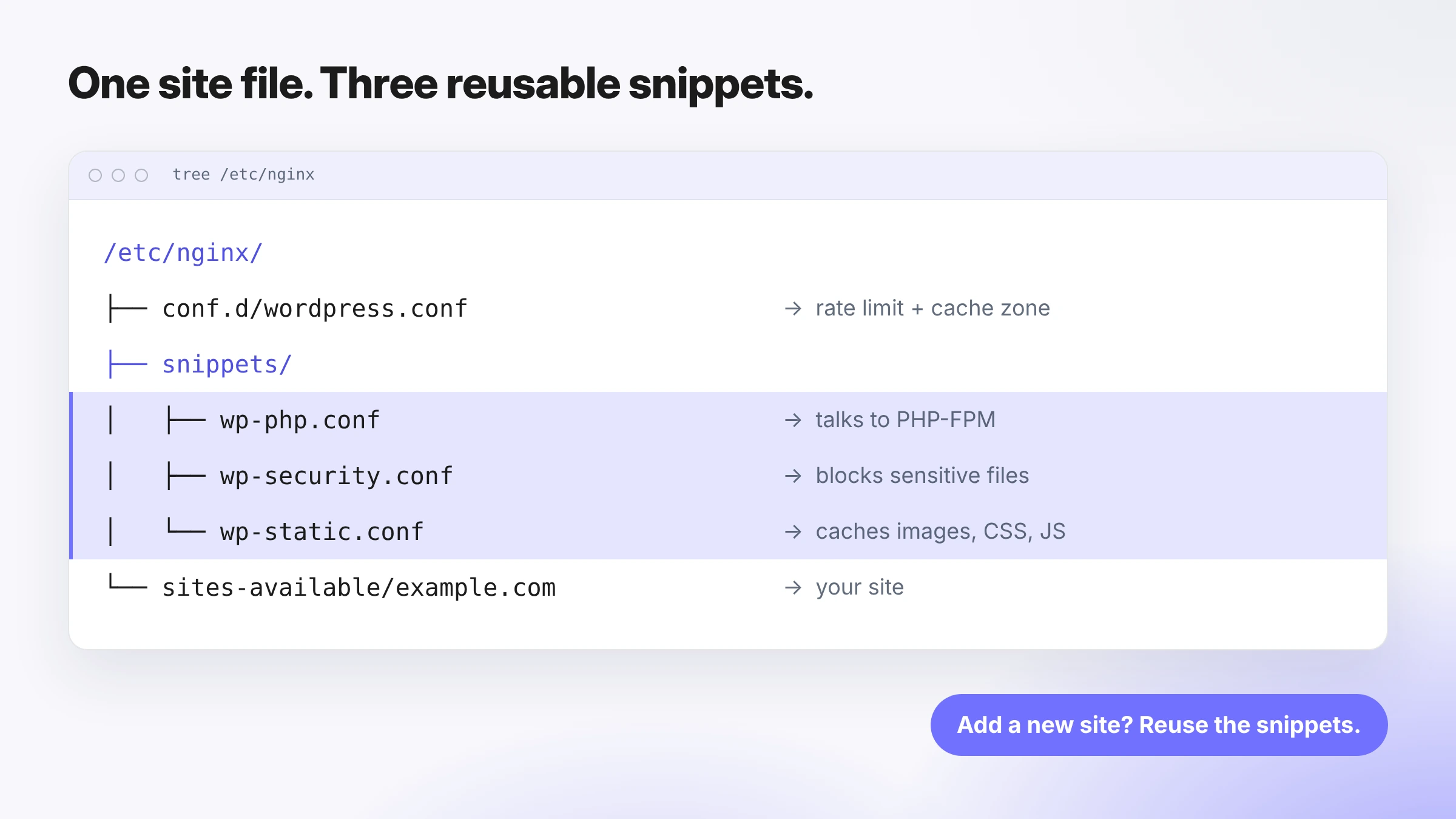
The config is split into four files so you can reuse the shared parts across every WordPress site on the server:
1. HTTP-level settings
# /etc/nginx/conf.d/wordpress.conf# Loaded inside the http {} block on Ubuntu/Debian.
# Rate limit for wp-login.php: 1 request per second per IP on averagelimit_req_zone $binary_remote_addr zone=wplogin:10m rate=1r/s;limit_req_status 429;
2. The PHP handler snippet
# /etc/nginx/snippets/wp-php.conftry_files $uri =404;fastcgi_split_path_info ^(.+\.php)(/.+)$;include fastcgi_params;fastcgi_param SCRIPT_FILENAME $document_root$fastcgi_script_name;fastcgi_index index.php;fastcgi_pass unix:/run/php/php8.3-fpm.sock;3. The security snippet
# /etc/nginx/snippets/wp-security.conf
# Block hidden files (.git, .env, .htaccess) but allow Let's Encrypt validationlocation ~ /\.(?!well-known) {    deny all;}
# Never execute PHP inside the uploads folderlocation ~* /(?:uploads|files)/.*\.php$ {    deny all;}
# Block direct access to sensitive WordPress fileslocation ~* /(?:wp-config\.php|readme\.html|license\.txt)$ {    deny all;}
# Block XML-RPC (remove this block if you use Jetpack or the WordPress mobile app)location = /xmlrpc.php {    deny all;}
4. The static files snippet
# /etc/nginx/snippets/wp-static.conf
location = /favicon.ico {    log_not_found off;    access_log off;}
# WordPress generates a virtual robots.txt, so fall back to index.phplocation = /robots.txt {    try_files $uri $uri/ /index.php?$args;    log_not_found off;    access_log off;}
location ~* \.(?:css|js|jpe?g|gif|png|webp|avif|svg|ico|woff2?|ttf|mp4)$ {    expires 30d;    access_log off;    try_files $uri =404;}
5. The site config
# /etc/nginx/sites-available/example.com
# Redirect all HTTP traffic to HTTPS on the main domainserver {    listen 80;    listen [::]:80;    server_name example.com www.example.com;    return 301 https://example.com$request_uri;}
# Redirect HTTPS www to non-wwwserver {    listen 443 ssl;    listen [::]:443 ssl;    http2 on;    server_name www.example.com;
    ssl_certificate     /etc/letsencrypt/live/example.com/fullchain.pem;    ssl_certificate_key /etc/letsencrypt/live/example.com/privkey.pem;
    return 301 https://example.com$request_uri;}
# Main WordPress server blockserver {    listen 443 ssl;    listen [::]:443 ssl;    http2 on;    server_name example.com;
    root /var/www/example.com/public;    index index.php;
    # SSL    ssl_certificate     /etc/letsencrypt/live/example.com/fullchain.pem;    ssl_certificate_key /etc/letsencrypt/live/example.com/privkey.pem;    ssl_protocols TLSv1.2 TLSv1.3;    ssl_session_cache shared:SSL:10m;    ssl_session_timeout 1d;
    # Logs    access_log /var/log/nginx/example.com.access.log;    error_log  /var/log/nginx/example.com.error.log;
    # Allow media and plugin uploads up to 64 MB    client_max_body_size 64M;
    # Security headers    add_header X-Content-Type-Options "nosniff" always;    add_header X-Frame-Options "SAMEORIGIN" always;    add_header Referrer-Policy "strict-origin-when-cross-origin" always;    # Enable only after HTTPS works everywhere on the domain:    # add_header Strict-Transport-Security "max-age=31536000" always;
    # Shared rules (must come before the PHP location)    include snippets/wp-security.conf;    include snippets/wp-static.conf;
    # Pretty permalinks    location / {        try_files $uri $uri/ /index.php?$args;    }
    # Rate-limited login page    location = /wp-login.php {        limit_req zone=wplogin burst=5 nodelay;        include snippets/wp-php.conf;    }
    # All other PHP    location ~ \.php$ {        include snippets/wp-php.conf;    }}
Enable the site, test, and reload:
sudo ln -s /etc/nginx/sites-available/example.com /etc/nginx/sites-enabled/sudo nginx -tsudo systemctl reload nginxNginx WordPress Configuration, Explained Block by Block
Permalinks: try_files $uri $uri/ /index.php?$args
This line replaces WordPress's .htaccess rewrite rules. Nginx first looks for a real file ($uri), then a directory ($uri/). If neither exists, it hands the request to index.php, and WordPress works out which post or page to show.
Keep the ?$args part. Without it, query strings get dropped, which breaks search (?s=), preview links, and plugins that rely on URL parameters.
Passing PHP to PHP-FPM
The wp-php.conf snippet does four jobs:
try_files $uri =404;returns a 404 when the PHP file doesn't exist instead of passing a fake path to PHP-FPM. This closes a long-known path-info security issue.include fastcgi_params;loads the standard FastCGI variables.SCRIPT_FILENAMEtells PHP-FPM which file to run. Debian'sfastcgi_paramsfile doesn't set it, so you must add it yourself; forgetting it gives you a blank page.fastcgi_passpoints to the PHP-FPM socket. It must match the socket path in your PHP-FPM pool config (/etc/php/8.3/fpm/pool.d/www.confon Ubuntu).
Why the order of location blocks matters
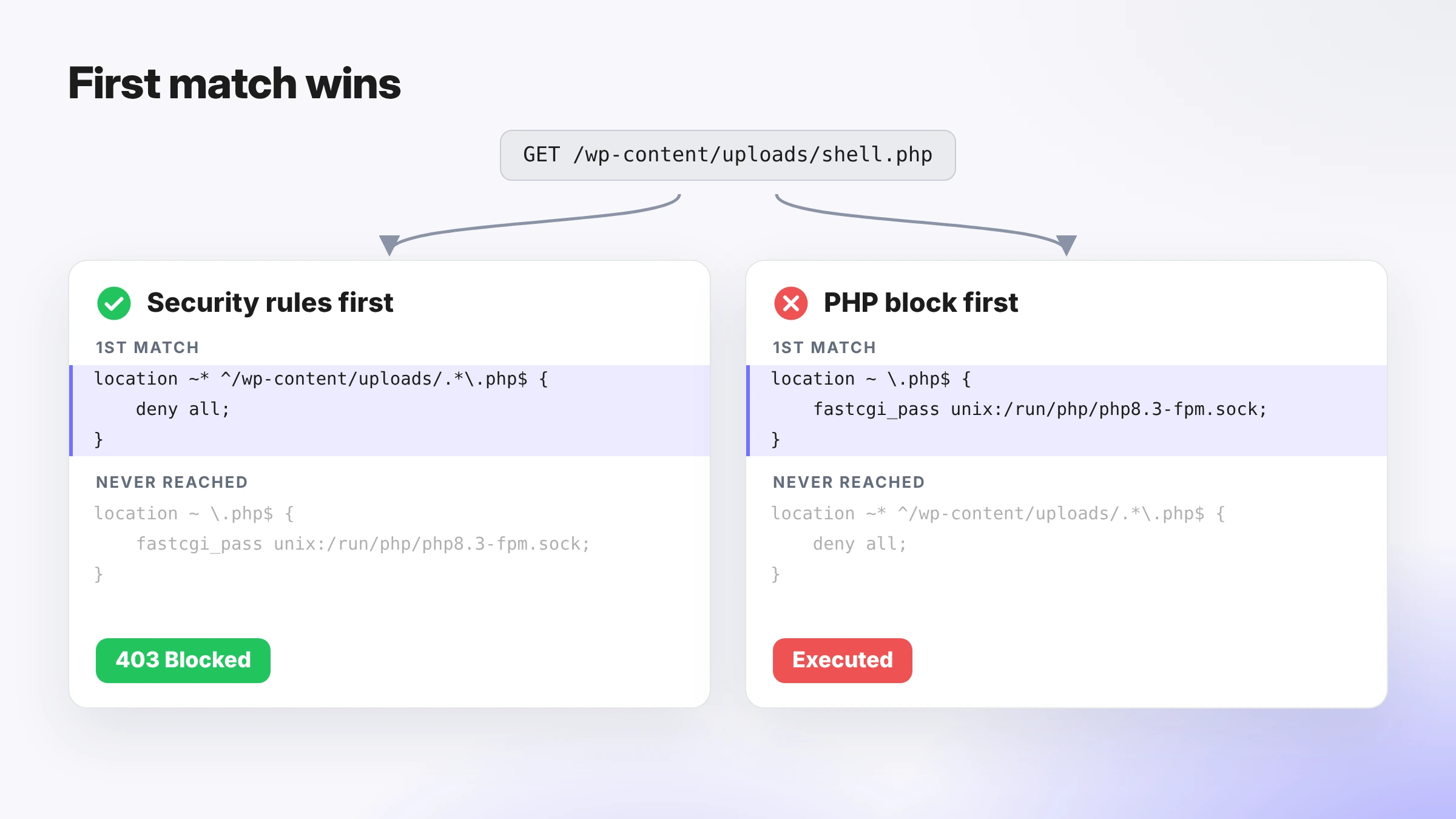
Nginx checks exact matches (location = /wp-login.php) first, then regex locations in the order they appear in the file. The first matching regex wins.
That's why the security snippet is included before location ~ \.php$. A request for /wp-content/uploads/shell.php matches the uploads deny rule first and gets a 403. If the PHP block came first, the file would be executed.
SSL and HTTP/2
ssl_protocols TLSv1.2 TLSv1.3; turns off TLS 1.0 and 1.1, which are deprecated. Some older guides, including parts of the WordPress Nginx handbook, still list them. For a fuller cipher setup, use the Mozilla SSL Configuration Generator.
Leave HSTS commented out until every page and subdomain works over HTTPS. Once browsers cache the header, they refuse plain HTTP for the whole max-age period.
Static files and compression
The static snippet tells browsers to cache images, CSS, JS, and fonts for 30 days and skips logging them, which keeps your access log readable.
For compression, Ubuntu's default nginx.conf already contains gzip on; with the gzip_types lines commented out. Uncomment those lines rather than adding a second gzip on;, because Nginx rejects duplicate directives and nginx -t will fail. While you're in nginx.conf, uncomment server_tokens off; to hide your Nginx version in error pages and headers.
Upload size
client_max_body_size 64M; lets you upload large media files and plugin ZIPs. Nginx's default is 1 MB. PHP has its own limits too, so raise upload_max_filesize and post_max_size in php.ini to match.
Security Rules for Your Nginx WordPress Config
The wp-security.conf snippet covers the most common attack paths:
- Hidden files: blocks
.git,.env, and leftover.htaccessfiles that can leak credentials or source code. The(?!well-known)exception keeps Let's Encrypt renewals working. - PHP in uploads: if an attacker uploads a malicious PHP file through a vulnerable plugin, Nginx refuses to run it. Test this rule by placing a harmless
test.phpin your uploads folder and requesting it; you should get a 403. - Sensitive files:
wp-config.phpshould never be served, andreadme.htmlreveals your WordPress version. - XML-RPC:
xmlrpc.phpis a frequent target for brute-force attempts. Block it unless you use Jetpack, the WordPress mobile app, or another service that needs it.
For more on hardening an Nginx-based stack, see our guide to WordPress security with Nginx in Docker containers.
Rate limiting wp-login.php
The limit_req_zone line in conf.d/wordpress.conf creates a 10 MB memory zone that tracks requests by IP address at an average of one per second. The location = /wp-login.php block applies it with burst=5 nodelay, so a real user can submit the form a few times quickly, but a bot hammering the page gets a 429 Too Many Requests response. (Nginx returns 503 by default; limit_req_status 429 changes that.) Full syntax is in the ngx_http_limit_req_module docs.
Watch out for add_header inheritance
Nginx's add_header directives are only inherited from the parent block if the current block has no add_header of its own. If you add a header inside location ~ \.php$ (for example, a cache status header), all the server-level security headers silently disappear from PHP responses.
The fix is to move your security headers into a snippet such as snippets/wp-headers.conf and include it in both the server block and any location that sets its own headers.
Performance: The Best Nginx Configuration for WordPress Speed
There isn't one "best" Nginx configuration for every WordPress site. A brochure site, a busy blog, and a WooCommerce store need different caching rules. For most sites, the biggest single gain is FastCGI page caching: Nginx stores the HTML that PHP generates and serves it to the next visitor without running WordPress or querying the database.
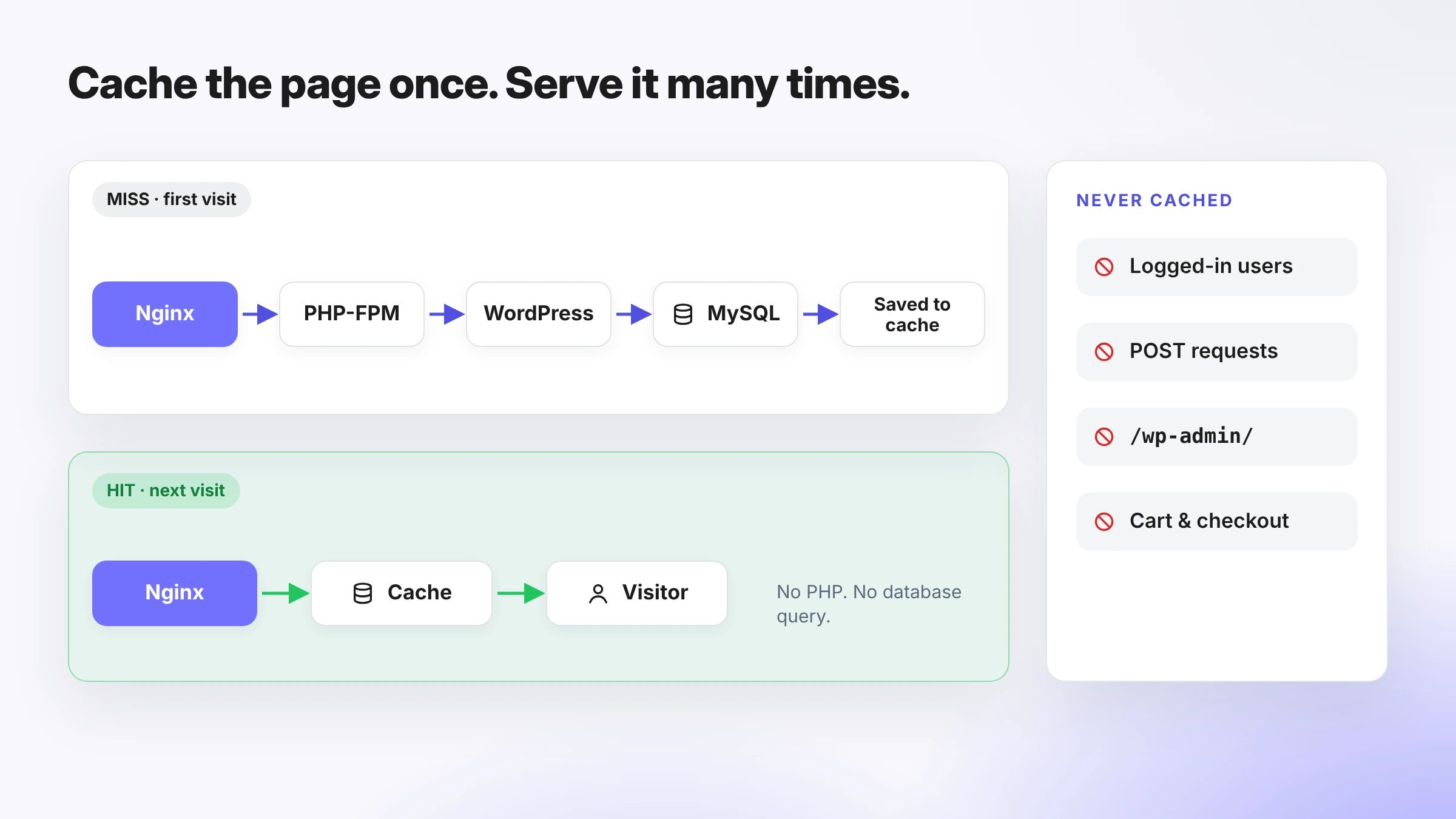
Add a FastCGI cache
Add the cache zone to /etc/nginx/conf.d/wordpress.conf:
fastcgi_cache_path /var/cache/nginx/wordpress levels=1:2 keys_zone=WORDPRESS:100m inactive=60m max_size=1g;fastcgi_cache_key "$scheme$request_method$host$request_uri";Then add the bypass rules inside the main server {} block, above the location blocks:
set $skip_cache 0;
if ($request_method = POST)   { set $skip_cache 1; }if ($query_string != "")      { set $skip_cache 1; }
# Admin, login, feeds, sitemaps, and WooCommerce pagesif ($request_uri ~* "/wp-admin/|/xmlrpc.php|wp-.*\.php|/feed/|sitemap(_index)?\.xml|/cart/|/checkout/|/my-account/") {    set $skip_cache 1;}
# Logged-in users, commenters, and shoppers with items in the cartif ($http_cookie ~* "comment_author|wordpress_[a-f0-9]+|wp-postpass|wordpress_no_cache|wordpress_logged_in|woocommerce_items_in_cart") {    set $skip_cache 1;}
Finally, update the PHP location:
location ~ \.php$ {    include snippets/wp-php.conf;
    fastcgi_cache WORDPRESS;    fastcgi_cache_valid 200 60m;    fastcgi_cache_bypass $skip_cache;    fastcgi_no_cache $skip_cache;    fastcgi_cache_use_stale error timeout updating http_500 http_503;
    include snippets/wp-headers.conf;   # re-add security headers (see above)    add_header X-FastCGI-Cache $upstream_cache_status;}
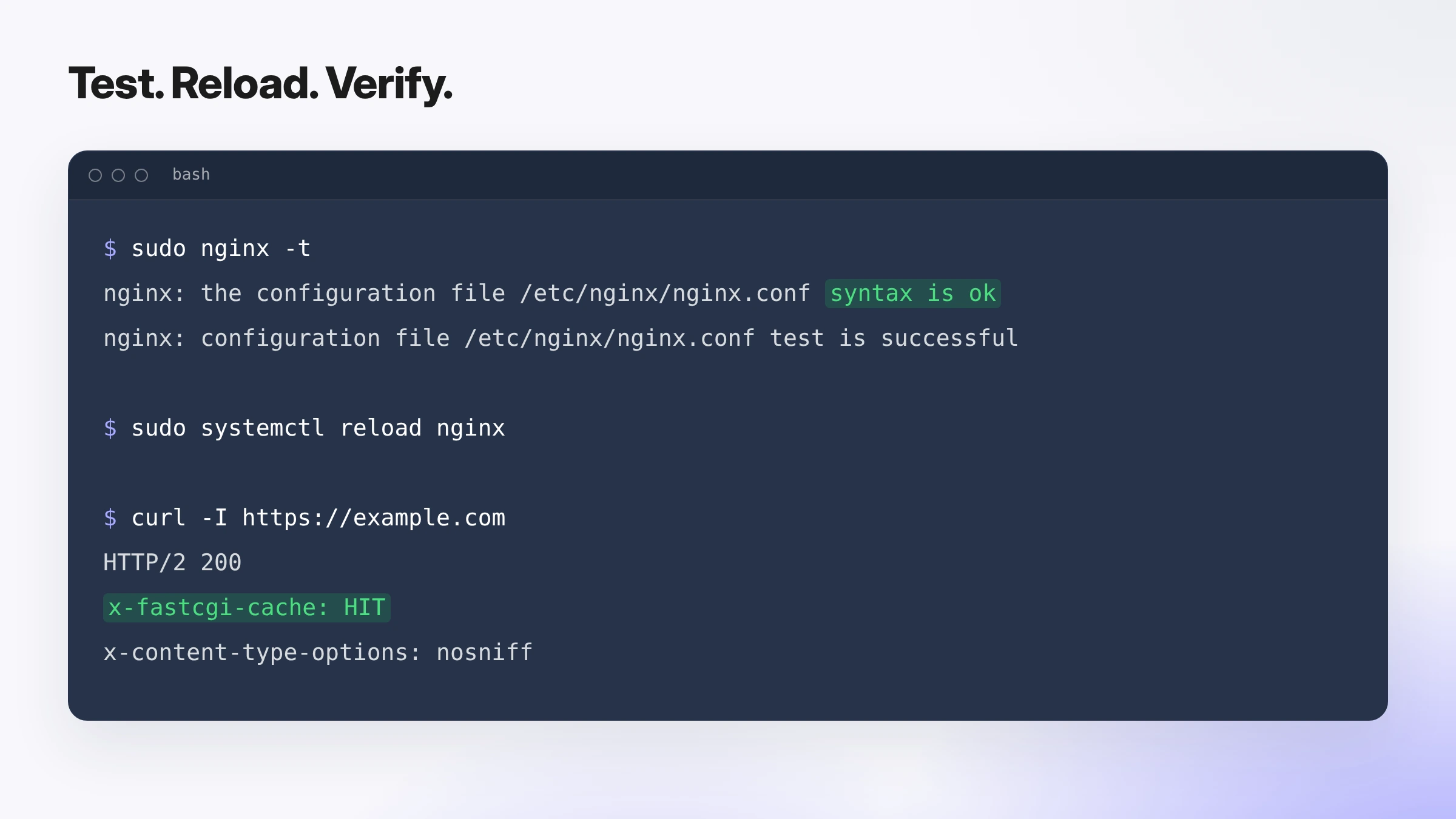
Create the cache directory with sudo mkdir -p /var/cache/nginx/wordpress, then test and reload.
A few notes:
- Bypass rules matter more than cache settings. Without the cookie rule, logged-in users and customers can be served someone else's cached page.
fastcgi_cache_use_staleserves the last good copy if PHP-FPM errors or times out, which keeps the site online during short outages.- Purging: open-source Nginx doesn't purge cached pages when you publish a post. Pages refresh when
fastcgi_cache_validexpires. Instant purging needs the third-partyngx_cache_purgemodule plus a helper plugin. - Use one page cache. Don't run FastCGI caching and a page-caching plugin at the same time. See common WordPress caching mistakes for why.
For a deeper walkthrough, read our guide on speeding up WordPress without plugins.
WordPress Multisite Nginx Configuration
Multisite needs a small addition to the single-site config. Which one depends on how your network was set up.
Subdomain network (site1.example.com): no extra rewrites are needed. Add the wildcard to server_name and use a wildcard SSL certificate (Let's Encrypt issues these through DNS validation only):
server_name example.com *.example.com;Subdirectory network (example.com/site1/): add these rewrites inside the main server {} block, above location /. They come from the official WordPress Nginx handbook and apply to networks created on WordPress 3.5 or later:
if (!-e $request_filename) { rewrite /wp-admin$ $scheme://$host$request_uri/ permanent; rewrite ^(/[^/]+)?(/wp-.*) $2 last; rewrite ^(/[^/]+)?(/.*\.php) $2 last;}You'll still see blogs.dir and ms-files.php rules in older tutorials. Those only apply to networks created on WordPress 3.4 or earlier, so skip them for new installs.
How to Test and Apply Nginx Config Changes Safely
- Back up first:
sudo cp -r /etc/nginx /etc/nginx.bak - Check syntax:
sudo nginx -t. Never reload if this reports an error. - Reload:
sudo systemctl reload nginx. A reload applies changes without dropping active connections. You only need a full restart when installing modules or changing some low-level settings. - Check the response:
curl -I https://example.comshould return200along with your security headers. - Check caching: run
curl -Itwice on the same page. TheX-FastCGI-Cacheheader should change fromMISStoHIT. - Check the logs if anything fails:
sudo tail -f /var/log/nginx/example.com.error.log
Troubleshooting Common Nginx WordPress Errors
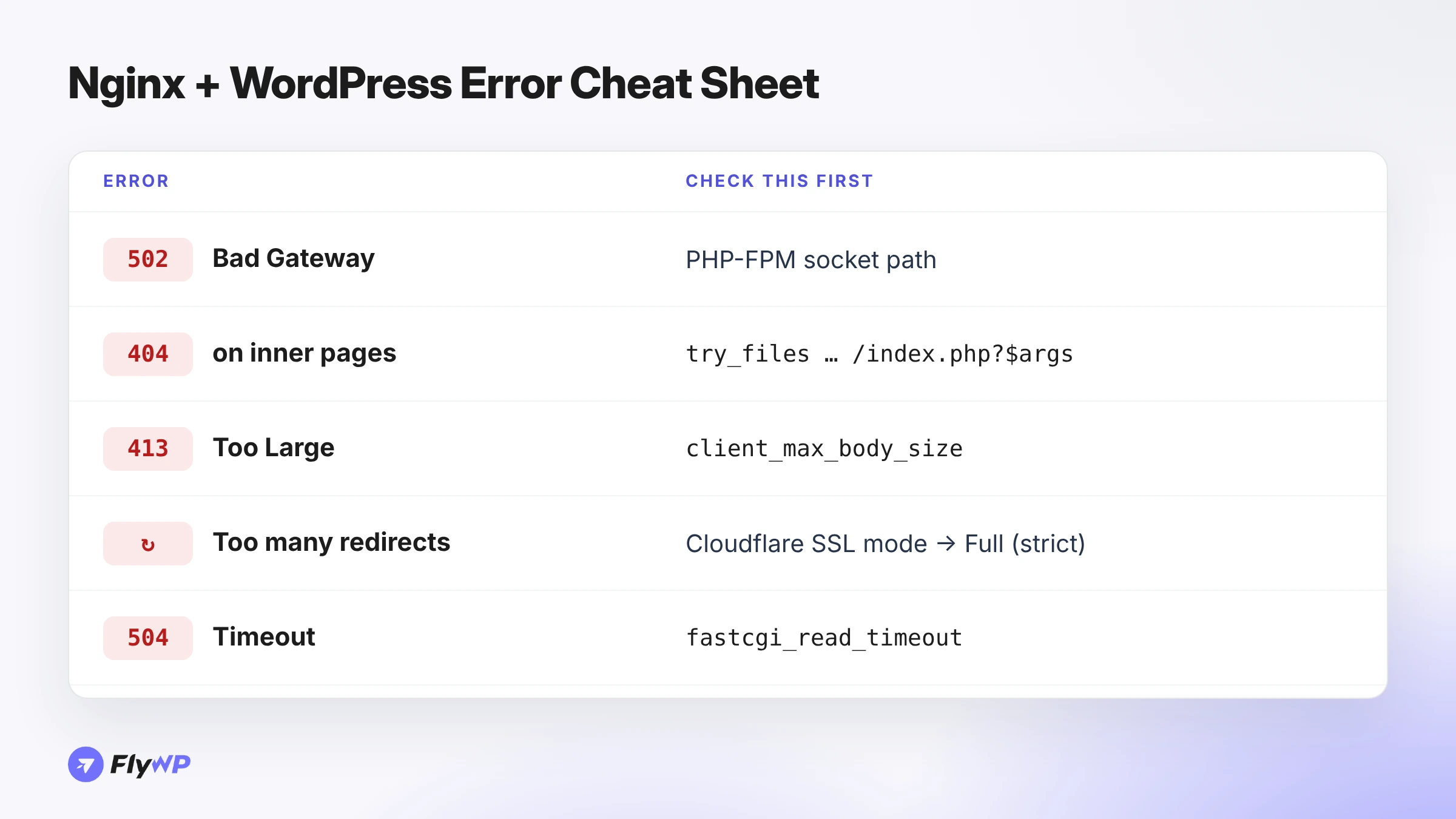
| Error | Likely cause | Fix |
|---|---|---|
| 502 Bad Gateway | PHP-FPM isn't running, or fastcgi_pass points to the wrong socket | Run systemctl status php8.3-fpm and make sure the socket path matches the pool config |
| 404 on every page except the homepage | Missing or incorrect try_files in location / | Use try_files $uri $uri/ /index.php?$args; |
| 413 Request Entity Too Large | Upload larger than client_max_body_size | Raise it in Nginx, and raise upload_max_filesize and post_max_size in PHP |
| PHP files download instead of running | The PHP location isn't matching, or SCRIPT_FILENAME is missing | Check location ~ \.php$ and the fastcgi_param SCRIPT_FILENAME line |
| Too many redirects | Cloudflare's "Flexible" SSL mode sends HTTP to your origin, which redirects back to HTTPS | Set Cloudflare's SSL/TLS mode to Full (strict) |
| Logged-in users see cached pages | Cookie bypass rule missing | Add the wordpress_logged_in cookie check to $skip_cache |
| 504 Gateway Timeout | A slow PHP request exceeds fastcgi_read_timeout (60 seconds by default) | Raise it for long tasks (imports, backups), and investigate the slow plugin or query |
| Security headers missing on some pages | A location block has its own add_header | Include your headers snippet in that location too |
Managing Nginx Config for WordPress with FlyWP
Writing one Nginx config is manageable. Keeping 20 or 50 client sites consistent, patched, and free of typos is where hand-edited configs start to cost real time, and one missing semicolon can take a site offline.
FlyWP is a managed cloud hosting and server management platform for WordPress and modern web projects. It lets developers, freelancers, and agencies deploy, manage, secure, and scale websites on FlyWP Managed Hosting or their own cloud infrastructure. With an optimized Nginx stack out of the box and the flexibility to customize server configurations, FlyWP gives you performance, control, and simplicity from one dashboard.
- Isolated Nginx per site. Each site runs in its own Docker container with its own Nginx and FastCGI setup, so a config change on one site doesn't affect the others.
- NGINX Config editor. Open a site, click NGINX Config in the sidebar, edit, and click Save Changes. If something breaks, Restore Default rolls the config back. (Changelog)
- Custom rule files. To add your own rules, such as a redirect or an extra deny block, create a
.conffile in/home/fly/example.com/config/nginx/custom/server/, then restart Nginx from Site Dashboard > Manage > Restart Nginx. (FlyWP FAQ) - FastCGI caching without writing bypass rules. Under Performance > Caching, choose FastCGI Cache, set the Cache Duration, and add Request URI Exclusions and Cookie Exclusions, or apply the Common Presets for WooCommerce and WordPress Admin. A Clear Cache button purges it instantly. (Docs)
- Redirects managed for you. The Redirect Manager writes Nginx redirect rules and reloads the server automatically.
- Open-source configs. FlyWP's Nginx and Docker configurations are open source, so you can review exactly what runs on your server.
Because FlyWP's Nginx runs inside Docker, don't paste a full server block like the one in this guide into a FlyWP site. Add only the specific rules you need as custom .conf files.
Deploy WordPress on an optimized Nginx stack with FlyWP →
Conclusion
A solid Nginx config for WordPress comes down to a short checklist:
try_files $uri $uri/ /index.php?$args;for permalinks- A PHP location with
try_files $uri =404,SCRIPT_FILENAME, and the correct PHP-FPM socket - Deny rules for hidden files, PHP in uploads, and sensitive files, placed before the PHP location
- TLS 1.2/1.3 only, with HSTS added after HTTPS is stable
- Rate limiting on
wp-login.php - FastCGI caching with bypass rules for logged-in users and checkout pages
nginx -tbefore every reload
Start with the config above, adjust paths and the PHP socket for your server, and add caching once the basics work. If you'd rather not maintain configs by hand across many sites, try FlyWP and manage every site's Nginx setup from one dashboard.
FAQs
Where is the Nginx config file for WordPress?
On Ubuntu and Debian, site configs live in /etc/nginx/sites-available/ and are enabled with a symlink in /etc/nginx/sites-enabled/. Global settings are in /etc/nginx/nginx.conf and /etc/nginx/conf.d/. On FlyWP, per-site custom rules go in /home/fly/your-domain/config/nginx/custom/server/.
Does WordPress need .htaccess on Nginx?
No. Nginx ignores .htaccess files. The try_files directive handles permalinks, and any rules a plugin asks you to add to .htaccess must be rewritten as Nginx directives.
How do I increase the upload size limit in Nginx for WordPress?
Set client_max_body_size 64M; (or higher) in your server block, then raise upload_max_filesize and post_max_size in php.ini. Reload Nginx and restart PHP-FPM.
Should I use Nginx or Apache for WordPress?
Both run WordPress well. Nginx generally uses less memory under high concurrency and has built-in FastCGI caching, while Apache supports .htaccess. See our comparison of OpenLiteSpeed vs. Nginx vs. Apache, or our Nginx vs OpenLiteSpeed guide for WordPress.
Can I use one Nginx config for multiple WordPress sites?
Yes. Keep shared rules in /etc/nginx/snippets/ and give each site its own small file in sites-available that sets server_name, root, SSL paths, and logs, then includes the snippets.