


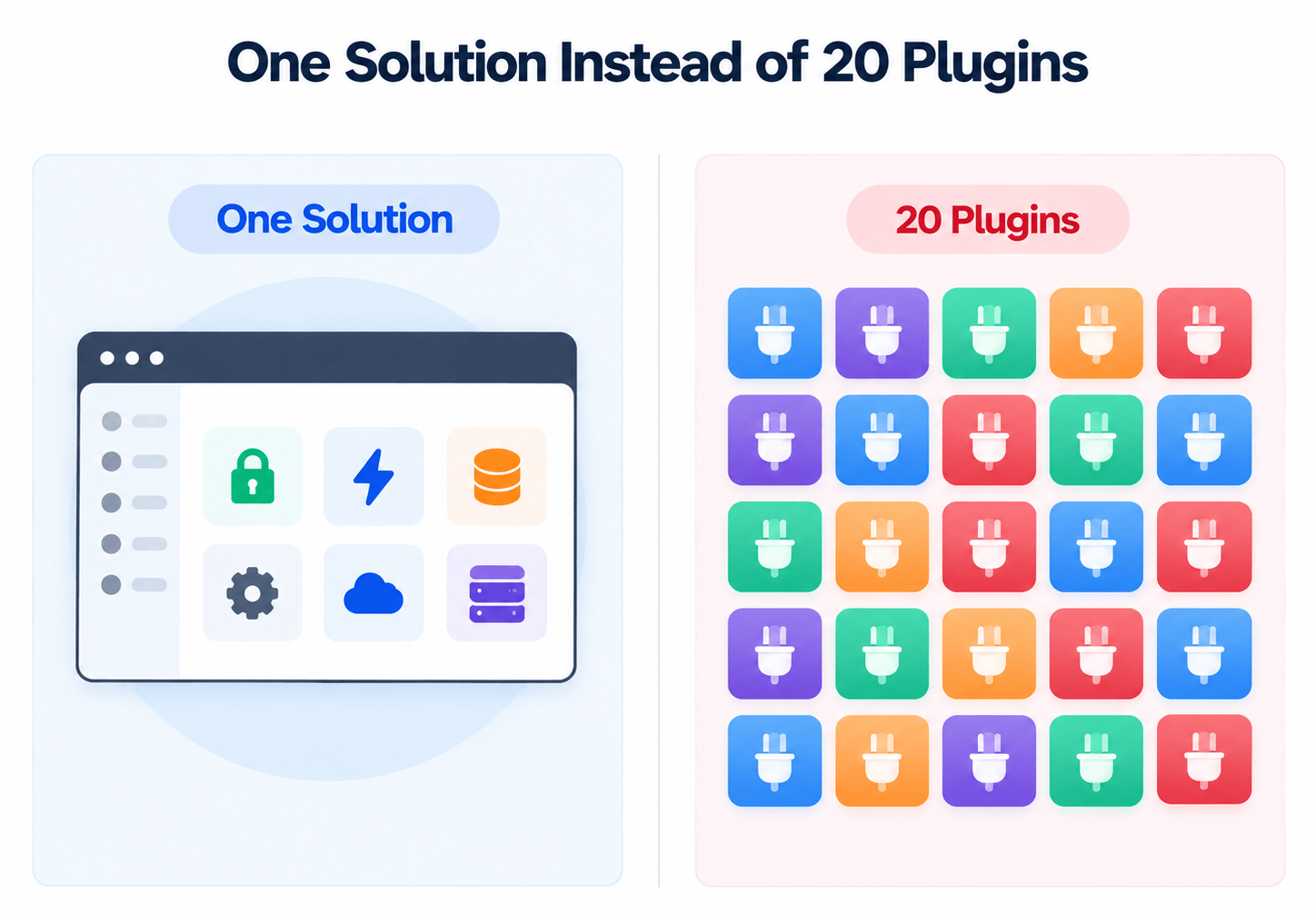
Open the plugins page on a WordPress site you inherited, and you will often find a dozen plugins doing one small job each. One hides the login URL. One disables comments. One adds security headers.
Yet many of those jobs do not really belong inside WordPress. The server underneath can already handle them.
That does not mean you should delete plugins blindly. Some plugins do more than a server-level setting can replace. However, many single-purpose infrastructure plugins become unnecessary when the server layer is configured and managed properly.
This post looks at twenty common WordPress plugins you may be able to replace with server-level features, the four swaps that are not one-to-one, and what to check before removing anything.
TL;DR
- Twenty common single-purpose plugins do jobs that belong to the server layer, from SSL and firewall rules to SMTP and file access.
- Plugin count is a maintenance problem before it is a speed problem. Every plugin adds an update stream and a vendor with database access.
- Four of the twenty swaps are not one for one. UpdraftPlus, WP Mail SMTP, NinjaFirewall, and Really Simple SSL each do something a server setting does not.
- FlyWP covers all twenty from the server side and installs a single helper plugin instead of twenty separate ones.
- Audit first, then delete. Two tools doing the same job is where sites actually break.
Count the Real Cost of Twenty Single-Purpose Plugins
Plugin bloat costs you maintenance time long before it costs you milliseconds. Each plugin brings its own updates, its own developer, and usually write access to your database. Ten plugins means ten codebases you now depend on. Twenty means twenty.
The security math is not close either.
Patchstack's State of WordPress Security in 2026 counted 11,334 new WordPress flaws in 2025, a 42% jump in one year. Plugins held 91% of them. Core held six, all rated low risk.
Two more numbers from the same report explain why "keep everything updated" is not a complete answer. The weighted median time from public disclosure to mass exploitation was five hours.
And 46% of those vulnerabilities had no patch available on the day they went public. Updating fast still leaves a window open. So the surest fix is a shorter list. Our breakdown of common WordPress plugin vulnerabilities shows how those flaws get used in real attacks.
Audit the WordPress Plugins You Don't Need Before Deleting Any
Run a three-step audit first, because deleting blind is how a Tuesday afternoon turns into a restore. The steps are short.
- Export the active list and sort by what each plugin touches.
- Tag every plugin as content, business logic, or infrastructure.
- Find the duplicates, then remove one plugin at a time.
1. Sort the List by What Each Plugin Touches
Run wp plugin list --status=active over WP-CLI, or copy the list from the dashboard. Next to each name, write the one job it does. Plugins that need a paragraph to describe are rarely the ones to remove, and plugins you can describe in three words usually are.
2. Tag Every Plugin as Content, Business Logic, or Infrastructure
Content and business logic plugins stay. A page builder, a forms plugin, WooCommerce, a membership tool, all of these do work WordPress itself is meant to do. Infrastructure plugins are the candidates. They toggle a setting, write a header, or move a file, and the server can do all three without loading PHP inside WordPress on every request.
3. Find the Duplicates, Then Remove One at a Time
Two plugins doing the same job cause more outages than either one alone. Say a plugin writes security headers and the server writes the same ones. You get duplicates, and browsers reject those. So turn off one thing, load the site as a logged-out visitor, then check the site again in a private window before you move on.
Replace the Six Security Hardening Plugins
Six of the twenty are hardening toggles, and every one of them is a server-level job. These plugins exist because WordPress does not expose the setting, not because the setting belongs in WordPress.
| Plugin you can drop | What handles it at server level |
|---|---|
| Really Simple SSL | Automatic Let's Encrypt issuance and renewal, or a custom certificate |
| Headers Security Advanced | Security headers written by the web server |
| WPS Hide Login | Login page access rules at the server |
| NinjaFirewall | 7G firewall ruleset plus a server firewall |
| Disable XML-RPC-API | Protocol filtering, so requests never reach PHP |
| Prevent Direct Access | File and folder access rules |
The order matters here. A request blocked by the web server costs almost nothing. A request blocked by a plugin has already booted WordPress, loaded every other plugin, and opened the database. That difference shows up most clearly during a brute force run, when thousands of login attempts arrive per minute. Our guide on how to improve WordPress security covers the layers above and below this one.
Replace the Two Performance Plugins
Two entries on the list only exist to reach settings that live outside WordPress anyway.
| Plugin you can drop | What handles it at server level |
|---|---|
| Nginx Helper | FastCGI page cache with purging built into the stack |
| WP Tools | PHP memory limit set on the server |
Nginx Helper is the interesting one, because it never cached anything. It only told Nginx when to purge. Once the cache and the purge logic sit in the same place, the plugin has no job left. Memory limits work the same way. A plugin can only raise the limit as far as PHP allows. Editing the PHP config directly removes a step instead of adding one. Our guide to speeding up WordPress without plugins goes deep on that stack if performance is your main reason for reading this.
Replace the Four File and Config Plugins
Four more plugins exist to give you access you already have somewhere else.
| Plugin you can drop | What handles it at server level |
|---|---|
| File Manager | Web-based file manager outside wp-admin |
| WPIDE | wp-config manager for the important constants |
| WP Debugging | Debug mode toggle plus log viewing |
| Deployer for Git | Git deployment from your repository to the site |
File manager plugins deserve a special mention, since they are among the most abused plugins in WordPress. A file manager inside wp-admin turns any hacked admin login into file access. From there it is a short hop to running code. Moving that tool out of WordPress and behind its own login closes the whole path. Debug mode has a similar story. A debug plugin has to load before it can tell you why loading failed, which is exactly backward. If you have never read through what those constants actually control, our post on the wp-config.php file is the place to start.
Replace the Three Content and Protocol Cleanup Plugins
Three plugins on the list do nothing but switch off WordPress features you never use.
| Plugin you can drop | What handles it at server level |
|---|---|
| Disable Comments | Comment filtering across the site |
| Remove Pingback-Trackback | Trackback and pingback filtering |
| Disable RSS, RDF, and Atom Feeds | Feed filtering |
None of these three change how your site looks, so they are the safest place to start an audit. A brochure site with comments closed does not need a plugin standing guard over a form nobody can reach. The same applies to feeds on a site that publishes nothing. Just check first whether anything reads those feeds. A newsletter tool or a feed partner will stop working quietly, not loudly.
Replace the Five Site Operations Plugins
The last five cover the daily running of a site, and this is the group where the swap needs the most care.
| Plugin you can drop | What handles it at server level |
|---|---|
| Easy Updates Manager | Centralized update control across sites |
| Maintenance | Maintenance mode toggle |
| UpdraftPlus | Scheduled backups with one-click restore |
| WP Mail SMTP | SMTP configured for the site |
| Magic Login Plugin | One-click login from the dashboard |
Update control is worth a caveat. Moving updates off individual sites and into one dashboard is a real gain for anyone running more than three sites. Turning updates off entirely is not. Plugins carry 91% of new flaws, so a site with updates off and nobody watching is worse off than one without. Treat this as centralizing the decision, not skipping it.
Email is the other one to think through. Server-level SMTP delivers your transactional mail without a plugin sitting in the send path, which is the right default. Our post on WordPress email sending walks through the setup and what to check when a message goes missing.
Know Where the Swap Is Not One for One
Four of these twenty do something a server setting does not. Pretending otherwise wastes your afternoon. Here is the honest version.
UpdraftPlus Also Handles Remote Storage and Migration
Scheduled backups and restores are a clean swap. Migration is not always. UpdraftPlus doubles as a site mover between hosts and pushes archives to a long list of remote destinations. Before you drop it, confirm your backups leave the server. A backup sitting on the same disk as the site is not a backup. We covered one approach to that in our guide on backing up WordPress to Cloudflare R2.
WP Mail SMTP Also Logs Every Email
Server-level SMTP sends mail reliably. It does not usually give you a searchable log of every message WordPress tried to send, and that log is how support teams prove an order confirmation went out. If your team opens tickets about missing email, keep the logging.
NinjaFirewall Inspects Requests Inside PHP
A server firewall and the 7G ruleset block malicious traffic patterns. NinjaFirewall works differently. It hooks in ahead of WordPress and checks each request with WordPress rules in mind. Patchstack's own testing is blunt about the gap. In their pentests, common host and WAF setups blocked only 12% of known exploited WordPress-specific attacks.
So do not assume a hardened server finished the job. This is where vulnerability monitoring earns its place, and the FlySecurity Pro add-on covers that.
Really Simple SSL Also Rewrites Mixed Content
A certificate at the server gives you HTTPS. It does not rewrite the old HTTP image URLs baked into your posts years ago. On a legacy site with hardcoded links, you still need a search and replace pass through the database, or that padlock stays broken.
You Can Manage All This Yourself or Manage It From One Dashboard
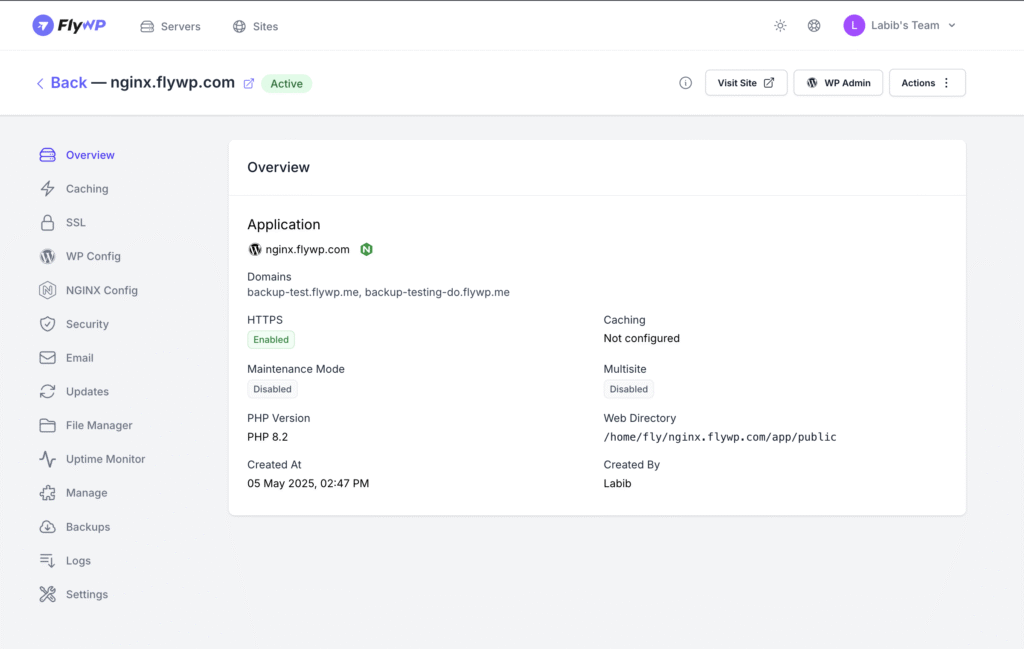
Server-level configuration is powerful. However, managing Nginx rules, SSL certificates, PHP settings, caching, firewalls, backups, and deployments manually takes time.
That is where FlyWP fits in.
FlyWP gives you a way to manage your WordPress sites and server-level features from one dashboard. Instead of installing separate plugins for caching, SSL, maintenance mode, deployments, backups, and other infrastructure tasks, you manage the stack outside the WordPress plugins page.
The goal is not to remove every plugin from your site. The goal is simpler: keep WordPress plugins for WordPress features, and let your server handle server work.
Ask What Happens When the Site Moves
Server-level features live with the server, so plan for the move before you make it. This is the question nobody asks until migration day, and it cuts both ways.
A plugin travels with the site. Export the database and the files, drop them on any host, and WPS Hide Login still hides the login page. Server configuration does not travel. Move a hardened site to cheap shared hosting and the headers, the firewall rules, and the protocol filtering all stay behind. Nothing breaks visibly, which is the risk, since your site keeps loading while its protections quietly go missing.
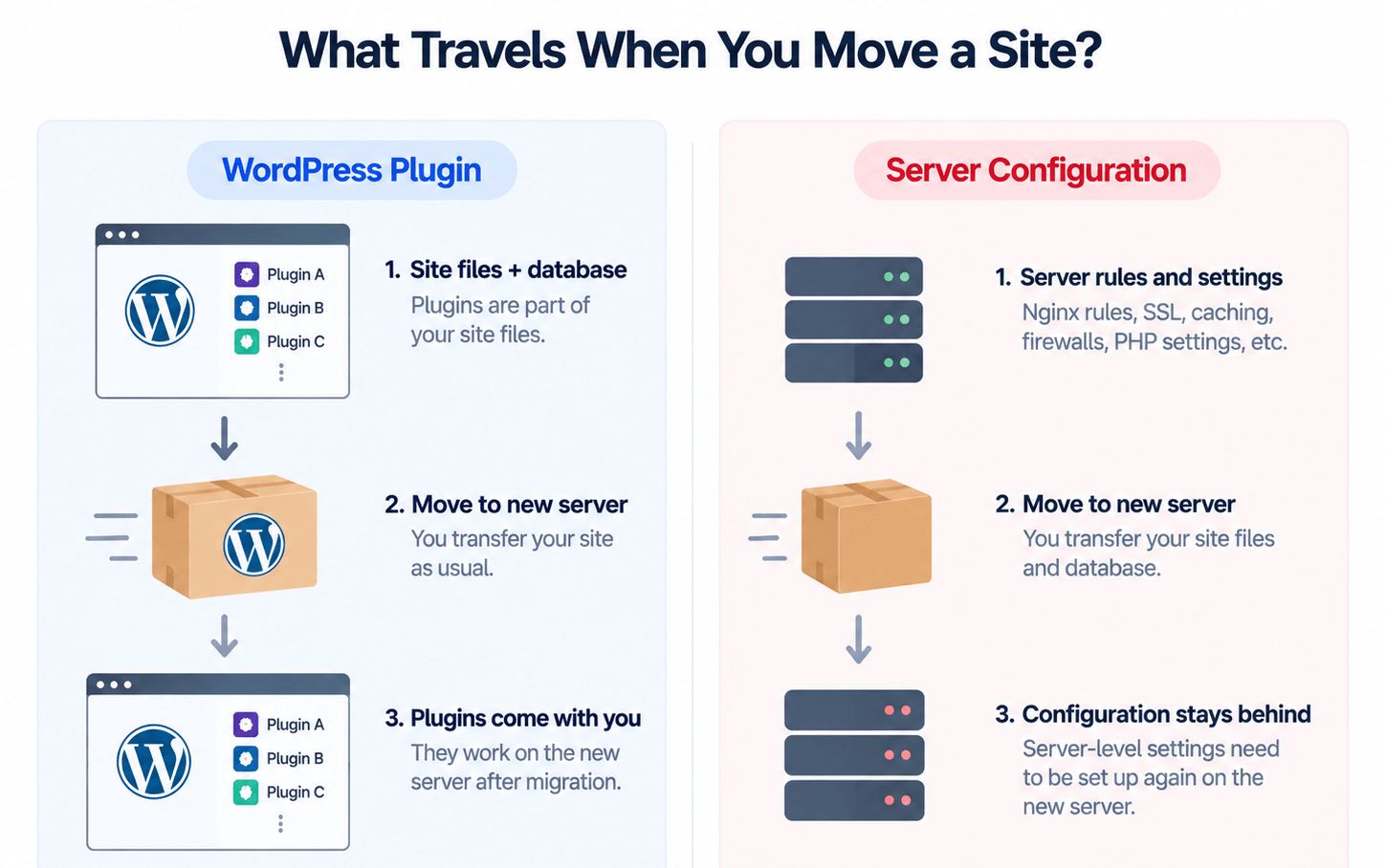
That argues for two habits rather than against the approach. Write down which hardening lives at the server. And keep a real off-server backup, so a rebuild stays a rebuild. Our walkthrough on how to clone a WordPress site covers the mechanics of moving one cleanly.
One clarification on the twenty, since it comes up. FlyWP does install a single helper plugin, and some of these features work through it. The claim worth making is one helper plugin instead of twenty separate ones, each with its own update stream and its own vendor.
FAQ
Will disabling XML-RPC break Jetpack or the WordPress mobile app?
Yes, both rely on XML-RPC and will stop connecting once it is blocked. The official WordPress phone apps and several Jetpack features sign in over that endpoint. Most other tools moved to the REST API years ago. So check those two before you switch XML-RPC off.
Does deleting a plugin remove its settings and database tables?
Usually not. Most plugins leave their options rows, custom tables, and post meta behind. Uninstall routines are optional, and plenty of developers skip them. Clearing that leftover data takes a manual pass through the database. Do it on a staging copy first.
How many plugins is too many for one WordPress site?
There is no fixed number, and quality beats count every time. One well-maintained plugin doing ten jobs is safer than ten abandoned ones doing one job each. A more useful test is how many of your active plugins had an update in the last six months, since an unmaintained plugin is the real risk regardless of how many sit beside it.
Do server-level settings survive WordPress core updates?
They do, and that is one of the quieter advantages. A core update can overwrite files inside WordPress. It never touches your web server config. Settings applied outside WordPress stay put through core, theme, and plugin updates alike.
Can a client still edit files if the file manager plugin is gone?
Yes, though they log in somewhere else to do it. A file manager outside WordPress needs its own account, which is usually the point, since it separates who can publish a post from who can edit PHP. Set that expectation with clients before you remove the plugin they have been using.
Start With the Three Safest Deletions
Pick the WordPress plugins you don't need in the order that carries the least risk. Comments, trackbacks, and feeds first, since none of them change how your site looks. Security headers and SSL next, once you have confirmed the server writes them. Backups and email last, after you have checked where the archives land and whether anyone reads the mail logs.
If you would rather have that server layer already configured, FlyWP sets it up on your own cloud server and gives you these features from the dashboard instead of the plugins page.