




Security Updates: Patched Nginx and PHP Images for FlyWP Servers
We’ve released important security updates for FlyWP servers and websites to address recently disclosed vulnerabilities affecting Nginx and PHP.
Some of these vulnerabilities could allow attackers to execute code on affected servers. To help protect your infrastructure, we’ve prepared patched Docker images and introduced improvements to the server management dashboard.
Here’s what’s included in this update and what you need to do.
What’s New?
1. Patched Nginx Proxy Image
We’ve built a patched Nginx Proxy image using Nginx 1.31.9, addressing the following security vulnerabilities:
- CVE-2026-123007
- CVE-2026-123633 (HTTP/2 vulnerabilities)
- Other Nginx CVEs
All newly provisioned FlyWP servers now use the patched Nginx Proxy image.
Existing servers need to update their Nginx Proxy image manually from the server’s Manage page.
2. Updated PHP Images
We’ve updated our PHP Docker images to include the following patched versions:
- PHP 8.5.13
- PHP 8.4.28
- PHP 8.3.37
- PHP 8.2.36
These versions address critical PHP vulnerabilities released on November 19, including security flaws affecting PHP-FPM and session handling.
3. OpenLiteSpeed PHP Updates
Our OpenLiteSpeed images now use LiteSpeed’s patched PHP packages with the same fixed PHP versions.
This ensures that OpenLiteSpeed users can also apply the latest PHP security updates to their websites.
4. New Update Image Buttons for Server Services
We’ve introduced individual Update Image buttons on each server’s Manage page for the following services:
- Nginx Proxy
- MySQL
- Redis
- Ofelia
You can now update individual service images without affecting the other services running on your server.
5. Security Alerts in the Dashboard
We’ve added security alerts to the FlyWP dashboard to help users identify servers that require security updates.
Affected servers display a red notification at the top of their dashboard pages, explaining the vulnerability and providing instructions to apply the necessary fixes.
How to Apply the Security Updates
These updates require manual action because applying new images restarts the affected services.
Update Your Nginx Proxy
For each affected server:
- Open your server dashboard.
- Navigate to Manage.
- Find Nginx Proxy.
- Click Update Image.
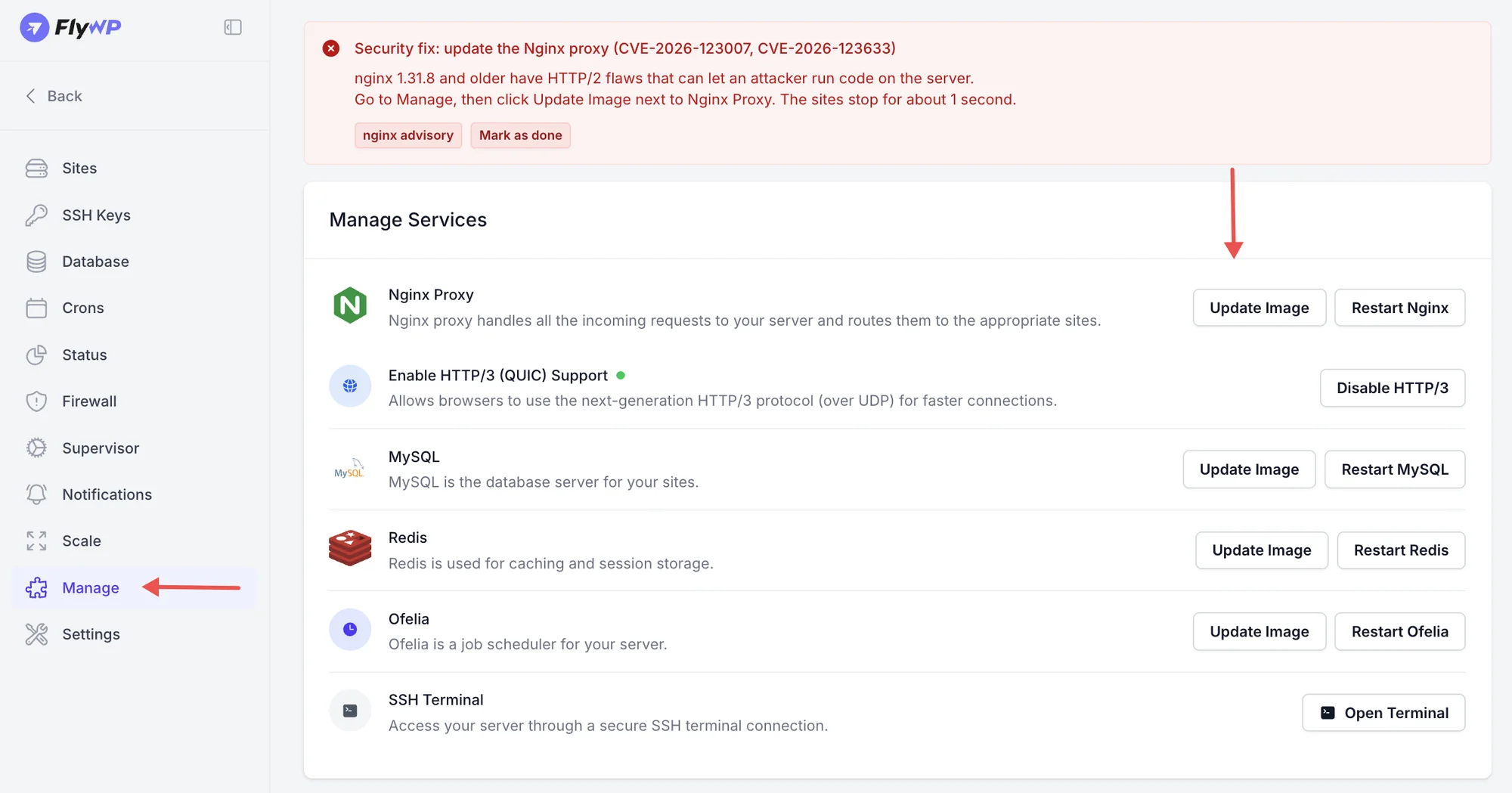
Your sites may experience approximately one second of downtime during this update. Once completed, the security alert will disappear for that server.
Update Your Sites’ PHP Images
You can update multiple sites simultaneously or update them individually.
For multiple sites:
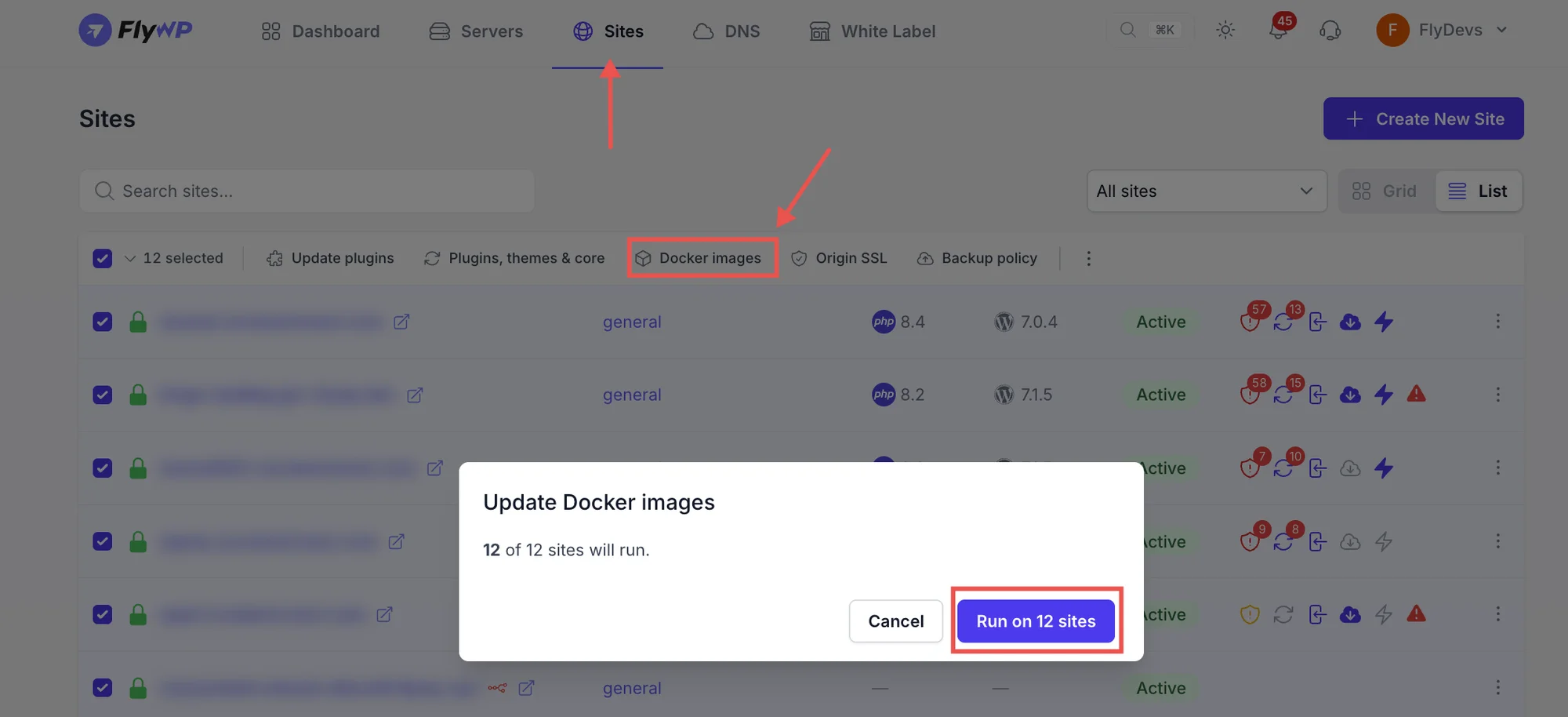
- Navigate to Sites.
- Select the sites you want to update.
- Click Docker Images.
- Click Run to apply the updates.
For an individual site:
- Open the site.
- Navigate to Manage.
- Find the Docker Image section.
- Click Update Image.
Each site will briefly restart while its new image loads. We recommend performing these updates during off-peak hours to minimize disruption.
Important: If your sites are running PHP 7.4, 8.0, or 8.1, you’ll need to upgrade them to PHP 8.2 or newer. These older PHP versions no longer receive security fixes, and patched images are not available for them.
Optional: Enable Automatic Security Fixes
You can also enable automatic security fixes for future eligible server image updates.
To enable this option:
- Navigate to Team Settings.
- Open Security Fixes.
- Enable Apply security fixes automatically.
Once enabled, FlyWP can automatically apply eligible server image security updates, such as the Nginx Proxy update.
This option is disabled by default, giving you control over whether automatic security updates are applied to your infrastructure.
Keep Your FlyWP Infrastructure Secure
We continuously work to improve FlyWP’s security and infrastructure reliability.
We strongly recommend applying both the Nginx Proxy and PHP image updates as soon as possible to ensure your servers and websites are running the latest patched images.
If you need assistance, our support team is always here to help.
Stay secure with FlyWP!