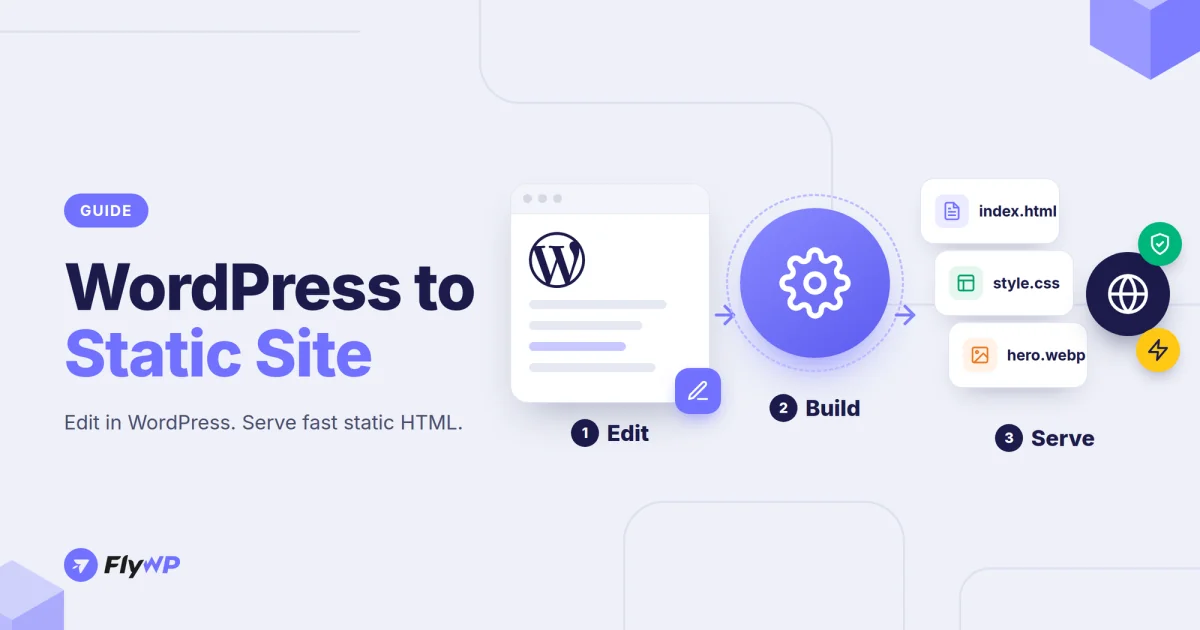
WordPress is a comfortable place to write and manage content. It is not always the most efficient way to serve that content. Every uncached page view runs PHP, queries MySQL, and loads plugins, and every public login page and plugin endpoint is something you need to keep patched.
Converting WordPress to a static site splits those two jobs. You keep WordPress as your private editing environment, and you publish a plain HTML copy that visitors actually load. No PHP, no database queries, and nothing to exploit on the public side.
This guide explains how a WordPress static site works, what you lose when you go static, and three practical ways to generate a static website from WordPress: a static site generator plugin, a manual export, and FlyWP's built-in Static Site Publishing.
What Is a Static WordPress Site?
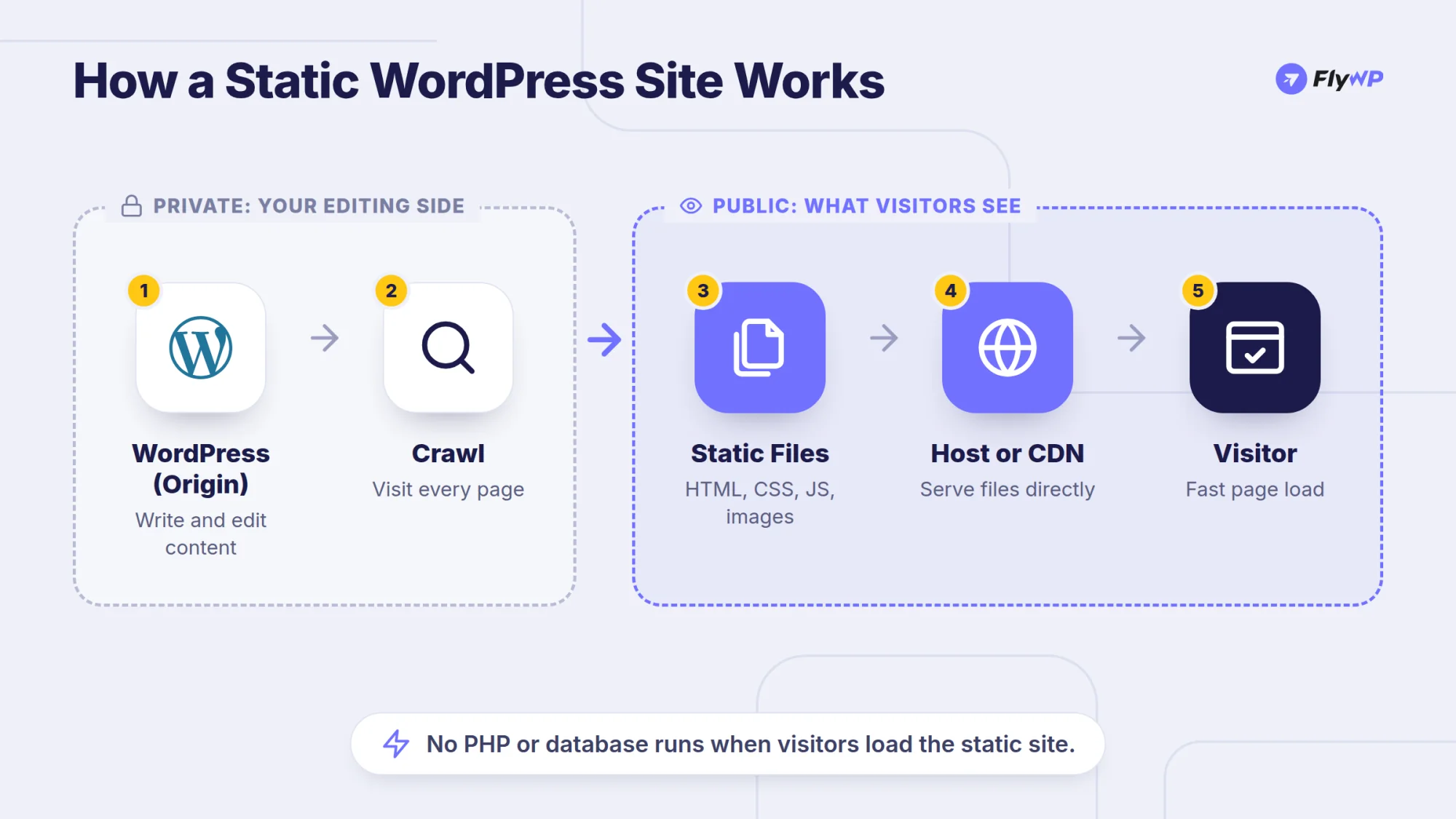
A static WordPress site is a pre-generated HTML copy of a WordPress website. A crawler visits every page, saves the rendered HTML, CSS, JavaScript, and images, and publishes those files to a web server, object storage, or a CDN. Visitors receive the files directly, without WordPress or a database running behind them.
WordPress itself does not disappear. It becomes the "origin": the place where you write posts, edit pages, and manage media. When content changes, you regenerate the static copy and publish it again.
This is sometimes called "headless" or "decoupled" WordPress, although that term usually refers to using the WordPress REST API with a JavaScript frontend. Static export is simpler: it reuses your existing theme and simply freezes its output into HTML files. If you want a fully static framework instead, see our guide to migrating from WordPress to Astro.
Not to be confused with a "static front page." In WordPress, a static front page or static home page is a setting under Settings → Reading that shows a fixed page instead of your latest posts. It has nothing to do with converting your site into static HTML.
Why Convert WordPress to a Static Site?
Faster Page Loads
A static page is a file read from disk or from a CDN edge cache. There is no PHP execution or database query per request, so time to first byte stays low and predictable, even under traffic spikes.
A Smaller Attack Surface
The public site has no wp-login.php, no xmlrpc.php, no plugin endpoints, and no database connection. Attacks that target outdated plugins or brute-force logins have nothing to hit on the static copy. Your WordPress origin still needs updates and protection, but it no longer has to face public traffic directly.
Lower Hosting Cost and Easier Scaling
Static files can be served from object storage, Cloudflare, or a lightweight Nginx container. Serving HTML does not need the CPU and memory a busy PHP and MySQL stack needs.
Content Teams Keep WordPress
Editors keep the WordPress dashboard, block editor, plugins, and workflows they already know. Only the delivery layer changes.
What Stops Working on a Static WordPress Site?
This is the part most "convert WordPress to static" guides skip. Static HTML cannot process requests, so anything that depends on PHP at request time breaks on the static copy:
| Feature | Works on the static copy? | Typical workaround |
|---|---|---|
| Pages, posts, archives, images | Yes | — |
| Contact and lead forms | No | Third-party form service, or a plugin's paid form integration |
| Site search | No | Client-side search (for example Fuse.js) or a hosted search service such as Algolia |
| Comments | No | External comment system, or send users to the WordPress site |
| User logins and membership areas | No | Keep these on WordPress |
| WooCommerce cart and checkout | No | Keep the store on WordPress |
| Content scheduled or changed in WordPress | Only after a rebuild | Rebuild after publishing, or use incremental builds |
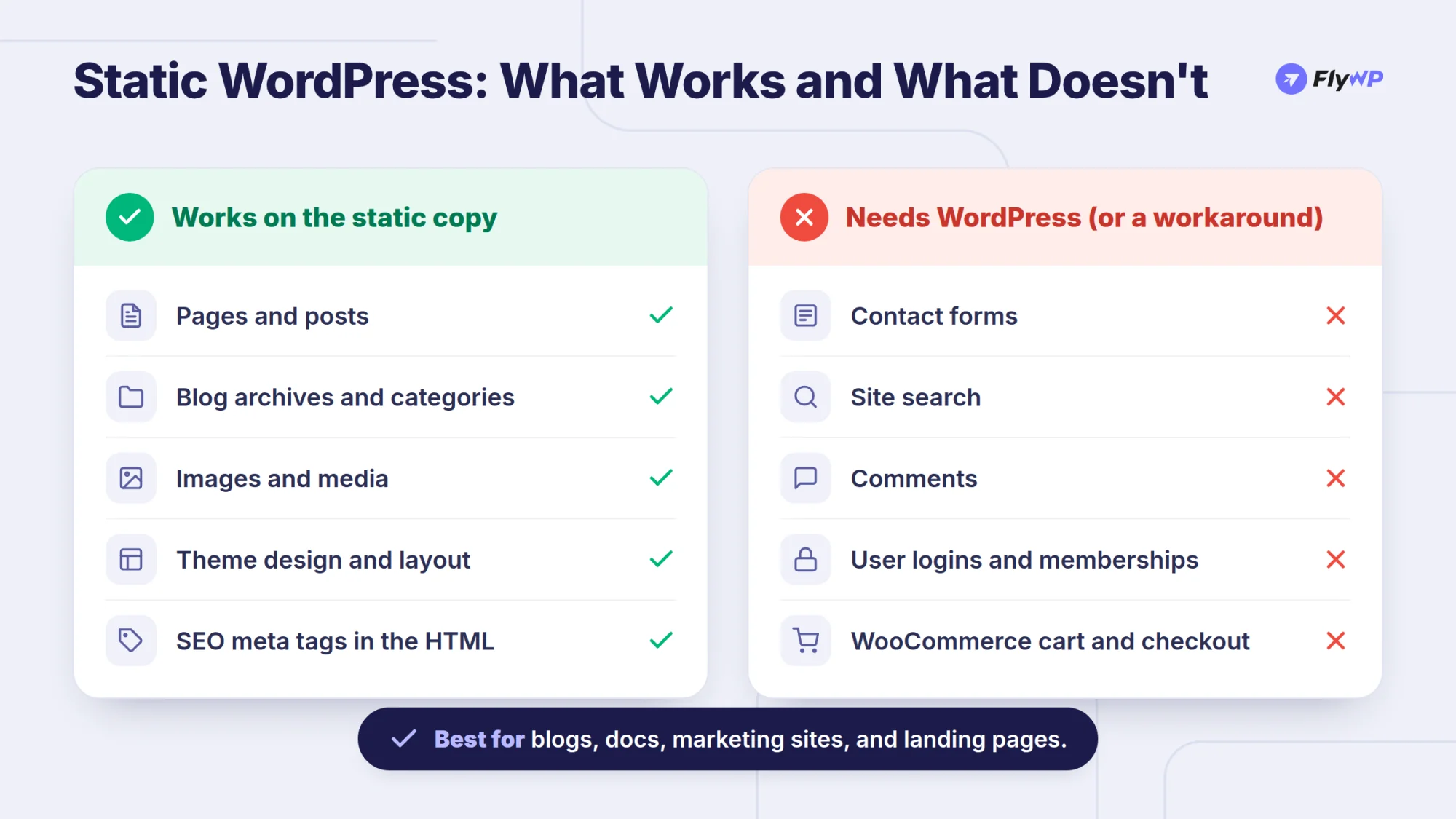
Static WordPress fits best for: blogs, documentation, marketing sites, landing pages, portfolios, and campaign or archive sites that change on a schedule rather than per visitor.
It is a poor fit for: WooCommerce stores, membership sites, LMS platforms, forums, and anything personalized per user.
Before You Start: Prepare Your WordPress Site
Whichever method you choose, a little preparation avoids most broken exports:
- Decide where the static copy will live. Most setups use a separate hostname, such as
static.example.comor a new production domain, while WordPress stays on its own domain. - Check every interactive feature. List the forms, search boxes, comment sections, and logins on your site and decide how each one will be handled.
- Clean up links. Hard-coded absolute URLs in menus, widgets, and page builders can point back to the WordPress origin after export. Use relative links or the export tool's URL replacement where possible.
- Make sure every page is reachable. Crawlers follow links. Pages that are not linked from anywhere, such as orphan landing pages, may need to be added manually or linked from a sitemap.
- Check disk space. A full export stores a copy of every page and asset. Large media libraries need room on the server running the build.
Method 1: Use a WordPress Static Site Generator Plugin
The most common way to make a WordPress site static is a plugin that crawls your site from inside WordPress and exports the result.
Popular Static WordPress Plugins
- Simply Static. The best-known WordPress static site generator plugin, with a free version on WordPress.org. The free plugin generates the static site and exports it as a ZIP file or to a local directory. Forms, search, advanced deployment options, automation, and WP-CLI support are part of its paid Pro tier.
- Staatic. Crawls your site and builds a static publication from the pages and assets it discovers. It offers a free Community edition and paid tiers with form and search integrations, scheduled publications, and change-based publishing.
- WP2Static. An open-source option that was popular for years. Recent reviews note that its GitHub repository has seen little activity since early 2024, so check its current maintenance status before relying on it.
How to Convert WordPress to Static HTML with Simply Static
The basic workflow looks like this (menu labels can change between versions):
- In your WordPress dashboard, go to Plugins → Add New, search for Simply Static, then install and activate it.
- Open Simply Static → Settings and choose how the export is delivered. In the free version, that means a ZIP archive or a local directory on the server.
- Set the URL type. Use absolute URLs if the static copy will live on a known domain, or relative URLs if you want the files to work anywhere.
- Run the generation and wait for the crawl to finish. Review the activity log for failed or missing URLs.
- Download the ZIP or locate the export directory.
- Upload the files to your static host, such as a web server, object storage bucket, or CDN, and point your domain to it.
Pros and Cons of the Plugin Method
Pros: works on almost any WordPress host, a free version is available, and you control every setting.
Cons: deployment is manual in the free version, so you download and upload files after every content change. Large sites can be slow to export from inside a PHP request on shared hosting, and you still need to set up the static hosting, DNS, and HTTPS yourself.
Method 2: Export WordPress to Static HTML Manually with wget
If you prefer not to install a plugin, you can mirror a WordPress site from the command line with wget. Run this on your local machine or any Linux server that can reach your site:
wget --mirror \ --convert-links \ --adjust-extension \ --page-requisites \ --no-parent \ https://example.com/What each option does (the GNU Wget manual lists them all):
--mirrordownloads the site recursively and keeps timestamps.--convert-linksrewrites links so they work in the downloaded copy.--adjust-extensionsaves pages with an.htmlextension.--page-requisitesdownloads the CSS, JavaScript, and images each page needs.--no-parentstays inside the starting URL and does not climb to parent directories.
The result is a folder named after your domain that you can upload to any static host.
Limitations: wget only finds pages that are linked, it does not understand WordPress (no change tracking or partial rebuilds), and you have to rerun and re-upload the whole site after every edit. It is useful for archiving a site or a one-time export, not for a site you keep updating.
Method 3: Publish a Static Copy of WordPress with FlyWP
If your WordPress site runs on a FlyWP-managed server, you do not need a separate static plugin or upload process. FlyWP Static Site Publishing generates a static HTML copy of your WordPress site and publishes it to a destination you choose, while WordPress keeps running on its original domain.
How FlyWP Static Site Publishing Works
- FlyWP crawls your WordPress site and builds a static HTML copy on the server.
- The FlyWP Helper plugin records content changes and gives FlyWP the site URLs, so builds know what to publish.
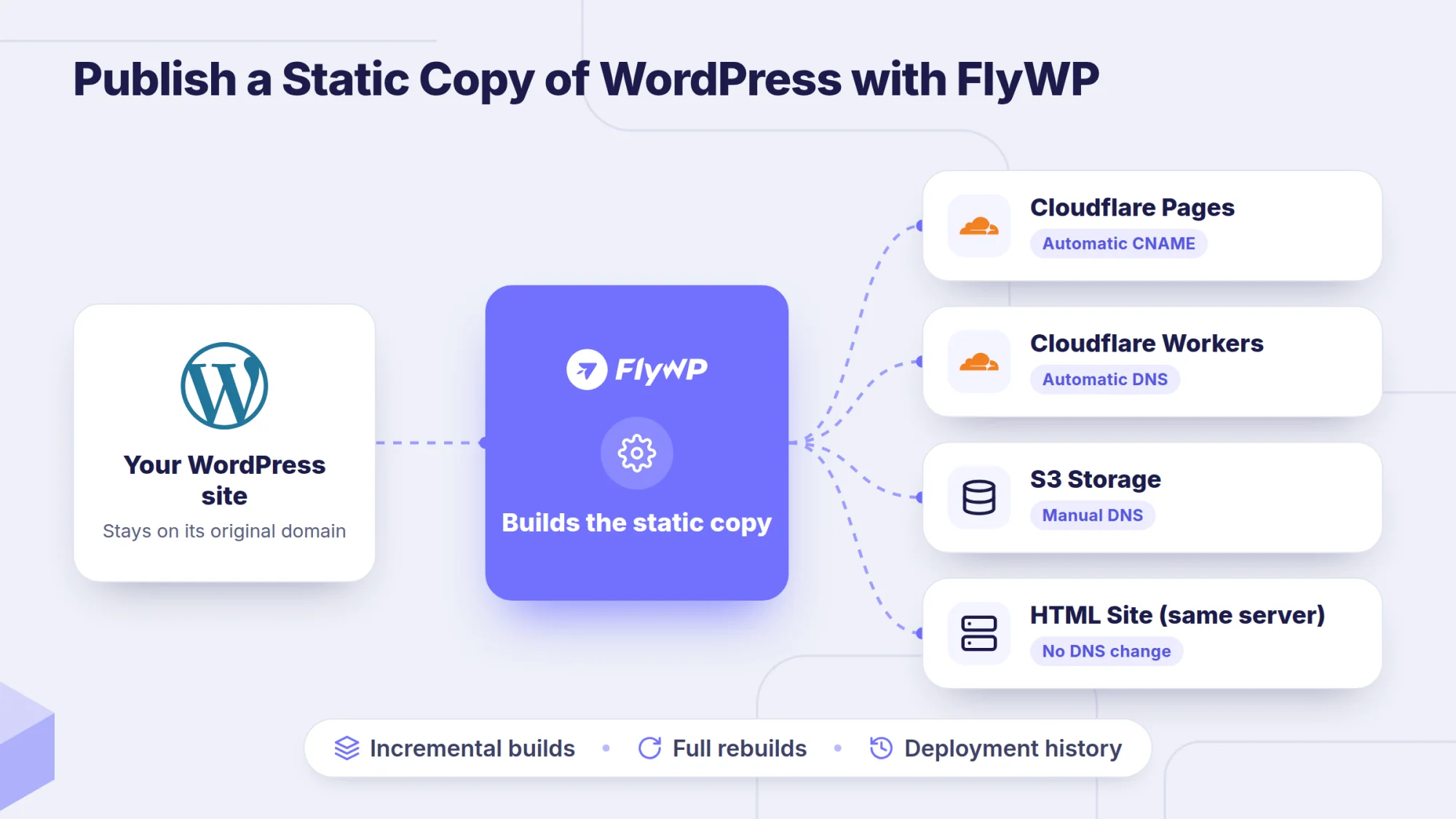
- FlyWP deploys the copy to the destination you selected. Incremental builds publish changes without rebuilding the whole site, and you can run a full rebuild at any time.
- Deployment history shows each build, its destination, and its status.
Choose a Static Site Destination
FlyWP supports four destinations:
| Destination | DNS handling | What you need |
|---|---|---|
| Cloudflare Pages | Automatic CNAME | A connected Cloudflare account, a static domain, an optional Pages project name |
| Cloudflare Workers | Automatic DNS | A connected Cloudflare account and a static domain |
| S3 storage | Manual DNS | An S3-compatible storage account connected in FlyWP, a static domain, and a bucket |
| HTML site on the same server | No DNS change | An existing HTML site on the same FlyWP server |
For Cloudflare destinations, the static domain must belong to the connected Cloudflare account and must not have an existing DNS record. FlyWP checks this with Cloudflare before deploying.
Step-by-Step: Convert WordPress to a Static Site in FlyWP
Step 1: Open the Static Site page. Sign in to FlyWP, open Sites, select your WordPress site, expand Performance in the sidebar, and choose Static Site.
Step 2: Connect the destination account (if needed). For Cloudflare, use Connect an account on the Static Site page, or go to Team Settings → Integrations → Cloudflare → Add Account. For S3, the storage account comes from the providers connected under Team Settings → Backups.
Step 3: Select a destination and fill in its fields.
- Cloudflare Pages: choose the Cloudflare account, enter the static domain (for example
static.example.com), and optionally a Pages project name in lowercase letters, numbers, and hyphens. - Cloudflare Workers: choose the Cloudflare account and enter a static domain with no existing DNS record.
- S3: choose the storage account, enter the static domain and the bucket, and the region if your provider asks for it. For Amazon S3, the bucket name must match the static domain. Use an empty bucket reserved for this site.
- HTML site: choose an HTML site on the same server. If none is listed, create an HTML site on the server first.
Step 4: Deploy. Read the Before you deploy notice, then click Deploy static copy.
Step 5: Verify the static site. Open the static domain and check the homepage, key pages, internal links, and images. For Cloudflare destinations, HTTPS can take up to 30 minutes to become active.
Step 6: Keep editing in WordPress. Continue publishing on your original WordPress domain. FlyWP tracks content changes and publishes updates to the static copy.
For every field and option on each destination, see the static site setup guide.
Things to Know Before You Deploy with FlyWP
- Use a new hostname. The static copy is published to a separate hostname, not your existing WordPress domain.
- Interactive features stay on WordPress. Forms, search, comments, logins, and WooCommerce do not work on the static copy. Link visitors to the WordPress site for those features.
- HTML site destinations are overwritten. FlyWP replaces the files and Nginx configuration of the selected HTML site, so any manual changes on that site are lost.
- S3 needs manual setup. After deploying to S3, you make the bucket public and point the domain to it at your provider. Amazon S3 website buckets serve HTTP only, so add a CDN in front if you need HTTPS.
- Cloudflare Pages has a file limit. The Pages free plan allows up to 20,000 files.
- Keep free disk space. Crawling pauses when the server has less than about 1 GB of free space. Pages already crawled are kept, and you can resume with Deploy after freeing space.
Which Method Should You Choose?
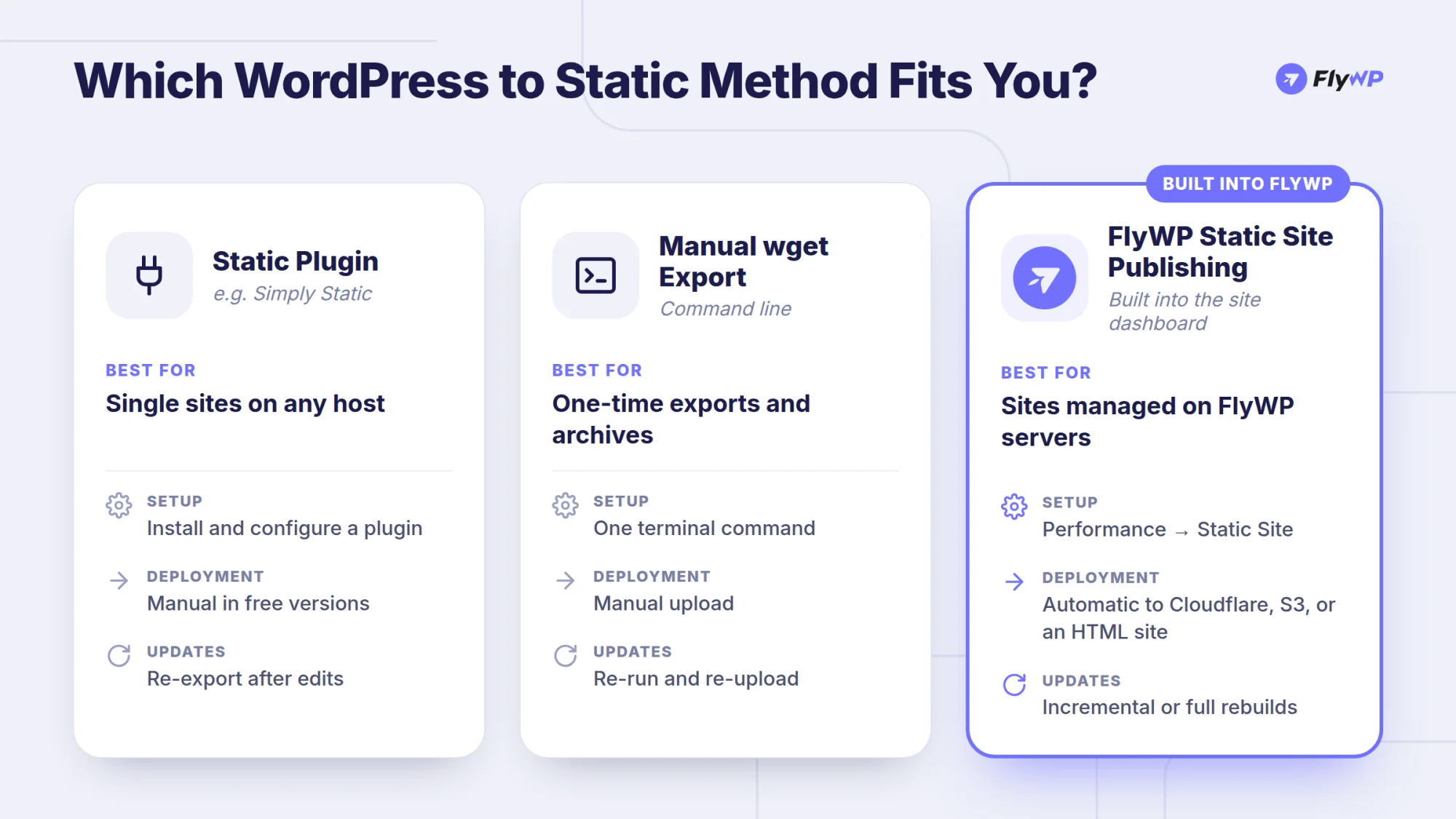
| Static plugin (e.g. Simply Static) | Manual wget export | FlyWP Static Site Publishing | |
|---|---|---|---|
| Best for | Any WordPress host, full manual control | One-time exports and archives | WordPress sites managed on FlyWP |
| Setup | Install and configure a plugin | Command line | Built into the site dashboard |
| Deployment | Manual in free version, automated in paid tiers | Manual upload | Automatic to Cloudflare, S3, or an HTML site |
| Updates after edits | Re-export (free) or automated (paid) | Re-run and re-upload | Incremental builds, full rebuild on demand |
| DNS and HTTPS | You configure it | You configure it | Handled automatically for Cloudflare destinations |
| Forms and search | Paid integrations available | Not supported | Not supported, keep on WordPress |
Quick recommendations:
- Small site on shared hosting, occasional updates: a free static plugin is enough.
- Archiving an old site: a
wgetmirror is quick and needs no plugins. - Agencies and developers managing several WordPress sites on their own cloud servers: FlyWP lets you publish static copies from the same dashboard you use for servers, backups, and SSL, without adding another plugin workflow to each site.
Troubleshooting a WordPress to Static Site Conversion
Missing pages in the export. Crawlers only find linked pages. Link orphan pages from a menu, sitemap, or footer, or add them to the generator's additional URLs setting.
Broken CSS, images, or fonts. Assets referenced only inside JavaScript or CSS (for example background-image URLs or lazy-loaded images) may be missed. Check the browser console on the static copy for 404 errors.
Links point back to the WordPress domain. Hard-coded absolute URLs in page builders and menus are the usual cause. Switch to relative links or use your tool's URL replacement.
Forms submit to nowhere. The static copy cannot run PHP form handlers. Use a hosted form service or send visitors to a form on the WordPress domain.
Changes don't appear on the static site. The static copy only updates after a build. Rebuild after publishing, and purge the CDN cache if your destination caches HTML.
HTTPS not working yet. Certificates on new Cloudflare hostnames can take up to 30 minutes. Amazon S3 website endpoints do not support HTTPS on their own.
Build stops on a FlyWP server. Check free disk space, since crawling pauses below about 1 GB. A deploy with no progress for 30 minutes is marked failed and can be started again.
Conclusion
Converting WordPress to a static site gives you fast, secure, low-maintenance delivery without asking your content team to leave WordPress. The trade-off is dynamic functionality: forms, search, comments, logins, and stores need workarounds or need to stay on the WordPress side.
For a single site, a static site generator plugin like Simply Static is a practical starting point. If you manage WordPress sites on your own cloud servers, FlyWP Static Site Publishing builds and publishes the static copy from the same dashboard, with Cloudflare, S3, and on-server HTML destinations and incremental rebuilds.
Publish a static copy of your WordPress site with FlyWP →
Frequently Asked Questions
Can I convert WordPress to a static site for free?
Yes. The free versions of plugins such as Simply Static and Staatic can generate a static copy of your site, and wget can mirror a site from the command line. You will handle hosting, uploads, DNS, and HTTPS yourself.
Does converting WordPress to static delete my WordPress site?
No. Every method in this guide creates a copy. WordPress stays where it is and remains the place where you edit content. With FlyWP, the WordPress site and its domain are left unchanged.
Is a static WordPress site good for SEO?
Static pages can load faster, which helps user experience and Core Web Vitals. Your SEO plugin's meta tags, canonical URLs, and structured data are included in the exported HTML as long as they are rendered on the page. Make sure your sitemap and canonical URLs point to the static domain if that is the public site, so search engines don't index two copies of the same content.
Can WooCommerce run as a static site?
Not the store itself. Cart, checkout, and account pages need PHP and a database. You can publish static marketing or content pages and keep the store on WordPress.
What is the best WordPress static site generator?
It depends on your hosting and workflow. Simply Static is the most widely used plugin, Staatic offers multi-destination publishing, and FlyWP Static Site Publishing is a built-in option if your WordPress sites run on FlyWP-managed servers.