

Your WordPress site works, but it feels heavy for what it does. You're still patching plugins on pages that rarely change. That's why more developers are looking at moving from WordPress to Astro. This guide walks through what changes, how to migrate step by step, and how to deploy and host the finished site. It's written for WordPress developers, agencies and site owners weighing the move.
TL;DR
- Astro builds content sites that send little or no JavaScript to the browser by default, which can help pages load fast.
- Leaving WordPress means giving up the dashboard editor and the plugin library, so plan replacements before you start.
- You can keep WordPress as a headless CMS behind Astro, or rebuild fully with your content in Markdown.
- Protect your traffic by keeping URLs the same, or by mapping and redirecting every one that changes.
- Most Astro sites only need a static build. Server rendering is for routes that need to render when a request arrives.
- FlyWP deploys Astro sites from Git, free to use, on your own server or FlyWP Managed Hosting, right next to your WordPress sites.
Astro vs WordPress at a Glance
Astro is a web framework that builds fast content sites. WordPress is a full CMS with a dashboard, a database and plugins.
| WordPress | Astro | |
|---|---|---|
| What it is | A content management system built on PHP and MySQL | A web framework that builds content sites |
| Where content lives | A database | Markdown or MDX files, or a headless CMS |
| How you edit | An online dashboard | A code editor, or a headless CMS |
| Extending it | Thousands of plugins and themes | Integrations and themes, plus your own code |
| JavaScript sent to visitors | Whatever your theme and plugins load | None by default, added per component |
| Hosting needs | PHP, a database and regular updates | Any static web server, or Node.js for server rendering |
| Best for | Sites edited by non-technical teams, stores and memberships | Content sites, docs and marketing pages that need speed |
The row that decides most migrations is how you edit. If clients update pages themselves, plan for that before anything else.
Why WordPress Teams Are Moving to Astro
Most teams move for faster pages and less upkeep. Here are the three reasons that come up most, then each one in detail.
- Astro sends less JavaScript to the browser.
- There's less to patch and update.
- Your content lives in files you can track.
Astro Sends Less JavaScript to the Browser
Astro renders pages to HTML on the server and adds JavaScript only where a component needs it.
The Astro team calls this "zero JS, by default." It uses an islands architecture. Each interactive part of a page loads on its own, and the rest stays plain HTML. On its Why Astro page, the team claims an Astro site can load 40% faster with 90% less JavaScript than a similar site built with React.
One real migration. Developer Bill Erickson moved a client site from WordPress to Astro. Its mobile PageSpeed Insights score went from 35 to about 85 on the first Astro build. It then reached 100 after he tuned images and scripts.
That's one site, so treat it as an example rather than a promise. Astro can reduce the amount of JavaScript sent to visitors by default, but actual performance depends on the project, integrations, assets and any client-side components that are hydrated.
There's Less to Patch and Update
A static Astro site has no database and no admin login on the public site, so there's less to keep updated. Serving static files can reduce the server-side attack surface for the published pages. It doesn't remove your security responsibilities for the CMS, deployment pipeline, APIs, third-party services or other infrastructure.
A typical WordPress site needs core, theme and plugin updates, plus backups and security fixes. Erickson described his client's WordPress install as "being used as a database for simple pages that only change a few times a year." For sites like that, the upkeep costs more than the dashboard is worth.
Your Content Lives in Files You Can Track
Astro usually stores each page as a Markdown or MDX file instead of a database row.
As a result, every change can go through Git, with full history, review and easy rollback. Astro's content collections can also check your Markdown against a schema. That way, a missing field shows up at build time, not on a live page.
What You Give Up When You Leave WordPress
You give up the dashboard editor and the plugin library, so plan for both before you start.
- The editing dashboard. Clients who update pages themselves will need a headless CMS or a developer to make changes for them.
- Plugins. Features that came from plugins, such as forms, comments, search and memberships, don't carry over. Astro has integrations and themes, but you may need to build some features yourself.
- Built-in SEO tools. On WordPress, a plugin usually handles sitemaps, meta tags and schema. In Astro, you set these up in your layouts.
If speed is your only reason to leave, it's worth trying to speed up WordPress without plugins first. A rebuild is a big job to take on for a problem that caching might solve.
Two Ways to Move From WordPress to Astro
There are two ways to migrate WordPress to Astro. You can keep WordPress as a headless CMS behind Astro, or rebuild the site with your content in Markdown.
Keep WordPress as a Headless CMS
Your team keeps writing in the WordPress dashboard, while Astro builds the public site.
Astro fetches posts and pages through the built-in WordPress REST API, or through WPGraphQL if you install it. Visitors only ever see the Astro site. The trade-off is that you now run two things, WordPress and the Astro site. With a static build, new content also needs a fresh build before it appears.
How quickly WordPress updates appear on the Astro site depends on when the site fetches WordPress data and whether caching is involved. A static Astro build generally needs to be rebuilt and redeployed to include content published after that build. A server-rendered route can fetch content at request time, but caching rules and the implementation may still affect freshness.
Rebuild With Your Content in Markdown
You export your posts to Markdown, move them into the Astro project and retire WordPress.
Astro's migration guide points to community export tools and warns that large or complex sites need manual cleanup. This path gives you the simplest setup to run. However, every content change then goes through a code editor and Git.
| Headless WordPress + Astro | Full rebuild in Markdown | |
|---|---|---|
| Who edits content | Writers and clients, in the WordPress dashboard | Developers, in a code editor |
| How often content changes | Often | Rarely |
| What you run | WordPress plus an Astro site | One Astro site |
| Best for | Blogs and client sites with non-technical editors | Brochure sites, docs and developer blogs |
How to Migrate WordPress to Astro Step by Step
Plan the move in seven steps, and keep your WordPress site live until the Astro version passes testing.
- List every URL and feature. Pull your URLs from the sitemap your SEO plugin creates. Then note the forms, embeds, scripts, redirects and SEO data on each page. Also audit the content your site uses, as applicable: posts and pages, featured images and media, categories, tags and other taxonomies, authors and publication dates, custom post types and custom fields, internal links, archives, pagination and search, and any forms, comments, memberships or commerce features. Few sites use all of these. Erickson started his migration with a single inventory file just like this.
- Start an Astro project. Astro's blog starter is a quick base for content sites. Run
npm create astro@latest -- --template blog, or pick a community theme instead. - Move your content. For a full rebuild, export your posts to Markdown and expect some manual cleanup. For a headless setup, fetch content from the WordPress REST API instead.
- Rebuild templates and features. Recreate your layouts as Astro components. Then replace plugin features such as forms and comments. Use an outside service, or server endpoints if you use server rendering.
- Set up SEO in your layouts. Add titles, meta descriptions and correct canonical tags in a shared layout, so no page misses them. Also check heading structure, indexability, robots directives, structured data, Open Graph metadata and image alt text. Astro's official sitemap integration can generate your XML sitemap.
- Keep your URLs where practical, and map any that change. If you keep the same URLs and only change the underlying technology or hosting, redirects aren't automatically necessary. If URLs change, map each old URL one-to-one to its most relevant replacement and use permanent server-side redirects (301 or 308). Update internal links so they point directly to the new URLs, and update your canonical tags and XML sitemap. Google's guides on site moves with URL changes and redirects explain the details.
- Test, then switch. Deploy to a test domain and compare it page by page with the live site. When it passes, point your domain at the new site. After launch, verify redirects, canonical URLs, status codes and indexability, submit the updated sitemap, and monitor Google Search Console for indexing issues, crawl errors and traffic changes.
Step 7 is where hosting comes in. Before you deploy, though, decide which kind of Astro build you need.
Static or Server Rendering: Which Astro Build You Need
Start with a static build, and switch to server rendering only when a route needs to render on demand.
Astro can generate pages at build time or render selected routes on demand, depending on how the project is configured. With static output, pages are generated during the build and served as files. With server output, routes configured for on-demand rendering can be rendered when requests arrive. A project can also combine prerendered pages with server-rendered routes when its Astro configuration and adapter support that setup.
Static Builds Cover Most Content Sites
Astro builds a static site by default. Every page becomes an HTML file at build time, and a web server simply hands those files to visitors.
Interactive React or Vue components still work on a static site, because their code runs in the visitor's browser. You only need more than static when the server itself has to do work for each visitor.
Server Rendering Needs the Node Adapter
Some pages can't be built ahead of time, such as personalized pages, server endpoints or logins that rely on sessions.
For those, you add Astro's Node adapter with npx astro add node, set the output to server and use the adapter's standalone mode. The site then runs as a Node.js process. It's one more thing to run, so use it only when a static build can't do the job.
How to Deploy an Astro Site on FlyWP
FlyWP deploys Astro sites straight from Git, free to use, on your own server or on FlyWP Managed Hosting.
- Astro and WordPress in one dashboard. Your WordPress sites, Astro sites and Next.js or Nuxt apps share the same servers and the same dashboard. That suits a headless setup, where the WordPress backend and the Astro frontend sit side by side.
- Static and Server runtimes. Pick Static, and Nginx serves your built files with no Node process running. Pick Server, and FlyWP runs Node behind Nginx for request-time pages.
- Your server or a managed one. Connect your own cloud server or let FlyWP run it for you. Our bring your own server guide explains the difference.
- Push to deploy. Turn it on, and every push to your branch starts a new release.
- Node version handled. FlyWP uses the latest LTS release, or the version you set in
engines.node.
Deploy Astro on FlyWP Step by Step
The whole setup happens in one wizard, and you can try it on a free test domain first. The numbers in each screenshot match the numbers in the steps.
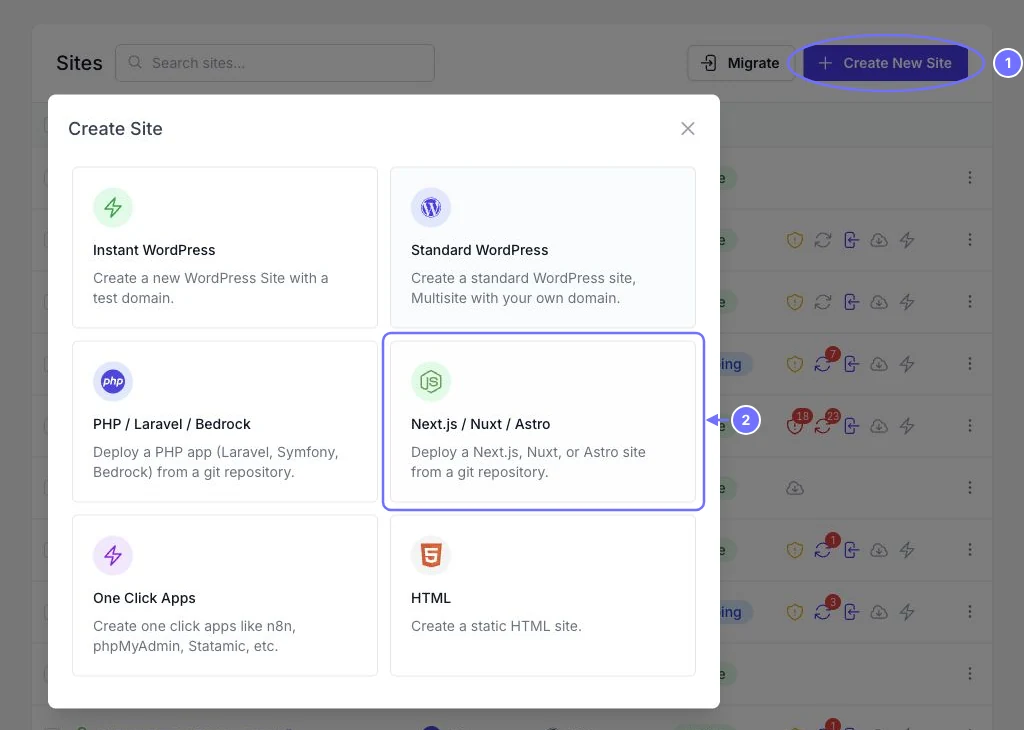
- Open Create Site. On your server's Sites page, click Create New Site (1), then choose Next.js / Nuxt / Astro (2).
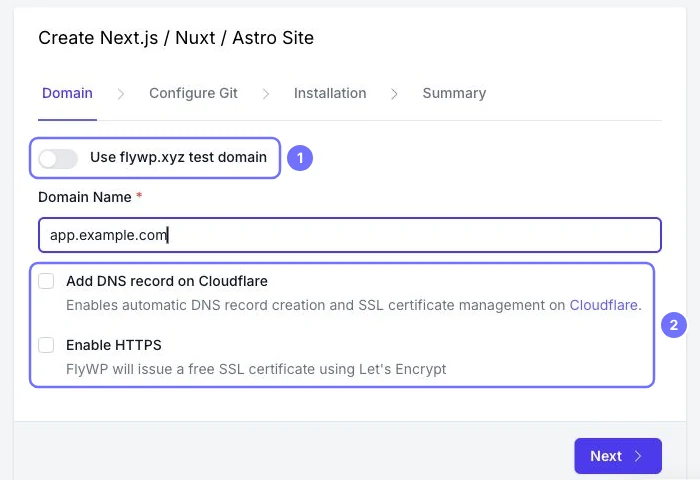
- Set the domain. Turn on Use flywp.xyz test domain (1) to try the site first. Or enter your own domain, then tick Add DNS record on Cloudflare and Enable HTTPS (2) for a free Let's Encrypt certificate.
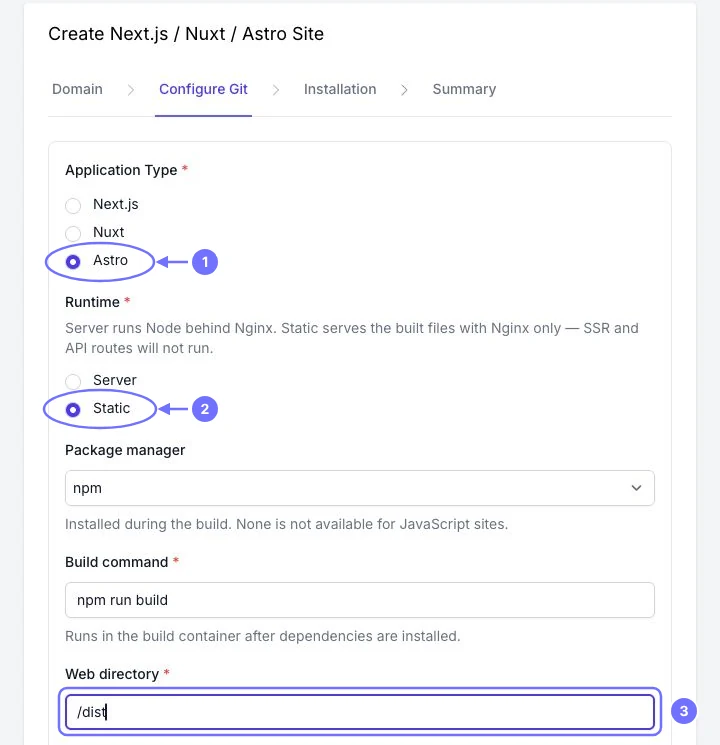
- Configure the build. Select Astro as the Application Type (1) and Static as the Runtime (2). Keep the build command
npm run build, and set the web directory to/dist(3). Yourpackage.jsonmust sit at the root of your repo. Monorepos aren't supported.
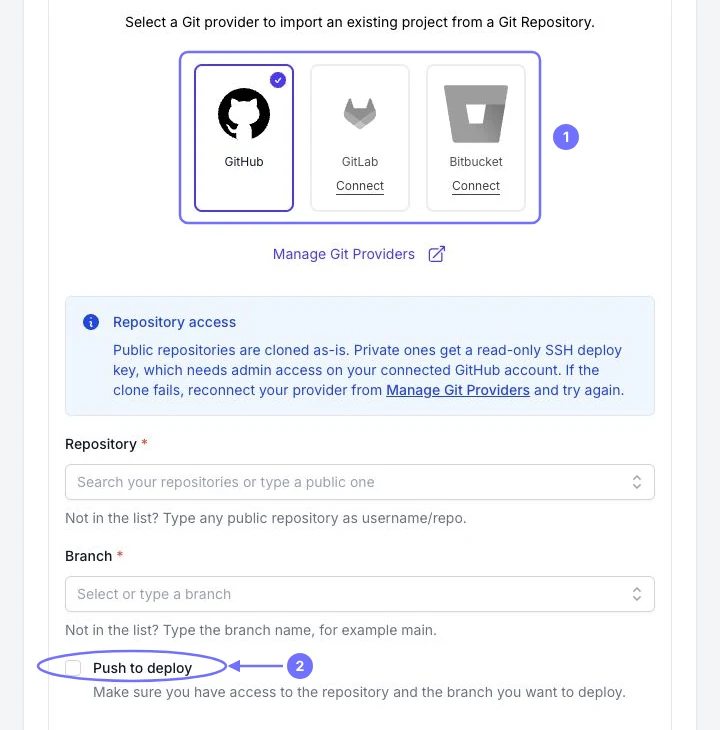
- Connect your repository. Pick GitHub, GitLab or Bitbucket (1), then choose your repository and branch. Tick Push to deploy (2) if every push to that branch should start a new release. Private repositories get a read-only deploy key, which needs admin access on your connected GitHub account.
- Add a site title. On the Installation step, the title also names your test domain.
- Review and create. Check the runtime, commands, branch and domain on the Summary screen, then click Create Site.
Use the Server Runtime for Request-Time Pages
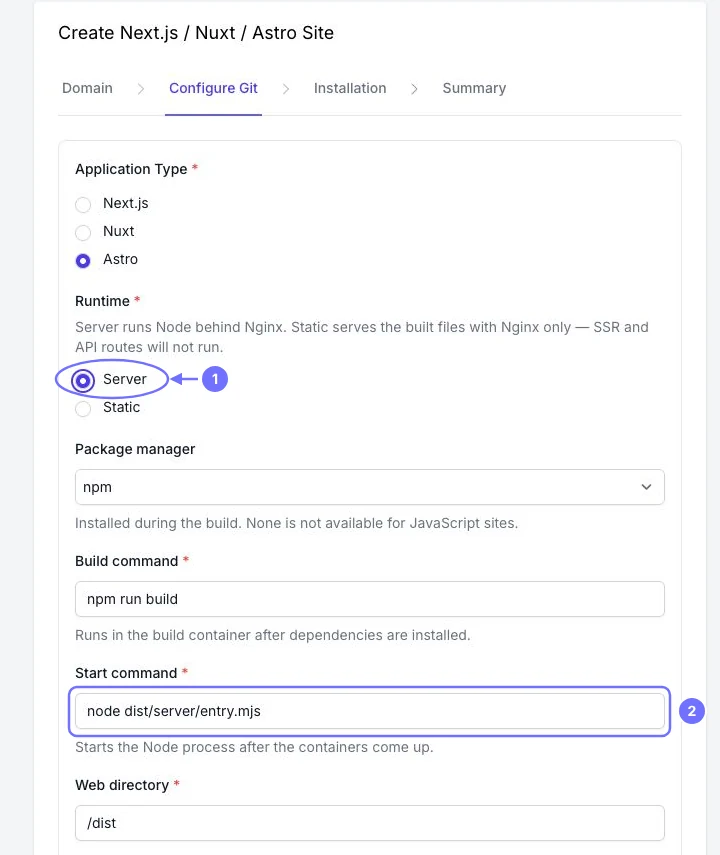
If your Astro project uses the Node adapter, choose the Server runtime instead of Static.
Select Server (1), then add the start command node dist/server/entry.mjs (2). Your Astro config and the FlyWP runtime must match, so commit the adapter and your updated lockfile before you deploy.
| FlyWP setting | Static | Server |
|---|---|---|
| Runtime | Static | Server |
| Build command | npm run build | npm run build |
| Start command | None, Nginx serves the files | node dist/server/entry.mjs |
| Web directory | /dist | /dist |
| Astro setup | Default static output | Node adapter in standalone mode |
The Static runtime serves generated files only. It doesn't run server-rendered routes or server endpoints that need a running Node server, so use the Server runtime for those. If you use pnpm or another package manager, pick it in the wizard and update the build command to match.
Plan Environment Variables Before the First Build
The setup wizard has no field for environment variables, so plan how you'll provide them before you deploy.
Configure the environment variables your Astro project needs using the method supported by your deployment workflow. Astro reads them through import.meta.env. Variables used during a static build must be available at build time, and changing them may require a new build and deployment. Variables prefixed with PUBLIC_ are intended for client-side use and may be exposed in browser-delivered code. Keep private API keys, tokens and other secrets out of client-side code and public variables, and out of your repo. FlyWP's Astro guide recommends confirming how build and runtime values are injected on the created site.
Fix Common Astro Deployment Errors
Most failed Astro deploys come from a mismatch. Your Astro config and the runtime you picked in FlyWP don't agree.
| Problem | What to check |
|---|---|
| astro command not found | Dependencies were installed, and Astro is listed in package.json |
| Missing server entrypoint | Server output, the Node adapter in standalone mode, and a successful build |
| 403 or 404 on a static homepage | That dist/index.html was generated, and the web directory is /dist |
| CSS or JavaScript missing on a server site | Client build output, asset URLs and how the adapter serves assets |
| A server-only route fails on a static site | Switch to the Server runtime, or move that work to build time or an outside API |
| Old URL or old content still showing | Rebuild the site with your updated build-time values |
| 502 error | Process errors in the logs, and that your app's address and port match FlyWP's proxy |
The full walkthrough lives in the FlyWP docs on deploying an Astro site through Git.
Not Ready to Rebuild? Publish a Static Copy of WordPress
FlyWP's Static Site Publishing creates a static copy of an existing WordPress site and publishes it to a supported destination, free to use. It isn't a WordPress-to-Astro migration, and it doesn't automatically convert a WordPress theme or its templates into an Astro project. A migration involves building or adapting an Astro frontend, connecting it to WordPress as a content source if you want, and deploying the Astro project separately.
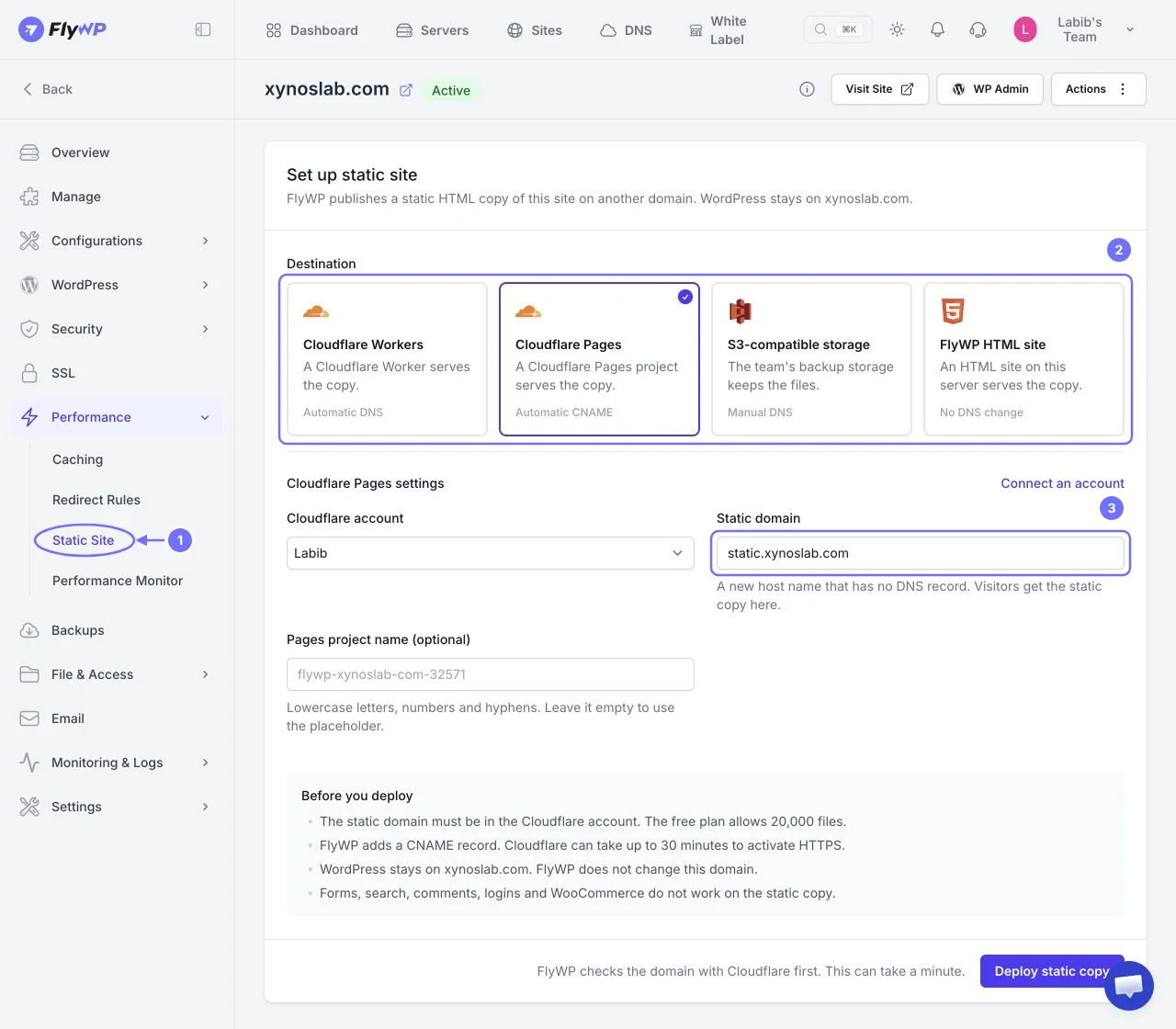
Open Performance, then Static Site (1), and pick a destination (2). You can choose Cloudflare Workers, Cloudflare Pages, S3-compatible storage or a FlyWP HTML site on the same server. For a Cloudflare destination, enter a new hostname with no DNS record, such as static.yoursite.com (3). Then read the notes and click Deploy static copy. WordPress stays on its current domain, and incremental builds publish only what changed after that.
Keep in mind that WordPress-dependent features, such as login, comments, WooCommerce checkout and server-side WordPress forms, don't automatically work on a published static copy. Equivalent functionality may need a third-party service, an external API or a separately built integration. So it suits content and brochure sites best, and it's a low-risk way to try static delivery before deciding on a migration. Learn more about Static Site Publishing.
Frequently Asked Questions
Is Astro free to use?
Yes. Astro is open source and free, so your main cost is hosting. Deploying an Astro site on FlyWP is also free to use, which leaves the server itself as the only bill.
Do I need to know JavaScript to use Astro?
Not much to get started. The Astro team says you don't need to be an expert, and its components look a lot like HTML. You will need to be comfortable with a code editor, the terminal and Git.
Does a headless Astro site update when I publish in WordPress?
It depends on when the site fetches WordPress data and whether caching is involved. A static build generally needs to be rebuilt and redeployed to include content published after that build. A server-rendered route can fetch content at request time, but caching rules and your implementation can still affect freshness, and it means running a Node.js process.
Can I move part of my site to Astro first?
Yes. Many teams start with one section, such as a landing page or a docs site on a subdomain. The main site stays on WordPress. On FlyWP, both can run on the same server and dashboard while you test the move.
Can I reuse my React or Vue components in Astro?
Yes. Astro supports React, Preact, Svelte, Vue, Solid and more, and you can mix them in one project. Each component only ships JavaScript when you mark it as interactive.
Can I migrate WordPress to Astro without losing SEO rankings?
A WordPress-to-Astro migration can preserve much of a site's SEO value, but rankings aren't guaranteed. Keep existing URLs where possible. When URLs change, map old pages to relevant new destinations and use permanent redirects. Preserve important content and metadata, update internal links and canonical tags, submit the appropriate sitemap, and monitor indexing and traffic after launch.
Can I keep WordPress as my CMS after migrating to Astro?
Yes. Astro can use WordPress as a headless CMS, with WordPress managing content and Astro rendering the frontend. The implementation must connect Astro to the WordPress data source and account for previewing, content updates, caching and any WordPress features that need a replacement on the frontend.
Can I migrate WooCommerce to Astro?
The storefront can be rebuilt with Astro, but WooCommerce functionality doesn't automatically transfer just because the frontend changes. Product data, carts, checkout, customer accounts, payments and order workflows need a compatible integration or a separate implementation. Evaluate the required APIs and business workflows before choosing this approach.
Can I deploy an Astro site on a VPS?
Yes. Astro can be deployed to a VPS as a static site or as a server-rendered application, depending on its output mode and adapter. A static deployment serves the generated files through a web server. A server-rendered deployment also needs the appropriate runtime process and server configuration. FlyWP can set up either on your own VPS or on FlyWP Managed Hosting.
Make the Move From WordPress to Astro One Step at a Time
The safest path from WordPress to Astro is one site or one section at a time, starting with a static build. Put your first Astro project on a test domain, compare it with the live site, and switch your domain when you're happy. When you're ready, deploy your first Astro site on FlyWP and keep your WordPress sites right where they are.