

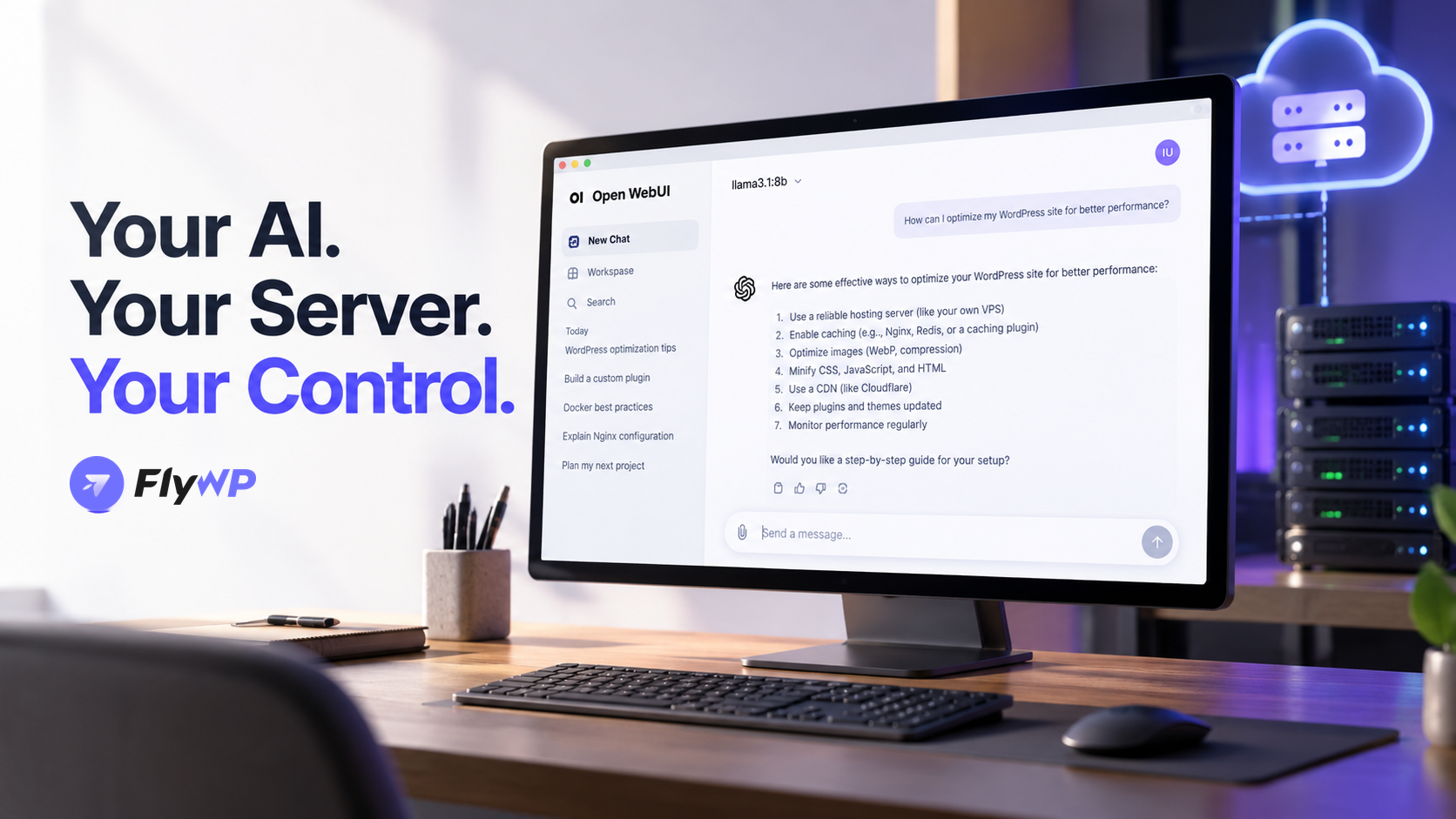
Want to run your own AI chat interface without relying entirely on a hosted chat platform? Open WebUI lets you build a self-hosted AI chat environment that connects to compatible AI models and APIs. With a VPS, you can control the deployment environment, manage access, and customize your AI experience.
In this guide, you'll learn how to self-host Open WebUI on a VPS, deploy it using FlyWP's One-Click Apps, connect an AI model, and secure your installation.
What Is Open WebUI?
Open WebUI is an open-source, self-hostable AI interface that lets users interact with supported AI models through a web browser. It supports integrations with Ollama and OpenAI-compatible APIs, allowing you to connect different model providers to one interface.
Depending on your configuration, you can use it for AI conversations, document-based questions, and other supported AI workflows.
One important distinction: Open WebUI is the interface, not the AI model itself. You need a compatible model runtime, such as Ollama, or access to an external AI API to generate responses.
Learn more in the official Open WebUI documentation.
Why Use a Self-Hosted AI Chat Interface?
Self-hosting Open WebUI can be useful for individuals, developers, and businesses that want greater control over their AI environment.
Key benefits include:
- More control: Manage your deployment, access permissions, and server configuration.
- Flexible model connections: Connect supported local models or compatible external APIs.
- Private infrastructure: Keep application data on infrastructure you control, subject to your configuration and connected providers.
- Customization: Configure the interface and supported features to suit your workflow.
- Cost flexibility: Choose your server resources and model provider based on your needs.
Self-hosting still requires maintenance, security updates, and appropriate data-handling practices. It does not automatically guarantee complete privacy or eliminate AI inference costs.
Open WebUI vs. Cloud-Based AI Chat Services
| Factor | Self-hosted Open WebUI | Hosted AI chat service |
|---|---|---|
| Infrastructure | You manage the deployment | Provider manages it |
| Model options | Depends on connected models and APIs | Depends on the service |
| Configuration | Greater infrastructure control | Usually less technical setup |
| Maintenance | Your responsibility | Primarily the provider's |
| Costs | Server, model runtime, and/or API usage | Subscription or usage fees |
| Privacy | Depends on your setup and provider | Depends on the service's policies |
Choose Open WebUI if you value customization and control. A hosted service may be more convenient if you prefer not to manage infrastructure.
What Do You Need to Self-Host Open WebUI?
Before deployment, prepare the following:
- A VPS: Choose a server with sufficient memory and storage for your application and expected usage.
- A domain or subdomain: For example,
ai.example.com. - FlyWP: A compatible server connected to FlyWP, with the Open WebUI One-Click App available.
- An AI model connection: An Ollama instance or a supported external API.
- HTTPS: A valid TLS certificate for secure browser access.
- Persistent storage and backups: To protect application data and configuration.
Resource requirements depend on whether you run the AI model locally or connect to an external provider. Running large models locally requires substantially more resources than hosting the interface alone.
How to Deploy Open WebUI with FlyWP
FlyWP's One-Click Apps workflow simplifies application deployment by guiding you through app selection, domain configuration, installation, and a final summary.
Follow these steps:
Step 1: Connect a compatible server
Log in to FlyWP and connect a supported VPS. Confirm that the server has sufficient resources for your intended deployment.
Step 2: Open One-Click Apps
Navigate to the app deployment flow and select Open WebUI from the available applications.
Step 3: Configure your domain
Enter the domain or subdomain you want to use, and ensure its DNS records point to your server as required by your setup.
Step 4: Review the installation settings
Follow the available FlyWP installation fields and confirm the required configuration. The exact options depend on the current application template.
Step 5: Deploy the application
Review the installation summary and start the deployment. Wait for the process to finish, then open your configured domain.
Step 6: Complete the initial setup
Follow Open WebUI's onboarding instructions and configure the administrator account and model connection.
FlyWP can simplify the deployment process, but you should verify which services the current template installs. Do not assume that Ollama or another model runtime is automatically included.
Connect Open WebUI to Ollama or an AI API
After deployment, Open WebUI needs access to a model before it can generate responses.
Option A: Connect Ollama
Ollama lets you run supported AI models on your own infrastructure.
- Install or provision Ollama on a compatible host.
- Download a model supported by your hardware.
- Configure Open WebUI to connect to the Ollama API endpoint.
- Ensure network connectivity and appropriate access controls.
- Select an available model in Open WebUI and test a prompt.
When the applications run in separate containers, localhost may refer to the wrong container. Use the correct reachable service address instead.
Option B: Connect an external AI API
You can also connect a supported external provider through Open WebUI's connection settings.
- Open the administration settings.
- Navigate to the model connections section.
- Add the provider's API endpoint.
- Enter the required API credentials securely.
- Select an available model and test a request.
External API usage may incur separate charges, and prompts may be processed by the provider. Review its privacy and data-retention policies before sending sensitive information.
Configure HTTPS, Authentication, and Access Controls
Before sharing your deployment, protect the application.
- Enable HTTPS using a valid TLS certificate.
- Keep administrator credentials strong and unique.
- Disable public registration if it is not required.
- Restrict administrative access and exposed services.
- Store API keys and secrets securely.
- Avoid exposing model-runtime endpoints unnecessarily.
- Review user permissions before enabling shared access.
For business deployments, consider restricting access through a VPN, IP allowlisting, or another appropriate access-control layer.
Hardware Requirements: CPU, RAM, and GPU
There is no single hardware specification that fits every Open WebUI deployment.
If Open WebUI connects to an external API, the VPS primarily needs to run the interface and its supporting services. Local model inference requires additional CPU, RAM, storage, and potentially a compatible GPU.
Model size, quantization, context length, and simultaneous users all affect resource requirements. Start with a workload-appropriate server, monitor usage, and scale as needed.
Common Open WebUI Problems and Troubleshooting
No models appear: Check the configured provider URL, API credentials, and model availability.
Ollama connection fails: Verify that Ollama is running and reachable from the Open WebUI container.
The application is inaccessible: Check DNS, the server firewall, deployment status, and HTTPS configuration.
Responses are slow: Review model size, available memory, CPU/GPU utilization, and API latency.
Data disappears after an update: Check that application data is stored in persistent storage and that your backup and upgrade procedures are correct.
Updating, Backing Up, and Securing Open WebUI
Keep Open WebUI and its supporting services updated. Review release notes before upgrading, especially when changes affect authentication, integrations, or stored data.
Back up persistent application data and configuration regularly. Test restoration rather than assuming a backup will work.
Also monitor server resources, review access logs, rotate exposed credentials, and remove unused services. Follow the official Open WebUI documentation for current deployment and maintenance guidance.
Frequently Asked Questions
Is Open WebUI free to use?
Open WebUI is open-source software. However, hosting, infrastructure maintenance, and external model API usage may cost money.
Can I run Open WebUI without Ollama?
Yes. You can connect compatible external AI APIs or other supported model backends. Ollama is one option, not a requirement.
Does Open WebUI include an AI model?
No. Open WebUI provides the interface. You must connect a compatible model runtime or API.
Can I self-host Open WebUI without a GPU?
Yes. The interface can run without a GPU, and CPU-based inference is possible with suitable models. Performance depends on your workload and hardware.
Is self-hosted Open WebUI private?
It gives you more control over your infrastructure, but privacy depends on configuration, access controls, connected providers, and how data is handled.
Can I deploy Open WebUI with FlyWP?
Yes, if the Open WebUI One-Click App is available for your FlyWP deployment. Follow the app's current installation workflow and verify which supporting services need separate configuration.
How much does it cost to host Open WebUI?
Costs depend on your VPS, storage, traffic, and model setup. External APIs may add usage-based charges, while local inference requires suitable hardware and electricity or hosting resources.
Start Your Self-Hosted AI Journey
Open WebUI offers a flexible way to build your own AI chat environment. With the right model connection, appropriate server resources, and secure configuration, you can tailor the experience to your personal or business needs.
Want to simplify application deployment? Explore FlyWP's One-Click Apps to deploy Open WebUI on a compatible server and manage your application infrastructure from one dashboard.