
If you’re managing multiple WordPress websites, you’ve probably faced this situation:
- logging into different dashboards
- updating plugins one by one
- managing users separately
- dealing with inconsistent configurations
At some point, it stops scaling.
This is where WordPress Multisite comes in.
WordPress Multisite hosting allows you to run multiple websites from a single WordPress installation while sharing the same server, database, and core system. It’s commonly used by agencies, SaaS platforms, universities, and multi-brand businesses that need centralized control over multiple sites.
But here’s the part many guides don’t explain clearly:
Running Multisite is not just about enabling a feature – it’s about choosing the right hosting architecture.
Because all sites share the same infrastructure, your server setup directly impacts performance, scalability, and stability.
TL;DR:
- WordPress Multisite lets you run multiple websites from a single WordPress install
- It’s best for related sites (brands, agencies, networks), not unrelated client projects
- All sites share the same server resources → performance depends on your hosting
- RAM, PHP workers, and database performance are the key bottlenecks
- Shared hosting struggles — VPS or cloud hosting is a better fit
- Proper setup + optimization is critical as your network grows
- Platforms like FlyWP help simplify server management, scaling, and multisite operations
👉 In short: Multisite makes management easier, but the right hosting makes it scalable
What is WordPress Multisite?
WordPress Multisite is a built-in feature that allows you to create and manage multiple websites from a single WordPress installation.
Instead of installing WordPress separately for each site, you create a network of sites that share the same core system.
Key Characteristics of Multisite
In a multisite network, all websites share:
- a single WordPress codebase
- one database (with separate tables per site)
- the same server resources (CPU, RAM, storage)
- centralized plugin and theme management
At the same time, each site can have:
- its own domain or subdomain
- unique content
- separate users and permissions
- individual settings
Multisite vs Separate WordPress Installs
The fundamental question for any agency or developer is: Should I use one Multisite network or manage separate WordPress installations?
| Factor | WordPress Multisite | Separate Installs |
|---|---|---|
| Server Resources | Shared across all sites | Isolated per site |
| Updates | Single update covers all sites | Must update each site individually |
| Plugin Management | Network-level control | Per-site management |
| Isolation | Sites share the same DB and files | Fully isolated environments |
| Cost Efficiency | More cost-effective at scale | Higher cost at scale |
| Customisation | Limited per-site customisation | Unlimited per-site control |
| Risk | One issue can affect all sites | Issues are contained per site |
| Best For | Similar sites, shared branding | Diverse, independent sites |
Multisite reduces management overhead – but increases dependency on your server setup.
Real Use Cases:
Multisite works best when sites are related.
- Agencies: Managing multiple client sites under one system.
- SaaS platforms: Creating user-based sites (e.g., site per customer).
- Multi-brand businesses: Running regional or product-specific websites.
When Should You Use Multisite (and When Not To)
When Multisite Makes Sense
Use Multisite if:
- Your sites share similar functionality
- You want centralized updates
- You manage multiple related websites
- You need to create new sites quickly
Example:
A company running us.brand.com, uk.brand.com, asia.brand.com.
When Separate Installs Are Better
Avoid Multisite if:
- Sites are completely unrelated
- Each site needs different plugins
- Clients require full control
- Performance isolation is critical
Key Trade-offs
Pros
- easier management
- faster deployment
- centralized control
Cons
- shared resources
- One issue can affect all sites
- more complex hosting requirements
WordPress Multisite Hosting Requirements (What Actually Matters)
Multisite is not heavy by default – but it becomes resource-intensive as your network grows.
Core Infrastructure
A typical setup includes:
- web server (Nginx/Apache)
- PHP processing (PHP-FPM)
- database (MySQL/MariaDB)
- caching (Redis)
- optional CDN
How Resources Are Shared
All sites share:
- CPU
- RAM
- PHP workers
- database connections
Example:
If one site gets a traffic spike, it can consume most of the PHP workers and slow down other sites.
Common Bottlenecks
- RAM limits: Most common issue. More sites = more memory usage.
- PHP workers: Limits how many users can be served at once.
- Database load: More sites = more queries = slower performance if not optimized.
Why VPS or Cloud Hosting Is Best for Multisite
Limits of Shared Hosting
Shared hosting often:
- Restricts CPU usage,
- Limits memory,
- Lacks server-level control
It may work for very small networks – but not for growth.
Benefits of VPS & Cloud
VPS and cloud hosting give you:
- Dedicated resources
- Better performance
- Full control over server configuration
- Scalability
Cloud vs Traditional VPS
Not all VPS hosting is equal. There is a meaningful difference between traditional VPS (where you rent a slice of a physical server) and modern cloud infrastructure.
| Feature | Traditional VPS | Cloud VPS (DigitalOcean, Vultr, etc.) |
|---|---|---|
| Provisioning speed | Minutes to hours | Seconds to minutes |
| Scalability | Manual upgrade/downgrade | Resize on demand |
| Pricing | Fixed monthly plans | Hourly or monthly billing |
| Redundancy | Automated snapshots built in | Multi-region, high availability |
| API access | Limited or none | Full API for automation |
| Backups | Manual or add-on | Automated snapshots built-in |
| Network performance | Variable | SSD storage, 1–10 Gbps |
For WordPress Multisite, cloud VPS is the clear winner. The ability to resize instantly, automate provisioning, and leverage built-in redundancy makes it far better suited to the dynamic demands of a growing site network.
Choosing the Right Hosting Provider
What to Look For
- CPU performance → handles traffic spikes
- RAM scalability → supports more sites
- SSD/NVMe storage → faster database queries
- bandwidth → handles traffic growth
- data center location → improves latency
Recommended Providers
- DigitalOcean
- Vultr
- Akamai
Recommended Server Setup for Multisite
There is no universal server specification for WordPress Multisite. The right setup depends on how many sites you are running, how much traffic they collectively receive, and how aggressively you optimise the stack. The following recommendations provide a practical baseline for three network sizes.
- Small (5–10 Sites)
- Medium (10–50 Sites)
- Large (50+ Sites)
Here’s a practical guideline:
| Network Size | Sites | vCPUs | RAM | Storage |
|---|---|---|---|---|
| Small | 5–10 | 2 vCPUs | 2–4 GB | 80 GB SSD |
| Medium | 10–50 | 4 vCPUs | 8 GB | 160 GB NVMe |
| Large | 50+ | 8+ vCPUs | 16–32 GB | 320 GB+ NVMe |
These figures assume a standard WordPress Multisite stack with Redis object caching enabled. Without Redis, increase RAM estimates by at least 50%. For WooCommerce-enabled networks, double the RAM estimate. WooCommerce introduces significantly heavier database and PHP loads.
At the large scale (50+ sites), consider separating your database onto a managed database service (DigitalOcean Managed MySQL, for example). This decouples database scaling from web server scaling and improves network-wide reliability.
How to Set Up WordPress Multisite (Quick Walkthrough)
Enable Multisite
Add this to wp-config.php:
define('WP_ALLOW_MULTISITE', true);
Choose Subdomain vs Subdirectory
Subdomain
- site1.example.com
- site2.example.com
Subdirectory
- example.com/site1
- example.com/site2
Update wp-config.php & .htaccess
WordPress will provide code snippets. Add them correctly to activate the network.
Configure DNS (Wildcard Subdomains)
If using subdomains, configure:
*.example.com
This allows unlimited site creation.
Managing a Multisite Network
Creating and Managing Sites
You can create new sites from the Network Admin dashboard.
Each site gets:
- its own dashboard
- its own content
User Roles and Permissions
- Super Admin → controls entire network
- Site Admin → controls individual sites
Themes and Plugins
- Install once at the network level
- activate globally or per site
Performance Optimization for Multisite
Caching
Use:
- object caching (Redis)
- page caching
Database Optimization
- clean unused data
- optimize queries
- Monitor slow queries
CDN Setup
A CDN reduces load and improves speed globally.
Common Multisite Problems (and How to Handle Them)
No production Multisite network is without challenges. Knowing the most common problems in advance – and having solutions ready – is the difference between minor incidents and major outages.
One Site Affecting Others
The most significant operational risk in Multisite is resource contention: a high-traffic or misbehaving site consuming resources that other sites depend on.
- Traffic spikes: If one site goes viral or is hit by a DDoS attack, it can consume all PHP workers and leave other sites unresponsive. Mitigations include rate limiting at the Nginx level, Cloudflare DDoS protection, and ensuring your PHP worker count is appropriately sized.
- Runaway queries: A poorly optimised plugin on one site can trigger hundreds of slow database queries per page load. Use a query monitor and slow query log to identify and address these before they cascade.
- Memory leaks: Some plugins have memory leaks that only manifest at scale. Monitor PHP memory usage per site and set appropriate PHP memory limits. Consider per-site PHP worker pools using PHP-FPM pool configurations if isolation becomes critical.
Scaling with Traffic Growth
Multisite networks tend to grow organically, and traffic growth is often sudden and uneven. Plan for scale before you need it:
- Vertical scaling: For most networks, upgrading your VPS (more RAM, more CPUs) is the fastest solution to performance degradation. Cloud providers like DigitalOcean and Vultr make this a minutes-long operation.
- Database separation: As the network grows, moving your database to a managed service (or a dedicated DB server) is the most impactful infrastructure change you can make. It allows independent scaling of web and database layers.
- Horizontal scaling: For very large networks, adding additional web servers behind a load balancer is the path to serious scale. This requires shared file storage (NFS or object storage for uploads) and a centralised Redis instance accessible from all web servers.
Plugin Conflicts
Plugin conflicts are more consequential in Multisite than in single-site WordPress because a conflict can affect every site on the network simultaneously.
- Test before network activation: Always test new plugins on a staging sub-site before activating them network-wide. A staging site that mirrors your production network configuration is essential.
- Multisite compatibility: Not all WordPress plugins are built with Multisite in mind. Before adding any plugin to a production Multisite network, verify it explicitly supports Multisite — check the plugin documentation and support forums.
- Conflict isolation: When a conflict occurs, systematically deactivate plugins on the affected site (not network-wide) to identify the culprit. Network-deactivating plugins to debug a single-site issue is a heavy-handed approach that disrupts your entire network.
Simplifying WordPress Multisite Hosting with FlyWP
Managing multisite infrastructure manually can be time-consuming.
This is where FlyWP helps.
Managing Multisite and Servers from One Dashboard
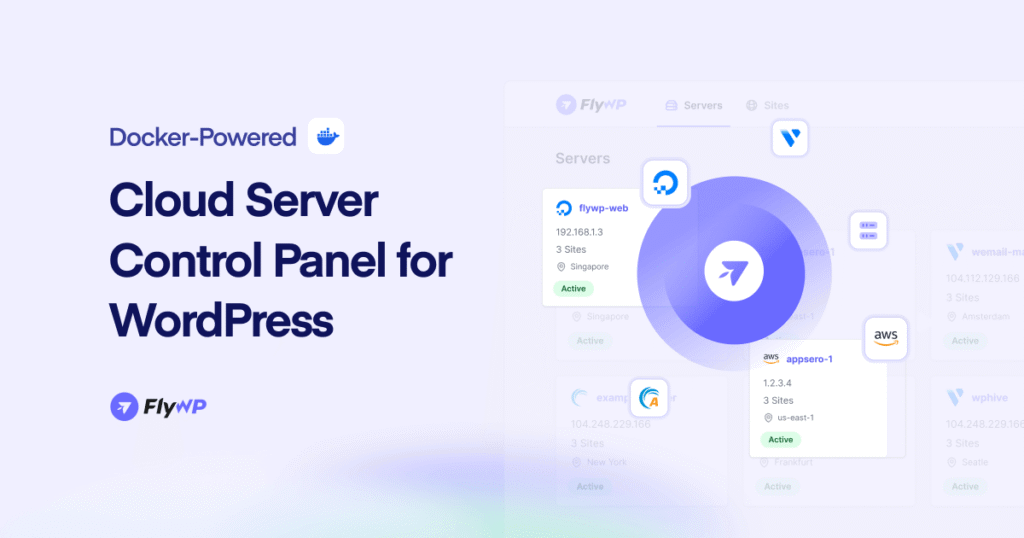
FlyWP allows you to:
- manage servers
- manage WordPress sites
- monitor performance
all from a single interface.
Launch Servers on Cloud Providers Easily
You can deploy servers on:
- DigitalOcean
- Vultr
- Akamai
without manual server setup.
Optimized WordPress Stack
FlyWP handles:
- server configuration
- caching setup
- performance optimization
Unified Billing
Instead of paying separately:
- server + control panel
You manage everything in one place with simplified billing.
Why This Matters
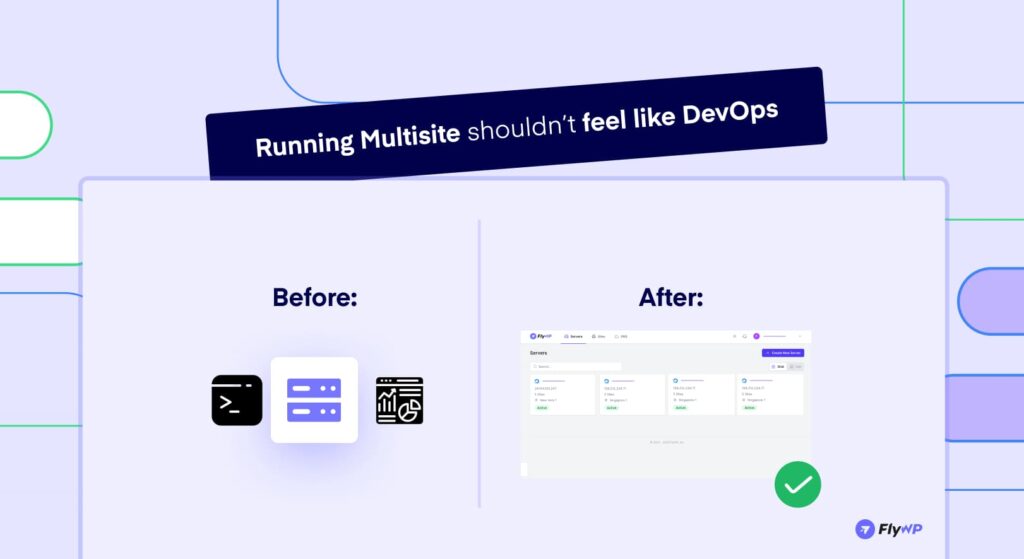
For agencies and growing businesses:
- less time managing servers
- more focus on building and scaling websites
WordPress Multisite FAQ
There is no hard limit on the number of sites a WordPress Multisite network can host. WordPress.com, which runs on Multisite architecture, hosts hundreds of millions of sites.
The practical limit is your server resources. A properly configured VPS with 8 GB RAM can comfortably run 50–100 moderately trafficked sites. For larger networks, separating the database layer and implementing full-page caching allows you to scale to hundreds or thousands of sub-sites.
Multisite can affect performance if the server is under-resourced or poorly configured. Because all sites share a single database and server resources, a traffic spike on one site affects all others.
However, with proper caching (Redis object cache + page cache), appropriately sized server resources, and a CDN, a Multisite network can deliver excellent performance – often better than an equivalent number of separate WordPress installs, because shared caching and a single optimised stack are more efficient overall.
Yes — WordPress Multisite is fully compatible with SEO best practices. Each sub-site can have its own SEO settings, meta tags, sitemaps, and canonical URLs. Plugins like Yoast SEO and Rank Math both support Multisite configurations. Subdomain sites are treated as separate entities by search engines, which is appropriate when sub-sites serve genuinely different audiences.
Subdirectory sites may benefit from shared domain authority, which can be advantageous for tightly related content networks. The key is ensuring each sub-site has its own SEO plugin configuration and is not inadvertently sharing duplicate content with other network sites.
Yes, WooCommerce is compatible with WordPress Multisite, but with important caveats. WooCommerce should not be network-activated – it should be activated per site.
Running WooCommerce across multiple sub-sites significantly increases server resource requirements; each WooCommerce store adds substantial database load compared to a standard WordPress site. For a Multisite network with multiple WooCommerce stores, plan for at least 8 GB RAM and a separate managed database. WooCommerce-specific plugins should also be individually tested for Multisite compatibility before deployment.
WordPress multisite hosting is hosting that runs many sites from one WordPress install. The sites share core files, themes, plugins, and a single database network structure.
Use multisite when the sites are related and you want centralized management. If the sites are unrelated, separate installs are usually safer and easier to isolate.
Usually not for unrelated client sites. One issue on the network can affect all sites, so many hosts and users prefer separate installs for clients.
Not automatically. Performance depends on the hosting plan and how much traffic, plugin load, and media usage the whole network creates.
Managed WordPress or a well-sized VPS are the most common choices. Shared hosting can work for light networks, but it often becomes a limit as the network grows.
Small networks may run on modest resources, but active networks usually need more RAM and CPU headroom. Community discussions often point to VPS or managed cloud setups once traffic rises.
Yes, multisite supports both. WordPress says you must choose one network structure during setup, and the choice depends on how you want site URLs organized.
Only if you use subdomains for on-demand sites. WordPress notes wildcard DNS is required for that setup, but not for every multisite network.
Yes, with domain mapping or custom domain setup. Community discussions commonly use this for networks that want each site to look independent.
Yes, but all plugins are installed at the network level first. Then each site can activate the plugins it needs.
Shared failure impact is the biggest risk. A bad plugin, traffic spike, or server issue can affect every site in the network.
Conclusion
WordPress Multisite is a practical solution for managing multiple related websites from a single system.
However, the real challenge is not enabling multisite – it’s hosting and scaling it properly.
Choosing the right infrastructure, optimizing performance, and managing resources efficiently are key to running a stable multisite network.
Platforms like FlyWP help simplify this by combining server management, cloud infrastructure, and WordPress optimization into one system.
With the right setup, multisite becomes easier to manage – and much easier to scale.