
Securing a WordPress site is no longer optional. With rising brute-force attacks, malware injections, and plugin vulnerabilities, applying proper WordPress security best practices is essential for agencies and site managers responsible for client infrastructure.
If you manage multiple websites, security is not a one-time task; it’s ongoing risk management. A hacked site rarely means just a quick fix. It often leads to emergency cleanup, client frustration, lost SEO rankings, and unplanned downtime. In most cases, the breach doesn’t start with WordPress core. It starts with outdated plugins, insecure themes, or weak server configuration.
In this guide, I’ll walk you through a structured approach to improving and securing your WordPress site. I’ll cover practical WordPress hardening steps and explain why combining application-level protection with WordPress server security creates a more stable and scalable defense.
TL;DR
To secure your WordPress site and reduce hack risks, follow these essential WordPress security best practices:
- Keep WordPress core, themes, and plugins updated
- Enable Two-Factor Authentication (2FA)
- Use proper file permissions (755 for folders, 644 for files)
- Implement WordPress server security (firewall + traffic filtering)
- Disable XML-RPC if not required
- Store backups off-site
- Isolate sites using containers (for VPS or agency setups)
Strong WordPress hardening combines application-level protection with server-level defenses for long-term stability and scalability.
The Reality of WordPress Security
WordPress security means protecting your website from unauthorized access, malware injection, brute-force attacks, and server-level vulnerabilities through proper updates, authentication, hardening, and infrastructure configuration.
According to security reports, the majority of WordPress vulnerabilities originate from outdated plugins and themes rather than WordPress core.
Most vulnerabilities originate from:
- Outdated plugins
- Poorly coded themes
- Abandoned extensions
- Weak authentication practices
If you manage 20 client websites, you are not maintaining one system. You are maintaining 20 separate plugin stacks, 20 update cycles, and 20 potential entry points.
Traditional security setups rely heavily on plugins. These plugins scan for malware, limit login attempts, and add firewall rules. But there is a structural limitation: they work only after WordPress loads.
That means:
- The request hits your server.
- PHP starts executing.
- WordPress initializes.
Then the plugin decides whether the request is malicious.
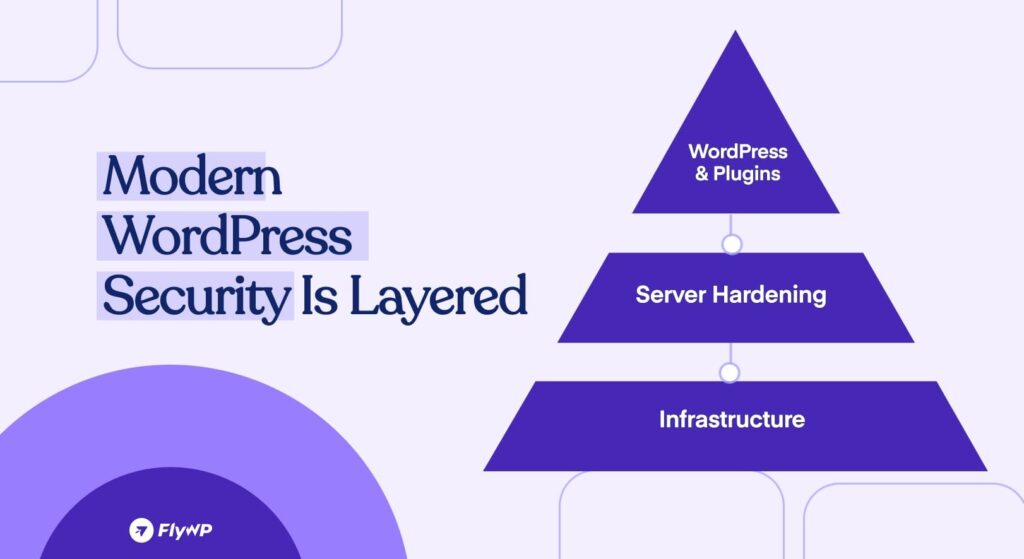
A better approach is to stop malicious traffic before WordPress even starts running. That is where server-level hardening becomes important.
1. Core Hardening: The Foundations You Cannot Skip
Before discussing advanced infrastructure security, you need to get the basics right.
Keep Everything Updated – But Do It Strategically
Updates remain one of the most important defenses. Many attacks target known vulnerabilities that already have patches available. However, manually logging into every site to check updates is inefficient and error-prone.
A centralized management system, like what FlyWP provides, allows you to:
- View updates across multiple sites from one dashboard
- Apply patches in bulk
- Reduce forgotten or delayed updates
For agencies, this turns updates from reactive work into a controlled process.
Strengthen Authentication
Weak login security is still one of the easiest ways for attackers gain access.
At a minimum, every site should:
- Enable Two-Factor Authentication (2FA)
- Avoid using “admin” as a username
- Use strong, unique passwords
Brute-force bots typically target /wp-admin and try common usernames. Removing predictable credentials immediately reduces exposure.
If you’re managing client access, avoid sharing passwords over email or chat. Temporary login systems or secure access links reduce credential leakage.
Fix File and Folder Permissions
File permissions are often overlooked but extremely important.
Standard secure configuration should be:
- Directories → 755
- Files → 644
Incorrect permissions may allow attackers to modify files or inject malicious scripts. If you provision servers manually, you need to pay attention. Modern server management platforms set secure defaults automatically, reducing configuration mistakes.
2. Move Security to the Server Level
When it comes to WordPress server security, relying only on plugins is often not enough. True WordPress hardening starts at the infrastructure level – before WordPress even loads.
If you are serious about protecting your WordPress site at scale, you must address infrastructure.
Isolate Sites from Each Other
Many agencies host multiple sites on the same VPS. If all sites share the same environment, a compromise in one site can affect others.
Container-based isolation solves this.
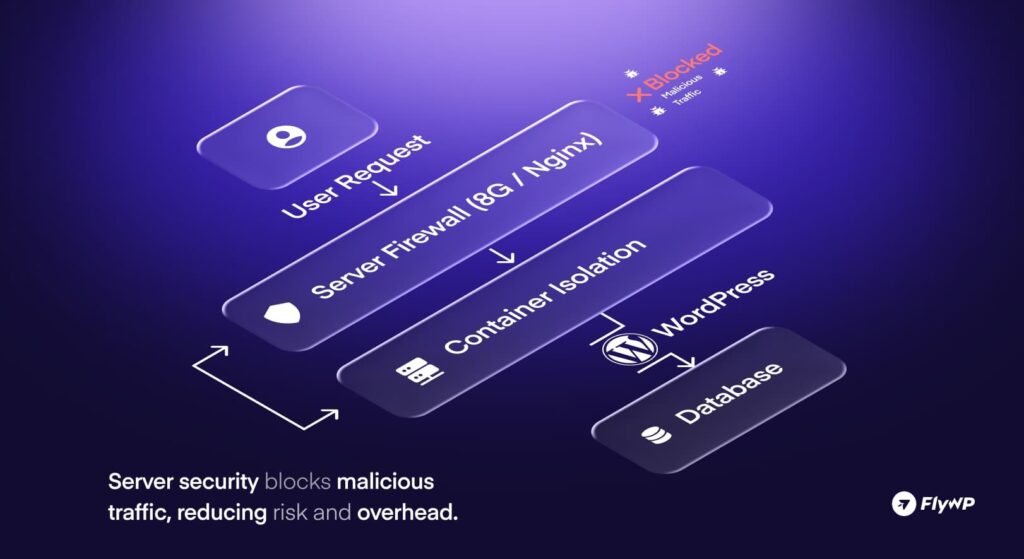
For example, FlyWP uses Docker containers to isolate each WordPress site. That means:
- Each site runs in its own container
- Separate file system
- Separate services
If Site A is infected, Site B remains untouched.
For agencies, this is not a luxury feature. It is risk containment.
Block Malicious Traffic Before WordPress Loads
Most popular security plugins, such as Wordfence, operate inside WordPress. They analyze traffic after PHP has started.
Server-level firewalls work differently.
With Nginx-level rules or 7G/8G firewall configurations:
- Suspicious patterns are blocked before PHP execution
- SQL injection attempts are filtered early
- Known malicious bots are rejected immediately
This reduces both risk and resource usage.
The practical benefit? Fewer server spikes during bot attacks and improved site performance.
Disable Unnecessary Entry Points
Some features in WordPress are rarely used but commonly targeted.
XML-RPC is one example. It enables remote publishing but is frequently abused for brute-force attacks.
Instead of installing another plugin to disable it, server-level toggles allow you to:
- Disable XML-RPC
- Restrict wp-admin access by IP
- Block direct access to sensitive files
Handling this at the server level keeps your WordPress stack lighter.
3. Secure the Database and File System
Beyond login and firewall protection, you must secure data storage and file execution paths.
Change the Default Database Prefix
WordPress installs with a default wp_ table prefix.
Automated attacks often assume this naming convention. Changing the prefix during setup reduces predictable attack patterns.
It is not a complete solution on its own, but it removes low-effort automated targeting.
Protect Critical Directories
Directories such as:
wp-contentwp-includes
Should not allow arbitrary PHP execution, especially inside upload folders.
Server-level rules can:
- Prevent PHP execution inside
/uploads - Block direct access to configuration files
- Restrict sensitive paths
This prevents many common malware persistence techniques.
Reduce Password Exposure
Many breaches happen not because of weak servers, but because credentials are shared insecurely.
Magic login systems allow temporary access without sharing actual admin passwords. These links expire automatically and reduce the risk of credential reuse or leakage.
For agencies managing developers and clients, this simplifies secure collaboration.
4. Backups and Recovery: Your Safety Net
Even with strong security, incidents can happen. The real question is not “Can you prevent every hack?” It is “How fast can you recover?”
Store Backups Off-Site
Never store backups on the same server as the live site.
If the server is compromised or fails, your backups disappear too.
Use remote storage such as:
- AWS S3
- DigitalOcean Spaces
- Google Cloud Storage
Off-site backups ensure that server failure does not equal total data loss.
Test One-Click Restore
Backup is incomplete without fast restoration.
If restoration requires manual reinstallation, database imports, and configuration, recovery becomes slow and stressful.
One-click restore allows you to revert to a clean state quickly. For client-facing agencies, this can be the difference between a minor incident and a long-term reputation issue.
5. WordPress Security Best Practices: Performance Without Heavy Plugins
Over time, many WordPress sites slowly accumulate security plugins. It usually starts with a firewall plugin. Then comes a login limiter. Later, a malware scanner is added. Eventually, another plugin is installed just to disable XML-RPC.
Individually, each plugin seems reasonable. But collectively, they increase complexity.
Every security plugin adds overhead. It increases:
- PHP execution time
- Database queries
- Memory usage
Most of these tools operate inside WordPress. That means every request must load WordPress first, initialize plugins, connect to the database, and then evaluate whether the request is safe. Even legitimate traffic goes through this full process.
When you manage high-traffic sites or multiple client websites, this overhead becomes noticeable. More plugins mean more potential conflicts, more update checks, and more maintenance work.
If security is handled at the server level instead, many of these plugin responsibilities become unnecessary. Firewall filtering, XML-RPC blocking, bot protection, and access restrictions can be applied before WordPress loads at all.
The practical result is:
- A cleaner WordPress stack
- Fewer plugin conflicts
- Better performance under load
- Lower long-term maintenance overhead
Security does not have to reduce performance. In many cases, infrastructure-level protection improves it because malicious requests are stopped before they consume PHP or database resources.
Plugin-Based Security vs. Server-Level Security
Here’s a simplified comparison:
| Feature | Plugin-Based Security | Server-Level Security (FlyWP) |
| Blocks bad bots | After WordPress loads | Before WordPress loads |
| Resource usage | Higher | Lower |
| Multi-site management | Per site | Centralized |
| Site isolation | No | Yes (Docker) |
| Performance impact | Moderate to high | Minimal |
If you manage one personal blog, plugin-based security may be sufficient. If you manage client infrastructure, server-level protection scales better.
How FlyWP Secures Your WordPress Ecosystem?
FlyWP isn’t just another hosting dashboard; it’s a dedicated security layer for your servers. Instead of waiting for a plugin to catch a threat, FlyWP shifts your defense to the infrastructure layer, stopping attacks before they ever reach your WordPress files.
- True Site Isolation (The Docker Advantage): On most servers, a single “dirty” plugin on one site can infect every other site on that server. FlyWP eliminates this “neighbor risk” by using Docker containers. Each site lives in its own isolated environment with a separate file system. If one site is targeted, the others remain untouched and secure.
- The 8G Firewall: Blocking Threats at the Gate: Most firewalls load after WordPress starts, consuming your CPU and RAM. FlyWP uses a server-level 8G Firewall (Nginx-based). It filters SQL injections, XSS attacks, and malicious bots at the server gate. This means malicious traffic is dropped before it can even touch your database.
- Centralized Agency Control: If you manage 20 sites, you shouldn’t have to do the same task 20 times. FlyWP allows you to manage bulk updates, backups, and security headers for all your sites from a single, centralized dashboard.
- Effortless Hardening (One-Click Security): Hardening a site usually requires manual coding or multiple plugins. FlyWP provides a Security Dashboard where you can toggle professional-grade settings in seconds:
– Disable XML-RPC: Shut down the #1 door for brute-force attacks.
– Protect Sensitive Directories: Shield your wp-config.php and wp-content folders from direct execution.
– Magic Login: Access your admin dashboard securely without sharing or storing passwords.
Summing Up
WordPress security is not about installing more plugins. It is about structuring your environment correctly.
If you manage multiple sites and want to move from reactive security to infrastructure-level protection, testing a platform like FlyWP with its 14-day trial can help you evaluate how much operational risk you can remove.
Because protecting your WordPress site should be systematic, not dependent on remembering one more plugin update.
WordPress Security FAQ
Below are the most common questions about how to secure a WordPress site, including practical WordPress hardening strategies and server-level security considerations.
No, Wordfence alone is not always enough for complete WordPress security. It protects at the application level after WordPress loads, but it cannot fully secure the server environment. For stronger protection, combine plugin security with server-level controls.
You can secure WordPress without a plugin by applying proper WordPress hardening at the server level. This includes firewall rules, login rate limiting, file permission control, and disabling unnecessary services. When security is managed at the server level, plugin dependency is reduced.
The most common threats include brute-force login attacks, outdated plugin vulnerabilities, malware injections, and SQL injection attempts. Most successful attacks exploit weak passwords or unpatched software. Regular updates and login protection significantly reduce risk.
You should update them immediately after stable releases. Most WordPress hacks happen due to outdated plugins or themes. Enable auto-updates where possible and monitor for compatibility issues.
For most users, yes. Security plugins provide firewalls, malware scanning, and login protection at the WordPress level. However, infrastructure-level protection offers stronger, pre-WordPress defense.
Use strong, unique passwords and enable 2FA. Limit login attempts and restrict access to /wp-admin/ where possible. Blocking malicious traffic before PHP execution adds stronger protection.
Restrict access to wp-config.php using server rules and proper file permissions. Files should typically be set to 644 and directories to 755. Also, disable file editing inside WordPress to reduce exploitation risk.
Yes, XML-RPC is frequently abused for brute-force and DDoS attacks. If you don’t use it for services like Jetpack, disable it. Blocking it at the server level is more efficient than plugin-based control.
SSL encrypts data between users and your website, preventing interception. Services like Cloudflare add WAF protection, DDoS mitigation, and bot filtering. This strengthens WordPress server security before traffic reaches your site.
Backups and monitoring are critical for recovery and early detection. Even a secure WordPress site can be compromised. Automate daily off-site backups and regularly test restoration.
No, nulled themes and plugins are high-risk. They often contain hidden malware or backdoors. Always download from official or trusted sources.
Yes, hosting directly impacts WordPress security. Secure server configuration, firewalls, and isolation prevent cross-site contamination. Container-based isolation improves security in multi-site environments.
Immediately change all passwords and scan for malware. Restore from a clean backup if available. Then strengthen both WordPress hardening and server-level protection to prevent recurrence.
Yes, you can secure your WordPress website without deep technical expertise. With a platform like FlyWP, many WordPress hardening and server security configurations are handled at the infrastructure level, reducing the need for manual setup. You still follow basic best practices like strong passwords and updates, but the heavy lifting is simplified.